Video Chat with a Pro Audio Expert - Live

CEDAR Audio Cedar Studio Retouch 9 Plug-In

BH #CECS9RETOUCH • MFR #CS9 RETOUCH
Print
CEDAR Audio Cedar Studio Retouch 9 Plug-In
Key Features
  • Identify and Eliminate Audio Problems
  • Clean and Manipulate Audio Files
  • Interpolation, Cleanse, Repair Tools
  • Mac/Windows, AAX/AU/VST2/VST3
Part of CEDAR Studio suite of advanced audio processors, CEDAR Audio Retouch 9 is a spectral-editor plug-in compatible with most DAWs operating in AU, VST2, VST3, and AAX formats. With its enhanced Machine Learning and AI capabilities, it is the tool of choice for mastering studios, mix suites, post houses, forensic laboratories, and anyone else who needs to identify, isolate, and manipulate individual sounds within an audio file to eliminate a wide range of common problems and significantly improve the sound quality of their audio.
More Details
No Longer Available
No Store Display
Ask an Expert
800-952-1815

CEDAR Audio CS9 RETOUCH Overview

Part of CEDAR Studio suite of advanced audio processors, CEDAR Audio Retouch 9 is a spectral-editor plug-in compatible with most DAWs operating in AU, VST2, VST3, and AAX formats. With its enhanced Machine Learning and AI capabilities, it is the tool of choice for mastering studios, mix suites, post houses, forensic laboratories, and anyone else who needs to identify, isolate, and manipulate individual sounds within an audio file to eliminate a wide range of common problems and significantly improve the sound quality of their audio.

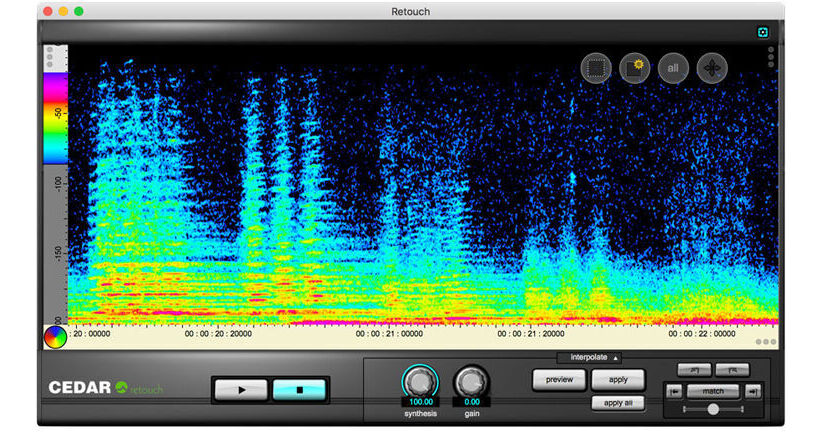
Unlike conventional restoration tools, Retouch 9 provides a wide range of time/frequency editing (TFE) capabilities and allows you to define the temporal and spectral content of the sound you want to remove. The software enables you to mark and process complex areas in its spectrogram using the types of tools commonly found in powerful photographic and image manipulation software. This makes it possible to identify all manner of sounds and noises, which can then be manipulated using any of the processing tools at your disposal.

Retouch is supplied as a standalone application to VST and AU users. No workstation or other host software is required.

Note:
CEDAR Studio Retouch 9 is authorized using an iLok.
Using Machine Learning to Identify Problems
Matching
Match allows you to mark one of the offending sounds and then ask the machine learning algorithm in Retouch 9 to find all of the other instances within the recording. A threshold control even allows you to bias its decision making toward including more or fewer possibilities, so you can find the level that includes everything that you want to remove but precludes events that seem similar but are actually wanted signal.

Having identified all of the matches, you can then eliminate them using the appropriate Retouch tool. You can process them individually, authorizing and applying the chosen tool to each, or you can process all of the matches as a group. Retouch 9 will fly through the whole file in a tiny fraction of the time needed with human intervention.

Retouch Tools
Interpolation
This is the classic spectral editing mode that suppresses or removes problems seamlessly. It allows you to define an unwanted sound, remove it at the touch of a button, and replace it using powerful models that analyze the surrounding audio and then rebuild what would have been there had the noise not occurred.
Repair: Putting the AI into Spectral Repair
If you use spectral editing regularly, you already know the scenario: you mark a region, and you want to affect a single sound within it, suppressing or accentuating it while leaving the background untouched. Repair uses AI to achieve precisely that. Just mark the sound and some of the surrounding signal in the usual fashion and then use a single knob to suppress or accentuate it. Unlike other spectral editing tools, only the significant signal within the region is identified and processed; all low-level signals as well as the ambience are left unaffected.
Patch
Patch mode allows you to replace an area of audio with another of the same duration and the same range of frequencies (although not necessarily of the same frequencies). Think of this as copying the data from elsewhere in the spectrogram to the region that you initially defined. It includes a pitch-shifting algorithm that takes into account the relative pitch of components within the audio selection, greatly aiding the correction of harmonically rich material and even allowing you to correct the pitches of incorrect notes within musical material. It's also invaluable when working with background/atmos.
Copy
Copy mode allows you to move an area of audio to another position. You can think of this as copying the data from a defined region to anywhere else in the spectrogram. This tool includes a pitch-shifting algorithm that takes into account the relative pitch of components within the audio selection, greatly aiding the correction of harmonically rich material and even allowing you to correct the pitches of incorrect notes within musical material—invaluable when working with atmos.
Erase
This mode provides a quick and simple way to erase unwanted audio quickly and accurately and replace it with background/atmos calculated from the surrounding audio.
Volume
You may affect the amplitude of the signal within a region, and independently affect the amplitude of the signal lying outside that region. This allows you, for example, to reveal individual sounds or utterances within a file, either by amplifying the wanted sounds or by suppressing the rest of the audio, or both. By marking multiple regions simultaneously and reducing the amplitude of the outside to its minimum, you can use this to retain only the sounds or words wanted in an audio file.
Cleanse
Despite the power of Interpolation, Patching, and Copying modes, there are times when those modes are unable to eliminate unwanted sounds quickly and efficiently. Examples of this include restoring sounds such as wanted speech in the presence of strong, but relatively short-lived background noises such as gusts of wind blowing across a microphone. Cleanse mode was developed specifically to help in these situations, and will separate the wanted signal from the unwanted and allow you to suppress the noise at the touch of a button. Don't be misled; this isn't a rehash of existing noise reduction methods, but a powerful new patented process.
Revert
Revert allows you to define any part of the spectrogram and return it to its original, unprocessed form. Much more powerful than stepping backward and forward through a list of actions, this allows the user to reinitialize any part of the audio no matter where it came in the process history, thus leaving later work untouched. You don't even have to revert whole retouch operations. If you like the result of a single process, say, the end of a note, but feel that you could do better at the start of the note, you can reinitialize and reprocess this section of the audio no matter how many Retouches you have performed elsewhere since then. It's so quick and so powerful that you'll wonder how you ever worked without it.

CEDAR Audio CS9 RETOUCH Specs

Delivery Format
Download
License Type
Standard: Perpetual License
User Support
1 User
Standalone Operation
Yes
System Compatibility/Requirements
Operating System: Windows/macOS
Plug In Formats: VST3 / VST2 / AAX (Native) / AU
USB Key Authentication: Required (iLok)

CEDAR Audio CS9 RETOUCH Reviews

See any errors on this page?
Whatever You Need, We've Got It