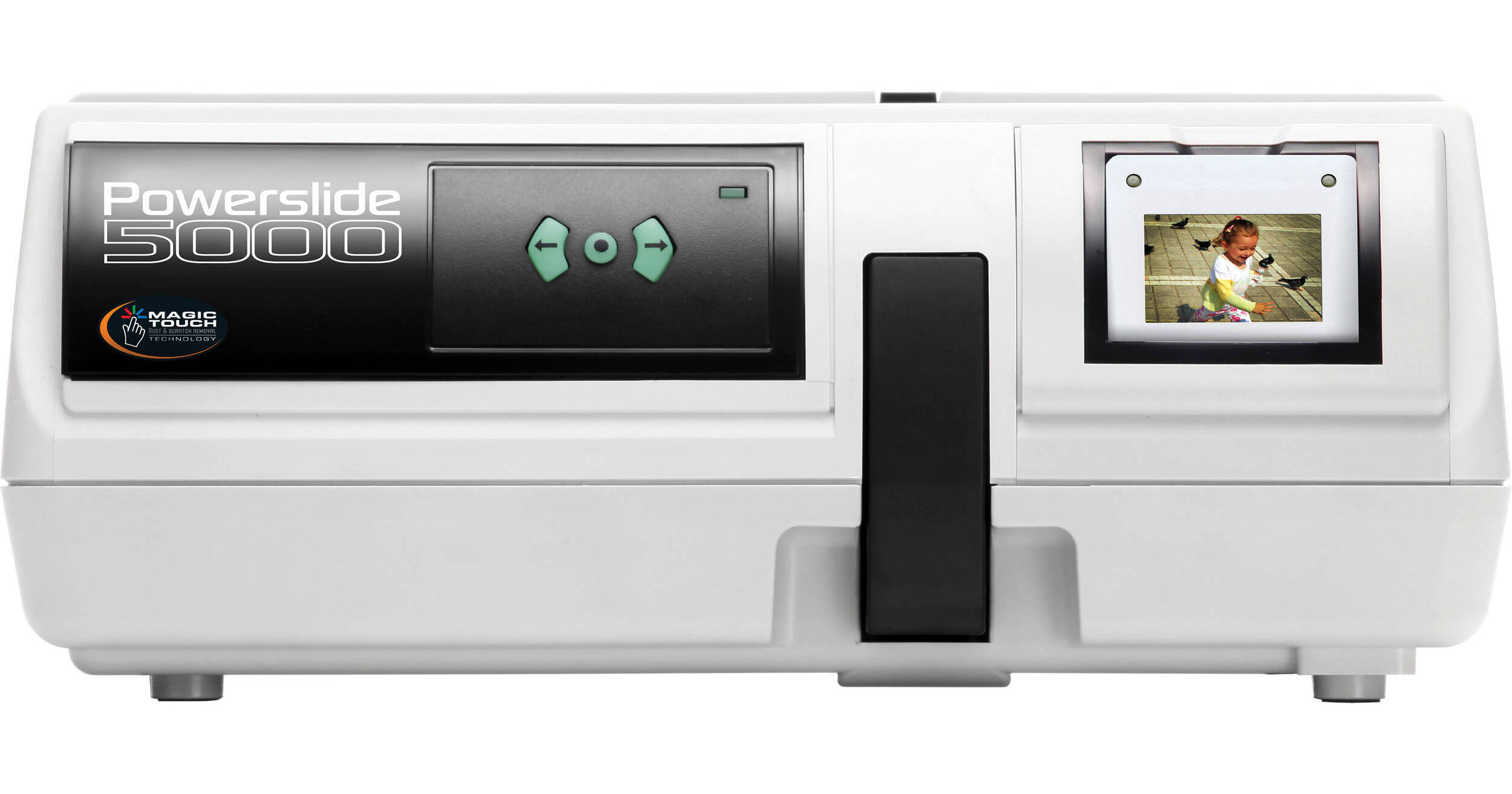
The Pacific Image PowerSlide 5000 CCD Slides Scanner is designed to convert large numbers of 35mm mounted slides into digital files that can be searched, processed, printed, or delivered electronically. With its impressive optical resolution of 5000dpi and 48-bit data conversion, the PowerSlide 5000 will deliver digital files that remain true to the original images.
The included slide magazine gives the scanner the ability to convert up to 50 mounted slides at a time. The Powerslide 5000 also includes software to streamline your digital workflow: Magic Touch for automated dust and scratch removal, and the popular Adobe Photoshop Elements for easy editing and organizing of your images.
| Film Types | 50mm x 50mm Mounted Slides |
| Scan Quality | |
|---|---|
| Scan Sensor | Linear Array Color CCD |
| Optical Resolution | 5000dpi x 5000dpi |
| Scanning Area | 37mm x 37mm (max) |
| Color Depth | 48-bit |
| Data Distribution |
48 bits per pixel (color mode) 16 bits per pixel (grayscale mode) |
| Dynamic Range | 3.8 Dmax |
| Focus System | Auto Focus |
| Performance | |
|---|---|
| Preview Speed | Not specified by manufacturer |
| Scan Speed | Not specified by manufacturer |
| Batch Scanning | 2MB Buffer |
| Automation | Magic Touch Dust & Scratch Removal |
| Connectivity | |
|---|---|
| Computer Interface | USB 2.0 only |
| OS Compatibility |
Windows: XP, Vista, Windows 7 Mac: v10.4.8 - 10.5.2 |
| System Requirements |
Windows: Intel P4 (Core 2 Duo recommended), 1 GB RAM minimum, 10 GB
free hard disk space, DVD-Rom drive (DVD-R drive required to make DVD image archive disks & CD-R drive to make slide shows) Mac: Intel-based processor, Intel Core 2 Duo, speed 1.8 GHz, 1 GB, 667 MHz, DDR2 SDRAM 1 Please Note:PowerPC NOT SUPPORTED close |
| Physical | |
|---|---|
| Light Source | White and Infrared (IR) LED Array |
| Power Requirements | 100-240V AC, 50/60Hz |
| Power Consumption | 12VDC / 3A |
| Dimensions (WxHxD) | 11.4 x 4.9 x 11.8" (29 x 12.5 x 30 cm) |
| Weight | 5.5 lbs (2.5kg) |
REVIEW SNAPSHOT®
by PowerReviewsPros
Cons
Best Uses
Most Liked Positive Review
Very Good - But not Perfect
This scanner provides good to excellent resolution. The included software is good but not entirely intuitive so take the five minutes or so to read the instructions.
Where it falls short...Read complete review
This scanner provides good to excellent resolution. The included software is good but not entirely intuitive so take the five minutes or so to read the instructions.
Where it falls short is in the automation. If your slides are in good to excellent condition, this scanner works great. But if you have -- or inherited in my case -- several thousand slides that were stored poorly, left in basements in carousels and are now bowed or even slightly delaminating, watch out. You will spend a lot of time unjamming the machine. Any jam is a huge chore with this scanner and the plastic parts around the carriage mechanism don't inspire using force, even though force is frequently required. The software also makes recovering from jams awkward.
Eventually I discovered that by filling every other slot on the feed tray with problem slides I could eliminate most jams.
The embedded software does a reasonable job of cleaning up the slide, but plan on spending some time with Photoshop or other editing software to get the best results.
Definitely get a second feed tray if you have a lot of slides to copy. You will certainly have time to load it while the first is copying.
I would buy this machine again, but I would also hope the manufacturer would at least offer guidance on how to deal with old slides as well as develop a more tolerant feed mechanism to accommodate the less than perfect slide.
VS
Most Liked Negative Review
Not good enough
Evaluation of PowerSlide 5000 and its CyberView x5 software
Pros:
Technical support is accessible, friendly and helpful by email and by phone.
The 'Crop' function is...Read complete review
Evaluation of PowerSlide 5000 and its CyberView x5 software
Pros:
Technical support is accessible, friendly and helpful by email and by phone.
The 'Crop' function is accurate and automatic (if so requested).
Cons:
'Magic touch' was advertized as a favorable capability but it cannot work with Kodachrome slides; to the best of my knowledge this was not disclosed before one actually purchases the scanner and reads the User's Manual. This is very disappointing to me and most likely to others as most of my slides are Kodachrome.
The mechanical slide loader mechanism is quite defective; at times the 'slide transport arm' misses a slide w/o the PowerSlide 5000 software recognizing it and it scans nothing. At times, especially with the first slide the 'slide transport arm' misses it and gets stuck between the magazine and the machine door. Also, when the 'slide transport arm' gets stuck for any reason there is no safety mechanism to let go immediately.
The instructions in the User's Manual and as printed on the PowerSlide 5000 chassis can be interpreted only in one way: The emulsion shall be facing slot number 1 in the magazine, yet the technical support technician's instructions on the phone and by e-mail are completely different (by the way, the technician is right; the book and the chassis printed instructions are wrong).
To the best of my knowledge and experience with PowerSlide 5000 and Cyberview the latter does not have other capabilities such as sampling in high DPI and averaging down or averaging multiple runs.
In summary, if I knew all this before buying this system I would most likely not buy it.
Reviewed by 21 customers
Sort by
Displaying reviews 1-20
Previous | Next »
Pros
Cons
Best Uses
Comments about Pacific Image PowerSlide 5000 CCD Slides Scanner:
hope my comments below will be helpful to others in getting quickly accustomed to and acquainted with the PS5000. I had some difficulty at first, due in part to my ignorance and inexperience in using gear like this, and also due in part to idiosyncrasies of the equipment, the software, and the users manual. Specifically, I experienced frequent false starts, missed slides, and hang-ups when starting with slide tray position #1, and also when I positioned the first slide to be scanned by manually moving the tray into position and then pushing the arm in myself. . These and other difficulties were eliminated by developing and rigorously adhering to the following set of "Standard Operating Procedures". The user's guide would be significantly improved if it included such a 'starter set' of procedures. The major problem I had with the software resulted from the system being delivered with a bad driver disc. This was cured by downloading the s/w as directed by the technical support perspnnel.
I now have scanned about 1200 slides using these procedures. I load 49 slides into the "Universal" tray, set my preferences, come back in a couple of hours and repeat the process. I have read comments about the noise, but I do not find that to be a problem. use the Universal tray the following procedures,
The technical personnel I dealt with have been extremely patient and professional as they helped me through my "learning curve", and to find solutions and work-arrounds for all the start-up problems I encountered.
Standard Operating Procedures as of May 23, 2012
These procedures were designed in order to work around and to avoid the difficulties which would otherwise be encountered due to the ignorance and/or in-experience of the operator; and various
congenital defects with the equipment, the software, and the users manual.
The task at hand is the archiving of a very large number of slides (35mm positive transparencies). Slides are being scanned at 2500 DPI, 16-bit color directly to TIF Files with no pre-scaning.. All of the 'Advanced' features are selected along with ;Magic Touch'.
At Initial Start-up it is assumed that the scanner is OFF.and the S/W has not been started
1. Turn Scanner ON. Do this with NO tray inserted and BEFORE starting the CyberViewX5 s/w.
2. Let the Scanner ALONE until its 'Green Light' glows steady.
3. Load slides into the Universal Tray: Place slides up-side down and backward (with emulsion side facing to the left: that is, toward slot #50). NOTE: To avoid certain encountered but unexplained difficulties, I always load Slide #1 into Slot #2 of the tray.
4. Insert Tray into Scanner from the left until slide #1 is past the 'arm'.
5. Press the 'forward' or 'backward' arrows until slide #1 from slot #2 is inside the scanner.
6. Invoke the CyberviewX5 Software.
7. Click on the "Reload Magazine" icon (3rd from right). Slide #1 in Slot #2 should now be in position and ready to be scanned
8. Click on Scan/Preferences/Positive. Settings from the previous execution of CyberViewX5 may have been preserved and, if so, no further action need be taken. Otherwise:
--- Check and modify "Advanced Settings", and set desired DPI and Color Setting..
--- Browse for and set the 'Directory name' of the folder where the slides will be scanned into.
---Set the "base name" to be used in naming the slide files.
---Assign the 'starting #' to be added to "base name' to form the file-name for slide #1.
This value will incremented by one for each following slide.
-----Example: If "base name" is "Hawaii Trip-" and 'starting #' is 47,
then the names of the files will be: "Hawaii Trip-047, Hawaii Trip-048, etc
9. Click "OK". Then Click SCAN / Scan Multiple to File. Do not use 'Prescan'.
10. Set 'Range'. This is the Slot numbers in the tray that you want to scan
Slot#1 will be the slot where the arm was positioned when you pressed "Reload Magazine".
If I have, say 23 slides in the tray with the arm positioned at slide#1, but wanted only the first 9, then set range = 1-9. If only every other slide is to be scanned, set range = 1, 3, 5, 7, …
11. Say a prayer and press OK. Watch the machine. It should extract slide #1, insert slide #2, extract slide #2, then insert slide #1 and begin the scanning process.
12. If more trays of slides are to be scanned, return to step #3 above. Otherwise,
13. Click on "Scan/Exit/Yes" to preserve all of the Preference Settings for your next run.
14. Turn Scanner OFF and place Cover over Slide Tray Channel.
Pros
Cons
Best Uses
Comments about Pacific Image PowerSlide 5000 CCD Slides Scanner:
The PowerSlide 5000CD unit was easy to setup and use. I have scanned around 2000 slides and have not had any issues.
Pros
Cons
Best Uses
Comments about Pacific Image PowerSlide 5000 CCD Slides Scanner:
After reading all of the reviews here (some with helpful hints) I decided to buy this scanner. I intend to scan some 10,000 slides with it in universal trays of 50. So far I've scanned about 100 slides and the results are fine. As others have mentioned, this is not a 'plug-and-play' type device - it is essential to read the instructions but after that it's pretty straightforward. It works well, the only problem I've had is that the computer goes to sleep after 15 minutes of inactivity (it doesn't recognise the various screen outputs, progress bars etc which are produced during the scanning process as activity), Cyberview crashes and the scanner stops working. Only a ctrl-alt-del will restart the system and the scanner needs to be turned on and off to wake it up. Simple solution: turn off your computer's hibernation.
Playing around with the various settings is also a good idea to get the best output. I'd happily recommend this product to anyone looking for a good value-for-money scanner.
Pros
Cons
Best Uses
Comments about Pacific Image PowerSlide 5000 CCD Slides Scanner:
I bought this Pacific Image scanner several months ago and used it to scan my entire collection of 35,000 slides. I ran this scanner 24 hours a day, 7 days a week for many months and didn't have any problems and am very satisfied with it. This scanner is a real workhorse and performs like a trooper, and I heartily recommend it.
This is the fourth slide scanner I've owned, including two Minolta Dimages in the early 2000's and a Plustek 7600, which I bought a few months ago. All my other slide scanners take only four slides at a time and are manually fed. This Pacific Image scanner handles 100 slides automatically when used with an optional Braun round tray. Regarding image quality, the scans are very good; far superior to the Dimages but a shade below the Plustek, which has 7,200 dpi.
I had a lot of problems with the included Cyberview scanning software, so instead I used VueScan and was very pleased with it. I suggest also getting IT8 color calibration slides, since they greatly improve color accuracy. The scanner comes with a 50-slide tray, but some of my slides jammed in the tray, so I bought two round Braun 100-slide trays and used those instead. None of my 35,000 slides jammed while I used the round trays and I recommend getting at least one tray, if not two.
The scanner is noisy, so I put it in an empty room and monitor the progress via my WiFi. Each slide takes about five minutes to scan, or about seven hours for a 100-slide tray, so I start scanning a tray before going to bed and then swap out trays in the morning. Regarding dust removal, I use a camel-hair brush and gently brush each slide before inserting into the tray. Of course, I also use the automatic dust removal setting in VueScan. Beware that some scanning software will create a halo around scanned images from Kodachrome slides when dust removal is turned on. VueScan doesn't do this, but some scanning software does.
Overall, especially considering the automation, this scanner trumps any other slide scanner I've owned and I'm very pleased with it. I've tried using flatbed scanners to scan slides but they don't work well at all -- don't waste your time trying to do it this way. If you want quality results, you must use a film scanner, and of all the film scanners I've used, this Pacific Image scanner is the best. Be prepared for some pre- and post-scanning work for the slides. But despite that, I'm very satisfied with this scanner and I heartily commend Pacific Images. And it's amazing to finally see my entire slide collection!
Pros
Cons
Best Uses
Comments about Pacific Image PowerSlide 5000 CCD Slides Scanner:
I use this scanner primarily for card mounted slides. Resolution is variable from 250-5000 dpi in seven steps. The quality is quite satisfactory on the computer, but I have yet to project on HD TV. I would buy this product again.
Negatives: I bought this scanner digitizing my slide collection, which is mostly KODACHROME. However the included software does not scan this format accurately. Fortunately there is software out there that will do this. The support person for Pacific Image is very responsive, and helped solve this and other problems.
I had a problem with the slide arm misalignment, with the arm bypassing the slide mount after 1/2 insertion. This was solved by bending the scanner arm.
Pros
Cons
Best Uses
Comments about Pacific Image PowerSlide 5000 CCD Slides Scanner:
Works great for 35mm slides. As with most machines you need to be careful with it. I love being able to load up the tray and just walk away and let it do it's thing. A little pricey but it is definitely worth if you have a large amount of slides to scan. Sometimes it crops incorrectly with dark slides but that really isnt an issue for me. The scanner software looks very dated and could be more user friendly. But once you understand the steps the operation is extremely easy.
Pros
Cons
Best Uses
Comments about Pacific Image PowerSlide 5000 CCD Slides Scanner:
Unfortunately, I am only able to use this scanner manually; inserting one slide, scan it and then insert the second slide. The magazine approach fails to work for either cardboard slides or plastic slide frames. If you have a few hundred slides and believe the Powerslide 5000 will be "set it and forget it" for 50 slides at a time - you will be disappointed.
Pros
Cons
Best Uses
Comments about Pacific Image PowerSlide 5000 CCD Slides Scanner:
Works great after I figured out the orange push tab on the feeder arm.
Pros
Cons
Best Uses
Comments about Pacific Image PowerSlide 5000 CCD Slides Scanner:
As you'd expect, this unit scans slides in batches. Figuring ou the loading process is a bit of trial and error, but once you have it down it is not a chore.
The scanning process itself is straight forward. Scan times are in the 2 minute range for 2500 DPI (longer times for high resolutions). Very admirable.
A few issues with some slides getting scanned out of focus or with improper exposure. These types of issues are like the 1 in 50 (1 slide mis-scanned per batch).
Pros
Cons
Best Uses
Comments about Pacific Image PowerSlide 5000 CCD Slides Scanner:
Evaluation of PowerSlide 5000 and its CyberView x5 software
Pros:
Technical support is accessible, friendly and helpful by email and by phone.
The 'Crop' function is accurate and automatic (if so requested).
Cons:
'Magic touch' was advertized as a favorable capability but it cannot work with Kodachrome slides; to the best of my knowledge this was not disclosed before one actually purchases the scanner and reads the User's Manual. This is very disappointing to me and most likely to others as most of my slides are Kodachrome.
The mechanical slide loader mechanism is quite defective; at times the 'slide transport arm' misses a slide w/o the PowerSlide 5000 software recognizing it and it scans nothing. At times, especially with the first slide the 'slide transport arm' misses it and gets stuck between the magazine and the machine door. Also, when the 'slide transport arm' gets stuck for any reason there is no safety mechanism to let go immediately.
The instructions in the User's Manual and as printed on the PowerSlide 5000 chassis can be interpreted only in one way: The emulsion shall be facing slot number 1 in the magazine, yet the technical support technician's instructions on the phone and by e-mail are completely different (by the way, the technician is right; the book and the chassis printed instructions are wrong).
To the best of my knowledge and experience with PowerSlide 5000 and Cyberview the latter does not have other capabilities such as sampling in high DPI and averaging down or averaging multiple runs.
In summary, if I knew all this before buying this system I would most likely not buy it.
Pros
Cons
Best Uses
Comments about Pacific Image PowerSlide 5000 CCD Slides Scanner:
Like many, I have the old family slides that will never be seen unless scanned into a different format. I am a very amateur level user although comfortable with technology and enjoy figuring out how things work. The latter was necessary for this device.
Minuses: 50 slide bulk scanning cassette that comes with it says it's unsuitable for cardboard mounts and that's most of what I had (required universal tray for cardboard hard to find so I've been doing single scans). Software a little buggy on my Mac. Even though the scan does corrections, I found it best to manually tweak the most important individual images in iPhoto (more user friendly than Photoshop Elements that comes with it). This was especially needed for old slides with color issues that required individual corrections.
Pros
Cons
Best Uses
Comments about Pacific Image PowerSlide 5000 CCD Slides Scanner:
Once I got the scanner working I have been impressed with it. I did have to download a new driver and call tech support a couple of times but they were most helpful. I have over 10K slides to scan and this is a great help
Pros
Cons
Best Uses
Comments about Pacific Image PowerSlide 5000 CCD Slides Scanner:
Have done about 400 of 1200 slides so far. Does a great job on scanning, but the auto feed mechanism leaves much to be desired. Very sensitive to the mount thickness, the push arm needs a redesign to eliminate partial feeds of thin mounts. Would have been better to use a top feed mechanism (such as the Kodak Carosel) than the side feed concept. But still better than doing them manually.
Pros
Cons
Best Uses
Comments about Pacific Image PowerSlide 5000 CCD Slides Scanner:
I have a large collection of slides from 50 years of photography. I have tried earlier devices to move slides to digital data but all were slow and did not provide a satisfactory product. The "PowerSlide 5000 is just the device I have been waiting for!It has multiple choices for quality and even the lowest level of quality gives a very good picture on a big screen TV. Very good tech support but is a bit costly but well worth it. A great product, get one today!!!You will like it!
Pros
Cons
Best Uses
Comments about Pacific Image PowerSlide 5000 CCD Slides Scanner:
If you have old slides to scan do not get this. I called help to find the source of the Universl slide tray they said to use for cardboard slides. Got them but it does not help. The transport arm puts the slide in - takes it out then trys to put it back in and jams. They should never suggest that it can be used for older slides. That was [$] dow the drain.
Pros
Cons
Best Uses
Comments about Pacific Image PowerSlide 5000 CCD Slides Scanner:
Driver shipped w/ scanner doesn't work w/ Snow Leopard.
Pacific Image web site updated driver renders unacceptable errors in 10% of jpgs scanned.
Much better results with VueScan than Pacific Image controller software.
Consider a used Nikon scanner.
Pros
Cons
Best Uses
Comments about Pacific Image PowerSlide 5000 CCD Slides Scanner:
I am scanning 3000 family slides. This is making it much less time consuming than doing it one at a time.
Pros
Cons
Best Uses
Comments about Pacific Image PowerSlide 5000 CCD Slides Scanner:
This scanner provides good to excellent resolution. The included software is good but not entirely intuitive so take the five minutes or so to read the instructions.
Where it falls short is in the automation. If your slides are in good to excellent condition, this scanner works great. But if you have -- or inherited in my case -- several thousand slides that were stored poorly, left in basements in carousels and are now bowed or even slightly delaminating, watch out. You will spend a lot of time unjamming the machine. Any jam is a huge chore with this scanner and the plastic parts around the carriage mechanism don't inspire using force, even though force is frequently required. The software also makes recovering from jams awkward.
Eventually I discovered that by filling every other slot on the feed tray with problem slides I could eliminate most jams.
The embedded software does a reasonable job of cleaning up the slide, but plan on spending some time with Photoshop or other editing software to get the best results.
Definitely get a second feed tray if you have a lot of slides to copy. You will certainly have time to load it while the first is copying.
I would buy this machine again, but I would also hope the manufacturer would at least offer guidance on how to deal with old slides as well as develop a more tolerant feed mechanism to accommodate the less than perfect slide.
Pros
Cons
Best Uses
Comments about Pacific Image PowerSlide 5000 CCD Slides Scanner:
I previously scanned 12,000 family slides (35mm, 2x2) using a Konica-Minolta DiMAGE Dual Scan IV. (It had a tray that could handle 4 slides per batch.) For the additional 12,000 slides that I got from my aunt, I decided I could not babysit the DiMAGE (which it requires). So I Google'd about and decided to purchase the PowerSlide 5000. Oh my goodness, what a treat to myself that decision was! This thing takes 50 slides -- cardboard or plastic -- and goes about its merry business without any babysitting. The slides quickly and easily load into the magazine, the magazine slides into the scanner with ease, a couple of clicks of the software and you can walk away for just less than an hour. I couldn't be happier with the ease of use as well as the design. (The PowerSlide is designed to scan batches, it is NOT an extra attachment that has to be hooked onto the scanner like others that I researched.)
Pros
Cons
Best Uses
Comments about Pacific Image PowerSlide 5000 CCD Slides Scanner:
After looking at the costs of sending out slides we decided to go with purchasing a good scanner that can do batch processing. We don't have to go through the time and pain of choosing which slides are "worth" scanning. We can scan them all. After a lifetime of trips to 27 countries we can move our memories into the digital age, easily and by ourselves without the anxiety of sending them out through the post. My advice READ the instructions and follow them. Also, one little hickup, there are two icons that get you to a command for doing a batch scan - Use the one in the lower tool bar! Set it up, walk away and let it do its thing!
Displaying reviews 1-20
Previous | Next »