
One of the magical aspects of modern photography is the ability to review an image instantly within our EVF (electronic viewfinder) or right on the back of the camera.
Frequently, one possible mistake that digital photographers make is when reviewing an image on their camera—they evaluate exposure based on the reproduced image. Why might this be a mistake? Well, both your camera’s LCD and EVF likely have adjustable brightness. Also, you might be viewing your images in bright sunlight or in the pitch black of night. Just as viewing a computer screen at work, or a television in your home, ambient light, screen brightness, and other factors affect the image that you view.
You should evaluate your LCD for composition and look to see if your depth of field, sharpness, and motion blur or freezing of action is what you were aiming for. Of course, if you have completely missed on your exposure, you may see that in an extremely bright or dark image. So, how can we fine-tune our exposure if we cannot trust what our eyes see on the reproduced image? The answer is simple; look at the histogram.
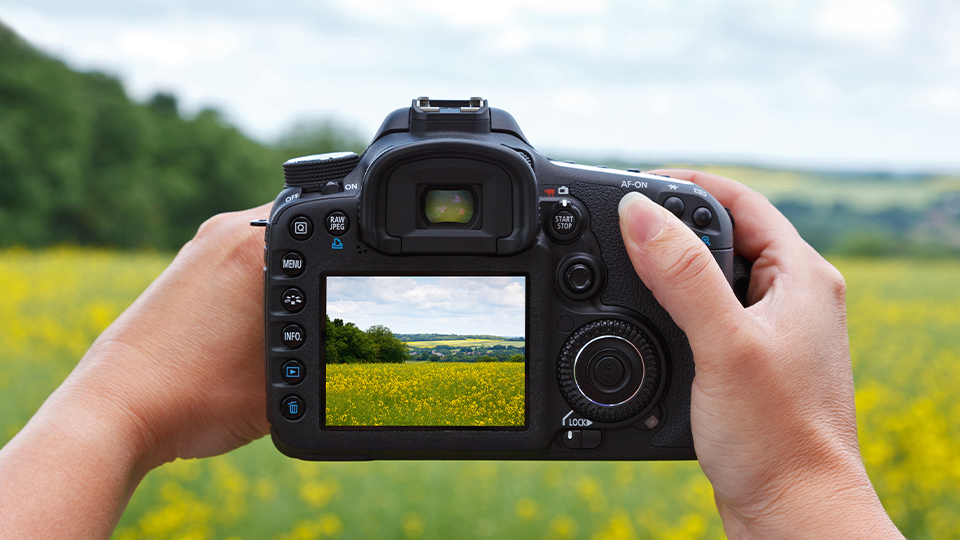
Histograms have long been provided by manufacturers as tools to evaluate our exposure in post. Additionally, editing software offers this chart for those editing RAW files, so they can fine tune their exposures after the fact. Luckily for us, the manufacturers of digital cameras have given us the histogram to use as we shoot. This can be activated within our cameras menu to appear within the EVF or on our rear LCD in a live readout so we can precisely adjust our settings in the field to nail the perfect exposure.
How to Read a Histogram
What is a histogram, you may ask? The histogram basically shows you the brightness of an image. In technical terms, it is a chart that plots the distribution of brightness of an image, ranging from shadows to highlights. This will appear almost like a mountain range, where the height of the peaks themselves doesn’t really matter. What’s important is how far to either side the range sits.
On the horizontal axis, it covers values from pure black on the left edge of the graph to pure white on the right edge. Growth on the vertical axis indicates the relative quantity of light for the given luminance. To illustrate the functionality using an extreme example, take a photo with your lens cap on and you will produce a histogram that has one spike, from bottom to top, on the left edge of the histogram. Opposite of this, take a long exposure on a sunny day and you will achieve a spike on the right.

An image with a balanced exposure will show a “hump” in the middle region of the chart that tapers off as you move left toward black or right toward white. This middle region of the histogram represents the middle values or “mid-tones” of an image. This is the gray area of our image between pure black and pure white.
If you take an image and see the majority of the body of the graph toward the right, this means you have captured a "high-key" image that may appear overexposed. Opposite, a histogram with the data showing mostly on the left is a “low-key” image that might appear underexposed. If you are making an image of a high-contrast scene (very dark and bright areas), you might see a U-shaped histogram. There are almost infinite combinations of light and dark that will register on the histogram.
Different Types of Histograms
Most modern digital cameras have four histograms. The primary one is the luminosity histogram that shows overall brightness of a scene. This histogram usually has a monochromatic display—either white data on a black chart, or vice versa. The other three histograms are the color histograms, representing the red-, green-, and blue-sensitive pixels on the sensor. These histograms are generally displayed in their respective color.
(It may help to have your digital camera with you while you read this article, so that you can figure out how to find your camera’s histogram and interpret it. Digital cameras from different manufacturers have different menus, interfaces, and settings that govern when and where your histogram or histograms will appear. Consult your owner’s manual or an online source to utilize your camera’s histogram display.)
In Practice
To most effectively use your histogram, you need to consider the following two points.
The scene: Something we don’t see discussed very much on the topic of exposure and histograms, is what the scene demands. Just because the exposure is correct from the light meters’ perspective, doesn’t mean it’s right for the scene. For instance, if you take a photograph of a subject backlit or illuminated in sunlight against a shaded background, you should expect to see a large spike on the left edge of your histogram. Conversely, if the sun is in your image, get ready for a right-side spike. If you are taking photos of a scene with dark shadows or bright sunlight, you need to expect to see this on the histogram and you should not be surprised when the spikes appear on the right or left edge.

Your goal: The term “proper” exposure often comes up in these articles, but what does that term really mean? If you’ve read the introduction to metering article, you’ll know our stance on the topic of proper exposures. Many guides will say that a certain histogram shows a proper exposure. “Proper” is subjective and photography is art. Art is subjective. If your artistic vision is a photo that is overexposed or one that is underexposed, and you intentionally cause that effect for your image, then “proper” is what you have achieved.
Let’s take a look at three different exposures taken of the same image. None may look bright enough for your personal standards, but the middle matches the look and feel of the scene. Unless you’re photographing for the Associated Press, your goal is to capture a feeling, not a report. Though, some of the best press photographers can do both.


So, you take those two elements—knowledge of what the histogram is showing you, knowledge of the scene you are capturing, and knowledge of the final image you wish to produce—and then you look at the histogram and evaluate how and if you want to adjust your exposure for the next image by tweaking your aperture, shutter speed, ISO, or by recomposing the scene to reduce the amount of dark or light area in the image.
Beside personal artistic goals, the biggest reason to adjust the exposure, based on histogram data, is if your histogram tells you that you have experienced the horrible, yucky, and unfortunate phenomenon known as “clipping.”
Clipping
Your camera’s digital sensor is much more limited than the human eye in its ability to gather information from a scene that contains very bright and very dark areas—a scene with a broad “dynamic range.” In photography, dynamic range is defined as the ratio between the maximum and minimum areas of luminance in a given scene. The camera will, unless you are manually controlling exposure, try its hardest to create an image that is exposed for the widest possible range of lights and darks in a scene. Because of the limited dynamic range of the sensor, this solution might leave the image with pitch-black shadows or pure white highlights.
A spike touching the left edge of the histogram means that there is shadow clipping. The dark areas of the image are outside of the camera’s dynamic range to the point that the camera cannot discern any information from those regions. The camera says, “By exposing for the major portion of the image, I have created an area of the photo so dark that I cannot see anything there, so I am going to call it pure black.” Spikes touching the right edge are representative of the camera saying the opposite, “When I expose for the major portion of the image, this one region is so bright that I cannot tell if there is an object in that region, so I will call it pure white.”
Clipping represents, unfortunately, the loss of data from that region of the image. Digital cameras are known for their ability to extract detail from dark shadow regions of an image, but once the histogram touches the left edge, that data is all but lost to a black abyss, and no amount of post-processing will pull detail from those shadows. Areas of pure white will also be just that—pure white—on your screen or on a print.

Shadow clipping is usually pretty noticeable on the histogram, since there is usually a buildup of data on the left side of the scale that reaches the left edge. Highlight clipping can be a bit more subtle, especially when taking night photographs, as only a small number of pixels in the image might be blown-out highlights. Keep an eye out for the narrow spike on the right edge of the histogram.

Many of today’s digital cameras will have a flashing highlight indicator, or “blinkies” function that causes the blown-out light and/or dark regions of a previewed photo to blink so that the photographer can see, without the histogram, that areas are lost to black or white. A good practice is to use both the blinkies and histogram so that you can evaluate what regions of the photos have been clipped and whether you want to adjust the exposure to prevent the occurrence in the next shot.
Of course, you can always leave well enough alone and move to your next great image and accept the shadows or highlights. Sometimes, depending on the scene and your camera’s dynamic range, there will not be a practical remedy to the clipping; however, if you can adjust your exposure to avoid clipping, by all means, do so. In fact, some camera brands offer a highlight warning System that works before you take the image. This is known as a zebra pattern. This appears as an overlay on stripes on areas of the image that are close to overexposure.
Remember that RGB histogram that we mentioned? Well, basically, it shows distribution and clipping in the red, green, or blue channels. Pay attention to the RGB histograms because you might see color clipping in one or more channels while the luminance histogram shows no clipping. This “hidden” clipping might be a big deal for your image, depending on your photographic vision for the picture.
Fix It in Post
It is fair to say that a “fix it in post” attitude is probably not the best way to approach exposure, but there’s always a time and place to make use of modern photography tools. The histogram and blinkies are usually based on a JPEG rendition of your image. If you are shooting a raw file, your actual image will have a slightly greater dynamic range and, the clipping, if there is some, should be reduced.
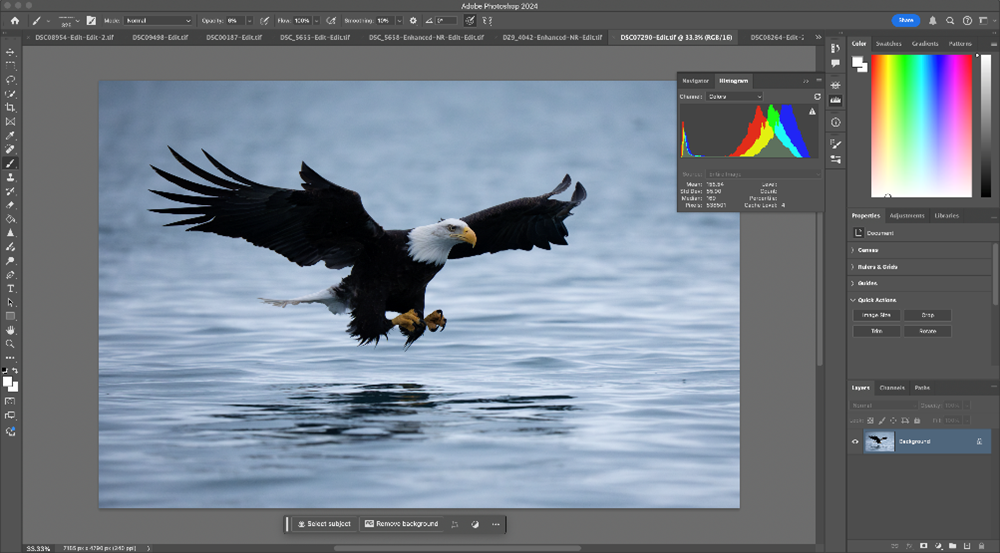
The beauty of raw file formats is the ability to fine tune them in post via editing software like those found in the Adobe Creative Cloud. As mentioned before, these software’s feature a histogram that will change as you adjust your raw image. This is a great way of fine-tuning exposures that are not quite perfect.
Put It to Practice
In summary, the histogram is a remarkable tool to have in your tool box and one of many gifts that digital photography has bestowed on photographers of all skill levels. When reviewing your images, be sure to base your exposure adjustments moving forward on the histogram data, look for clipping and blinkies, and do not judge an exposure based on the preview image.
As artists, we’re always learning. Never discount the benefits of a new tool in your arsenal and always be open to new ways of doing things. If you’d like to learn more about flash and wedding photography, check out our other guides and articles, check out the B&H Explora page!
