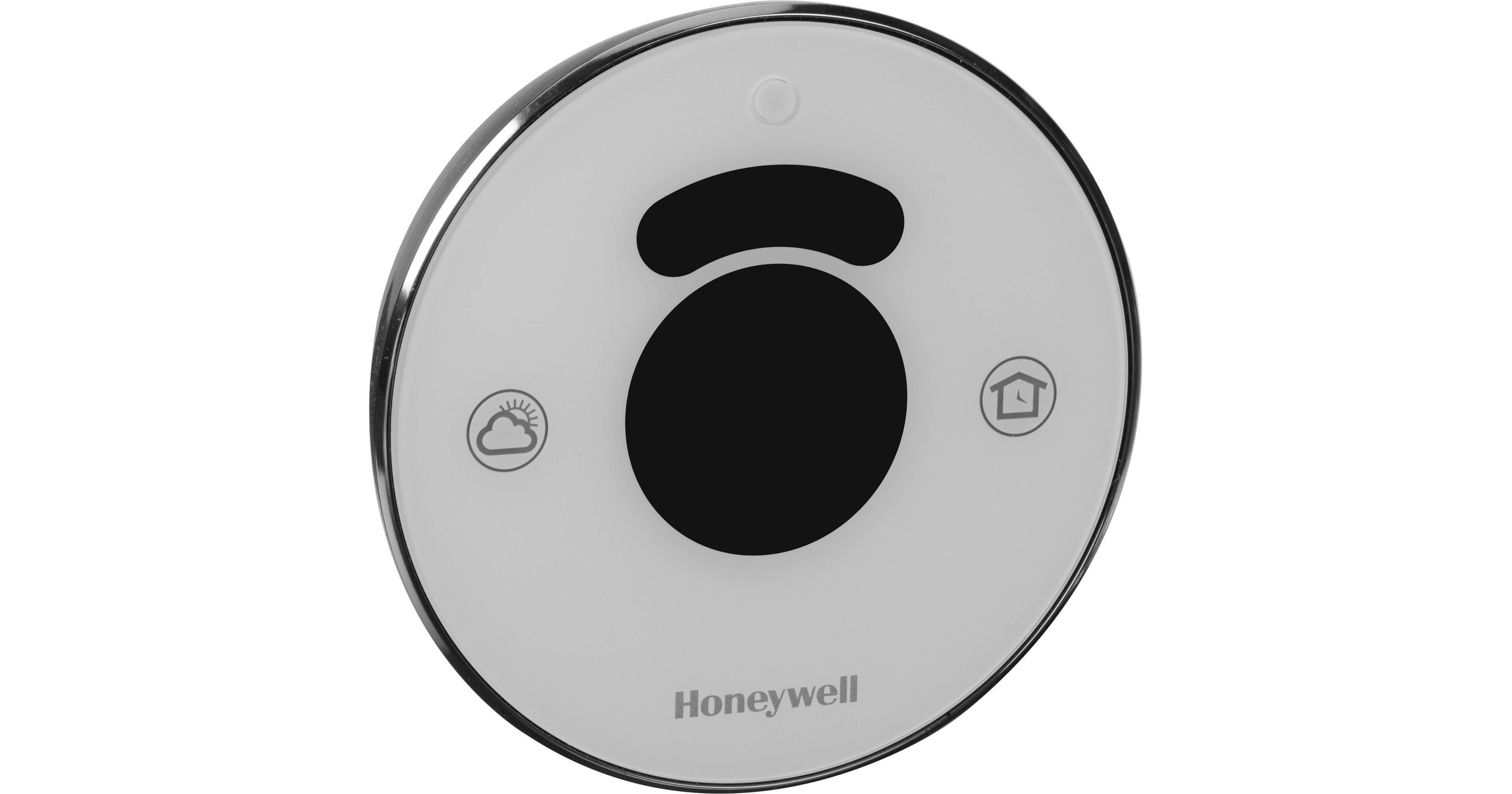
Remotely control your home's temperature from the convenience of your Android or iOS smartphone with Honeywell's Lyric Wi-Fi Thermostat. The Lyric features a 3" glass LCD screen that displays your home's temperature and your local weather forecast any time you tap its weather icon. Above the main round display is another arc-style display that indicates if the thermostat is in heating or cooling mode as well as the temperature the Lyric is trying to reach. When cooling, the thermostat casts a blue light; and when heating, it gives off a golden-amber glow. Furthermore, the Lyric gives you the ability to manually adjust your home's temperature simply by turning its outer chrome ring. There's also a convenient Away mode button on your thermostat that will return to the pre-programmed temperature you programmed during the initial set up.
The Lyric comes with a plethora of smart home automation features, one of which is Geofencing that will sense when you are arriving home or leaving for work and will automatically begin adjusting heating or cooling to meet your preset temperature preferences. Furthermore, the Geofencing feature can be set to 500' or 7 miles. Once you cross the geofence's perimeter, the Lyric will begin heating or cooling to your preset Home mode settings. Also, to help conserve energy, the Lyric will automatically switch to Away mode anytime you leave home with your smartphone. Along with the Lyric, a wall plate, back plate, and mounting screws are included to facilitate setup and installation. Please note that a lithium AAA battery is required for operation and will provide approximately 1-year of battery life before needing to be changed.
After you've downloaded the Lyric app on your smartphone, you can then easily connect the thermostat to your phone via Wi-Fi. Using the app, you can configure the Lyric to detect the type of heating and cooling system in your home, customize desired temperature schedules, and add your location for local weather forecasts.
When you see the unique network name, touch "OK" to begin your thermostat configuration. Go to the Lyric app to see how to configure and personalize your Lyric thermostat. To connect your iOS smartphone or tablet to the thermostat network, leave the Lyric app, go to your iOS settings, and view your Wi-Fi networks. Find and connect to the thermostat's unique network, for example, Lyric Stat 03. Close your iOS settings and return to the Lyric app to complete the setup process.
If you have an Android smartphone or tablet, the Lyric app will automatically connect to your thermostat.