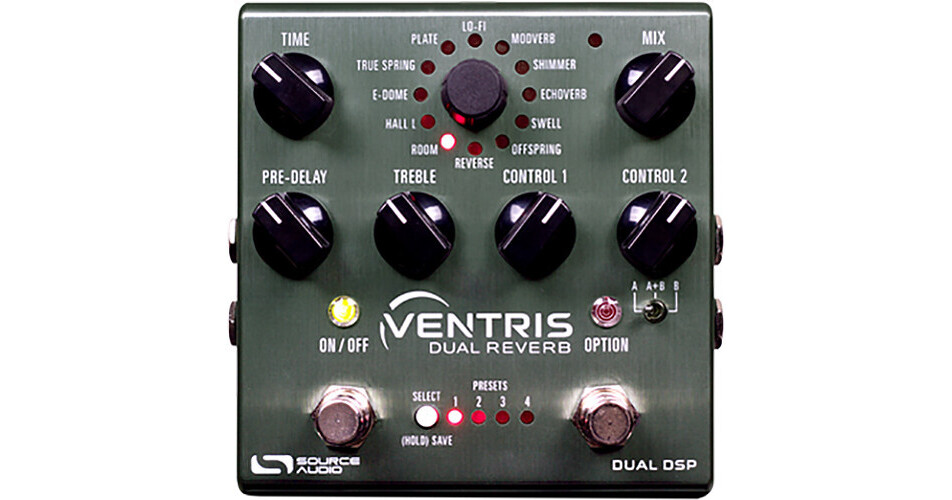
The SOURCE AUDIO One Series Ventris Dual Reverb pedal is a stompbox designed for electric guitars, keyboards, or any instrument with a 1/4" output in dire need of expressive, versatile reverberations. The pedal itself sports more than 20 reverb engines (12 built-in, eight more available over a free, corresponding app), as well as two signal processors. With a dual engine, 56-bit data path at your disposal, you can switch between two reverbs at any time, blend them in parallel, or cascade them in switchable series.
MIDI functionality allows you to control the Ventris with your host sequencer or DAW, while the pedal’s 1/4" I/O path packs a hefty assortment of features. For instance, you can use the Ventris in stereo (it will automatically configure to the appropriate stereo routing mode), or you can utilize the secondary 1/4" jacks to route signal to an external effects loop for coloring your verb. Additionally, you can interface with the Neuro App over these secondary 1/4" connections. For a brief explanation of how to do this, please see the features section below these initial paragraphs.
Rooms, halls, springs, and more are available straight from the pedal, with custom ambiances editable over the Desktop mobile or Neuro apps. Set controls are provided for pre-delay, reverb time, and treble. Two other knobs, labeled Control 1 and Control 2, change depending on the reverb engine selected.
Once you’ve explored a desired reverb to its fullest potential, you can save your findings as a preset, eight of which can be saved and stored within the pedal itself. There are 2 expression jacks supplied, one for conventional expression pedals/external footswitches, and the other for Hot Hand Control—a proprietary SOURCE AUDIO technology which allows you to control various parameters from an accelerometer ring worn around your finger (this ring is available separately). A 9 VDC power supply is included with the Ventris.
Pre-Delay Knob: This adjusts the amount of time between the dry signal and the beginning of the reverb. Turn the Pre-Delay knob clockwise to create echo reflections similar to slapback or delay effects.
Mix Knob: This Controls the relative level between the dry input signal and the wet. When set at 3 o'clock, the wet and dry signals will be at equal volume. Fully counter-clockwise is 100% dry, and fully clockwise is 100% wet.
Treble Knob: Controls the cut-off point of a low-pass filter on the wet signal. Turn the knob clockwise for brighter reverb trails and counter-clockwise for darker trails.
Control Knobs: The functions of these knobs vary depending on the selected reverb engine.
Engine Selector Knob: This selects between the 12 main effect engines. To access the additional reverb engines, use the Neuro Mobile App or Desktop Editor.
On/Off Footswitch: This engages or bypasses the reverb effect. The corresponding ON/OFF LED will be lit when the reverb effect is engaged. In addition (while the pedal is engaged), pressing and holding the ON/OFF Footswitch scrolls to the next Preset.
Option Footswitch: This dual-action footswitch sports two independent control functions that vary depending on the selected engine. The footswitch responds to two actions: quickly tapping, or pressing and holding. Each of the two actions prompts a different function. Option Footswitch commands include tap-tempo for the Pre-Delay or modulation, hold, build, A/B reverb toggling, and more. It is also possible to program alternative control options with the Neuro App or Desktop Editor.
A/B Reverb Selector Toggle: This switch between reverbs A, B, or A+B. Save two independent reverb effects (one for each processor) in each of the Ventris’s 128 presets and use the A/B Toggle Switch to select which is active. Selecting A + B will engage both reverbs simultaneously. Note: The initial engagement position of this switch can be saved as part of a preset.
Preset Select / Save Button: Scrolls through the four user presets (or eight in Preset Extension Mode) saved in the Ventris. To save a preset into the currently selected spot, press and hold this button.
HALL L: Patterned after the studio rack units from the 80s, the HALL L engine is distinguished by its diffuse tones and blooming characteristics. Pay attention to the L in “HALL L,” and you’ll have an idea of which classic manufacturer this algorithm is emulating.
E-DOME: This setting produces long, lush reverb trails for invoking the sound of massive arena settings.
TRUE SPRING: This algorithm aims to evoke the idiosyncrasies of a vintage spring reverb tank.
PLATE: A simulation of vintage plate reverb units for the 50s and 60, this algorithm replicates the simple, yet beautiful sound created by blasting audio into the face of a large plate of suspended sheet metal.
LO-FI: This setting embraces destructive elements like distortion, oversaturation, and pitch fluctuation, for a dirty and nasty tone.
MODVERB: This modulating effect revisits the earthy combination of tremolo and spring reverb found in many vintage guitar amplifiers. Apply varying degrees of tremolo to your dry signal, your wet signal, or both.
SHIMMER: This pitch-shifting reverb engine mixes traditional room sounds with octave-up reflections for an angelic reverb effect. Connect the Shimmer engine to the Neuro Desktop Editor and swap the octave-up for variety of additional pitch intervals. Hold down the OPTION footswitch for a dive-bombing pitch effect.
ECHOVERB: For those in need of simultaneous reverb and delay effects, the Echoverb engine provides an echo effect with ambient repeats. You can also tone down the cavernous reverberations and use the Echoverb engine like a classic delay pedal.
SWELL: This applies a volume swell effect to your instrument’s dry signal, which is then fed into the reverb effect, engendering evocative clouds of sound.
OFFSPRING: This esoteric effect aims to create ambiances not easily described.
REVERSE: This creates a reverse-reverb effect.
Input 2: In contrast to Input 1, this jack has quite a few possible uses; you can route secondary audio input for stereo sources, and you can also use this jack as an external feedback loop input (i.e., a return), or as the data connection to your mobile device when using the Neuro App. In this way, the Neuro App sends data to the pedal using your mobile device’s headphone jack. Connect it to your mobile device using an included stereo 3.5mm to 1/4" cable. The input can also accept daisy-chained Neuro data from another Neuro-compatible pedal in the chain, if a TRS cable is used. The audio signal (if applicable) will be on the tip contact of the plug, and the Neuro App data will be on the ring contact. This allows audio and Neuro data to flow on the same cable.
Output 1: This is the primary audio output. Connect it to your amplifier, recording interface, or the next device in your effects signal chain using a mono (TS) 1/4" cable.
Output 2: Much like Input 2, this jack can act as the secondary audio output, as an External Loop Send (if the pedal is configured in a routing mode that includes an external loop), or as a data connection for the Neuro App, passing data from the Ventris to the next Source Audio effect in your signal chain. You can daisy-chain the Neuro App data regardless of whether Output 2 is configured to output audio or not. Connect Output 2 to the next device’s Neuro App Data input (usually Input 2) using a stereo (TRS) 1/4" cable. As described above, the audio signal (if applicable) will be on the tip contact of the plug, and the Neuro App data will be on the ring contact. This allows audio and Neuro data to flow on the same cable.
Control Input: This 3.5mm port connects to external control devices such as the Source Audio Dual Expression Pedal, Reflex Universal Expression Pedal, Neuro Hub, and Hot Hand Motion Controller. Using this port, you can access Source Audio’s proprietary Hot Hand technology, which allows you to control assignable parameters from a ring-like accelerometer (available separately) that you’d wear around a finger on your picking hand.
Expression/Switch Pedal Input: Yes, you can hook up a compatible expression pedal via the 3.5mm input described above. However, this jack will allow you to plug in an external passive expression pedal or footswitch. A Pedal In Switch near the jack lets you select which type of external controller is being used. Set to Exp for expression control or Switch for footswitch control.
MIDI Input: This is a standard 5-pin DIN connector that accepts MIDI control messages from external devices, including program changes, continuous controllers (CCs), and MIDI clock.
MIDI Thru: This is a standard 5-pin DIN connector that echoes MIDI messages from the MIDI Input jack and sends them to other devices. The Ventris does not generate any of its own MIDI data, but it will copy and output any data it receives.