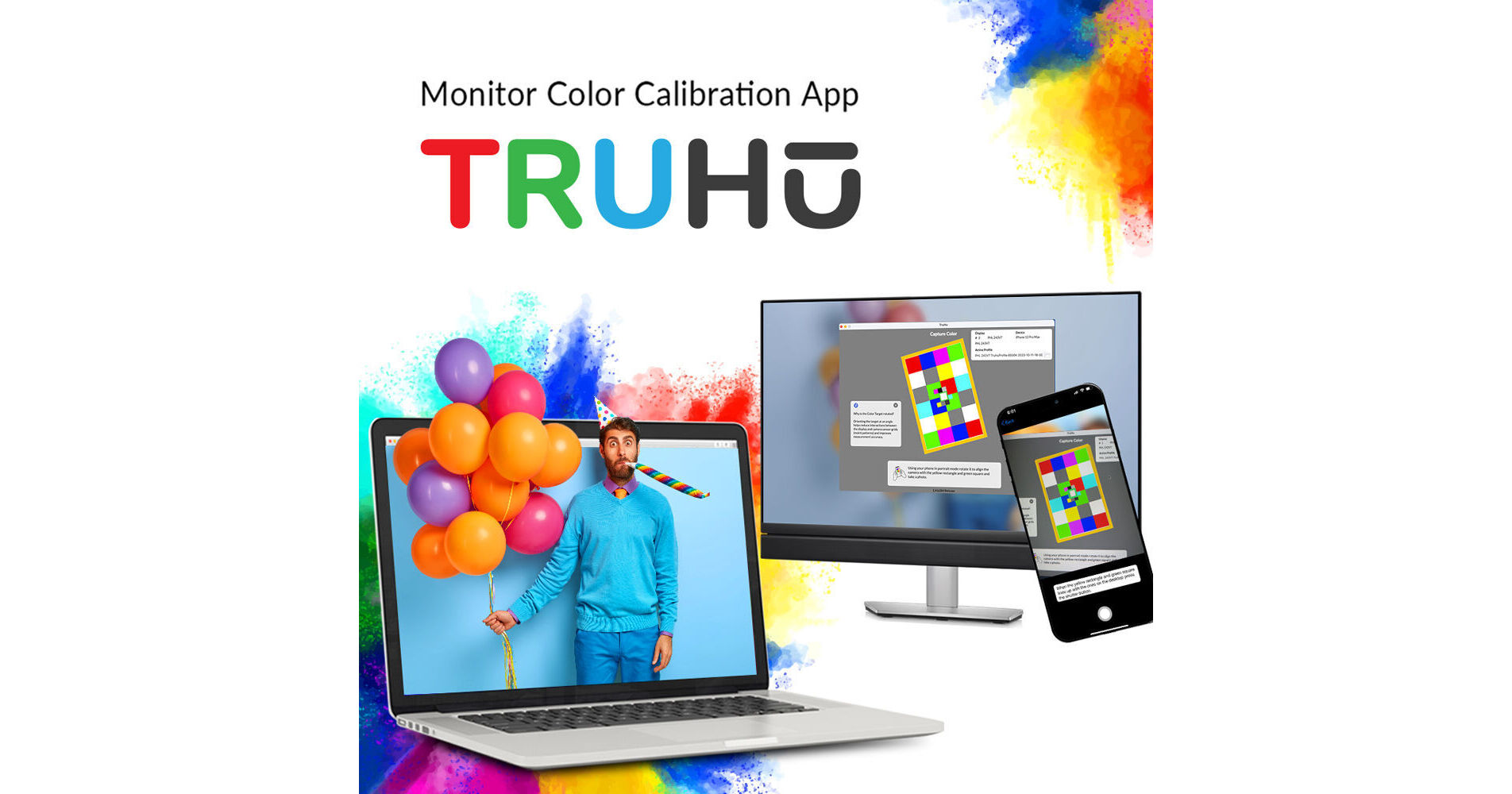
This download of TruHu Monitor Calibration Software allows you to calibrate your display using a desktop and a mobile app to achieve professional color accuracy in around a minute. The two apps are used in tandem to analyze color data from your screen, determine its backlight technology, and create an optimized color profile. This software is compatible with Windows, Mac, and iPhone, with Android support coming in 2026.
Calibrate in a Few Easy Steps
Make sure you have both TruHu Desktop and Mobile open, as they will walk you through the following steps.
Adjust Ambient Lighting
Make sure no light falls on your screen and that the ambient light is similar to your typical work environment.
Set Brightness
On your desktop, set the brightness of the monitor you want to calibrate to a level appropriate for the ambient light in your work environment.
Set Color Temperature
In the mobile app, TruHu lets you select between multiple color temperature settings.
Capture Gray
Using both apps, point the camera at the gray target on the monitor until the yellow rectangle and the green square line up. Then take the photo.
Capture Color
Using both apps, point the camera at the color target on the monitor until the yellow rectangle and the green square line up. Then take the photo.
Adjust Ambient Lighting
Make sure no light falls on your screen and that the ambient light is similar to your typical work environment.
Set Brightness
On your desktop, set the brightness of the monitor you want to calibrate to a level appropriate for the ambient light in your work environment.
Set Color Temperature
In the mobile app, TruHu lets you select between multiple color temperature settings.
Capture Gray
Using both apps, point the camera at the gray target on the monitor until the yellow rectangle and the green square line up. Then take the photo.
Capture Color
Using both apps, point the camera at the color target on the monitor until the yellow rectangle and the green square line up. Then take the photo.
Supported Devices and Operating Systems
- iPhone 8 and later
- macOS Mojave 10.14 and later
- Microsoft Windows 10 and 11
- Android expected 2026
How TruHu Works Its Magic
This monitor color calibration tool uses two apps in tandem—one desktop and one mobile—to analyze color data from your screen, determine its backlight technology, and create an optimized color profile, all done in one minute.
Colorimetric Accuracy
Using image sensor data from your phone's camera, TruHu bypasses your device's standard image processing to send raw sensor measurements through proprietary algorithms, converting them to colorimetric data. The results are very similar in quality to those generated by colorimeter-based monitor calibration products (CBMCPs).
Luminance
The default luminance on most CBMCPs is 120 nits. This is not bright enough for many working environments, which can have significant overhead or natural light. TruHu trusts you to know the appropriate brightness level for your working environment, rather than forcing you into an arbitrary luminance number.
Metamerism
Colorimeters "see" colors differently based on the backlight technology of your monitor. Your phone's camera has the same limitation. With TruHu, you don't have to know all those technical details-they use an extensive database of displays and their respective backlight technologies to automatically determine the best way to calibrate your screen and thus minimize metamerism.