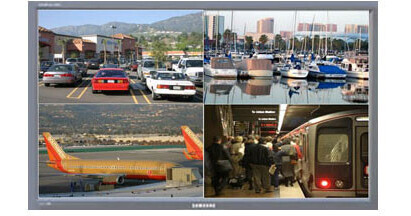
Arecont Vision offers the full-featured AV100 Video Surveillance Software System to complement its line of megapixel IP cameras. This software supports full motion, real time, multi-camera viewing and policy-based archiving, remote access to live and archived video via Internet Explorer, post event zooming from digital archives, simultaneous viewing of full field-of-view and multiple zoomed images, and a multitude of other features that take advantage of the functionality and performance of Arecont Vision cameras.
A typical system consists of a number of cameras connected over a local or wide area network to a server PC that is running the AV100 software. To achieve full motion archival rate, the server may be placed locally to the cameras so that the interconnecting LAN has sufficient bandwidth and a small round trip delay between the cameras and the server PC.
Alternatively, a remote PC can connect to a Server PC over a slower network connection, such as the Internet. Once connected, the remote PC can display the live video stream and browse archives using Internet Explorer. Note that when connected to the AV100 software, the remote PC does not connect to the cameras directly. Rather, the remote PC connects to the server PC on which the AV100 is running.
Motion detection in the AV100 is achieved by analyzing inter-frame brightness changes on a pixel-by-pixel basis. There are 2 modes of Motion Detection supported in the AV100 Video System: a software mode and an on-camera mode. The software mode performs motion detection by processing the images after they are transmitted from the camera to the computer. In contrast, the on-camera mode performs motion detection prior to transmitting the images to the computer. As such, the on-camera motion detection setting allows for significant reduction in CPU load and network load when motion detection is enabled.
Motion detection is computed independently in multiple detection zones on a square grid. There are 2 grid size options, 64 or 1024 grid. The actual grid for any particular mode is determined by the chosen zone size (a drop-down list in the bottom right corner of the Motion Settings screen) and the camera's pixel resolution. When motion is present, the Motion Settings window displays green marks (selectable between crosses and boxes) in the zones where motion occurs. A motion privacy mask can be set up to block motion detect on some of the zones by drawing a rectangle with the mouse (by left-clicking and holding down the mouse button). The privacy mask is marked with red crosses. A more complex shape can be created by drawing multiple rectangles. Erasing the mask (or part of the mask) is done by drawing a rectangle with the right mouse button.