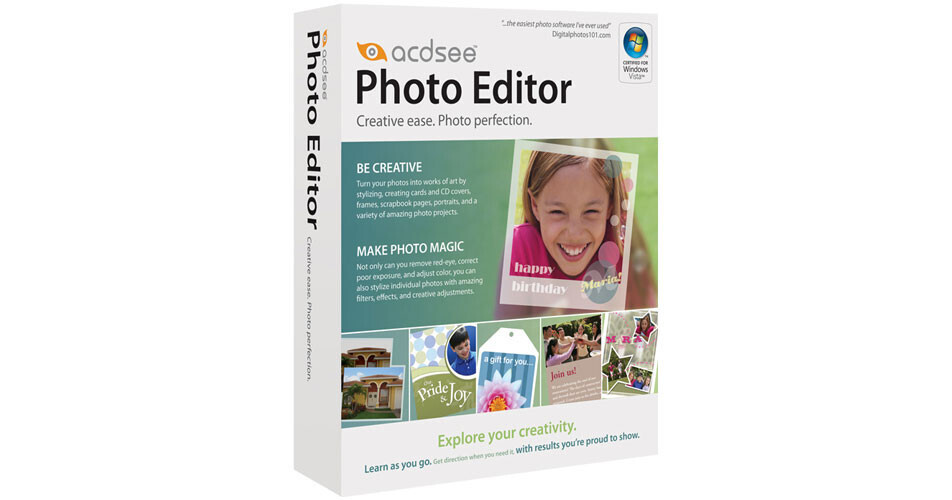
ACDSee Photo Editor 4.0

BH #ACPE4 • MFR #ACDPE400BXEN
Print
ACDSee Photo Editor 4.0
No Longer Available
No Store Display
Ask an Expert
800-606-6969

ACDSee Photo Editor 4.0 Overview

ACDSee Photo Editor 4.0 makes it easy to turn your every day digital photos into something extra special. Designed for the Digital Photo enthusiast who may not have the time or the patience to work with "professional" photo software - Photo Editor 4.0 lets you be creative with your photos and learn how to get the best results in the shortest number of steps.

It provides the tools and clear instructions that you need to create stylized photos for use in cards, albums, and calendars. You can also fix common photo problems, like poor exposure, red-eye, awkward framing, fuzziness, skin blemishes, lens flares and more.

Furthermore, Photo Editor provides you with all the support and resources that you need to fix or to be creative with your photos. It actually teaches you how to make the creative changes you want, like adding Lens Flare, Glowing Edges, Oil Paint, and a ton of other cool effects that are a cinch to apply, thanks to guided walk-throughs (called How-tos) built right into the application. Photo Editor 4.0 even gives you creative project ideas and shows you the steps and tools you need to turn them into a reality.

Create Amazing Photo Projects
Make scrapbook pages, CD covers, T-shirt transfers, party invitations, and a lot more. Stylize your photos with special effects and filters like antiquing, adding a motion blur, or applying a mirror effect.
The How-tos Make It Easy
Photo Editor has a feature called the How-tos that offer you step-by-step instruction on a variety of popular and useful photo tasks, complemented with visual examples and cues. Each How-to walks you through the task you've selected , and shows you how to make each change in the creative process, with detailed and easy-to-follow instructions. For example, if you wanted to make a photo look as if it were very old, How-Tos on Effects can teach you to about Antiquing a photo, Applying a Vignette, Converting a photo to black & white or sepia and more. And don't worry if you don't know what a vignette is. The How-tos will teach you exactly what you need to know about adding one to your photo, as well as any other creative changes you'd like to make. The How-tos can also teach you how to make common alterations like Brightening a Photo or fixing Red-Eye with a single-click, or do theme based projects, like creating a greeting card or a scrapbook page.
See Your Options with the Variations Window
The Variations window displays up to 8 different previews of your original photo, right on screen, each preview showing a different variation of the effect, adjustment, or filter you're applying. You can look at the previews and decide which one you like best. Maybe you want a brighter version of the effect, or a greater degree of creative distortion. Simply click on the one you like, and it will show 8 more variations based on your selection to allow you to fine-tune your preferences and get the perfect effect.
Make Quick and Easy Photo Fixes
The Repair tool allows you to quickly and easily remove blemishes, spots, or scratches from a photo and get the results you're looking for almost instantly. Instantly rotate photos into the right position. Crop pictures quickly and easily to remove unwanted parts of a photo or to focus on the best part of an imperfect shot. Plus, you'll have powerful and fast fix tools common to the best photo editing software, like Red Eye, Dodge, Burn, Sharpen, and Smudge, to fix a whole photo or only small areas.
Batch Processing
Make changes to a lot of photos all at once, instead of having to make changes one photo at a time - with Batch Processing, any adjustments or filters you want to use can be applied to more than one photo at a time with just a couple of clicks. Adjust the exposure for multiple pictures in just a couple of easy steps. Then add a logo, or text (maybe the date or location), and copy them onto all your photos at once.
The Image Basket
The Image Basket helps you keep track of all the photos you're working on. Thumbnails of any photos you're working on appear in the Image Basket at the bottom of the Photo Editor workspace, so you can see what you've got and get an idea of the work you've done.
Use the Vignette Tool to Create a Classical Look
With a couple of clicks and drags you can very easily apply a vignette to a photo. Just click on the Vignette tool in the Create toolbar, then drag across your photo. A rectangular framework with a circle inside appears on your photo. You can easily adjust its dimensions to get the vignette you want.
Cut Your Photos into Creative Shapes
With the Cookie Cutter tool you can quickly crop a composition into fun shapes like letters and numbers, then use them as titles, dates, or fun captions. Cookie Cutter shapes come in all kinds, like weather and seasonal shapes, animals, celebrations (birthdays and holidays), and many more. They're great for creating photos for use in collages, scrapbooking, or photo albums. If you want to get really creative, you can draw your own personalized objects with the Freehand tool.
Make Automatic Adjustments
Use the Auto-adjustments in Photo Editor for one-click Auto Color Balance, Auto Levels, Auto Sharpen, or Auto Contrast. Or try Auto Fix, which does the necessary adjustments for you.
Add Artistic Graphics and Text
Apply any color to your pictures, in different styles, using brushes like Paintbrush, Airbrush, Pencil, Marker and Neon, and easily customize the size, shape, and effect of your brushes and save them for future use. Add text in the size and font-style of your choosing, and use drop shadows for visual emphasis, or even wrap the text inside an object you've inserted (like a star or heart shape), or write text in the shape of a curve for added creative flare. Apply pre-set color gradients, or create your own and apply them to text and objects in your photos, or create cutting-edge metallic looks, colorful rainbow effects, or softer color blends - for a layered color scheme that you probably thought only a professional could create
Sophisticated Composition Control with Object Palette
The Object Palette allows you to manage the creation of photo compositions ranging from simple to sophisticated, by keeping the various objects in a composition separate from each other, so you can work on different components of a photo or project with greater detail and control. the Object Palette lets you turn objects on and off, group, move, and apply cool looking filters to some or all of your objects.
Increase Your Skill Level
Photo Editor's masking capabilities provide the ultimate creative flexibility, allowing you to adjust the transparency (how much background is allowed to show through) of an object at the pixel level. By using masks you can blend images together and apply fades for stunning and professional-looking results. Advanced users will also appreciate Photo Editor's Selection tools, which offer a number of ways to adjust and edit specific pixels in a photo.
Export to Microsoft Office
Photo Editor allows you to easily save a photo to use in a Microsoft Office application such as PowerPoint or Word. Furthermore the final file will be adjusted so you won't have to worry about presentations or documents that are too big to manage.
Windows Vista Certified
ACDSee Photo Editor is Windows Vista Certified, providing the best possible experience when enhancing and creating captivating layouts with your photos on Windows Vista, XP and 2000.

ACDSee Photo Editor 4.0 Specs

System & Software Requirements
Windows System ONLY
  • Intel Pentium 4-class or equivalent processor
  • Microsoft Windows 2000, XP, Vista
  • 512 MB RAM
  • 100 MB free hard disk space
  • 16-bit color or higher (True color recommended) with 1024x768 or higher screen resolution
  • Microsoft Internet Explorer 6.0.0 or later

ACDSee Photo Editor 4.0 Reviews

See any errors on this page?
Whatever You Need, We've Got It