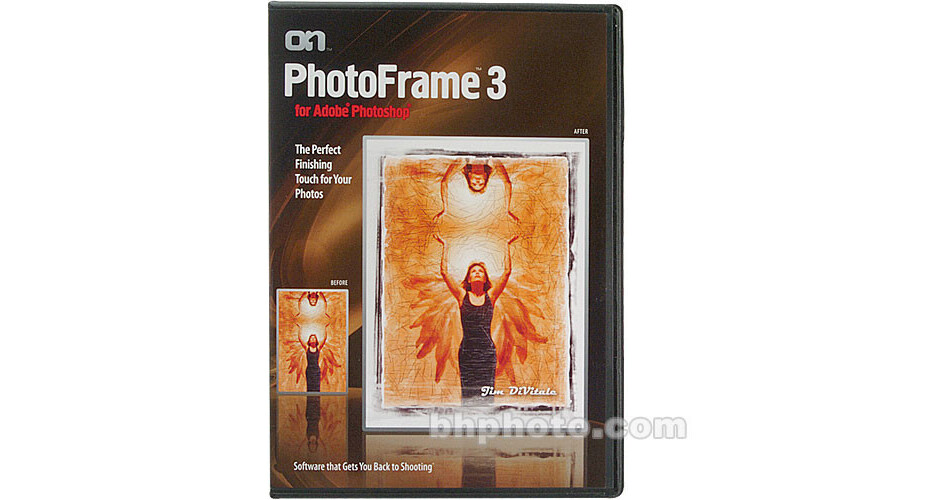
onOne Software PhotoFrame 3.1

BH #ONPF31 • MFR #PFXE-31211
Print
onOne Software PhotoFrame 3.1
Key Features
  • Over 4000 Photographic Edges
  • 32 Color Frames
  • Layer Masks
  • Combine & Customize
Whether you want to add a realistic looking frame to your photos or want to create a unique edge effect all your own, PhotoFrame 3.1 from onOne Software is the easiest and most creative way to add border and edge effects to your digital photos. It includes over four thousand Photographic edges and an extensive collection of realistic-looking frames and mattes. Even the popular Emulsion frames have been updated to now include color as well.

PhotoFrame 3.1 features a built-in browser, powered by a database that lets you browse through the different volumes and collections of frames. You can also use the handy search field and just type in a description of what you are looking for and PhotoFrame Pro will automatically display the matching results. If you can't decide which frame looks best on your image, the Frame Preview Grid allows you to select multiple frames and then preview them side-by-side on your image to see which one looks the best. You can also use the Randomizer to automatically create unique frame combinations in one click. Frame combinations can be saved as preset or favorites so you can apply them easily in the future.

More Details
No Longer Available
No Store Display
Ask an Expert
800-606-6969

onOne Software PhotoFrame 3.1 Overview

Whether you want to add a realistic looking frame to your photos or want to create a unique edge effect all your own, PhotoFrame 3.1 from onOne Software is the easiest and most creative way to add border and edge effects to your digital photos. It includes over four thousand Photographic edges and an extensive collection of realistic-looking frames and mattes. Even the popular Emulsion frames have been updated to now include color as well.

PhotoFrame 3.1 features a built-in browser, powered by a database that lets you browse through the different volumes and collections of frames. You can also use the handy search field and just type in a description of what you are looking for and PhotoFrame Pro will automatically display the matching results. If you can't decide which frame looks best on your image, the Frame Preview Grid allows you to select multiple frames and then preview them side-by-side on your image to see which one looks the best. You can also use the Randomizer to automatically create unique frame combinations in one click. Frame combinations can be saved as preset or favorites so you can apply them easily in the future.

Combine & Customize Frames for Endless Creativity
With PhotoFrame you can combine up to 32 different frames to create a truly unique frame. You can control each frame like an independent layer. You can move, scale and rotate it. You can also control its color, opacity and blending mode. Each frame can also have a colored border, glow and shadow. You can even apply textures to frames to make them appear to be made of rusty metal, canvas, rock or any of many included textures.
Realistic Film Frames
PhotoFrame adds hundreds of realistic looking frames so you can now add a wide variety of traditional film borders to your digital photos. These realistic frames look just like the sloppy edges you had in the darkroom or with Polaroid instant films. some of these new film borders have even been combined with some of the popular emulsion frames to give you a very authentic look.
Frames and Mats
Have hundreds of realistic mats and frames at your disposal, just like a custom frame shop would have. You can add double layer museum style mats and any of a number of wood or metal frames to your images for a ready-to-hang look. You can even use PhotoFrame to show your customers what their image would look like framed to help increase framing sales.
Layer Masks
You can set your background color to transparent to let PhotoFrame paint away the regions outside of your frame so it reveals the layer below. You can also use PhotoFrame to create a layer mask, which lets you control how layers blend together in Photoshop. The best part is that the layer mask can be adjusted at anytime without harming any information in your image.
Flush-Mount Albums
PhotoFrame is great for wedding photographers and scrapbookers who create album pages with multiple images on a single canvas. Now you can create great-looking layouts by framing each image.
New Features of PhotoFrame 3.1
Wersion 3.1 of PhotoFrame brings new features to improve functionality, creative opportunities and ease of use.
  • Support for Photoshop CS3 - Universal Binary brings native support for Photoshop CS3, and Intel-based Macintosh computers.
  • Support for 16-Bit Images - process your 16-Bit images without sacrificing color gamut.
  • "Show Me How" Tutorial Videos - These tutorial video clips help you get the most out of PhotoFrame 3.1.
  • Automatic Frame Rotation - automatically rotates the frame to match the horizontal or vertical orientation of your photo.
  • Easy access to the Frame Preview Grid - quickly find and apply the perfect finishing touch to your image.
  • Automatic Update Checking - make sure you always have the latest version of PhotoFrame

onOne Software PhotoFrame 3.1 Specs

System & Software Requirements
Windows System
  • Pentium4 or later Processor
  • Windows XP SP2 or Vista
  • Photoshop CS2(v9.0.2) or CS3, Photoshop Elements 4 or later
  • 512MB of RAM
  • 2.4GB of disk space
  • DVD Drive
  • Adobe Flash Player 9
  • Internet connection for update checking & tutorial movies

Macintosh System

  • Intel Core & Core Duo Processor
  • Mac OS X (10.4.8 or later)
  • Universal Binary - Supports PowerPC or Intel Processors
  • 512MB of RAM
  • 2.4GB of disk space
  • DVD Drive
  • Adobe Flash Player 9
  • Internet connection for update checking & tutorial movies

onOne Software PhotoFrame 3.1 Reviews

See any errors on this page?
Whatever You Need, We've Got It