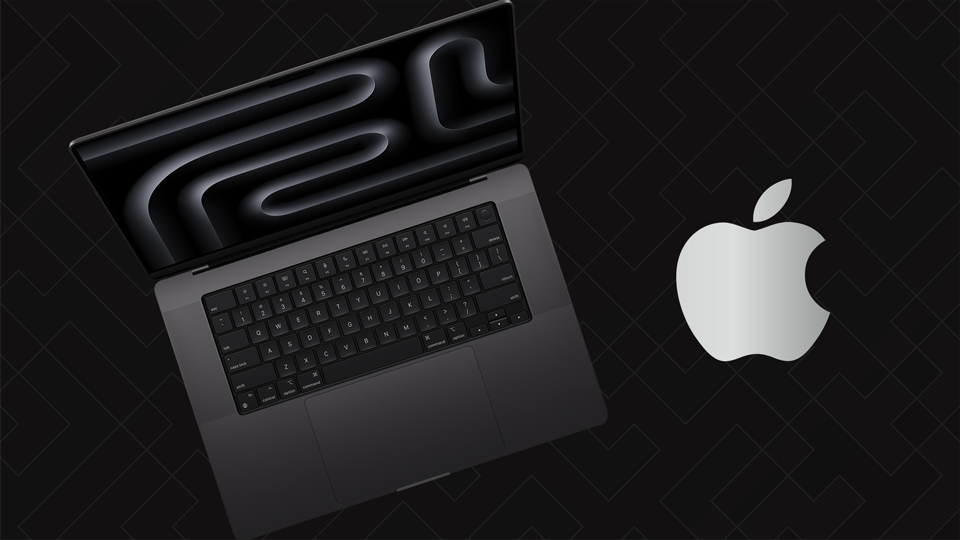
It’s no secret that the MacBook Pro is designed for the creative professional. A popular choice among photographers, video editors, 3D artists, AI developers, and more, the MacBook Pro continues to get significant upgrades since the move to Apple Silicon.

Now housing Apple’s very own M3, M3 Pro, and M3 Max chips, the MacBook Pro delivers fast, powerful performance without sacrificing power efficiency. Read on to find out how to customize your MacBook Pro for your specific creative workflow.
At a Glance:
Which CPU (and GPU) Should I Get?
What are the New Features of the Next-Gen Graphics?
What about RAM?
How Much Storage?
What about the Screen Size?
What are the Color Options?
The Wrap-Up
Which CPU (and GPU) Should I Get?
With the M3 lineup, Apple has moved to 3nm process technology, which allows for more transistors to be packed into a smaller space, while also improving speed and efficiency.
The M3 chip is now housed in the 14" MacBook Pro, replacing its predecessor, the 13" M2 MacBook Pro. Packed with 25 billion transistors—that’s 5 billion more than M2—the M3 has an 8-Core CPU, which consists of four performance cores and four efficiency cores. The M3 is up to 35% faster than M1 when it comes to CPU performance and up to 65% faster than M1 in graphical performance, thanks to its 10-Core GPU and next-gen architecture. The M3 delivers up to 100 GB/s of memory bandwidth and supports up to 24GB of unified memory.

The M3 Pro is an upgrade over the M2 Pro chip. Packed with 37 billion transistors, the M3 Pro integrates the CPU, GPU, Neural Engine, I/O, and more into a single system on a chip (SoC). The M3 Pro offers up to 150 GB/s of memory bandwidth, as well as supporting up to 36GB of low-latency unified memory. The 11-Core CPU is made of five performance cores and six efficiency cores. There is also a 12-Core CPU version, which has one more performance core. The M3 Pro 11-Core comes with a 14-Core GPU while the M3 Pro 12-Core comes with an 18-Core GPU. For most creative professionals, the M3 Pro chip will be a solid choice.

Need even more performance? The M3 Max builds on the improvements of the M2 Max and is now available in two variants. It features 92 billion transistors, up from 67 billion in the M2 Max, and delivers up to 400 GB/s of memory bandwidth. The M3 Max 16-Core chip can support up to a staggering 128GB of unified memory, which can allow AI developers to work with even larger transformer models with billions of parameters. The M3 Max is available with a 14-Core CPU (10 performance cores + 4 efficiency cores) with a 30-Core GPU or a 16-Core CPU (12 performance cores + 4 efficiency cores) with a 40-Core GPU. Both M3 Max chips are well suited for extremely graphics-intensive workflows, such as high-res video editing, 3D modeling, and AI development. While the M3 Pro is a great choice for creative professionals, some may consider the M3 Max 14-Core chip for a performance boost.

All three M3 chips feature an enhanced 16-Core Neural Engine, as well as an advanced media engine, providing hardware acceleration to the most popular video codecs, including H.264, HEVC, ProRes, and ProRes RAW. The media engine now also supports AV1 decoding, allowing for power-efficient playback of streaming services for better battery life. Another thing to note is that M3, M3 Pro, and M3 Max are more energy efficient than the standard high-end compact PC laptop. They deliver high performance with less power draw than their counterparts.
What are the New Features of the Next-Gen Graphics?
While the GPU is tied to their respective CPU, the M3 family of chips all benefit from graphical upgrades to help push the MacBook Pro to the next level.
All M3 GPUs feature Dynamic Caching. Dynamic Caching only uses the exact amount of memory needed for each task. Dynamic Caching dramatically increases the average utilization of the GPU. This results in significant performance gains for the most demanding pro apps and games.
Speaking of games, hardware-accelerated ray tracing has finally made it to the MacBook Pro. For those who are not familiar, ray tracing models the properties of light as it interacts with a scene. This allows games and creative apps to create realistic, accurate images. Game developers can use ray tracing for accurate shadows and reflections, allowing for more immersive environments. Hardware-accelerated ray tracing with the next-gen graphics architecture lets pro apps deliver up to 2.5 times the speed of the M1 family of chips. There is also hardware-accelerated mesh shading, which provides geometry processing with greater capability and efficiency, resulting in more visually complex scenes in games and graphics-intensive apps.
The next-gen GPU architecture features all these enhancements while still maintaining its power efficiency. For example, the M3 GPU can deliver the same performance as the M1 GPU at only half the power usage. At its peak, the M3 GPU can provide up to 65% more performance than the M1 GPU.
To get a clear picture of what GPU you can get with which CPU, please see the table below.
| CPU | GPU |
| M3 8-Core | 10-Core |
| M3 Pro 11-Core | 14-Core |
| M3 Pro 12-Core | 18-Core |
| M3 Max 14-Core | 30-Core |
| M3 Max 16-Core | 40-Core |
What about RAM?
Before you decide on how much RAM you want, you should know that Apple uses unified memory, meaning you won’t be able to upgrade later. This means you’ll have to decide if you want to get the minimum amount of RAM now or max it out to future-proof your MacBook Pro.
For light photo work or graphic design, 18GB will suffice. 18GB will be able to handle most of the light work you throw at the MacBook Pro. However, video editing gets a bit tricky here, especially if you want to edit high-res videos, such as 4K.

For most creative professionals, 36GB is recommended, especially if you’re also planning to do more intensive creative tasks, such as 4K video editing or 3D design. 36GB can handle most creative tasks with ease.
For high-res video editing, the more RAM, the better. The maximum is now 128GB of unified memory, which is only available with the M3 Max 16-Core chip. Combining 128GB of Unified RAM and the M3 Max 16-Core Chip with a 40-Core GPU, the MacBook Pro will be able to handle anything you throw at it with ease.
Please note that some RAM configurations are limited to certain M3 chips. For example, the M3 Max 14-Core chip can be configured with 36GB or 96GB of unified memory. The M3 Max 16-Core chip can be configured with 48GB, 64GB, or 128GB of unified memory.
How Much Storage?
Like RAM, you won’t be able to upgrade the storage later, so it’s important to consider what you want out of your laptop. The MacBook Pro offers storage options, ranging from 512GB to 8TB (M3 Max only). For light users, 512GB might be possible; however, most creative professionals should opt for 1TB at the bare minimum. If you’re working with larger files regularly, you should consider choosing more storage, according to your needs. Don’t forget to utilize the Thunderbolt™ 4 ports on the MacBook Pro (M3 Pro/Max only) for even more storage options, such as external hard drives and RAID arrays. Please note that the 14" M3 MacBook Pro has two Thunderbolt™ 3 ports.
What about the Screen Size?
The MacBook Pro can come with either a 14.2" or a 16.2" Liquid Retina XDR Display. Both options are more than viable. Obviously, if you can handle the larger size of the 16.2" MacBook Pro, it would be easier to work with for tasks like video editing, photo editing, and more. The 16.2" screen offers higher resolution, but both screen sizes have the same 254 pixels per inch. Both screens also have 1,000 nits of sustained brightness and 1,600 nits of peak brightness, allowing for a true HDR experience. The screens can also have up to a 120 Hz refresh rate, thanks to ProMotion technology.

Please note that the M3 and M3 Pro 11-Core Chips are only available on the 14.2" model. The 16.2" MacBook Pro has the M3 Pro 12-Core Chip as the base processor.
What are the Color Options?
Apple has introduced a new color for the MacBook Pro called Space Black, a stunning dark aluminum finish. While it may not have a direct impact on performance, it is another option to consider if aesthetics are important to you. Aside from just the color, Apple says the finish features an anodization seal that greatly reduces fingerprints. It should be noted that Space Black replaces Space Gray. The other option is still the iconic silver finish.

If you’re a Space Gray enthusiast, don’t fret. You can still get it with the 14" M3 MacBook Pro, which is also available in silver, as well.
The Wrap-Up
For most creative professionals, a MacBook Pro with an M3 Pro chip and 36GB of unified memory will be a solid choice. Storage can vary depending on what is needed, but at least 1TB is recommended.
For creative professionals handling extreme graphics-demanding workflows, the M3 Max chip and 64GB of unified memory can provide the power and performance. As mentioned before, storage can vary depending on what’s needed, but at least 2TB is recommended, since you’ll most likely be working with larger file sizes.
Want to know where to get started?
Here are some expert picks.
Any questions or thoughts? Post them in the Comments section, below.
