Storage drives are essential to making your computer work. Without one, your system simply wouldn’t run—nothing would load up and you would be stuck looking at your BIOS screen. With so many different types of internal storage drives out there, we are going to break down all the different types, their benefits, and which ones you should keep an eye on when making your next purchase. We’ll look at some of the oldest drives that are still in use today as well as newer models used by creatives and gaming enthusiasts alike. Let’s get started!
A Few Terms
Storage drives might be a bit different across the board, but they’ll still have some common aspects, specifically the terminology used. So, before we dive into the drives themselves, we should cover some of the basics.
We all know what capacity is the amount of space a drive can hold. But, did you also know about cache memory? Also known as a buffer, a cache is an embedded memory that rests between the computer and the storage drive’s flash chips or platters. This acts as a spot where data is briefly stored before it is written onto the drive or read off it. The type of drive determines how much cache memory you get. Alongside cache, there is also an internal controller which helps relegate where the information is going to be stored.
Read and write speeds are also common between each of the drives. Reading is when you are pulling information from the drive while writing is when you are sending information to the drive. There are also different types of read and write speeds called sequential and random. Sequential is when the data is written in a specific order while random is where it is place throughout the drive in a variety of places, typically away from each other. Additionally, random speeds are typically measured in Input/Output Per Second (IOPS). This is a more accurate measurement of speed and efficiency for that particular read and write style.
Meantime Between Failure or MTBF is a reliability metric that estimates the average time between failures for a repairable system. The higher this is, the longer the drive will last.
Finally, there is encryption which is an important security protocol designed to keep information on the drive safe and out of the hands of unauthorized users. Almost every single drive has a type of encryption compatibility. Depending on what you do, encryption may be of great importance to your work.
Hard Drives
Hard Disc Drives (HDDs) are one of the oldest storage technologies out there that are still in use today. Since they were introduced back in 1956 by IBM, HDDs have remained within the tech space and still find plenty of use in a variety of cases. All HDDs made within the last several years are known as 3.5” drives, meaning they can fit in any drive bay that supports the 3.5” form factor. There are also smaller ones that come in 2.5” form factors and share a profile similar to the now popular SSD, but that specific form factor seems to be slowly disappearing.

HDDs use internal spinning platters, needles, and the power of magnets to read and write data, like a record player. When in use, they spin around incredibly fast. Modern day drives typically spin at either 5,400 or 7,200 rpm. The faster it spins, the faster information is transferred. Data is stored in what is called a random-access manner, meaning each block of data can be stored and recalled in any order. HDDs also retain information when systems are turned off, classifying HDDs as non-volatile storage.
Each HDD has a SATA connector that connects directly to your computer’s motherboard. There is a second connector made up of either multiple tiny pins or an L-shaped connector. These connectors are for the power which comes from the computer’s power supply.
In today’s world, HDDs are not often the main drive in most systems. Instead, people tend to use them as a secondary drive dedicated to storing lots of data. This is because HDDs have expanded in terms of capacity while also becoming much cheaper to obtain. These are great for creators but not so much for gaming enthusiasts.
While these drives are great for creating massive amounts of storage, they are incredibly slow compared to newer drives. Because of this, newer games require faster drives to help load in important assets and textures. Even some game development software suggests a faster drive because of how slow they are.
Also, HDDs are not very durable. If you happen to drop one while installing it, there is a chance that the drive could experience critical failure. They might be big and blocky, but they are fragile. The internal disc and needle could end up breaking and causing damage, so you must always be careful. Also, HDDs get loud when they speed up and some folks might find that distracting.
To sum it all up, HDDs are great because they offer:
-
Plenty of space at a lower cost
-
Reliable lifespan
-
Can be easily replaced without touching the motherboard
-
Still widely supported in many different fields so the technology remains relevant
If you are looking for an HDD for your system, there are a couple of important things to keep in mind. Make sure you get one that has the right capacity and has the right spindle speed. That is all there really is to HDDs. If you are looking for a dedicated HDD for something like a surveillance system, they tend to put that on display, so you don’t have to worry too much about that.
2.5” Solid-State Drive
There are many different types of Solid-State Drives (SSDs) and the 2.5” drive is the next step up the HDD. Solid-state isn’t necessarily a term designated for specific pieces of hardware. Instead, “solid-state” is used to describe the core architecture of the drive. This technology is built differently from HDDs. SSDs use NAND flash chips to store and recall information opposed to an HDD’s spinning plates.

NAND flash memory has different levels that classify the storage drive and its operations.
They are:
-
Single-Level Cell (SLC) NAND memory has the highest endurance of all the NAND types, but they are also the most expensive
-
Multi-Level Cell (MLC) NAND doubles the storage space but at the cost of speed
-
Triple-Level Cell (TLC) NAND flash memory is the most cost-effective type of flash memory and made mostly to work with additional 3D NAND modules
-
Quad-Level Cell (QLC) NAND is also less expensive with lower endurance write speeds but is capable of faster read speeds
-
3D NAND memory is a unique node that operates alongside MLC, TLC, and QLC NAND technology, has higher density, and requires less power consumption to maintain higher write speeds
-
Vertical NAND (V-NAND) is the same as 3D NAND, but you might see this term used depending on the company developing the SSD
When you are shopping around, pay attention to the NAND type for your specific use case. For example, SLC NAND is great for long-term storage while QLC NAND is great for gaming due to the faster read speeds. Your SSD might come with a dedicated cache memory chip, also known as DRAM, specifically on SSDs. In theory, it operates the same way as cache memory with a slight caveat: DRAM often has a larger memory pool over HDDs. Because of this, SSDs run faster than HDDs in almost every case scenario.

Due to the architecture of all SSDs, they are subject to something called Endurance, otherwise known as Total Bytes Written (TBW). This is a measurement of lifespan for the drive itself before it becomes unreliable. This is a scalable number that coincides with the maximum capacity of the drive. For example, in many cases a 2TB SSD may have a TBW of 720TB which means you can move that much before the drive begins to show signs of failure. This is not a definite number and can change between manufacturers and capacities, so always check that spec before you buy.

There are no real downsides when running with 2.5” SSDs. You still must wire the drive up to the motherboard and you still need a power cable. Other than that, while the 2.5” SSDs are still popular in many systems, they tend to have less capacity options opposed to HDDs, and the price seems to be very close to some of the newer types of SSDs when you start going beyond 1TB.
So, in all, SSDs are great because they:
-
Are faster than HDDs
-
Lower profile
-
No moving parts
-
Long-lasting performance
If you are in the market for a 2.5” SSD, make sure you find one that meets your capacity requirements and is fast enough to handle your tasks. These types of drives are slowly fading out, so check your system and see if you can install an M.2 SSD instead, especially if you are planning to use it as a main system drive. Once again, always check the TBW of any drive you purchase.
M.2 SSDs
Everything up until this point has been straightforward. HDDs and SSDs share a lot of commonalities between each other. Chip architecture from SLC to QLC found on the 2.5” SSDs still exists here on the M.2 SSD. A version of cache also exists on the M.2 format mostly known as DRAM. Not all M.2 use DRAM, but a lot of the faster and more capable drives feature it, taking the technology found in system RAM and adapting it to the SSD. It still works the same, but the profile and technology is elevated to a new level. Additionally, TBW is still an element to these drives, but in a lot of cases, M.2 drives tend to have a higher endurance rating compared to their 2.5” counterpart.
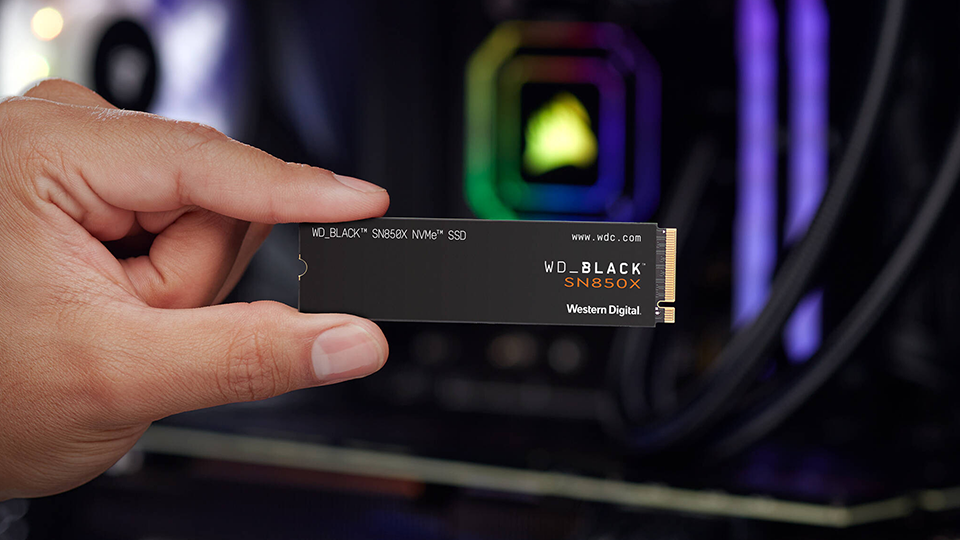
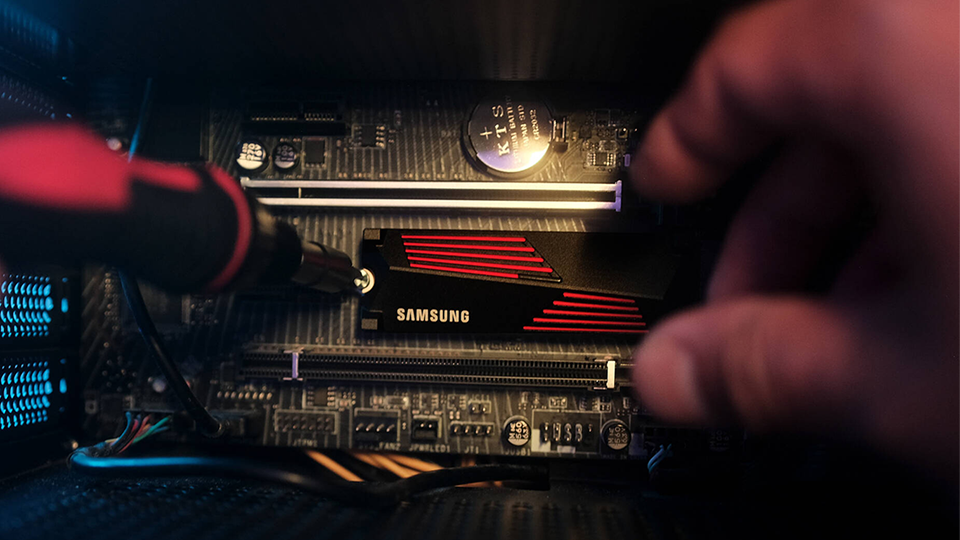
When it comes to layout, it is like how the 2.5” SSDs are laid out with their chip design, except they are using a different style of connectivity. The drive uses what is called an M.2 interface with contacts found on the drive and the interface embedded directly on the motherboard without the need for cables. M.2 drives also come in multiple sizes including 2230, 2242, 2260, 2280, and 22110. The first two digits refer to the drive’s width while the remainder represents the length, all measured in millimeters.
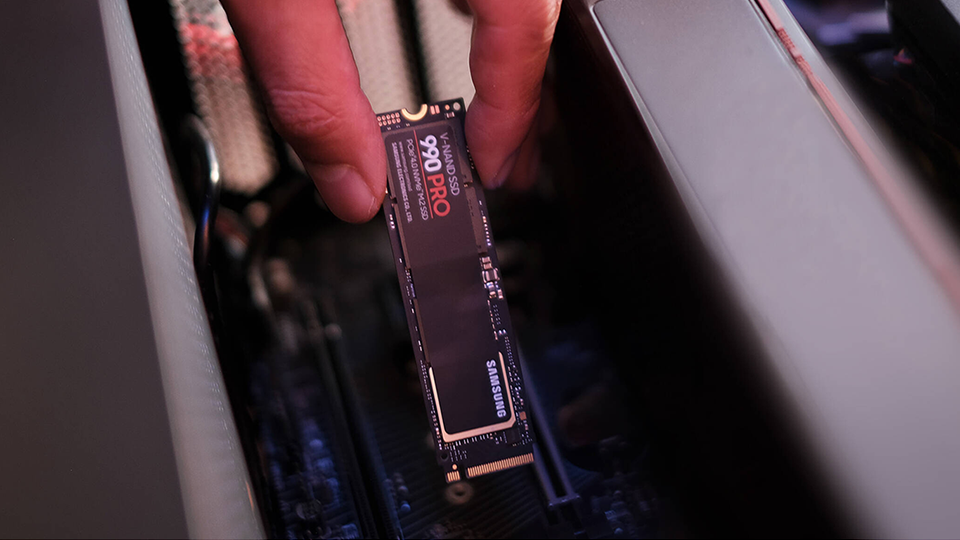
As opposed to SATA technology, M.2 drives operate on Peripheral Component Interconnect Express (PCIe) technology. This allows data to flow in two separate lanes simultaneously in opposite directions, speeding up your transfer speed drastically compared to SATA interfaces. This is the same technology that powers other devices like graphics cards.
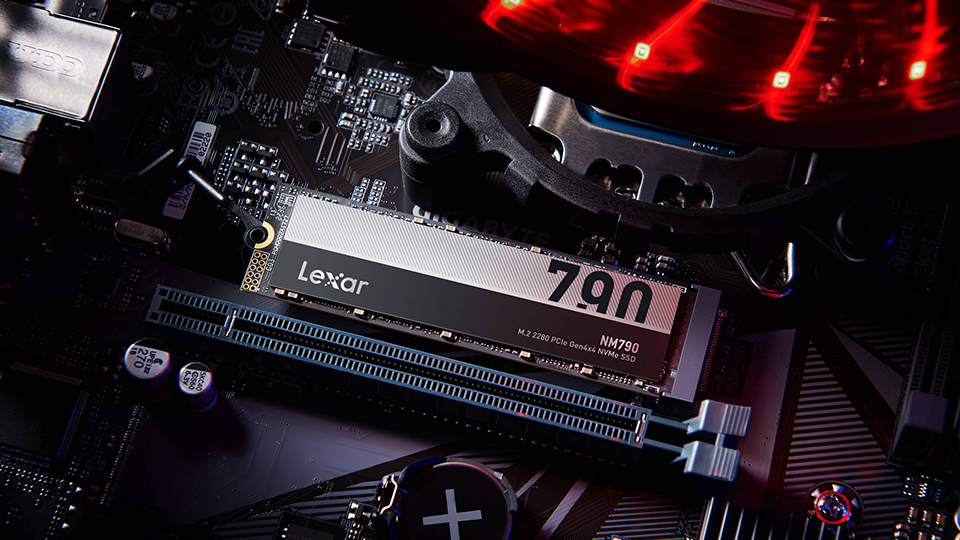
PCIe technology has multiple generations that coincide with performance and M.2 SSDs scale their performance accordingly. There are PCIe 3.0, 4.0, and 5.0, each giving you substantial uplift as the technology evolves. You must have the right processor to support the newer versions of PCIe technology. For example, if you have an older processor and motherboard that support PCIe 3.0, it will not support PCIe 5.0 performance. You can still install a PCIe 5.0 M.2 SSD, but performance will scale down to that PCIe 3.0 performance profile.
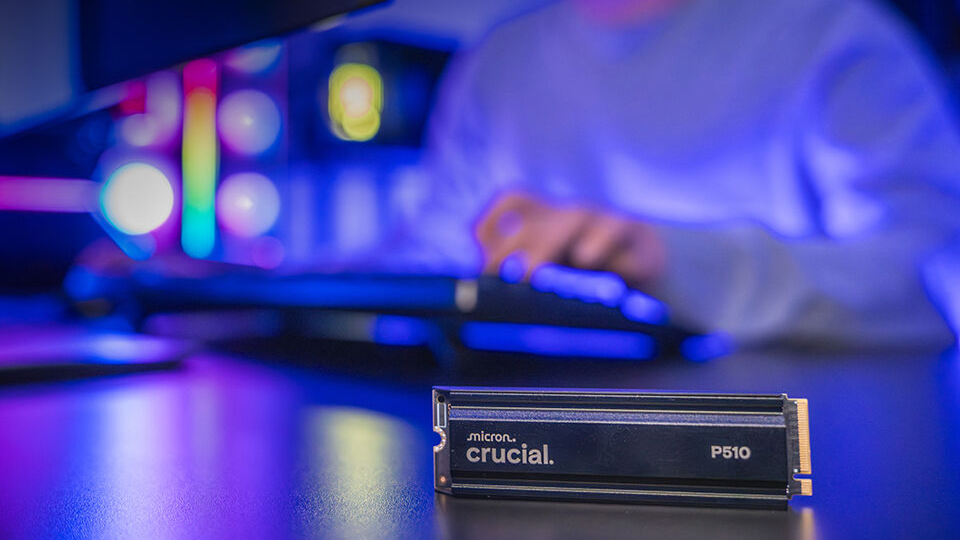
Working in tandem with PCIe technology is NVMe technology which stands for Non-Volatile Memory Express. This technology works exclusively with the SSD format. This produces faster speeds while ensuring data is always stored on the drive, even when your system is shut down. It is rare to find SSDs that do not feature NVMe technology these days, but they are out there. A few drives might feature SATA technology instead, which isn’t as fast as PCIe NVMe drives, but they happen to be much cheaper. Granted, M.2 SATA drives are also fading out, but be sure to make sure you are grabbing the right one!
I also want to mention that a lot of M.2 SSDs with fast speeds tend to also be compatible with Sony’s PlayStation 5 and PlayStation 5 Pro family of consoles. As long as they meet the read and write speed specifications required by the system, then it should be absolutely fine! Most drives will also tell you if they are compatible with the console, but if it doesn’t state it anywhere then you should double check with the manufacturers.
So, M.2 SSDs are great because they:
-
Are the fastest drives currently available on the market
-
Install directly onto the motherboard
-
Backwards compatible with various systems
-
The modern go-to drive of the modern age
When buying an M.2 SSD, make sure you know what PCIe generation is supported by both your CPU and motherboard. Then you want to make sure you have the right capacity, speed, and size! Most motherboards support up to 2280 M.2 SSDs, so you are safe with that size most of the time. You also want to make sure the drive is an NVMe drive rather than a SATA drive.
Conclusion
And that is all there is to it! There is a ton of information here but if you are looking for a new drive it is important to weigh your options and understand some of the most important aspects. Make sure you stay tuned because we will be using all this information to bring you a neat storage drive shopping guide!
