
Back-to-school season is upon us once again and artists everywhere are always looking for the best drawing device that balances price and performance. This is where Wacom steps in with a variety of drawing tablets that come in so many different flavors. From the classic and reliable Intuos tablet to the incredibly versatile Movink, Wacom has something for everyone.
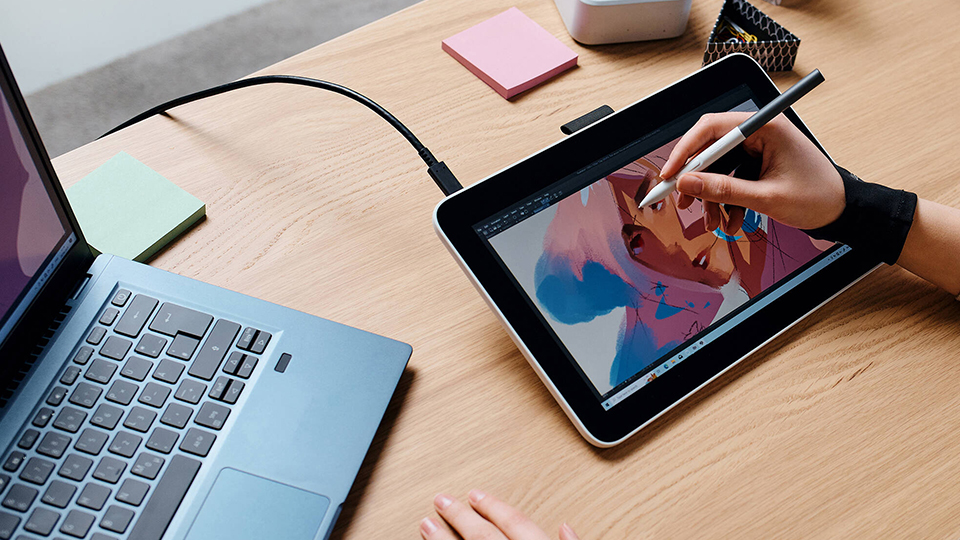
Whether you are a student or a teacher, it is important to gauge exactly what it is that you are using each of these devices for. Students of varying degrees may need to consult with their teachers about the yearly program in which these devices can be applied. Many elementary and middle schools may approach their artistic needs differently. Students on an individual basis might not need a drawing tablet that gets sent home with them, but a teacher who is presenting the world of digital art may benefit from having their classroom outfitted with various tablets or screens. There are plenty of avenues that can be explored, but not every tablet is great for every scenario. While explaining all the families of devices, I hope we can recommend where each device shines! So, let’s get started!
Tablets
Intuos
The Intuos is a great entry-level drawing tablet family that perfectly balances power and performance, acting as a solid gateway into the world of digital design. Because of this balance, this makes the Intuos a fantastic device for all ages, making it easier for younger students to get a grasp of the creative world.
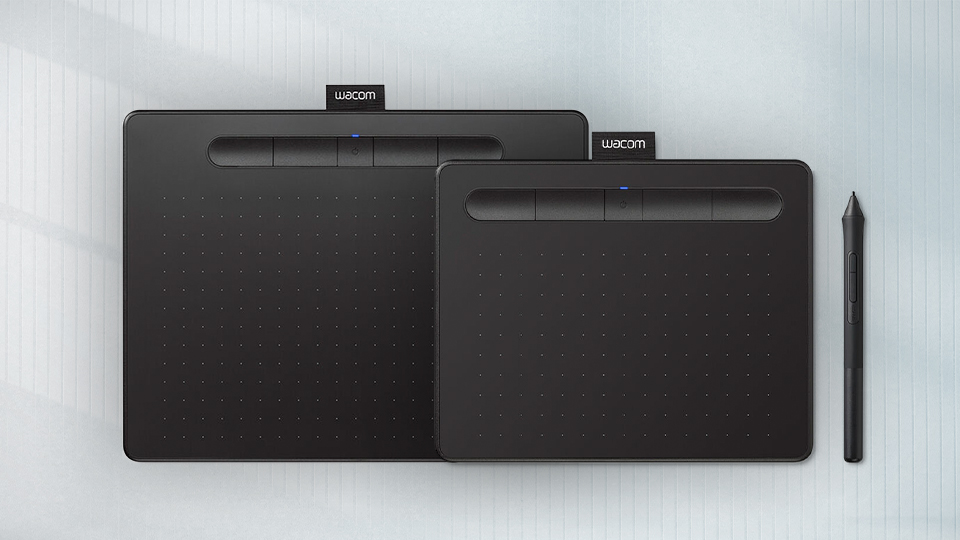
In many cases, the Intuos is great for introducing basic concepts while also giving enough leeway to explore more advanced techniques for growing students. Thanks to the durable design of the Intuos, these are devices that can be easily used for multiple classes across several years or semesters. Due to their compatibility with various operating systems including Windows and Mac, the Intuos can be easily deployed across various classes.
Perhaps the best and most cost-effective way to break into the world of digital art is with the Wacom Intuos tablets. The drawing tablet itself features an array of programmable shortcut ExpressKeys that allow you to instantly activate various commands with a single press. The included pen features 4096 levels of pressure sensitivity for added accuracy and precision. It is also battery-free, so you don’t have to charge it when not in use.
There are two sizes of the Intuos, a small size with an active area of 6” x 3.7” and a larger model that is 8.5” x 5.3”. Connectivity-wise, the large model offers both USB and Bluetooth connectivity while the small comes in two flavors, USB only or USB and Bluetooth. For wireless versions, you get a long-lasting internal battery that can give you hours of drawing time.
So, where does the Intuos make the biggest impact? Anywhere from kindergarten to around high school ages. These are the areas where students are going to learn about technology and how it can be applied to various tasks outside the realm of art. These kinds of drawing tablets are great for annotation, taking notes, and even mobility.
Wacom One
The Wacom One is a wonderful, advanced tablet that provides users with the reliability they need to get their design work done! This is one of the few tablets that enable students and teachers alike to embrace techniques that are more intricate in nature. Those who are more in-tune with the world of digital art and transitioning from traditional art direction to something more digital will find the Wacom One to be a solid steppingstone.
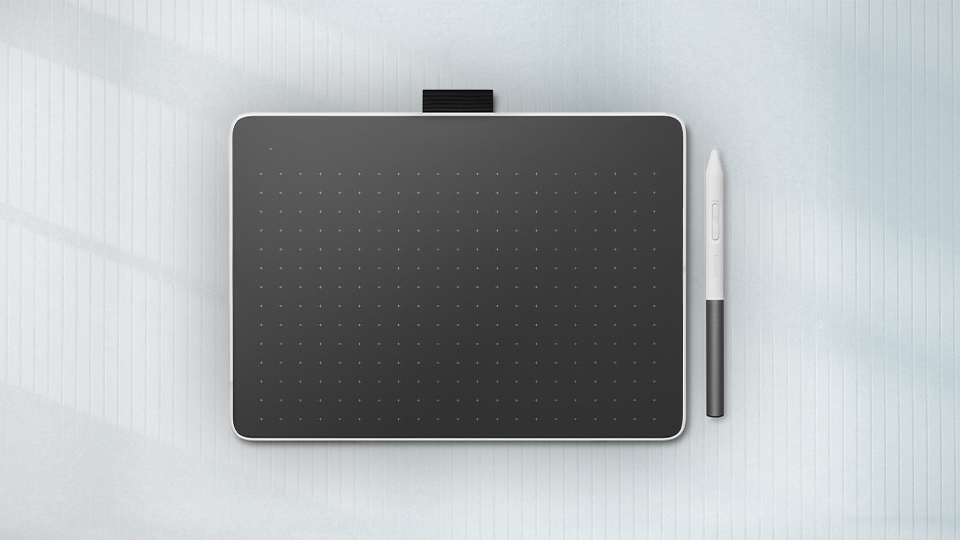
Part of what makes the Wacom One an appealing device is how it can easily provide students with access to industry-relevant skills. This is due to the specifications and overall utility of the Wacom One that makes it a solid companion for any student who wants to learn more about the world of digital art.
Perhaps one of the more appealing elements of the Wacom One is the compatibility with Chromebooks which tends to be the go-to learning device for students. Due to this somewhat modular design, the Wacom One can be used within the classroom or home, separate from computer labs. Bluetooth and USB-C connectivity can be used to tether the Wacom One to your host system, and that is all you really need to get started!
Drawing and drafting is made easy and comfortable thanks to the included Wacom One Standard Pen which features 4096 pressure levels, a 60-degree tilt, a textured grip, and two customizable side buttons for added functionality. Using EMR technology, the pen doesn’t need to be charged, giving you long-lasting performance and a disruption-free experience!
Two size options for the Wacom One are available! You can choose between the compact One S which sports an active area of 6” x 3.7”, or the larger One M, which features an 8.5” x 5.3” active area. These are great drawing tablets for those who are just jumping into the world of digital art without hurting your wallet.
Intuos Pro
Kicking your creativity and efficiency up a notch is the Intuos Pro series tablets! These offer a lot of utility and have enough additional features that are all designed to provide you with the best drawing experience possible.
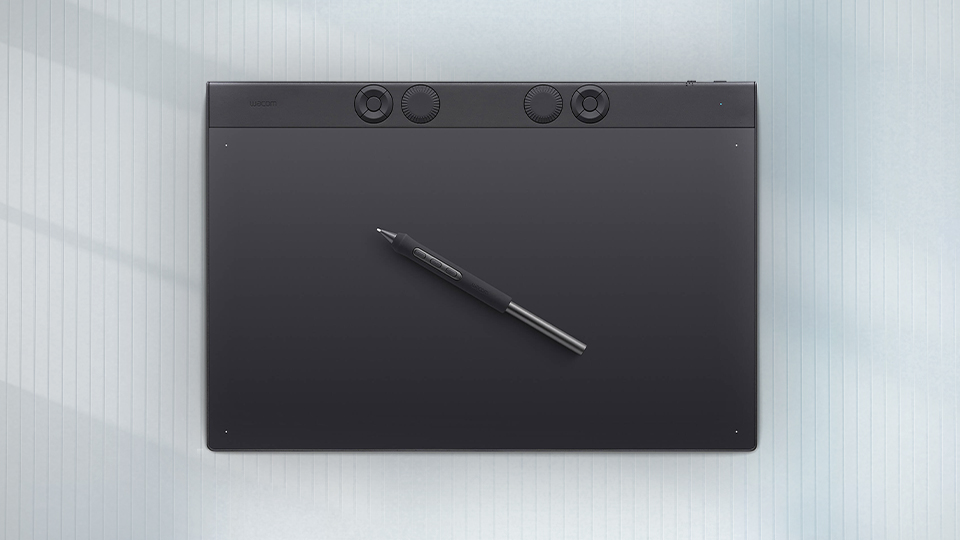
This is where we begin to see a lot more flexibility within the Wacom family. Similar to the Intuos, it can be used to perform a series of basic tasks, but when we are talking about professional workflow and using more powerful applications, the Intuos Pro is the way to go. It is a great tool to take with you from the moment you enter high school all the way till you graduate college, pending your curriculum, of course. As long as the host system you are using is able to run applications like Adobe Creative Cloud, Blender, and Clip Studio Paint (amongst many others), you can safely use the Intuos Pro with it.
It’s not just a great tool for students though, it is fantastic for teachers as well! This is due to several elements regarding not just the tablet, but for the Wacom Pro Pen 3 as well. Wacom’s design philosophy essentially boils down to having a viable and long-lasting tool. This is achieved by making several components reusable or replaceable. The tablet itself is very sturdy and does a solid job at replicating workplace materials. The Wacom Pro Pen 3 can be configured with various tips, sleeves, and weights to not only give you the optimal drawing experience, but also enabling you to replace various components in the event of breakage.
Regarding technical specs the Intuos Pro offers scalability that fits within your design style and desktop layout. No matter the size, each Intuos Pro includes a series of customizable dials and ExpressKeys, giving you instant access to your most-needed shortcuts. All three versions of the Intuos Pro offers USB and Bluetooth connectivity, enabling you to choose the best option when laying out your desktop space.
Even the pen gets an upgrade with the latest Wacom Pro Pen 3 which comes with the Intuos Pro. This offers 8192 levels of pressure sensitivity, three buttons, and a 60-degree pen tilt. Somehow, the Pro Pen 3 maintains its battery-free operation, just like the pens in the previously mentioned models.
Screens
Wacom One 12
Tablets are great for drawing, and for a bunch of seasoned creators, that’s been a way of life. There isn’t a problem using something you are familiar with. They are cost-effective and perform greatly at the singular thing they are designed to do. In the classroom, they are rigid and can withstand hours and hours of use which is essential for adapting to either a revolving door of new students or for long-term use for just one student. But when it comes to a screen, it is easy to see the benefits right there. The Wacom One 12 is one of those devices that are designed as a lateral move for the traditional drawing tablet crowd.
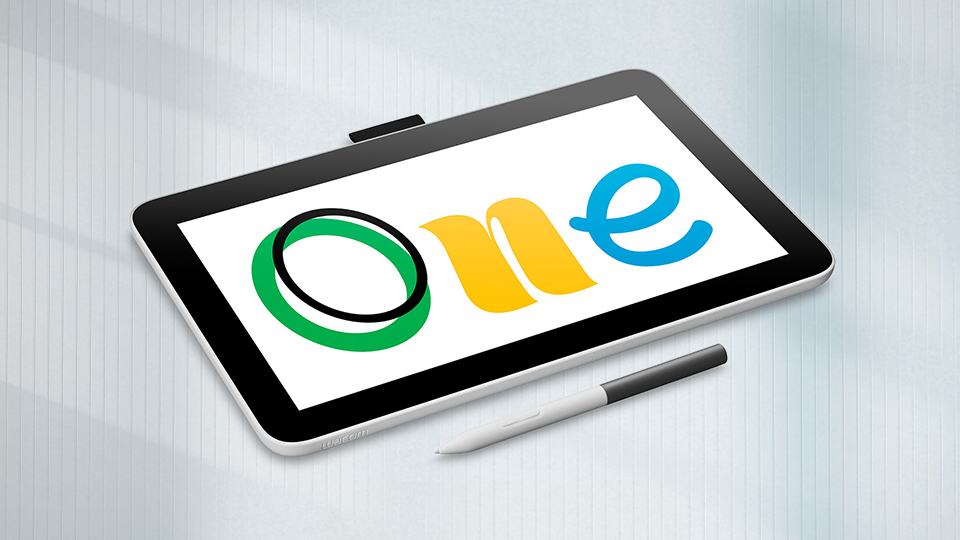
Modern students are all too familiar with screen-based tablets such as the Wacom One 12. Kids are often introduced to new technologies quicker than previous generations, which makes the Wacom One 12 quite enticing. Because it is a screen, the familiarity between other tablet devices to the Wacom One 12 bridges the gap. Young students will have a great time using it to color and draw, learning various fine motor skills that eventually develop over time. The Wacom One 12 provides a great opportunity for young students to learn about digital artistry without breaking the budget.
The One 12 is the screen version of the previously mentioned One. Instead of a blank slate, we have a vivid, 1080p display with an active area of 10.1” x 5.7”, as well as some additional bells and whistles. It has 275 nits of brightness, 1400:1 static contrast ratio, contains 99% of the sRGB color range, USB ports, and so much more! These are important to the creative experience, because instead of connecting to a host device, you can use this by itself. There is no longer a need to be used with another computer, simply turn it on and go!
This comes with the Wacom One Standard Pen, which is like the one that comes with the previously mentioned Wacom One tablets. It has 4096 levels of pressure sensitivity, shortcut buttons, and more.
As I said before, this is one of the more cost-effective options out there and it is a great way to get people into drawing on dedicated screens. Absolutely the best starter drawing tablet screen. Young students and parents who may want to encourage their kids to explore the world of digital art will find this to be a great baseline for the upcoming years.
Movink
Looking for a solid step up from the One 12? Then you should take a look at the Movink series of screens, bringing forth a very interesting device philosophy. With a bit of the ole hands-on approach, I got to check out one of these devices and I must say, it is quite impressive. More on that a bit later.
The Movink family of devices can easily fit into a variety of educational niches. I would easily recommend them for advanced students who are using powerful artistic applications. High school seniors who are prepping themselves for college would find a ton of longevity out of the Movink lineup.
There are three different devices, but they do have some commonality between them. For instance, the included Wacom Pro Pen 3 comes with each version of the Movink, providing you with the 8192 pressure sensitivity levels, three shortcut buttons, and EMR battery-free technology. The real changes come in the performance of each of these screen tablets.
The three options are the Movink 13, 11” MovinkPad All-in-One, and a 14” MovinkPad Pro All-in-One. Naturally, each one has a different screen size with respective active areas. It starts from the panel with the Movink 13 and the 14” MovinkPad both sporting OLED displays while the 11” uses an IPS-type LCD display. Aspect ratios are also different across the board along with resolution, contrast ratio, color ranges, max brightness, and so much more.
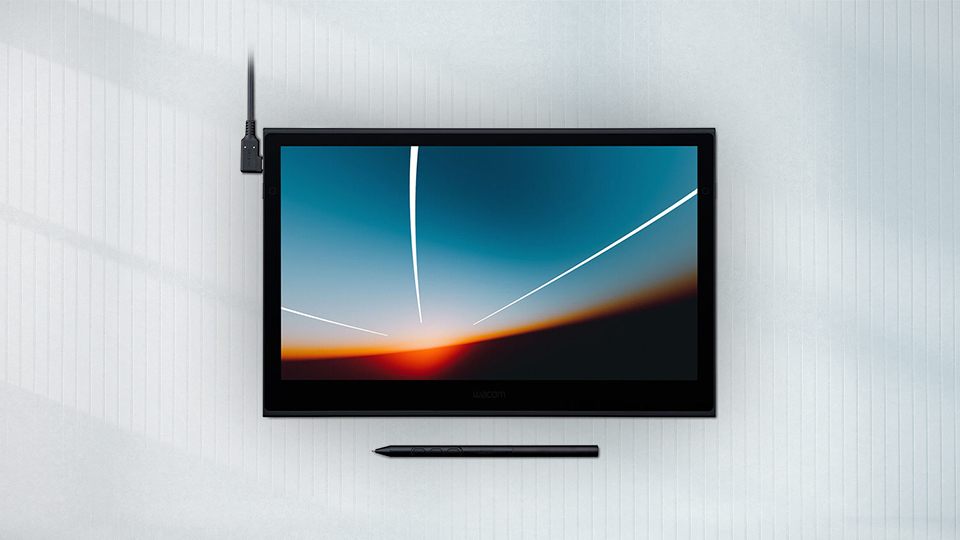
Out of all of these, Wacom allowed me to test out the 14” MovinkPad Pro, which really changes how I approach digital creativity. Because the MovinkPad Pro can be used as a standalone device, I was able to use it freely at my work desk without connecting it to my MacBook Pro. Because it is Android based, I could log into my Google account and run some applications, emphasizing the “All-in-One” aspect of the device. Comics, manga, and visual novels really pop with enhanced color thanks to the OLED panel. Even YouTube looks fantastic on it.
The 14” MovinkPad Pro has a ton under the hood with Qualcomm 8s Gen 3 Mobile CPU, 12GB of memory, and 256GB of onboard storage. I also greatly appreciate the addition of a microSD card slot so I can pull my images from the tablet to my computer at home without uploading it to the cloud. You could transfer data via USB-C 2.0 port, but it only has a max speed of 480 Mb/s, which is better than nothing; nevertheless, the port is mostly used for charging. Wi-Fi 6 and Bluetooth 5.4 are both integrated into the MovinkPad Pro, giving it that extra edge when it comes to connectivity and speed.
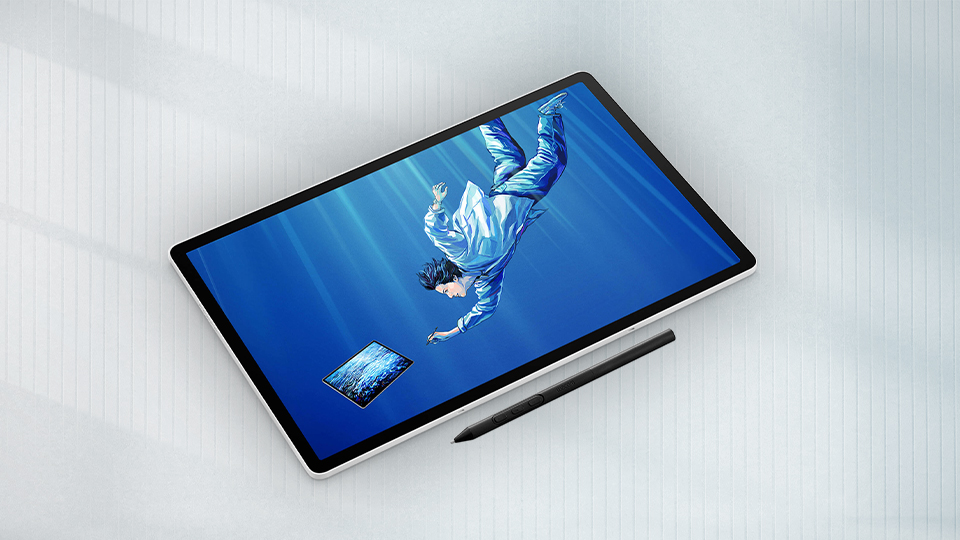
I will say that the MovinkPad Pro does come at a premium cost, but when you have a device that not only looks good when you are drawing and creating but also handles extra applications with the swiftness of a leaping gazelle, it really checks all the boxes and reduces tech bloat.
When it comes to educational use within the classroom, it once again depends on the criteria. The Movink 13 is a solid all-around choice but has a lower resolution screen at 1080p. It still looks great, but there are a few artists out there who rely on having a super-clear picture. That is why the 11” MovinkPad and 14” MovinkPad Pro are both solid options beyond the screen resolution. These are made for the long run, something that you could use for your entire tenure as a student. If resolution is that big of a deal to you, I understand. There is a bit of a stigma in the screen world where tons of people believe that you have to have a 4K screen when it couldn’t be further from the truth. At these specific screen sizes, having a 4K screen will produce diminishing returns. That is why I feel like 1440p is perfect! That is the same reason why the 1080p resolution is still viable, because these little details don’t fully show themselves till you make that image bigger and use it for real-life applications like making banners or signage. That is another whole area of expertise though, and as you go through your education, you too will learn all about it!
Cintiq
Seasoned artists will find the Cintiq series to be a big step-up regarding performance, size, and utility. Which is why I will say that those who are making artistry their primary way of life will be the ones who greatly benefit from the Cintiq family of devices. While they might seem casual in nature, they are quite advanced. The standard Cintiq lineup provides artists with a real solid foundation to learn the basics and adjust to the more demanding aspects of what the world of art requires. There is enough room here for one to grow and become more intwined with the artistic process.
There are two generations of Cintiq tablets out there. The Cintiq 16 debuted around 2018 and is still incredibly viable tablet. It features a 1080p IPS displays, 210 nits max brightness, 1000:1 static contrast ratio, and support for 16.7 million colors that fit within 72% of the NTSC color space. There is also a built-in stand that can be folded into the body of the display, allowing you to quickly set yourself up for the ideal drawing layout.
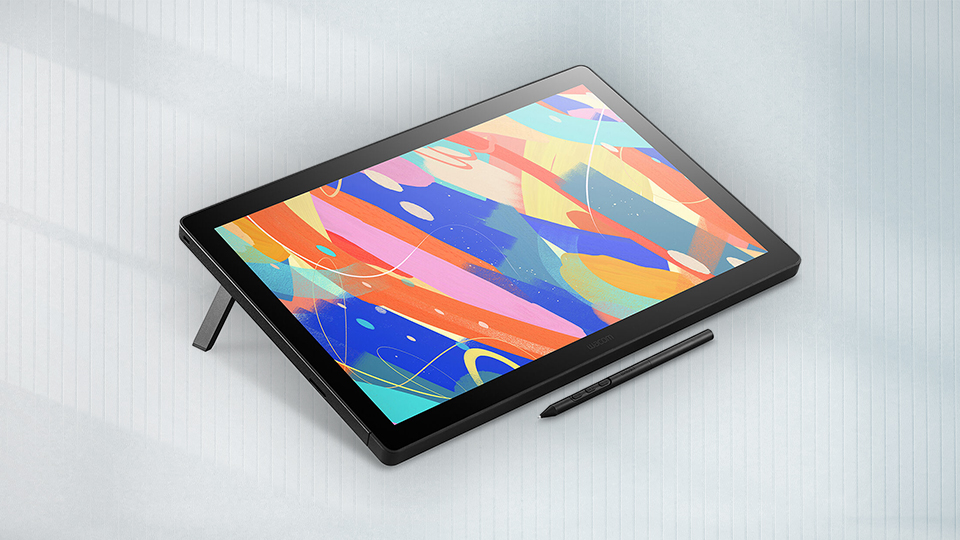
In 2025, new versions of the Cintiq released with enhanced features and a number of changes that really give them the uplift we have come to expect after seven years of improvements. We are talking about higher resolutions, wider color space support, brighter displays, and the inclusion of the Pro Pen 3 over the previous model’s Pro Pen 2!
For the 2025 models we have three unique devices. The Cintiq 16 has a 1600p resolution display with a maximum brightness of 290 nits. It also has greater color support, fitting 99% of the DCI-P3 and 100% sRGB color spaces and a contrast ratio of 1400:1. This particular model is great for the user on the move!
From there we have two versions of the same size with the Cintiq 24 and Cintiq 24 Touch. They are both the same when it comes to specs. Both are 1440p displays with a maximum brightness of 350 nits, 1000:1 contrast ratio, VESA Mount compatibility, and more! Where the real difference comes into play is how the Cintiq 24 Touch has built-in 10-finger touch capacity so you can use various gestures for rotating, zooming, and panning artwork.
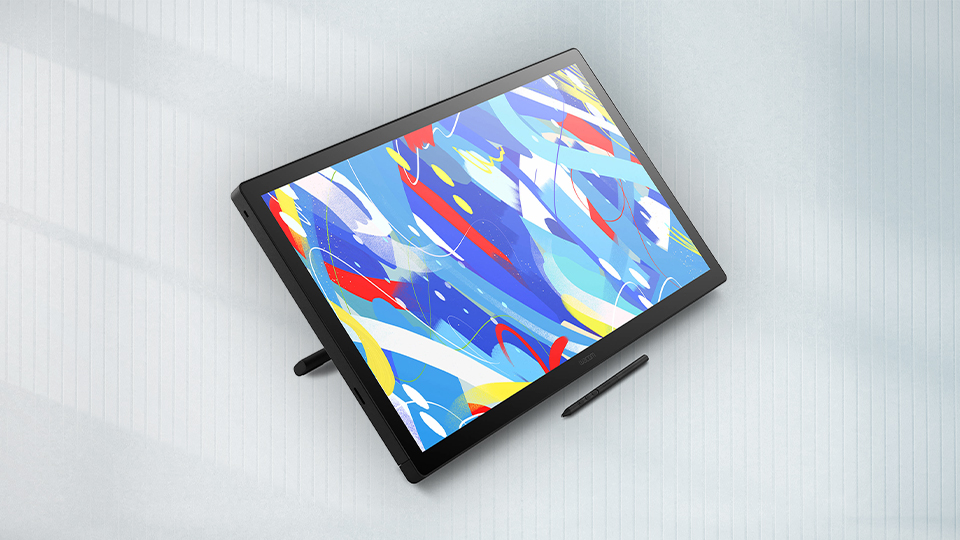
You might ask, why offer two different versions of the Cintiq 24? The reason being is that professional artists might not want these additional touch features because it can interact or interfere with your flow. Sometimes, things are better when you are looking to use just the Pro Pen 3. No accidental touches when you are trying to focus on smaller details, and that is something you can’t put a price on. Those who do want those touch controls get the option, and that is a great feature if you are someone who wants to use those gestures within their workflow.
Once again, the Cintiq is a great learning tool that can bring you into the early stages of a career. Whether you are just starting in the world of art and editing or a seasoned user, this might be the device that has everything you need. But, if you are such a seasoned professional that you need something very specific, something that doesn’t compromise one aspect for another, then the Cintiq Pro might be the one for you.
Cintiq Pro
Designers at the top of their game will find the Cintiq Pro to be the most robust creative display that suits multiple needs in a singular form factor. In the right hands it can produce professional illustrations, designs, edit photos, and more! Admired by professionals all over, the Cintiq Pro is one of the finest displays that you could get your hands on. While it may be a bit steep in price for students, colleges and universities may find this to be one of the best devices to equip their professors with.
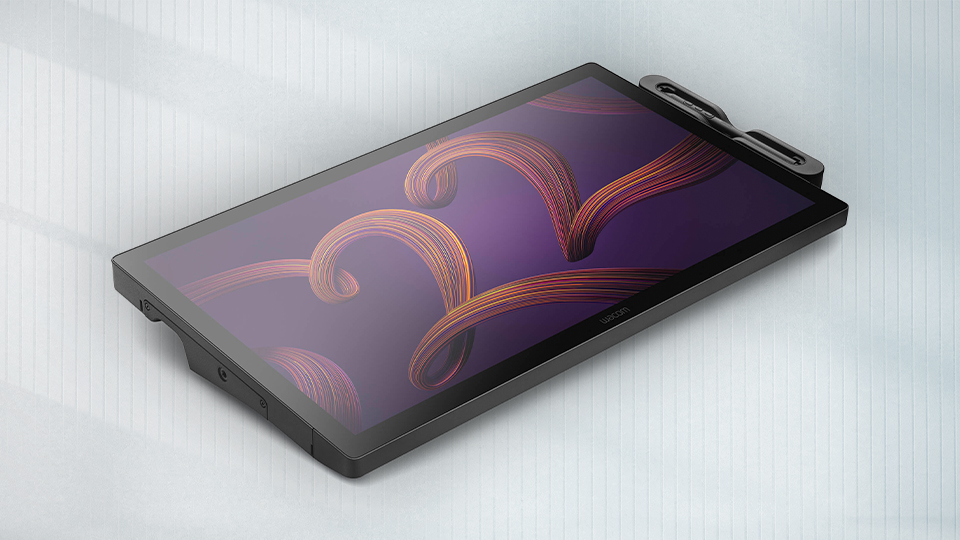
Like other Wacom devices, the Cintiq Pro comes in three different models: 17, 22, and 27. All the Cintiq Pro models offer 4K native resolution, 16:9 aspect ratio, USB-C connectivity, and multi-touch capabilities. All three models also support 1.07-billion colors across a wide spectrum of color spaces with support for DCI-P3 and Adobe RGB. The Cintiq Pro 27 also supports CIE1931 for those who operate within that realm.
There are additional connectivity options with USB-C, HDMI, and mini-DisplayPort video outputs to support external displays, great for showing students various processes. The Cintiq 22 and 27 both feature a single USB-A port to support a mouse or keyboard. All models include a total of eight ExpressKey buttons, giving you instant access to various shortcuts and actions. Additionally, the Cintiq Pro is compatible with 100mm x 100mm VESA mounting brackets for added utility with either Wacom’s stand or a third party one.
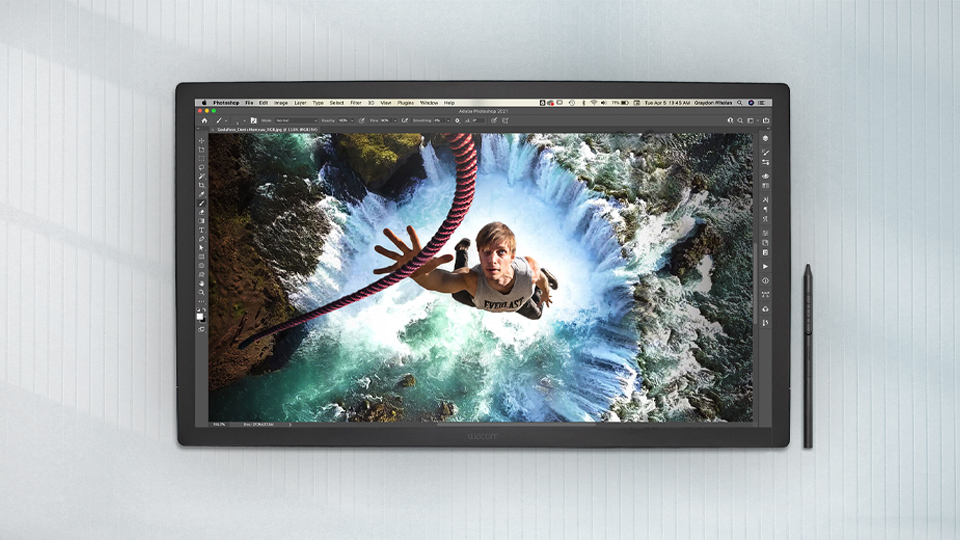
The Cintiq Pro is made for a very specific user whose entire life circulates around art and animation. Your average student will not be walking into class with one of these strapped to their back. It is also a bit expensive for hobbyists in my eyes. Colleges that wish to reenact a professional setting within the confines of their university might find that the Cintiq Pro is the best device to give their students an upper hand. Professors would greatly benefit from having one of these at their desks, especially considering all the capabilities the Cintiq Pro offers. Sharing and teaching cannot be easier with one of these at the helm.
Your Pick
There are dozens of different Wacom tablets out there, and each one serves a purpose. Whether you are a student, a teacher, a working industry professional, Wacom has a device made just for you. Even those who have never used one before! For more information about each of these devices, make sure you hit the links above!
