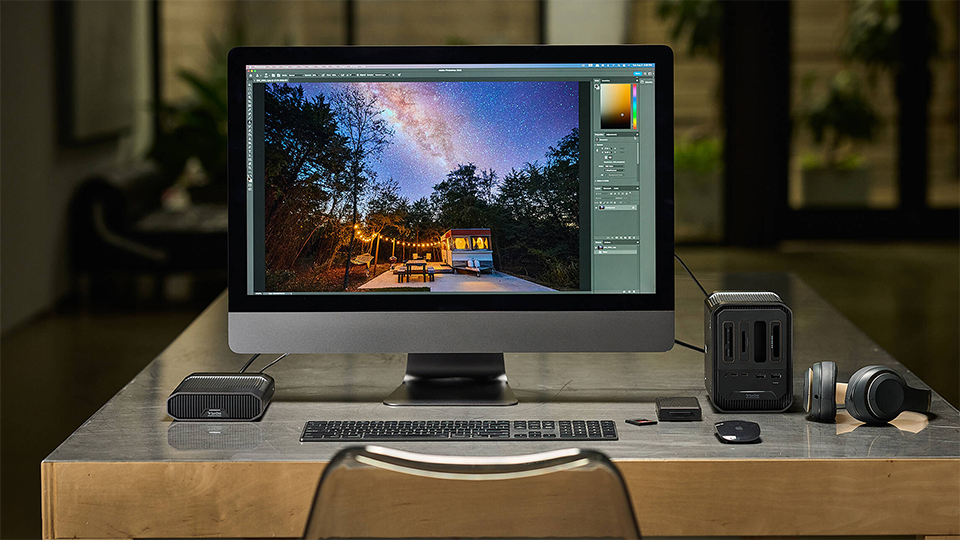
Mass storage, the only solution that can save us from that overflowing drawer of thumb drives and the spare 3.5” HDDs we swore we'd transfer over last year. Compared to other, less-capacious drives, mass storage is an entirely different beast all together. And while it may seem complex at first, fear not, for today we are going to guide you through the various ins and outs of mass storage.
Types of Mass Storage Units
The computer world loves acronyms! HDD, SSD, NAS—these terms all mean something important, and they are applicable to the topic of mass storage. By now, you know what a hard-disk drive (HDD) and solid-state drive (SSD) are. They are all the units that will become the basis of our storage solutions. We will use these to outfit our mass storage device.
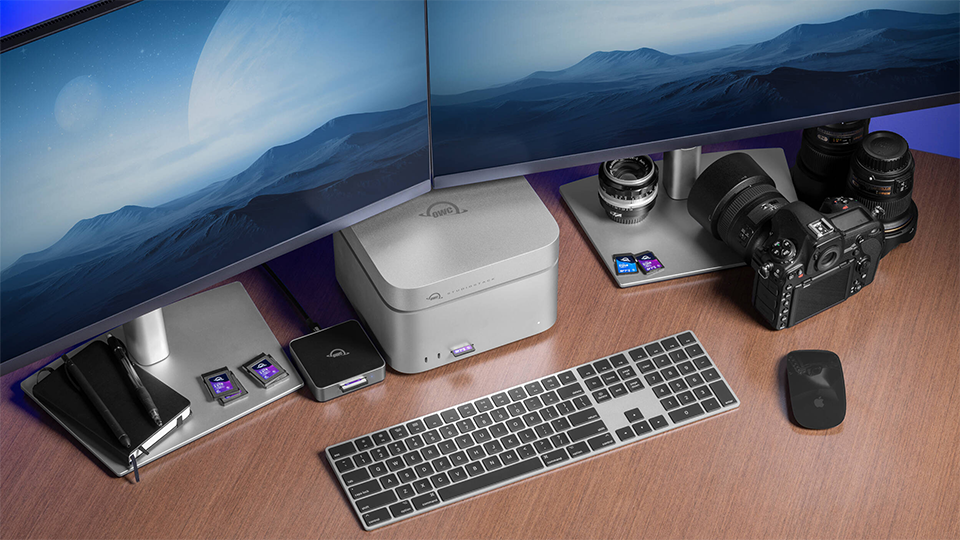
There are two main types of mass storage units: local and NAS. Local units sit on your desk, connect directly to your system, and act like a robust external hard drive with additional functionality. These types of units tend to be designed for maybe one or two systems max. You would want it specifically for a handful of projects and then replace the media with fresh drives to work on other projects. Some studios use these because it is easier and sometimes more secure than leaving it on a host system. Plus, it is less legwork in the event of a storage failure.
Now, what is a NAS? If you guessed the Grammy-winning Queens-based rapper, you are incorrect in this case. NAS stands for “Network Attached Storage” and these types of units enable multiple users to access information simultaneously across multiple computers. Sometimes, with the correct equipment and permissions, you could even access these units remotely!
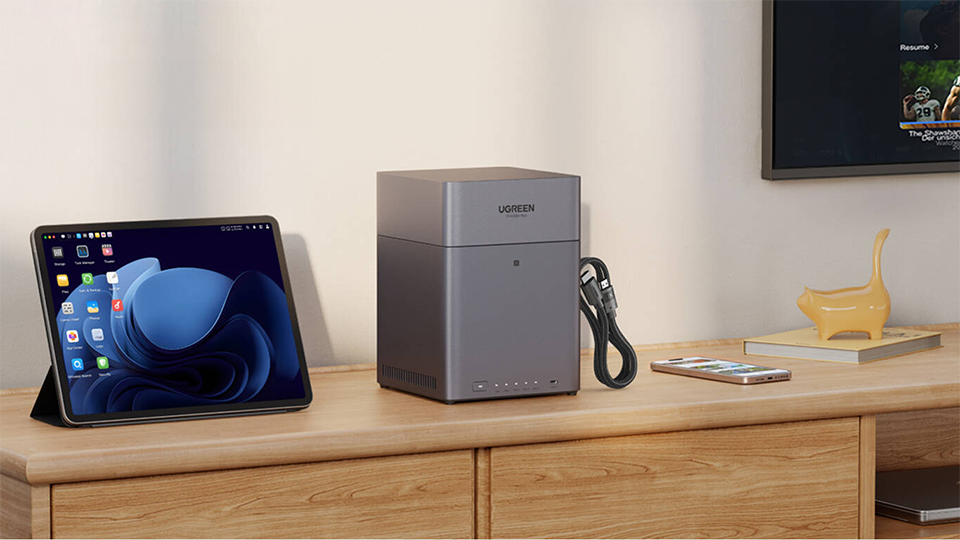
There isn’t a whole lot of overlap between these two types of storage systems and it all bakes down to what works best for you and your workload. Is it just for you and maybe your family? You could do fine with a local unit while various businesses would benefit the most by using a NAS.
Local Units
Many local units designed to connect to just one system and do nothing else are rare to find but the idea remains the same. Local units may still have some sort of network connectivity option, classifying them as a NAS, but the way you use this type of unit is what makes it a true local device.
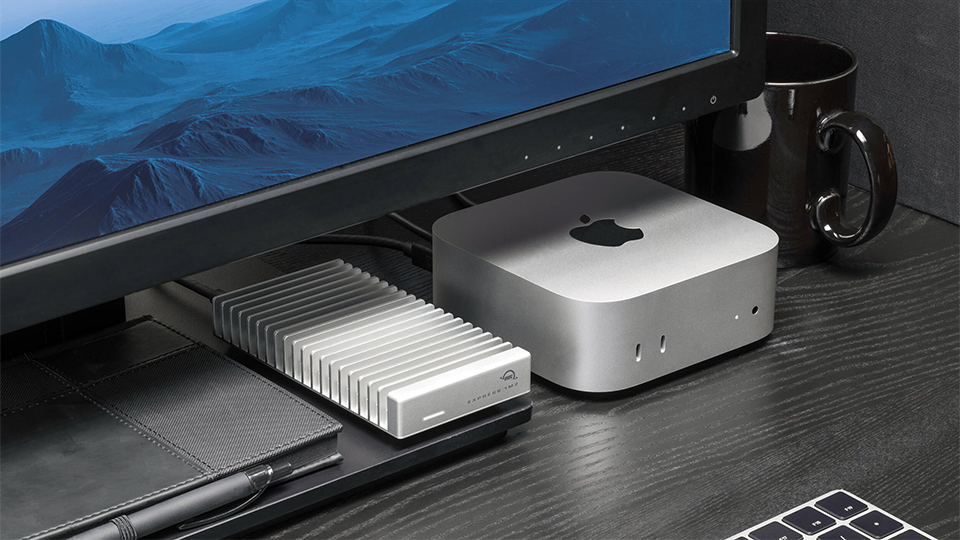
By connecting your system to the mass storage device directly, you are accessing all the data as if it was a fancy external storage drive. Some functions might not be available, like cloud or remote access, but that also prevents others from accessing that data remotely too. It is passive security, allowing you to only access the data if you are around the connected computer.
NAS Units
As I mentioned before, most local units feature some element of network connectivity. When you connect one of these units to a router or modem via ethernet cable, you can enable multiple computers to access data on the said storage. Creative studios that might have multiple users working on various projects would greatly benefit from a NAS. Granted, it will require some additional fine tuning, adjusting permissions and overall accessibility. You don’t want someone to have access to everything. Maintaining a level of control could take some time, but it is imperative to prevent any unauthorized access and keep your data secure.
Form Factor
The form factor of a mass storage unit matters a ton. You have desktop units and you have rack-mounted units. Desktop units tend to have a smaller footprint, a limited drive bay selection, and are designed to be moved around multiple locations and systems. Local devices tend to also lack any sort of daisy chain capabilities and rely entirely on your host system to maintain operation.
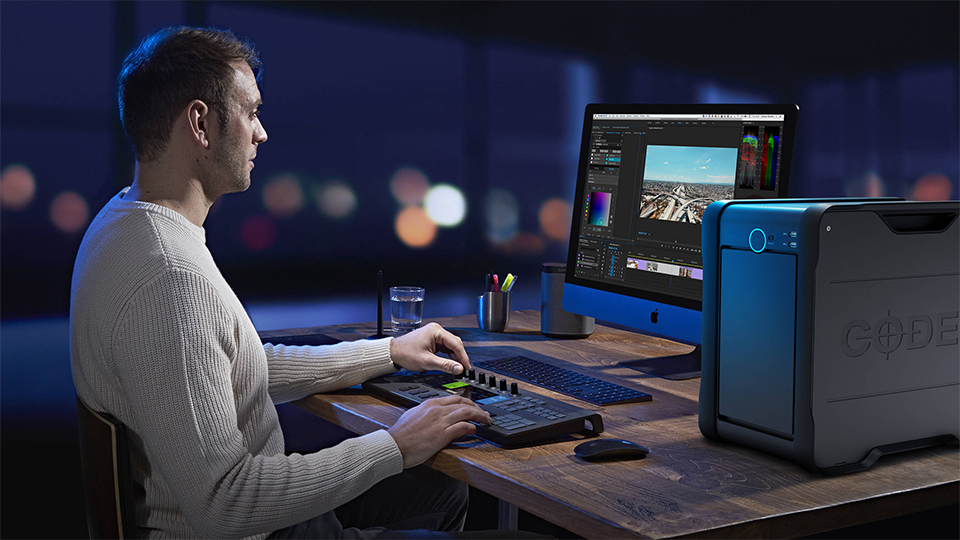
Rack mounted storage systems are designed to fit inside various network cabinets. They also have a few more robust features designed for businesses. For instance, an 8-bay NAS can feature room for redundant power supplies, additional ethernet ports so you can combine multiple NAS enclosures together and can be managed using specialized computers that also fit in a rack system instead of your home computer. You also have management software which adds a whole additional level of complexity when you operate within this space. Luckily, it is difficult to confuse a desktop model with a rackmount model.
What is RAID?
Now that we have gone over the different types of systems and form factors, it is time to go over one of the reasons why you would want one and that is to utilize RAID capabilities. Yes, RAID is yet another acronym; it stands for “Redundant Array of Independent Drives.” This increases the performance and reliability of your storage and also has the capabilities of preventing catastrophic data loss by employing variations of striping and mirroring. While this can help with maintaining data, it doesn’t fully replace a complete backup plan.
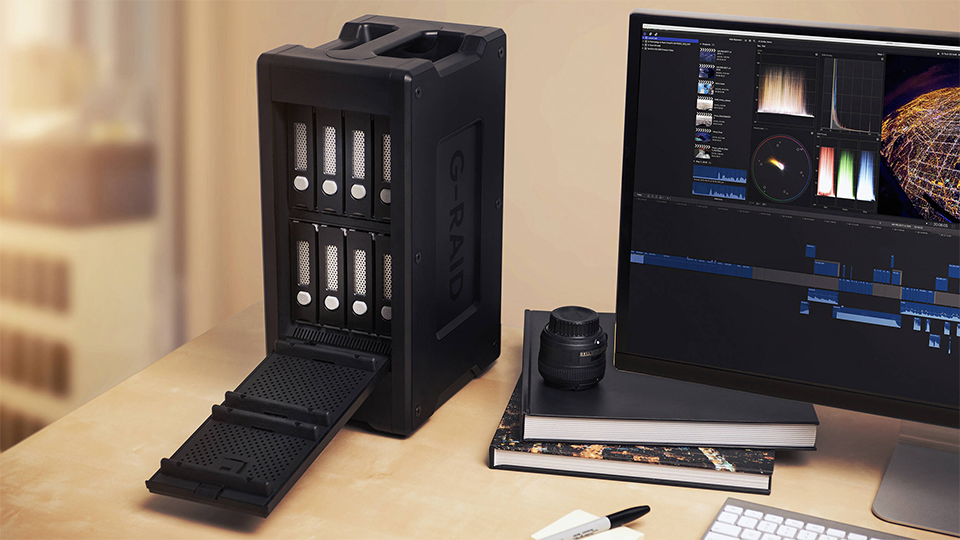
Striping segments logically sequential data onto different physical drives. Disk mirroring revolves around replicating disk volumes onto separate physical hard disks in real time to ensure constant availability. All RAID formations use some of these elements as well as a bit-checking technique called “parity” to ensure operation. For your RAID array to be redundant, parity is needed.
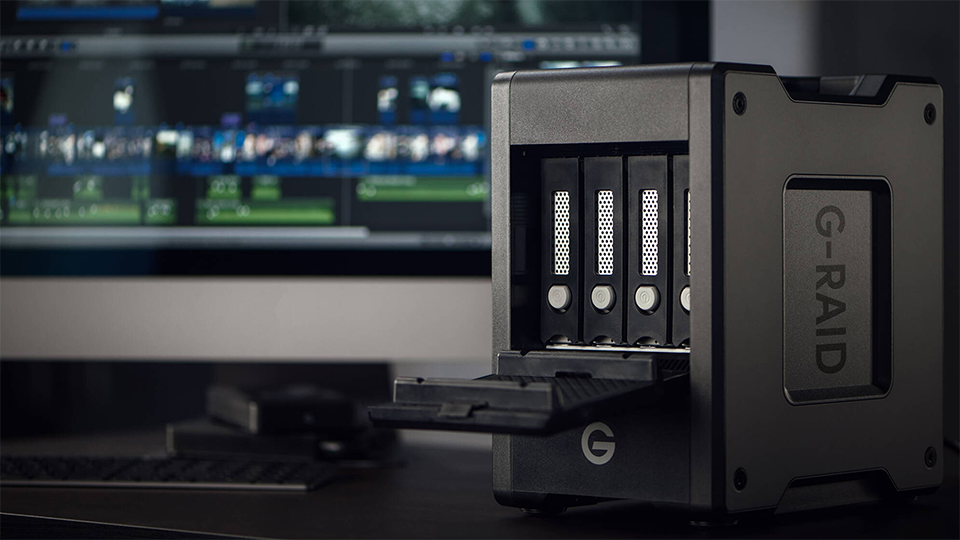
Each level of RAID operates differently and the levels that you can set also rely on how many disks you may have at one given time. For the sake of longevity, we will concentrate on what average users may see when it comes to setting up and configuring a RAID array.
RAID Levels
RAID 0
Offering great overall performance and lacking any sort of overhead by parity controls, RAID 0 is the easiest level to work with. Although, it happens to be the riskiest version to use. Because it is not fault-tolerant at all, if one drive fails, all data in the RAID array are lost. So, if you are working with essential data, do not use RAID 0. RAID 0 is great if you want to combine all the drives into a single volume.
RAID 1
Data is stored twice when using RAID 1. Unlike RAID 0, if one drive fails, all the data doesn’t have to be rebuilt, just copied to the replacement drive. RAID 1 uses the mirroring type of storing which makes it easy and fast to read and write data. The only drawback of RAID 1 is that the effective storage capacity is only half of the total drive capacity because all the data gets written twice due to mirroring.
RAID 5
The most common of all the RAID levels for systems that feature anywhere between three and 16 total drives. Data blocks are striped across all the drives along with the parity checksum of all written block data. Due to this, read speeds are quite fast while write speeds are slower.
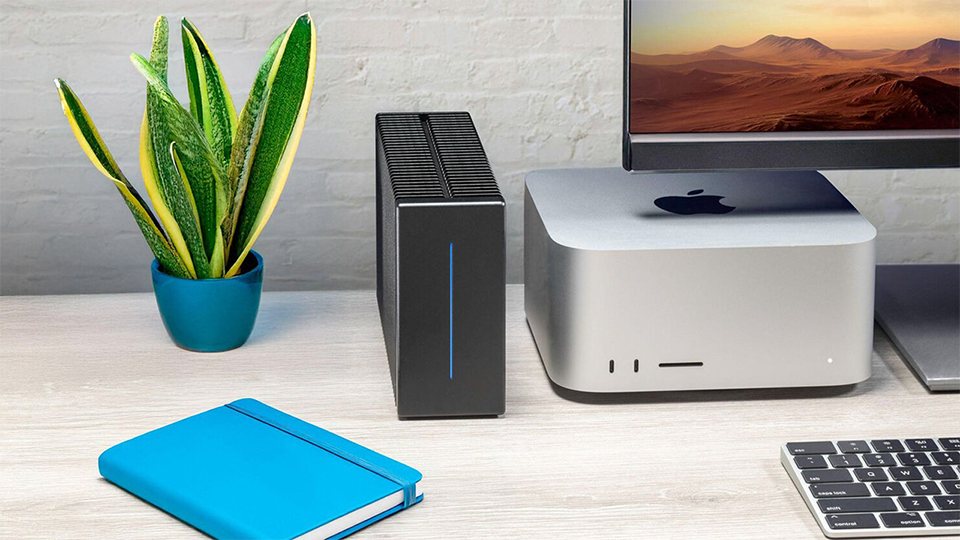
While performance might be a bit of a downgrade, the good news is that if a drive fails, you still have access to all the data. Restoring data to a replaced disc does take some time to recover, sometimes up to an entire day! But this is a better option than losing all your data over so many years.
RAID 6
This is incredibly similar to RAID 5 except it accounts for potential failure of two drives opposed to a single drive. Overall performance is affected by slower write speeds, but this is a solid compromise for additional security.
RAID 10
Designed as a hybrid solution, RAID 10 combines the advantages of both RAID 1 and RAID 0 into a singular design. This format mirrors all data on secondary drives while also striping across each set of drives to speed up data transfer speeds. If a drive fails in a RAID 10 configuration, the rebuild time is significantly quicker. But, because we are using mirroring and striping technical capabilities here, we get half the capacity available to us.
JBOD
JBOD stands for “Just a Bunch of Disks” and is not necessarily a RAID configuration because they are not part of an array. Instead, each disk acts like their own individual separate unit. Each drive operates independently with the option to create multiple volumes using various advanced techniques. The big drawback is that if a drive fails and you didn’t have a proper backup set, then you will lose all that data. You see this in cases where folks just want to store massive amounts of data without dealing with any sort of RAID configuration.
Questions and Answers
If you don’t know what you are looking at or just exploring the world of mass storage, there is a good chance you’re going to have a lot of questions. So, let’s look at some of the more common questions and get them answered.
Q: Should I use HDDs or SSDs?
A lot of people use HDDs because they are cheaper and have a ton more options when it comes to capacity. Remember, if you are using any RAID configuration based on mirroring, you must cut the maximum capacity of the unit in half. So, if you have four 8TB drives for a total of 32TB of storage, you must cut that in half, giving you 16TB of storage. SSDs, while faster, just can’t provide the necessary capacity if you’re looking for larger volumes.
Q: Do all installed drives have to be the same capacity?
It all depends on the manufacturer of the RAID. In some cases, yes, they should all be the same size because depending on the configuration, all drives will default to the one with the lowest capacity. If you have three 4TB drives and one 2TB drive, then they will all default to 2TB. But once again, this solely depends on the model of the RAID enclosure and which RAID configuration you are using. The user manual should tell you.
Q: Is RAID better than SSD?
RAID and SSDs are two different technology concepts. Working backwards, an SSD is a type of storage while RAID is a way to configure multiple types of storage.
Q: Which RAID is best for storage?
There is no RAID configuration that is the best for storage. This is because each type of RAID configuration is different and it is all dependent on what you want to do. Do you want some extra space, or do you want a level of security? These are sort of questions you should ask yourself and then go through the covered types of RAID configurations to find out what suits your needs the best.
Q: As a creator, should I use a RAID system?
You absolutely can but don’t rely on it as a backup. There are way better options out there for that. If you are working on a project, RAID storage will help you amass footage or media like B-roll and outtakes. But, if you finish the project and the materials are no longer needed, storing it in other ways is more convenient.
Q: Should I use RAID or a form of cloud storage for my materials?
Cloud storage has become quite convenient technology, but it isn’t always the best solution. Cloud-based storage, in reality, is just information stored on drives in a data center. These are typically filled with tons of servers with their own storage drives which are maintained by IT staff. Equipment eventually gets turned over in lieu of newer technologies that can be faster and more efficient. Problem is, if you don’t have access to a network, you can’t access what you have stored on the cloud. Bringing an entire RAID storage with you could be tough too. In an event where you are working off-site, I’d just carry all you can on a portable SSD instead of using either option here.
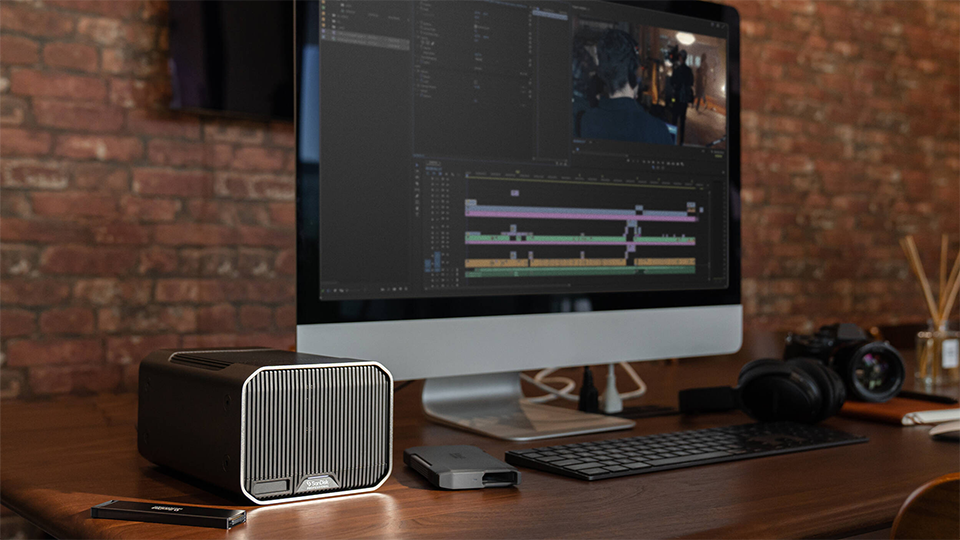
Now that you're familiar with the ins and outs of mass storage, you're ready to start looking for the storage solution that's best for you. If you need recommendations for particular mass storage devices, be sure to check out our mass storage shopping guide.
