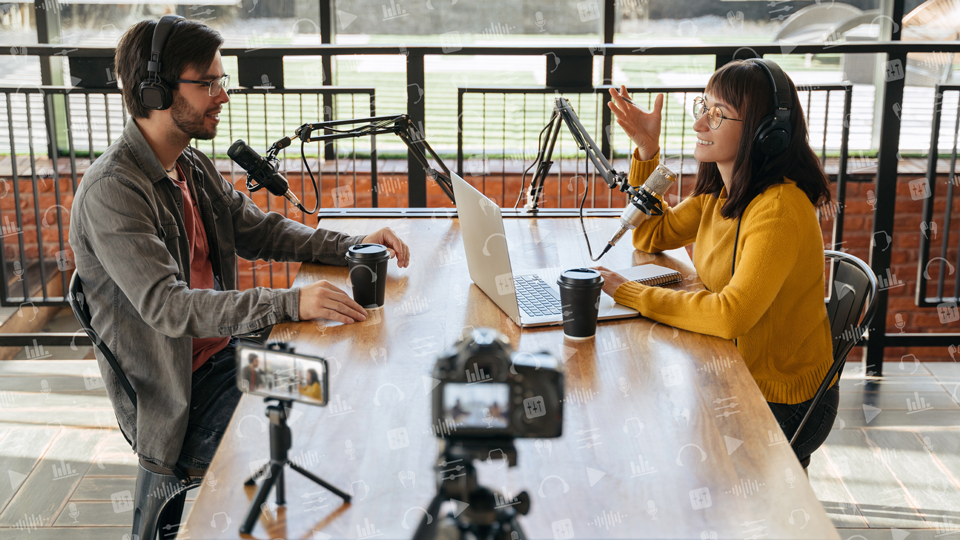
Starting a video podcast may seem like jumping from checkers to chess, regardless of whether you already have an established audio-only podcast or you’re starting from scratch. But fear not, in this guide, we’re going to show you how to get started with video podcasting by helping you find the right gear to make your video podcast stand out.
The Basics: Computer, Camera, Mic, and Headphones
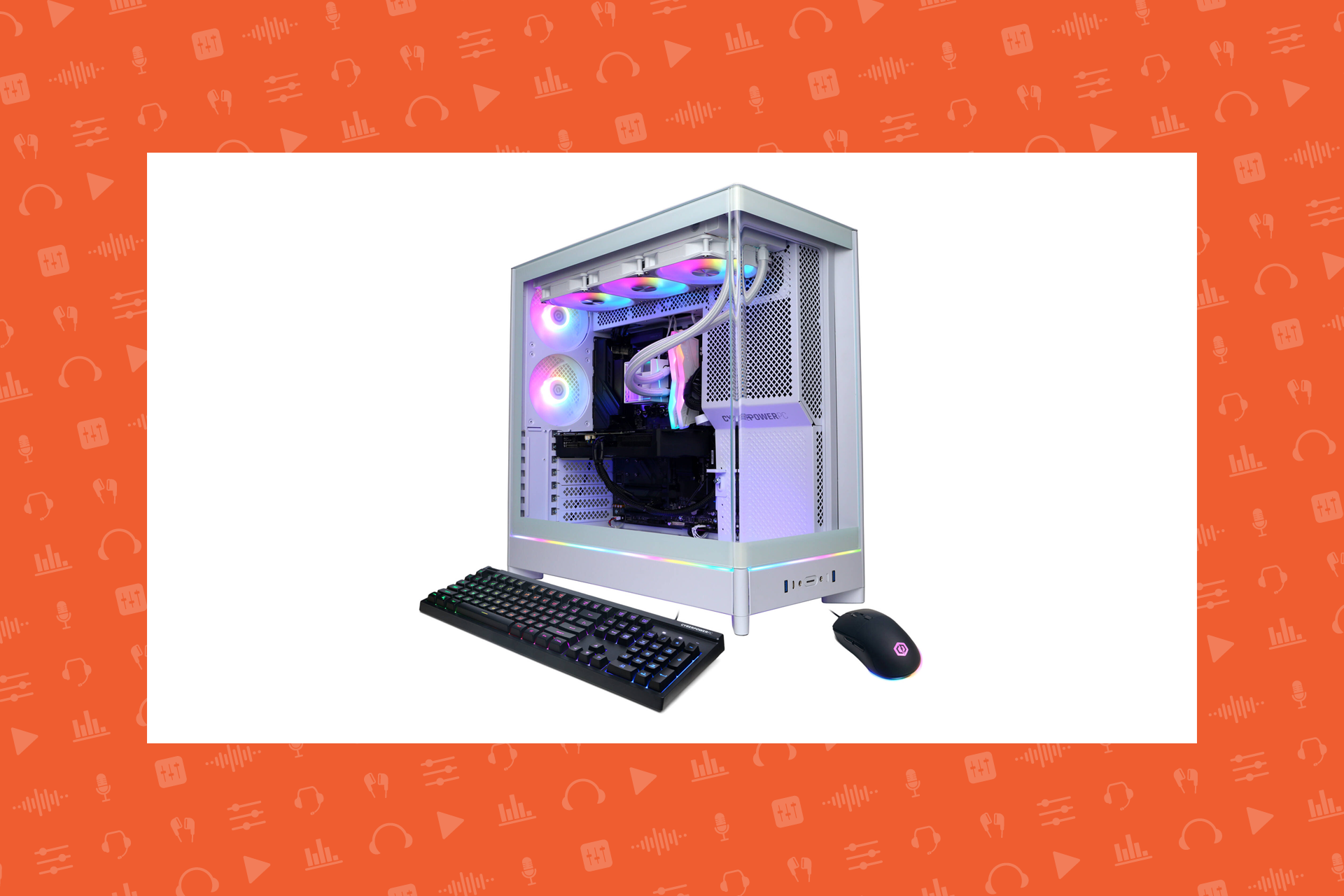
OK, let’s assume you’re flying solo in your podcast and that your computer can handle it. (I’m starting with this assumption because my computer—which I built five years ago—can handle two-way feeds of multiple streams at once with literally over 100 Chrome tabs open at the same time; and if my ancient rig can handle that much stress, I’m guessing yours can too.) If you’re unsure yours is up to the task, or you are in the market for a computer that’s up to the task, take a look at some of B&H’s gaming computers, most of which can handle whatever video feeds you throw at them.
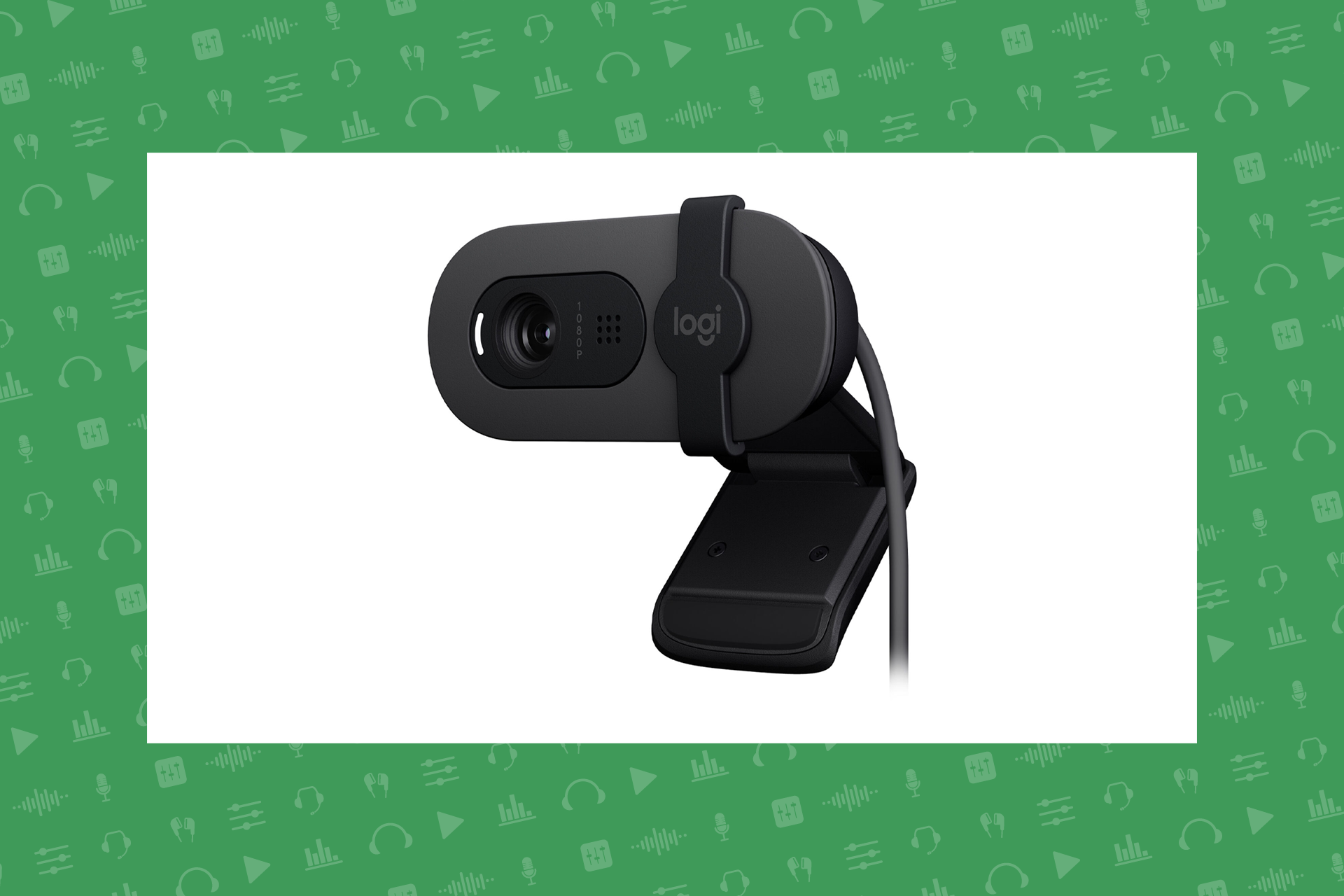
The next most basic item you’ll need is a camera. If you’re just starting out, a decent webcam like the Logitech Brio 100 is a good choice. Between Logitech’s software, your computer’s software, and the options in whatever streaming/recording platform you’ll be using—Streamyard, Zoom, YouTube, etc.—you can make whatever adjustments you like, including (digital) zoom / FOV adjustments, low-light compensation, and more.
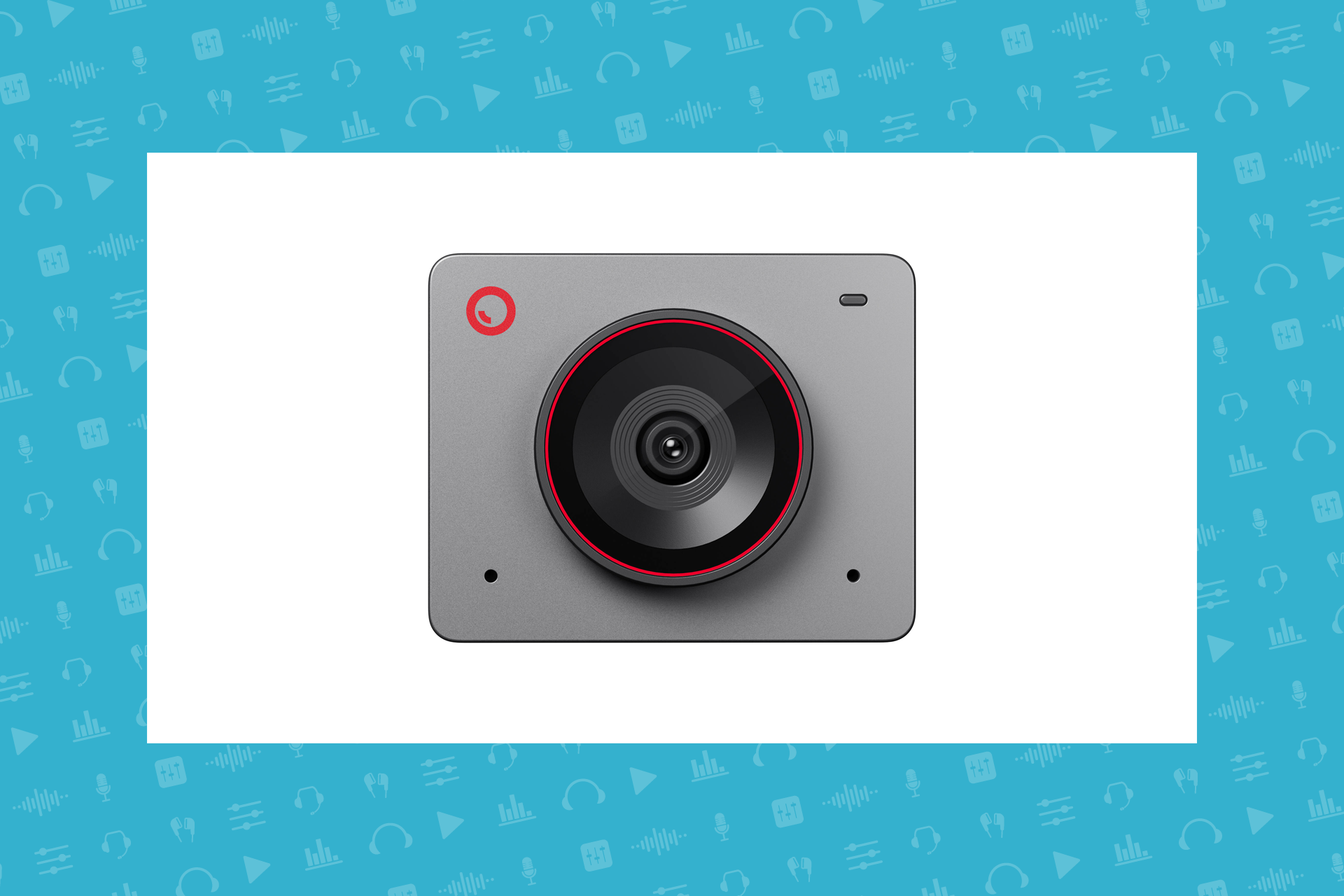
Full HD (1080p) is enough for most modern viewers, who will typically watch via their phones or maybe a tablet. If you’re concerned for those that might be viewing on a monitor or TV, though, then you’re probably interested in something with higher resolution, like the OBSBOT Meet 2. Available in three different colors, it has a 1/2” image sensor (making it better if you have lighting issues) and can capture 4K at up to 30 fps.
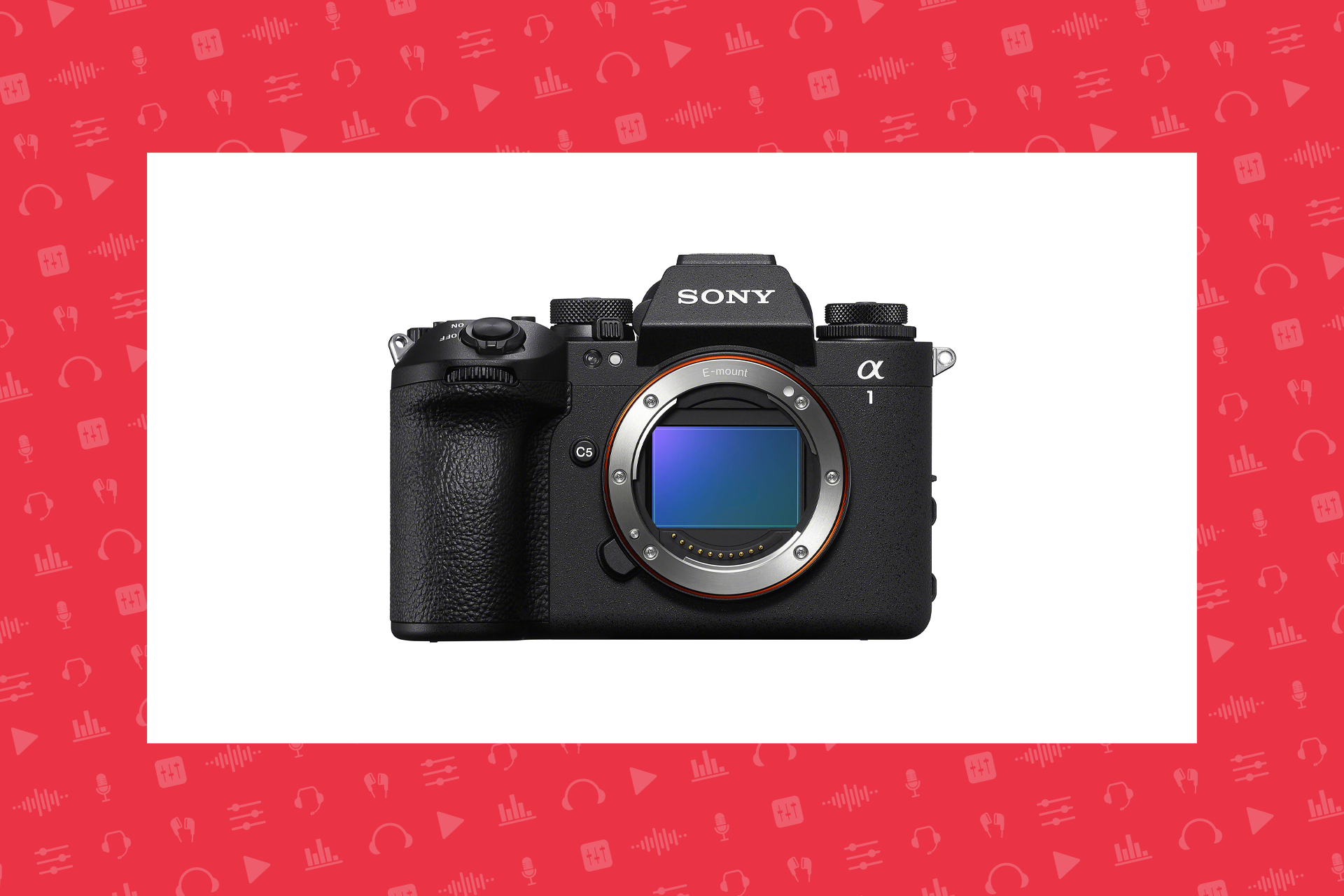
If video quality is your highest priority, then a mirrorless camera would probably be best for you. You’ll step up to larger, higher quality image sensors, interchangeable lenses to help you achieve the FOV (field of view) and bokeh (that blurry background effect) you’re looking for, and much more.
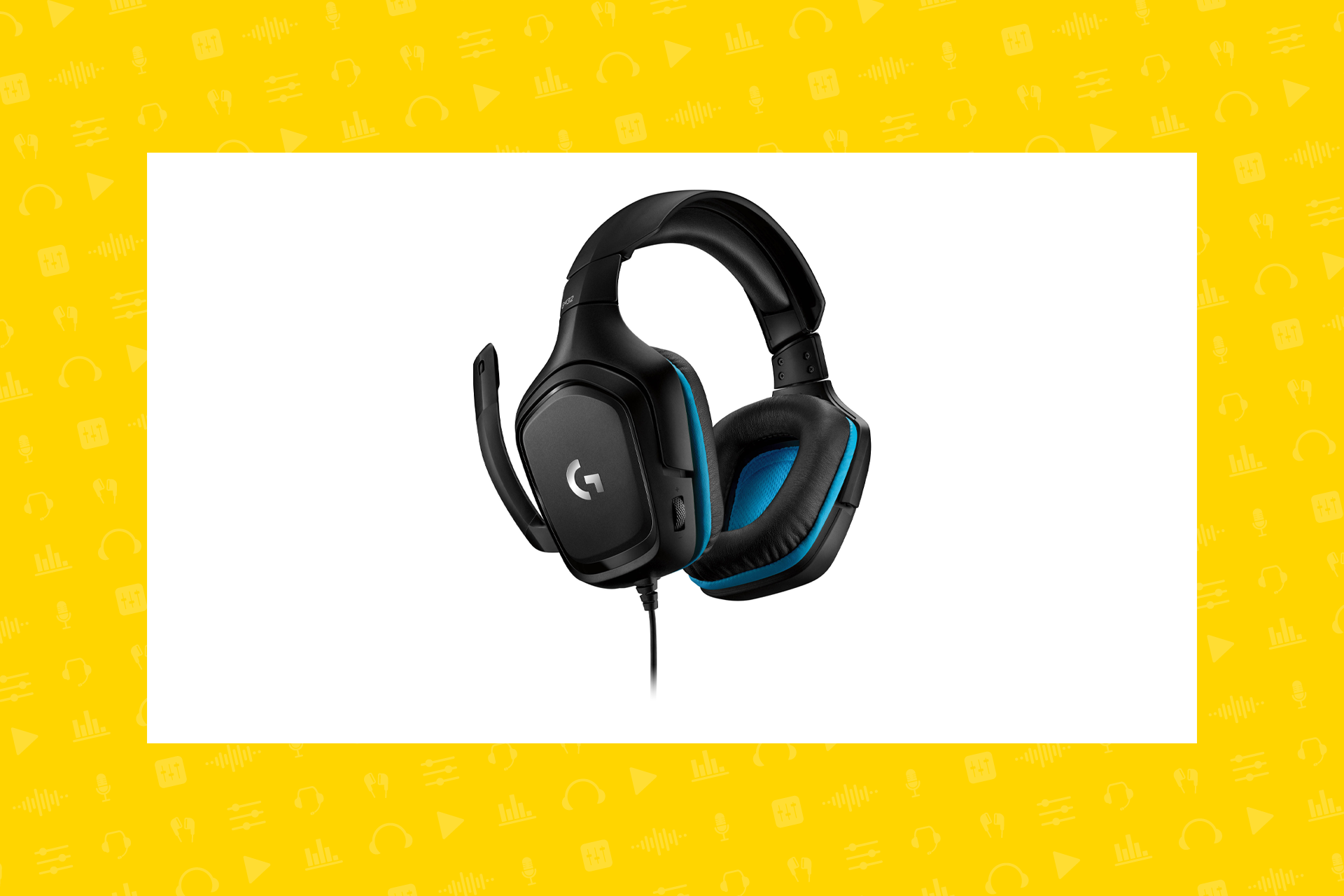
If you already have an audio podcast and are happy with your audio quality, then you likely don’t need to change your microphone. However, if you watch any other video podcasters or streamers, you might become self-conscious about the mic you use. As someone that has a hard time sitting still, I use an older version of the Logitech G G432 headset. It’s comfortable enough to wear for hours, records my voice well, and is good for audio monitoring. (Most importantly to me, who’s always fidgeting, the mic just follows me around—no boom arm adjustments required.) One other feature I like is the onboard volume control for the headphones. It lets me quickly adjust incoming audio if I ever need to switch between sources, such as a co-host or guest and a video, for instance. I like to use this for temporary volume adjustments.
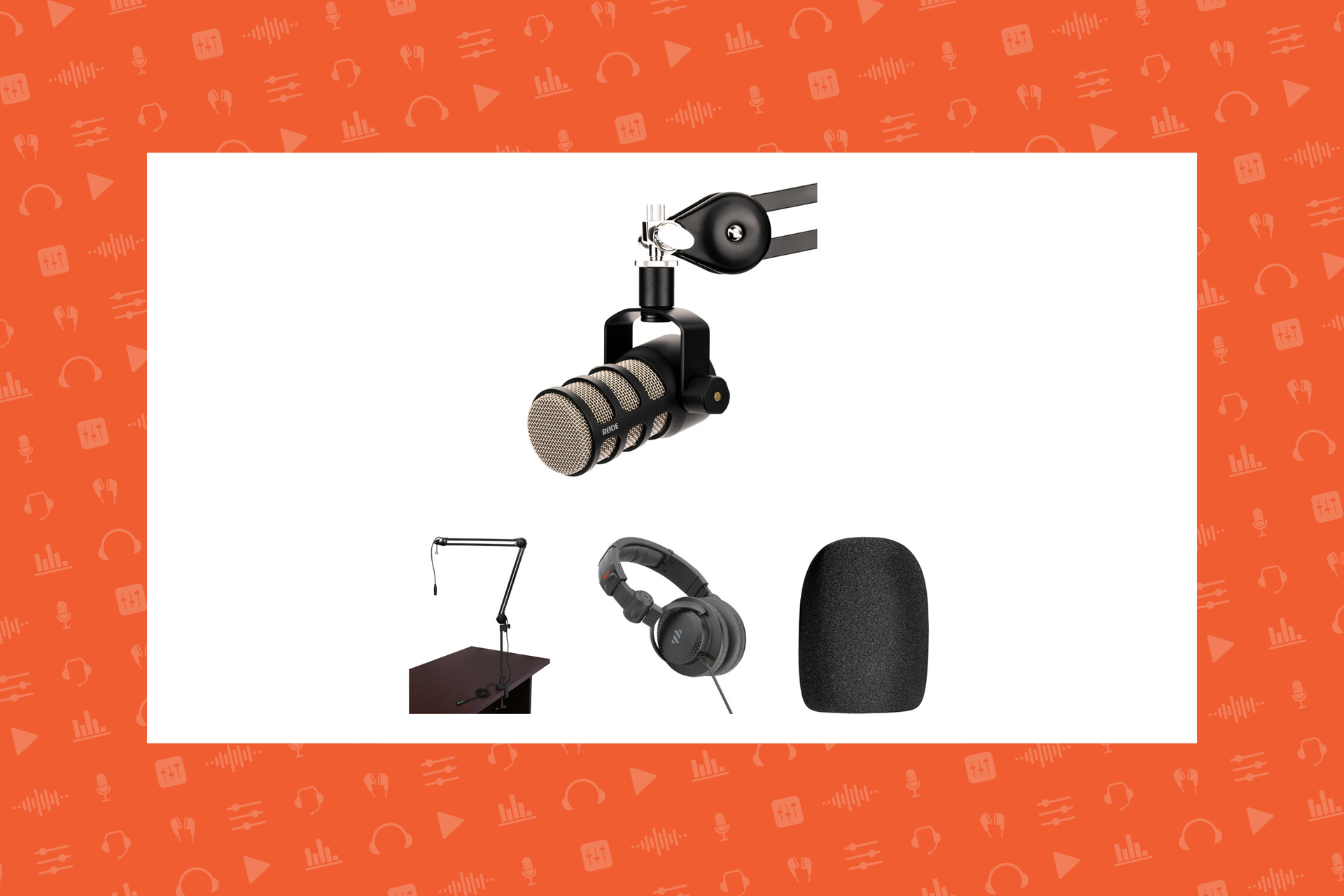
I mentioned watching other video podcasters and streamers because most of them don’t use a headset like this one; many will use more professional microphones (don’t forget a good mic arm) and separate headphones. If you plan on having guests on your show, it’s important to make a good impression, and looking more professional is key.
The Extras: Lighting & Green Screens
The first time you turn on your camera, you might be unhappy with what you see. The culprit is probably lighting. Cameras need quite a bit more light than the average eye does in order to properly pick up what you see, and skin tones are especially problematic, so while listed as an extra, lights can make or break your video podcast.
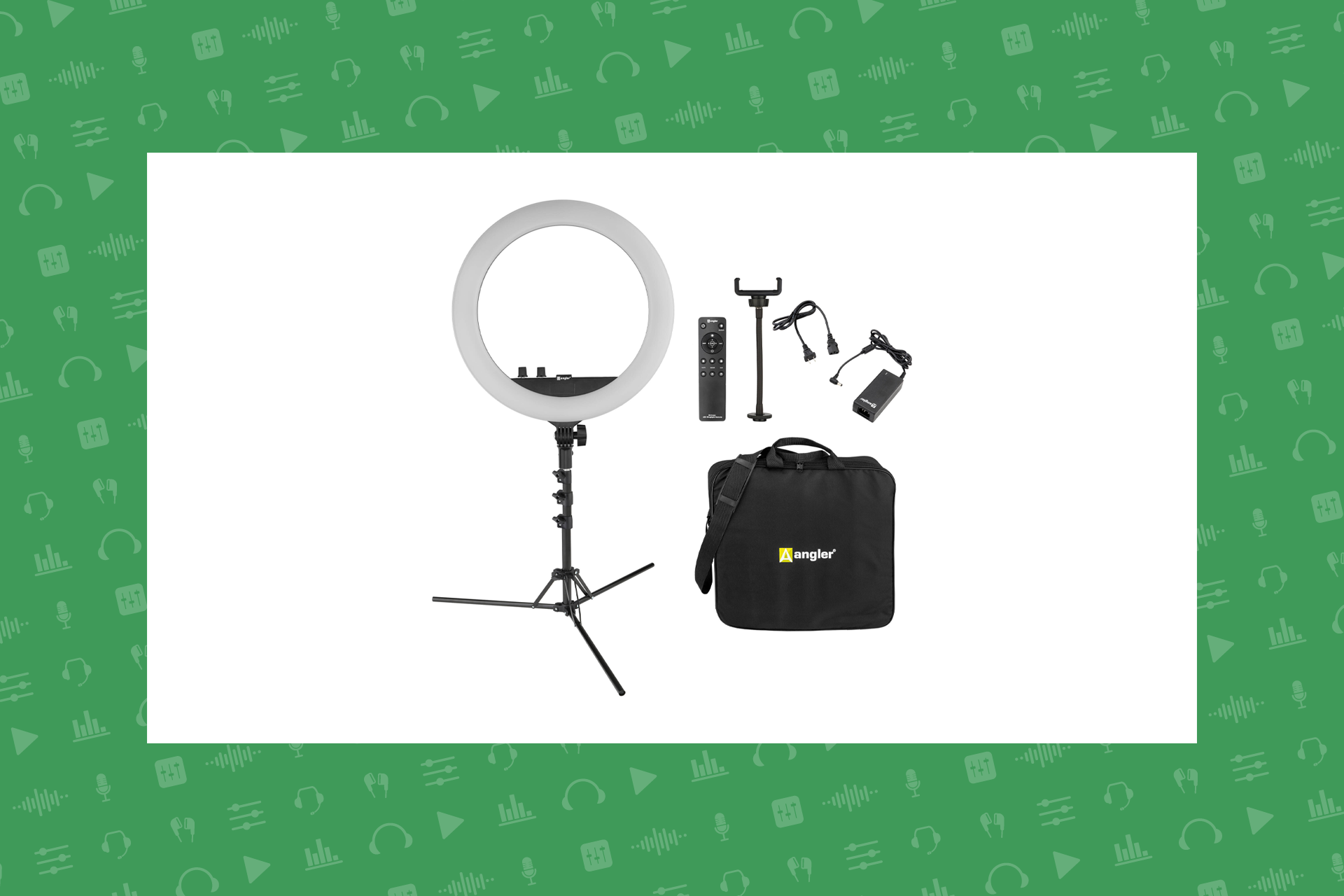
Ring lights are popular with podcasters and streamers and are typically very effective at lighting your face if you’re typically looking directly at the camera while recording. Most can be easily mounted to a tabletop tripod or desk stand, and depending on the size, you can have your camera (or your camera’s lens) dead center of the light for maximum effect.
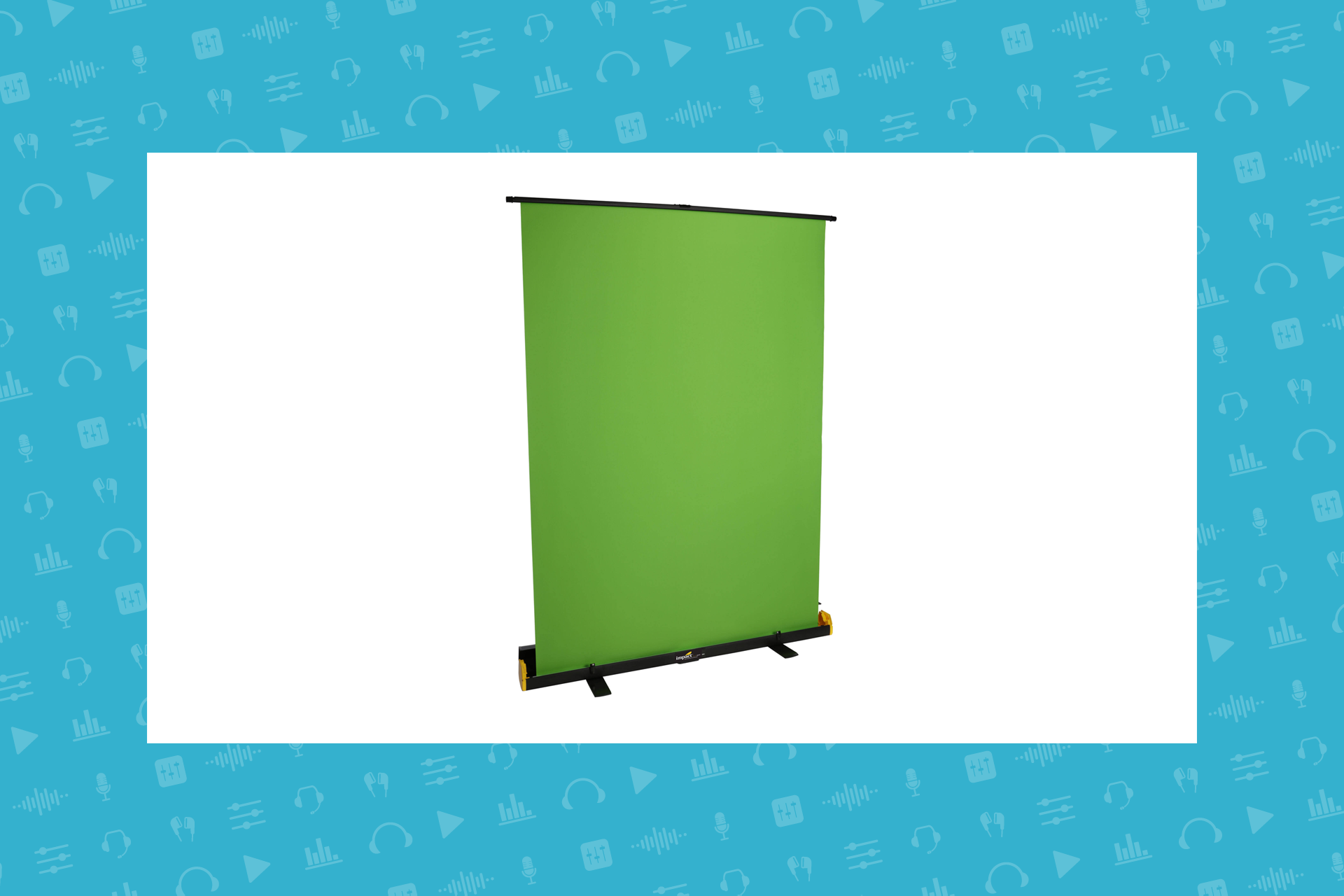
Depending on the type of content and your setup, a green screen could also elevate your game. I have something like this Impact Rapid Background Screen and find it very useful. You’ll have to keep in mind your camera’s FOV when choosing a size, because if it’s not wide enough, you’ll have to either crop yourself or zoom in to ensure that your FOV doesn’t exceed the borders of the screen.
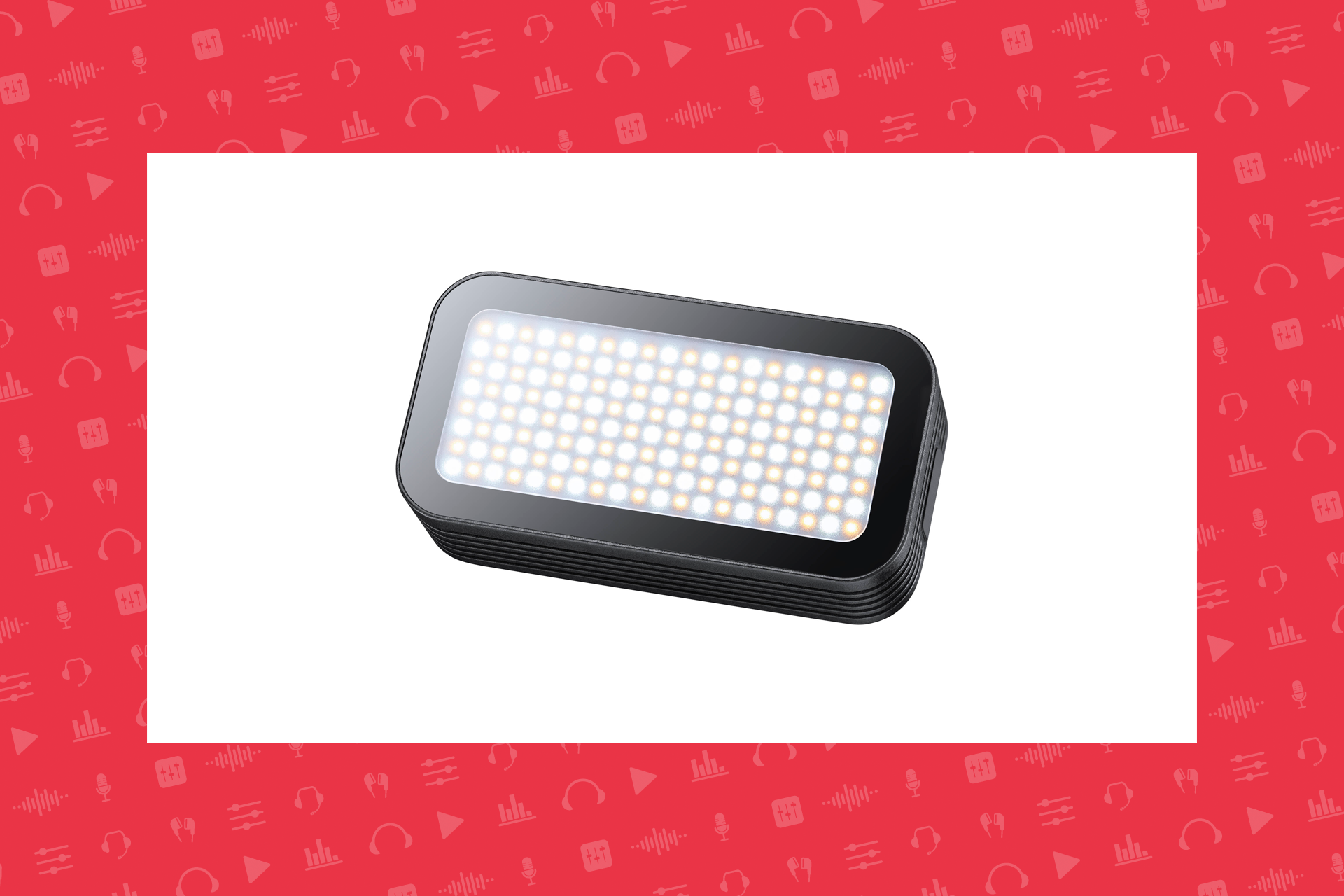
If you notice shadows of yourself on your green screen, you’ll need a light source for the screen as well. Something like this Godox WL8P can be creatively placed on the back of your chair or on the floor aimed upwards to add some light to your screen, removing those unwanted shadows.
Change is always scary, even if it’s a positive change. Adding video to your podcast can seem like a daunting task, but I hope this little guide has helped you find your footing for those key first steps. As always, if you need advice, the friendly and knowledgeable staff at B&H are happy to help by phone, chat, or email.
