
Point-and-shoot cameras are a great value-add to your photography kit, social media sharing, or as a vacation companion for quick stills and capturing memories on the fly. And these days, the value is even greater with point-and-shoot video recording. The point-and-shoot design makes things simple to change to video mode and press record. Though after you’ve captured your video, it can become cumbersome to edit and share that footage.
Some cameras allow you to edit/trim your video footage (also called “Movies” in some cameras) in camera, which can be a confusing, tedious process using the buttons and navigation arrows. It can be a handy process to create and play back stills slideshows or simply play your videos on a TV directly from the camera, but you may require more to output your videos for sharing online. Sharing requires some additional software and possibly some hardware. Let’s look at workflow and software options available to make your workflow easy.
Choosing a Camera
If you’re looking for a point-and-shoot camera that shoots video, your preferences may vary on price, zoom range, or image sensor, and when choosing the video feature, it could come down to 1080p or 4K resolution.
Popular point-and-shoots such as the Canon PowerShot ELPH 360, Kodak PIXPRO FZ55, or Ricoh GR IV that capture Full HD (1920 x 1080 resolution) are generally sufficient for sharing and internet video. Newer cameras such as the Canon PowerShot V1, OM SYSTEM Tough TG-7, or Panasonic LUMIX L10 that capture 4K (3840 x 2160 resolution) are great for cropping your video to create new clips without losing image quality, but for the most part it’s not necessary if you’re not aiming for pro-level performance.
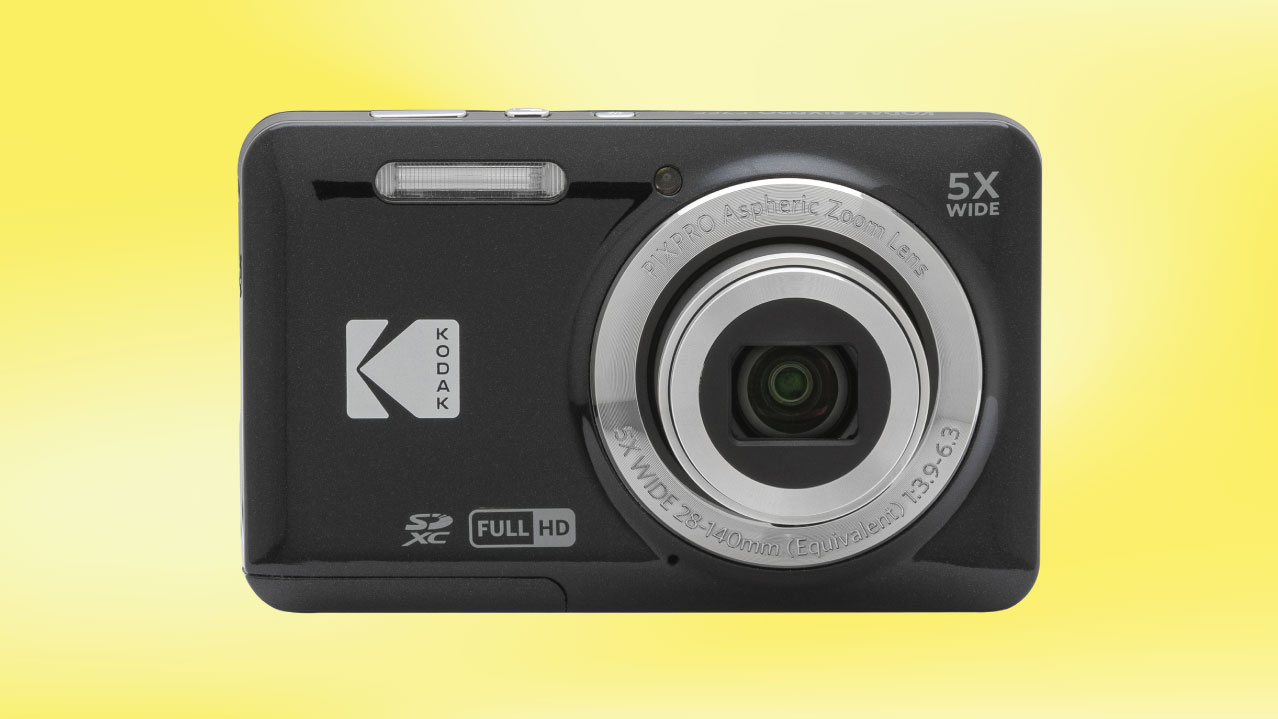
Now that you’ve captured some video with your point-and-shoot camera, what are some workflow options for editing and sharing?
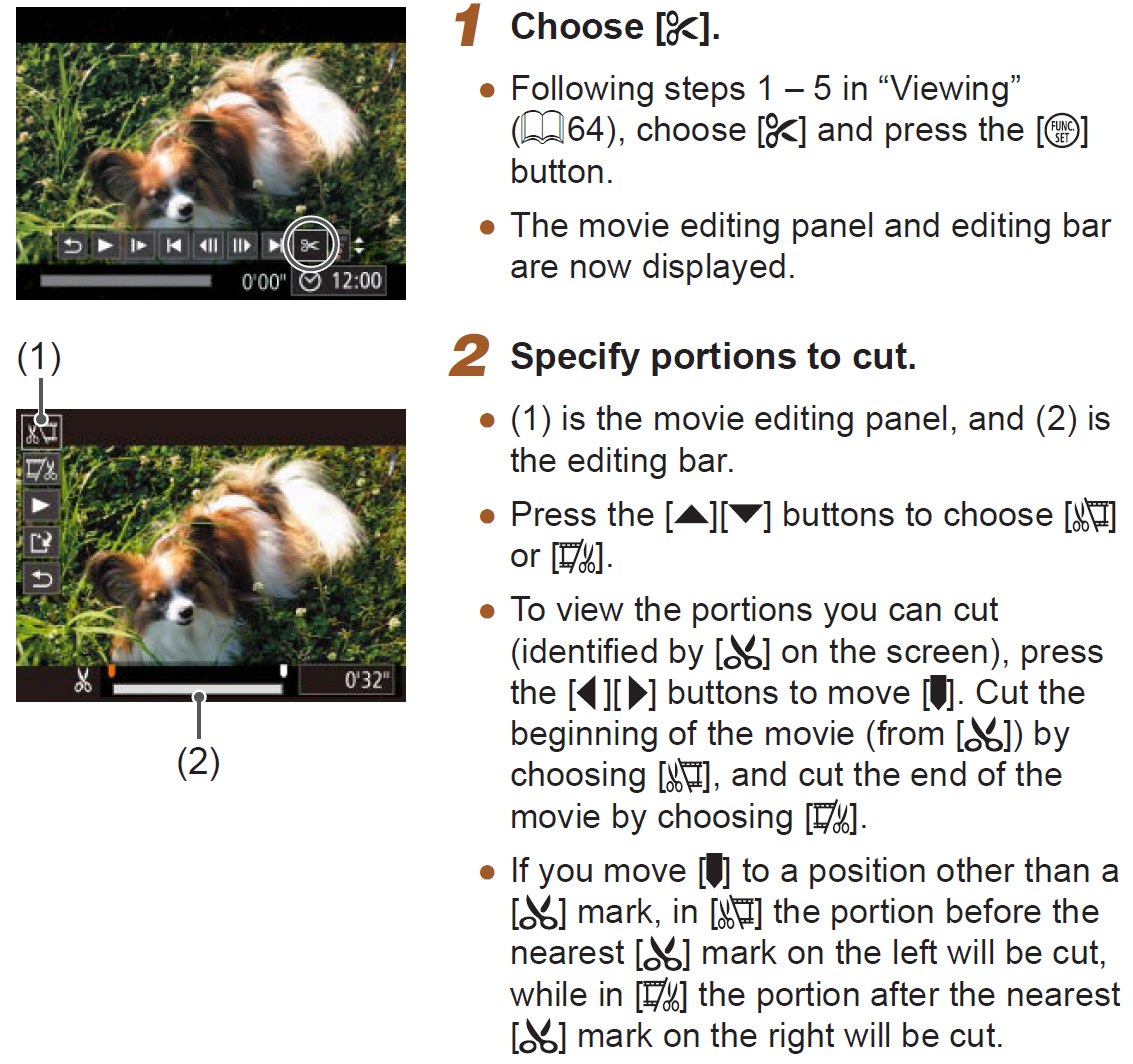
In-Camera Editing
Many major brand cameras feature basic editing features right in the camera. These are great for fast, on location edits that make your sharing easier when you want to quickly trim and share your footage. However, editing this way can be limited and tedious, especially on the tiny screen of your camera.
Smartphone Workflow
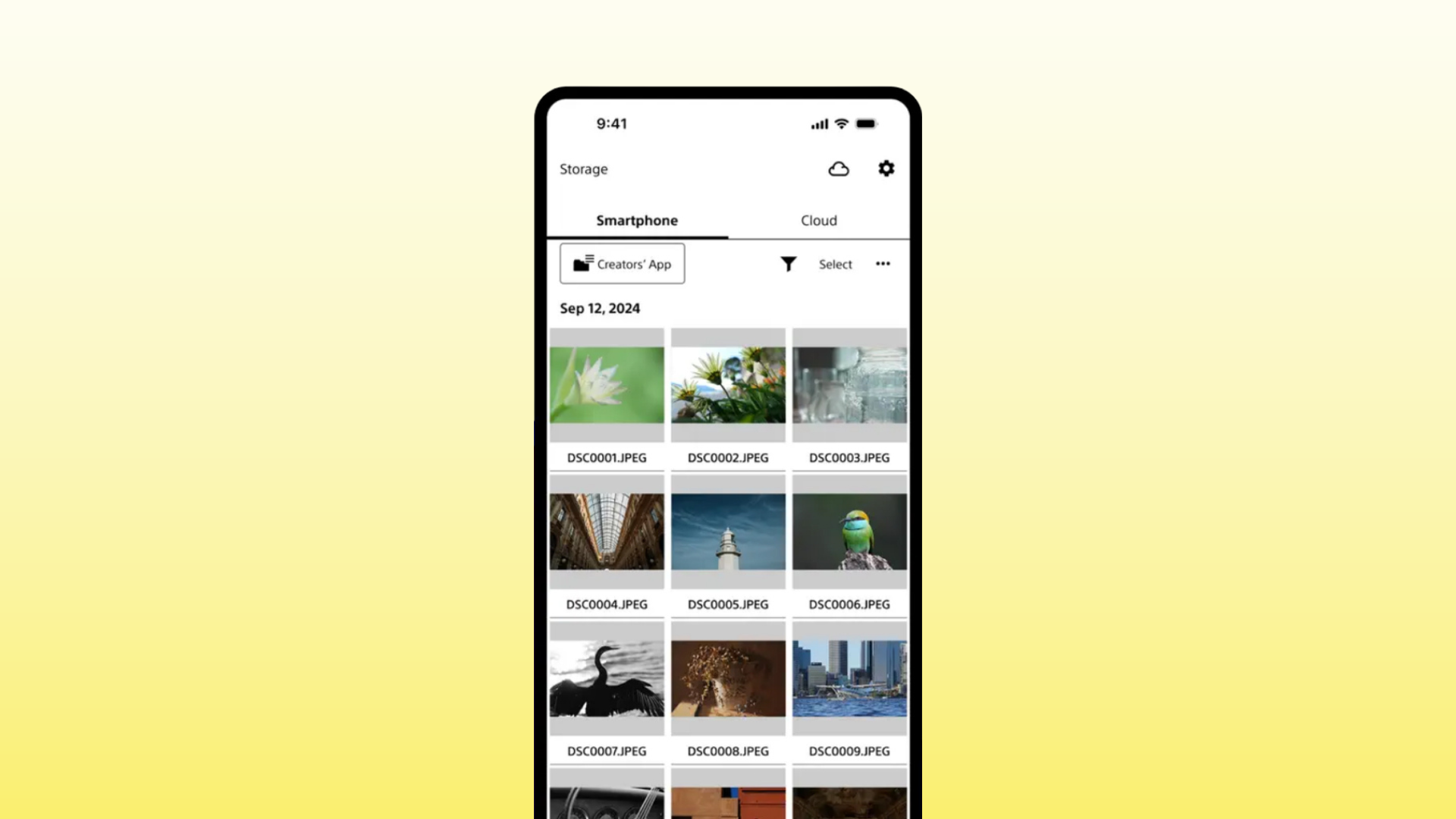
Most camera brands can connect to a smartphone app to offload footage using Wi-Fi, Bluetooth, or USB directly from your camera for simple editing and sharing right from your smartphone. Some camera connection apps include:
| App | Camera Compatibility (not a full list, see your camera manual for compatibility) |
|---|---|
| iSmart Dv2 | Minolta MND70, MNB5Z Digital Camera, Kodak PIXPRO FZ55 |
| Canon Camera Connect | Canon SX740 HS, ELPH 360 HS A |
| Panasonic Image, LUMIX Lab, LUMIX Sync | LUMIX ZS300, LUMIX ZS99, LUMIX L10 |
| OM Image Share (OI.Share) | OM System Tough TG-7 |
| Sony Creators' | Ricoh GR IV, Sony RX100 VII |
| GR WORLD | Panasonic LUMIX L10 |
| SnapBridge | Nikon Coolpix P1100 |
Smartphone Software
There are many free third-party apps that allow you to edit, add music, transfer videos to your desktop, and even upload the footage directly to social media and the cloud directly from your smartphone. Here are a few free app suggestions for quick smartphone editing:
| App | Compatibility | Features |
|---|---|---|
| CyberLink PowerDirector 365 | iOS/Android | Free with in-app purchases. Fast editing timelines, effects, reel creator, color correction, effects, and more. |
| Apple iMovie | iOS | Simple editing, effects, storyboards, effects, templates. |
| Adobe Premiere | iOS | Simple timeline, 4K editing, keyframe animation, AI audio features. |
| Adobe Express | iOS/Android | Geared toward social media, simple video editing and annotation, animation, create videos from social media posts, social media tools. |
| Canva | iOS/Android | Standard photo/video editor, posts to social media and Canva sites. |
| CapCut | iOS/Android | Social media-friendly, offers AI generated effects and AI editing assistance. |
| Microsoft Clipchamp | Android | Simple video editor, slow/fast motion, slideshows, GIF creation, general editing features. |
Desktop/Laptop Workflow
If the basic in-camera editing or smartphone app is not enough for your needs and you’d like to venture into more advanced video editing, graphics, and audio mixing, you can transfer the footage to a laptop or desktop computer and use more sophisticated editing software. Most cameras will allow you to take the card out of your camera and copy the files directly, and some brands recommend you use their desktop app to convert the files from their native format to a different format for editing and sharing.
A basic workflow:
- Make sure you have ample space on your hard drive, and create a folder for your video files
- Offload footage either directly to the computer with USB or remove the card from the camera and use an SD card reader
- Launch your editor software and create a project
- Import footage into your project, organize into folders/bins if required
- Create a timeline and drag and drop your footage onto a track
- Rearrange, edit, add transitions, graphics, audio tracks
- Export to streaming format–1080p resolution, MP4 format are most common settings
- Upload to your desired destination such as YouTube, Vimeo, or other websites
Desktop/Laptop Software
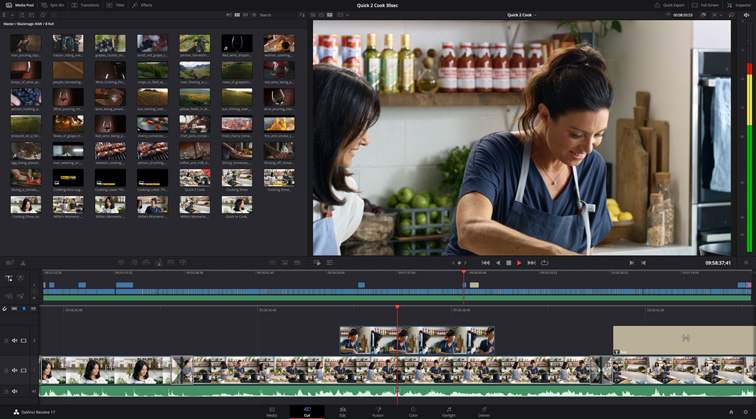
There are many professional-level non-linear editing (NLE) software apps out there, differing in price and complexity, so picking one that suits your needs is essential. For example, some free/lower-priced versions may not allow export to 4K. Some projects only require simple editing, while others may need graphics, titles, audio, and more. Some software suggestions:
Beginner And/or Free Software
| App | Compatibility | Features |
|---|---|---|
| CyberLink PowerDirector | macOS, Windows | Full professional editor, two pricing/feature levels, AI tools. |
| Wondershare Filmora | macOS, Windows | Great for social media and quick videos, specific tools for various genres. Monthly pricing can be advantageous for project-based work. |
| Magix Video Deluxe | Windows only | Professional editor. Low prices, three pricing/feature levels. |
| DaVinci Resolve | macOS, Windows, iPadOS, Linux | The basic version is free, professional-level NLE, supports up to 1080p video. |
| Apple iMovie | macOS | Free for Apple owners, a simpler, limited app but intuitive and does basics well. |
Advanced to Pro-Level Software
| App | Compatibility | Features |
|---|---|---|
| Apple Final Cut Pro | macOS | Paid version. Intuitive, full-featured, professional NLE. |
| Adobe Premiere | macOS, Windows | Monthly/Annual pricing. Professional, full-featured, cross-platform NLE. Adobe’s monthly pricing can be advantageous for project-based work. |
| DaVinci Resolve Studio | macOS, Windows, iPadOS, Linux | Paid version. Professional NLE with pro features like slo-mo, high-resolution editing, advanced audio mixing, graphics features, and more complex workflows. |
| Pinnacle Studio | Windows only | Three pricing levels. Full-featured professional NLE. with varying features such as effects, formats, graphics, and tracking features. |
A Few Final Tips
If you have a point-and-shoot camera that shoots 4K, these files can be very large, so consider how long it might take to process the video on your computer. If you have a slow computer, low hard drive space, or low RAM, you may want to change your settings to capture 1080p HD video (1920 x 1080 resolution) for more manageable footage.
Most point-and-shoot cameras are not as good at low light video capture compared to cinema/DSLR/mirrorless cameras that have larger sensors, so make sure you’re shooting video with plenty of light available.
Make sure your lens complements the scene. Point-and-shoot cameras often have limited zoom capabilities and automatic digital zoom can degrade your video, so ensure your frame is clear and well-lit while using minimal zoom.
Each point-and-shoot camera and brand will have its own workflow, so keep an eye on updates, free software, and tips for your camera. Video editing can seem daunting at first, but once you’ve found a workflow and the right software that meet your needs, the possibilities are endless.
