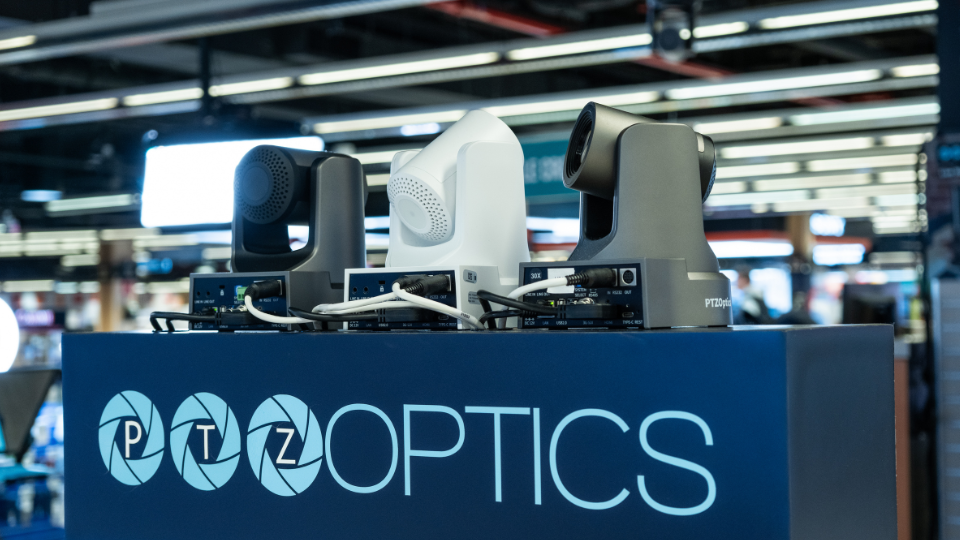
If you’re capturing a live event like a religious service, the best way to engage online viewers is by providing them with an even more dynamic view of the action than they could get in person. This is rarely achieved by throwing an iPhone on a tripod in the back of the room. Instead, we’ll show you how to use PTZ (pan tilt zoom) cameras to stream professional, high-quality versions of your events and services out to the general public. We’re breaking down the equipment, software, streaming services, and more.
Equipment Needs
On the most basic level, all you need to get started is one PTZ camera and some kind of laptop or desktop computer to do the initial configuration. Once your settings are in place, most PTZ cameras can be networked via a router and operated remotely with a phone or computer.

Expand your fleet to multiple cameras to capture more angles and you may find yourself wanting a dedicated controller and video switcher. There are all-in-one solutions like the Epiphan Pearl Nano that can do away with a computer, or interface options like the AJA Io X3 for sending multiple camera feeds straight into a computer, no switcher needed. Most PTZ cameras won’t have adequate audio capabilities, so you’ll also be adding elements there, anything from a barebones Camvate USB Mic to a fleet of Sennheiser MKH 416s, depending on your space. Check out these PTZ buying guides to help steer your journey.
Basic Connection Guide
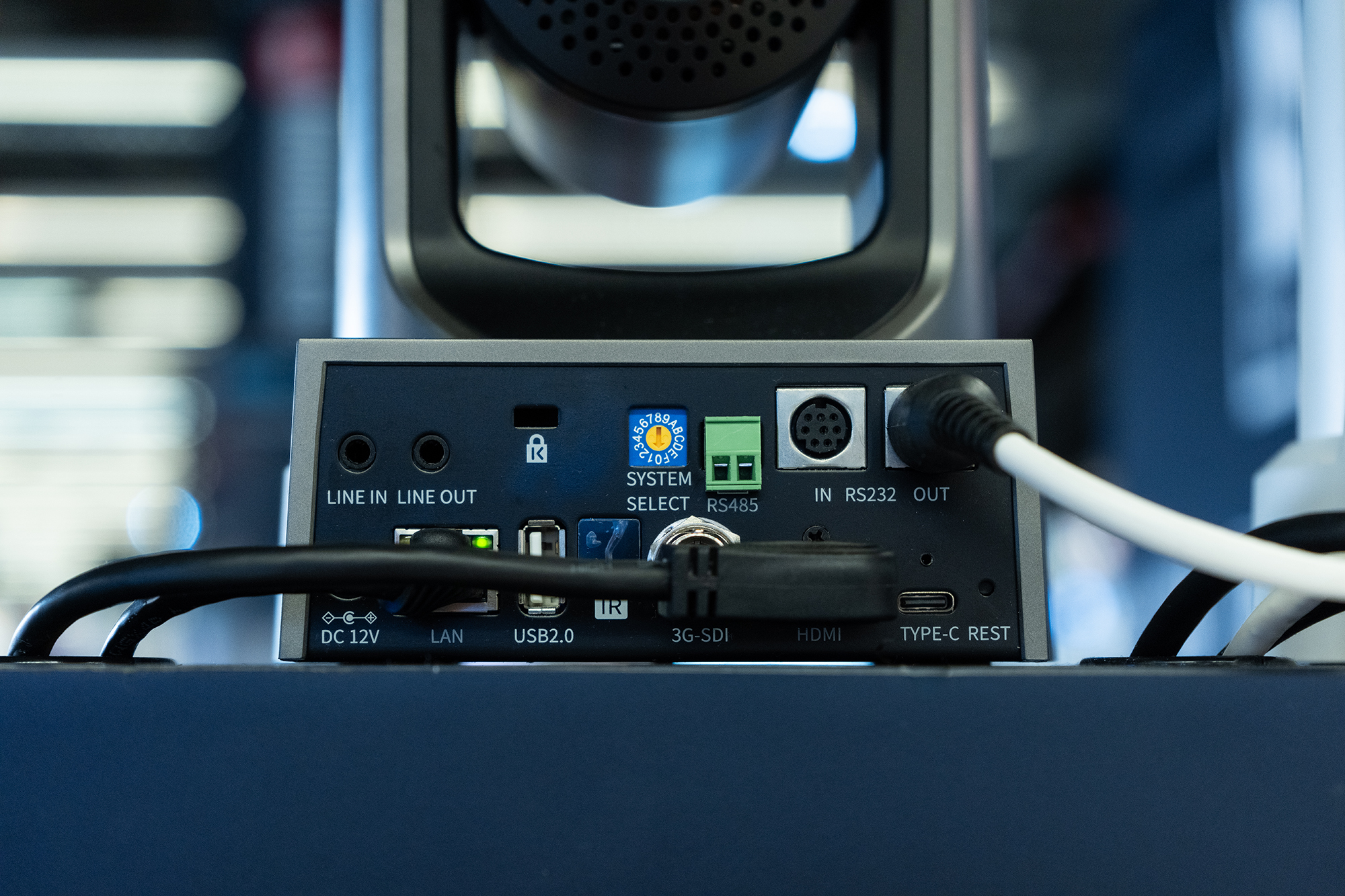
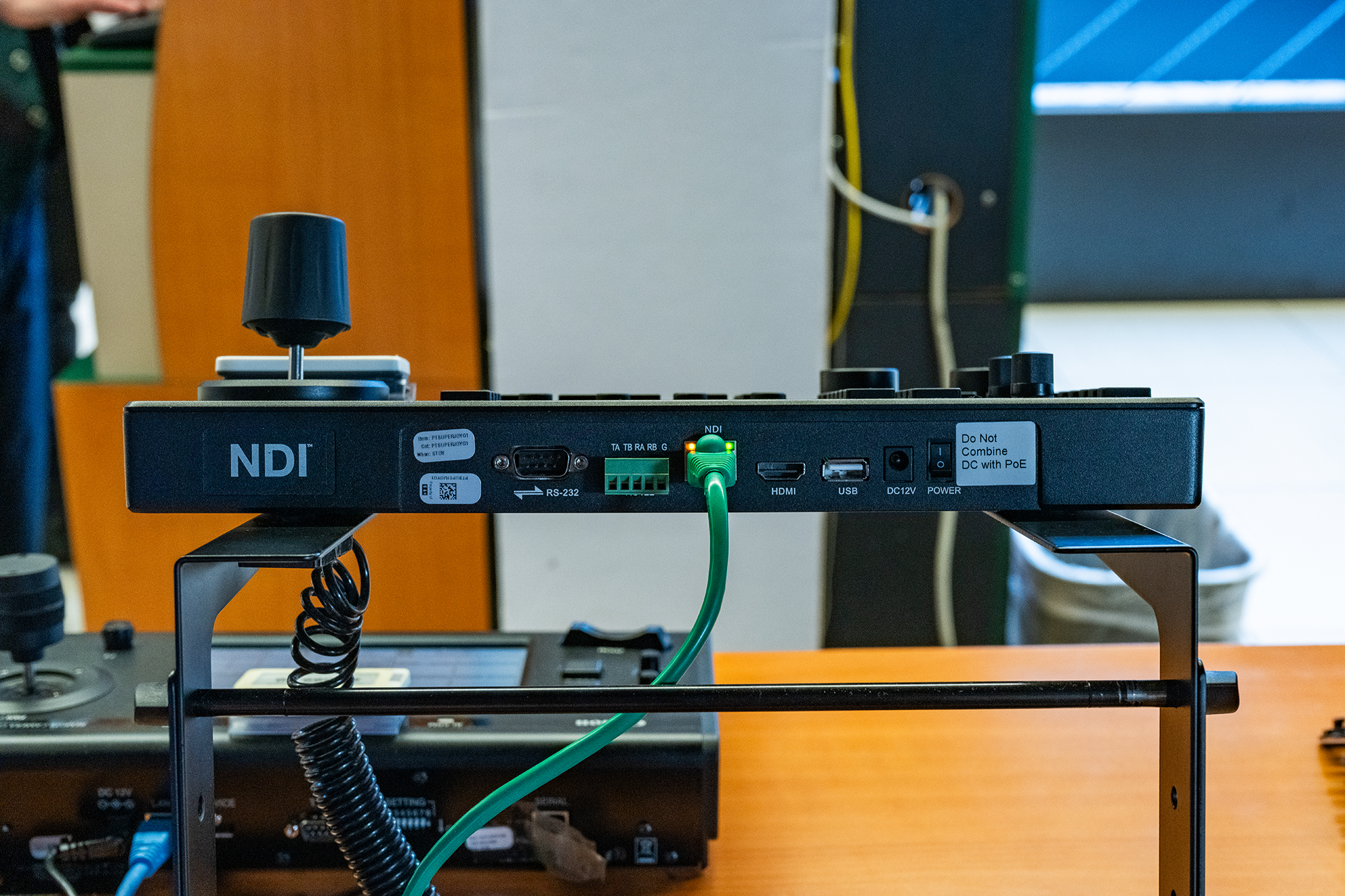
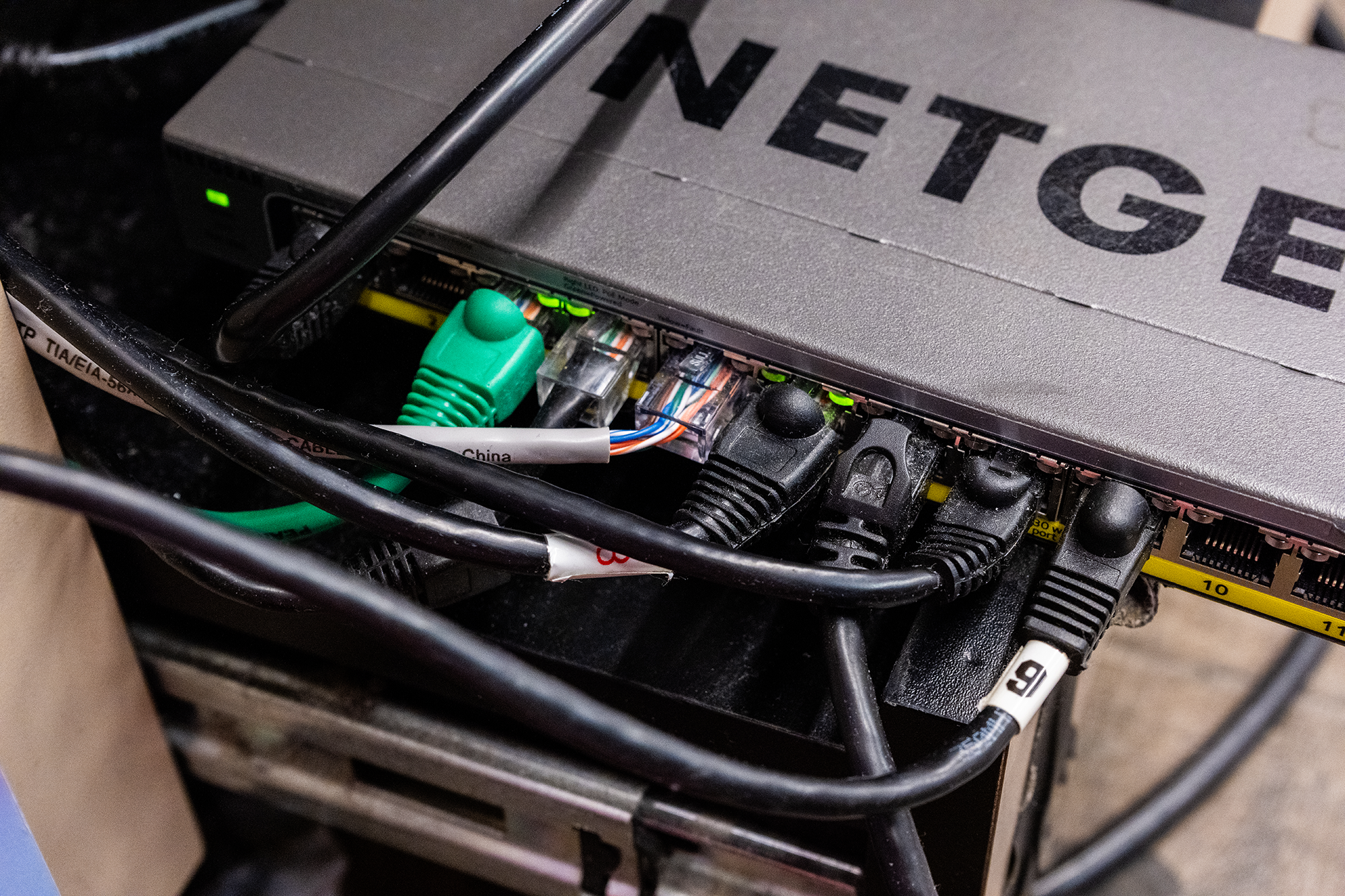
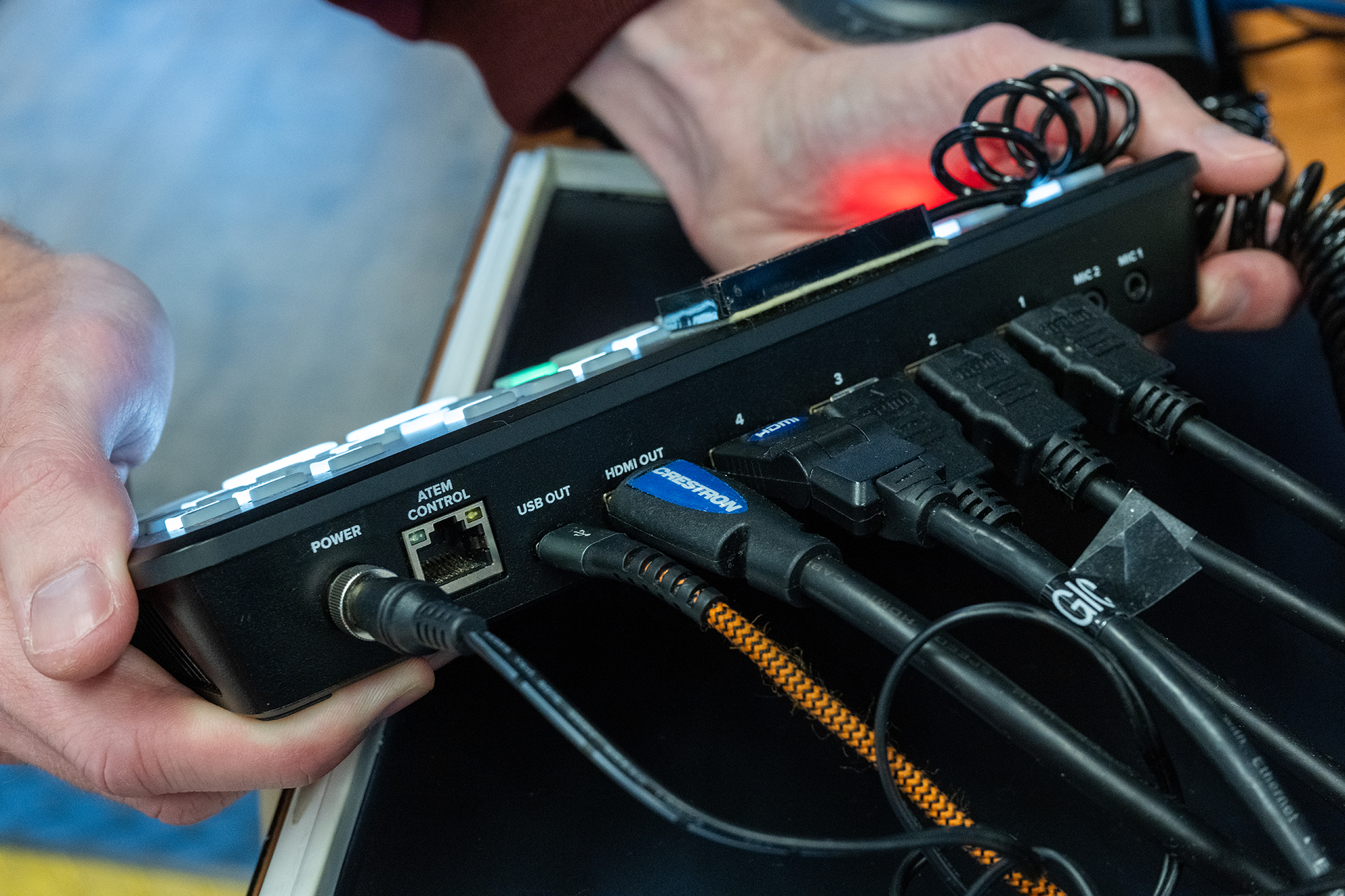
Here are five major hardware workflow steps to connect PTZ cameras to a computer for streaming. Single camera set-ups often won't require a video switcher, instead relying on a direct USB connection or video capture card. Budget-conscious users can also pan, tilt, and zoom cameras via software instead of a physical controller. Consult your camera manual for additional guidance.
Setting Up a Stream
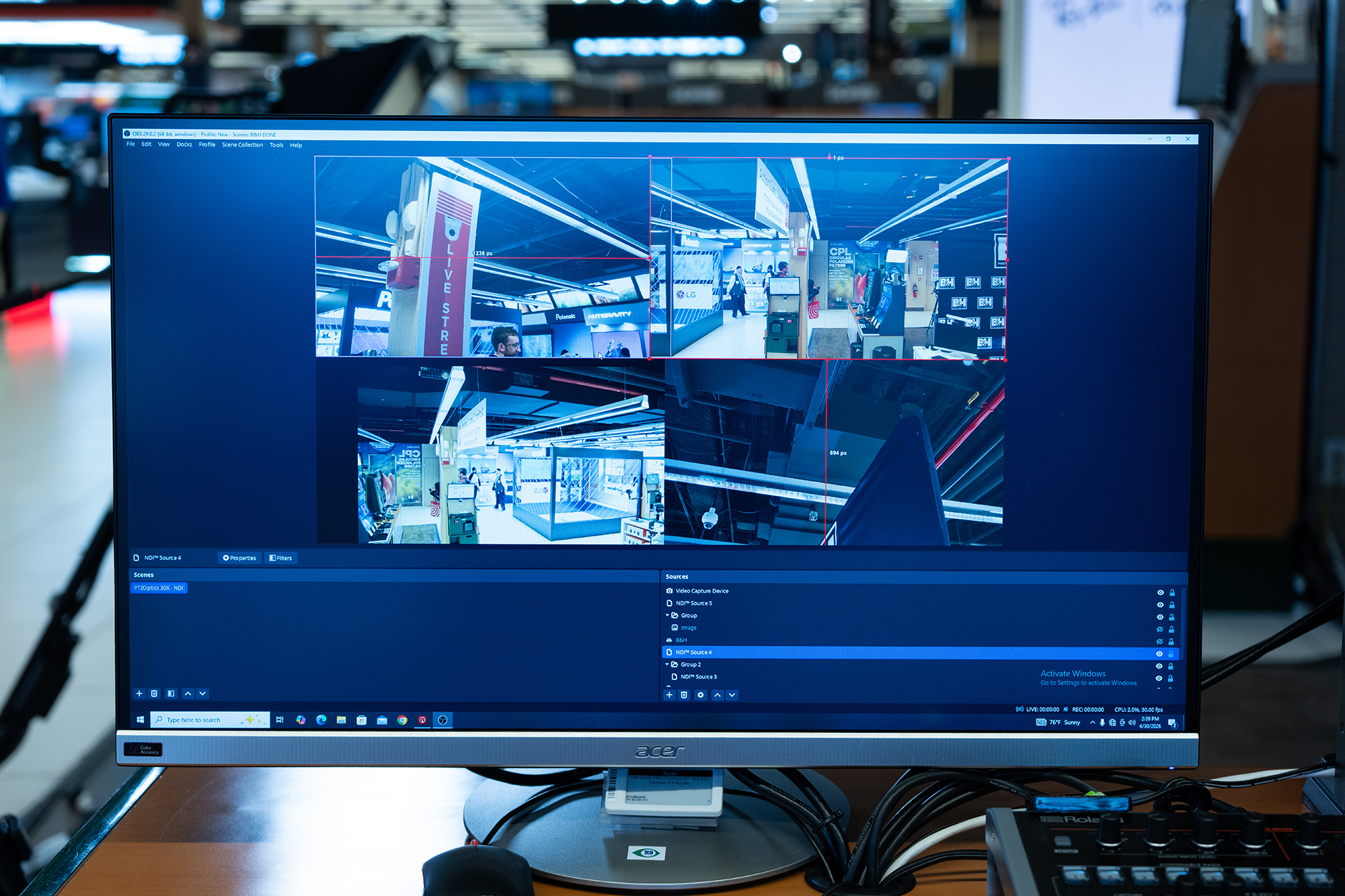
Once you’ve got your cameras set, you’ll likely want to run them through a free service like Open Broadcaster Software or a paid option like vMix in order to plus up your stream. These software options let you add titles, graphics, transitions, and effects. You can chroma key out backgrounds, play prerecorded elements, and tinker with what’s going out to your streaming platforms.
Like with the equipment, it’s good to start small and simple. Experiment with the basic settings in your program of choice and watch or read tutorials that will take you through the key steps.
You’ll want to look up best practices for each platform so you can know ideal resolution, bit rate, frame rate, and more. There’s no one-size-fits-all solution. If you’re looking to keep things as simple as possible, most streaming platforms will let you connect directly to them and avoid extra software, but you’ll be restricted to that one platform, and adding extra elements might not be possible. Still, it’s a solid place to start.
Streaming Service Options
Keep in mind there are an infinite number of platforms you can stream to, but probably only a few that are worth the effort to reach your ideal audience. It’s good to research contemporary data on each platform’s userbase and offerings before locking yourself into anything, as these can change by the day.

As of now, YouTube has a younger audience, Facebook has an older audience, Instagram has a wide age range of users but prefers content shot vertically instead of horizontally, and TikTok has a younger audience and exclusively hosts vertical content.
New platforms are always emerging, and this is part of the reason that simulcasts (streaming to multiple destinations at once) have become popular. Sometimes this feature is built into your streaming software or hardware, sometimes it requires an additional service like Restream or StreamYard.

There’s no single unified way to set up a streaming service, so give us a call, start a live chat, or come into the store to talk through which ones will help you achieve your streaming goals, and the best ways to get started on them.
If you’d like to learn more about PTZ cameras, check out our other guides and articles on the B&H Explora page!
