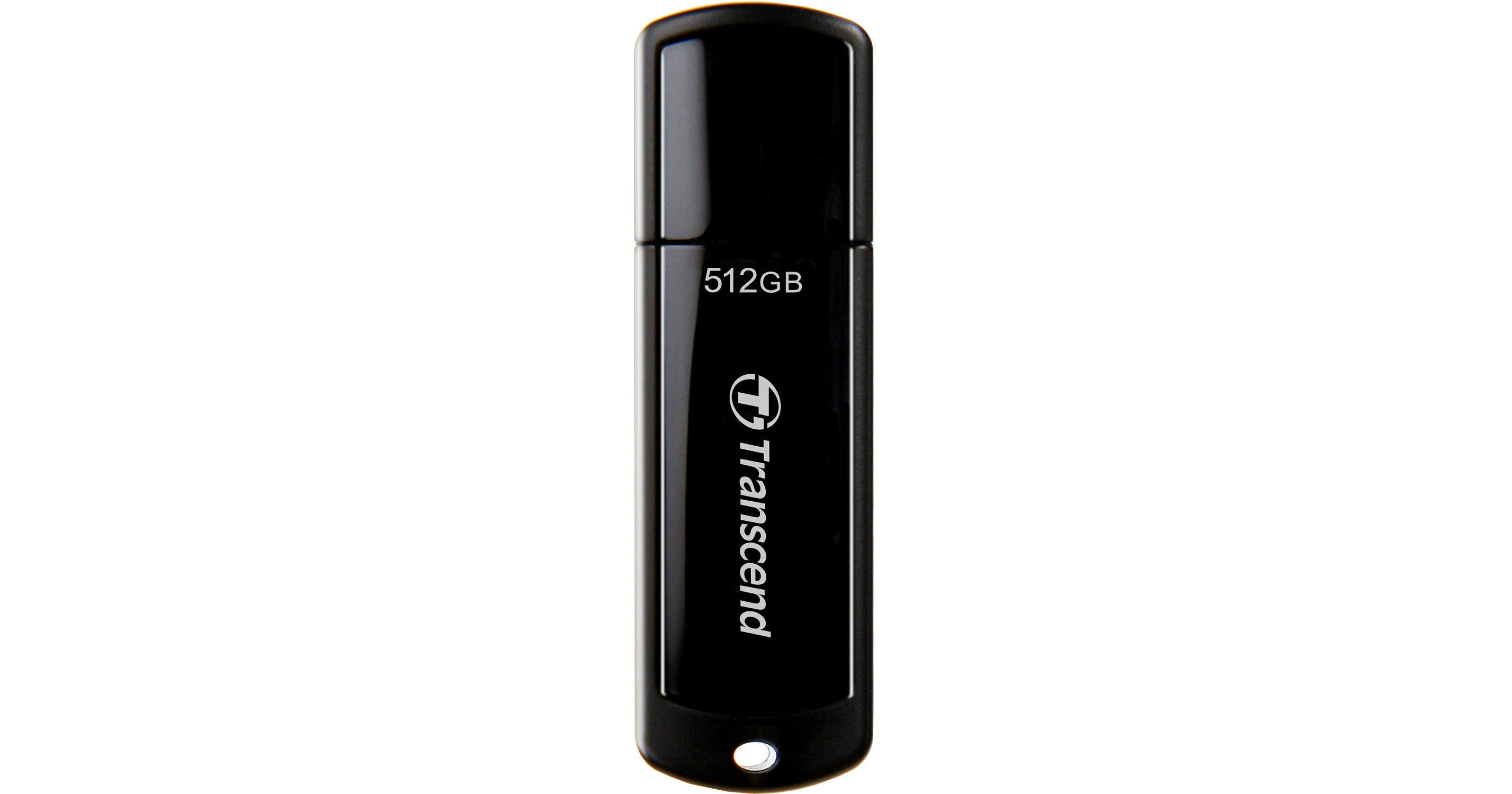
Access your digital content with greater ease using the 512GB JetFlash 700 USB 3.1 Gen 1 Flash Drive from Transcend. Built with a sturdy structure and smooth surface, the JetFlash 700 connects to your host system with its USB-A interface and transfers data using the 5 Gb/s USB 3.1 Gen 1 standard. It is compatible with Windows, Mac, and Linux devices. Download the Transcend Elite software from their website or from the Google Play Store for additional advanced data management such as backup and restore, data encryption, and cloud backup functions.
Ask Our Experts800-606-6969
Hello, Log InAccount & Orders
Key Features
- 512GB Capacity
- USB-A 3.1 Gen 1 Interface
- Transcend Elite Data Management Software
- Windows, Mac, and Linux Compatible
Access your digital content with greater ease using the 512GB JetFlash 700 USB 3.1 Gen 1 Flash Drive from Transcend. Built with a sturdy structure and smooth surface, the JetFlash 700 connects to your host system with its USB-A interface and transfers data using the 5 Gb/s USB 3.1 Gen 1 standard. It is compatible with Windows, Mac, and Linux devices. Download the Transcend Elite software from their website or from the Google Play Store for additional advanced data management such as backup and restore, data encryption, and cloud backup functions.
More DetailsTranscend 700 Overview
Transcend 700 Specs
Key Specs
| Total Installed Storage | |
| Default OS Support | |
| System Connection |
| Quantity | |
| Total Installed Storage |
Performance
| Default OS Support | |
| Encryption Support |
External Enclosure
| System Connection | |
| Security Features | |
| Impact Resistance | |
| Environmental Resistance |
General
| Dimensions | |
| Weight |
Transcend 700 Reviews
See any errors on this page?
question
how to add up data on flash drive before it is full?
If you look under the information on the drive, it will tell you how much space is used, and how much space is left.
Date published: 2018-08-28
question
how can i find out how much data is on the flash drive before it is full?
If your using a Window based computer, when you plug in the USB drive - open it with explorer. On the drive icon, right mouse click on it and choose properties ... Hope that helps...
Date published: 2018-08-28
