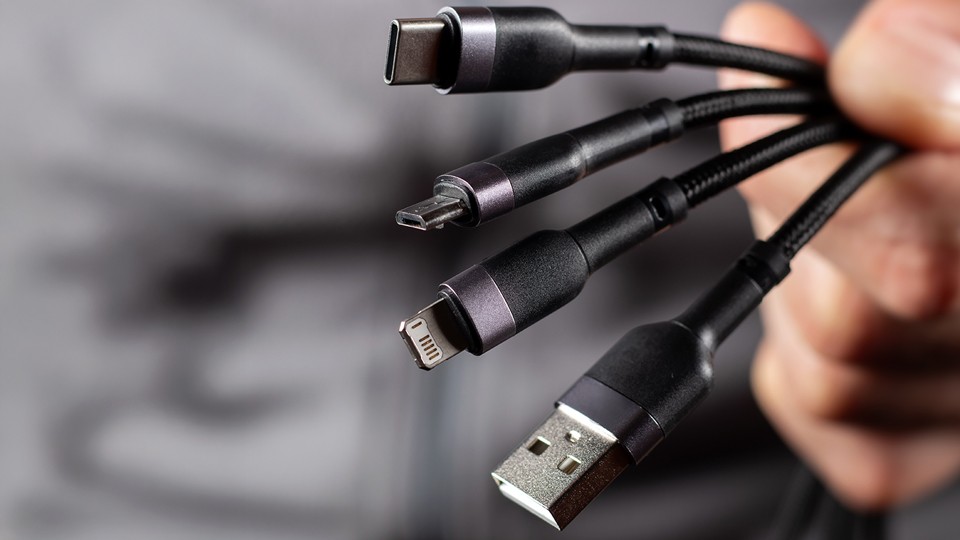
As time passes, technology evolves. Some older technology is left in the dust while new and improved options begin to thrive! Do you remember Firewire? Chances are you do, but do you remember the last time you needed to use it? That’s because connectivity has become so much more streamlined within the last several years and perhaps it is time for a refresher course in the wild world of USB! So, get out that box of tangled cables and look at which ones you need and which can be thrown out.

Connectivity and Ports
What came first, the connector or speed? This is a fun question that I like to ask because it really grounds you in the world of USB. It is something that we can easily take for granted because things used to be a lot more complex. Luckily, we have come along way within the last decade—going from a slew of connectors down to two.
The two styles of connectors and ports you will see most these days is USB-A and USB-C. USB-A formats are square and tend to have a little nub on the inside with a unique color tied to it. These colors provide a rough estimate of performance. Common colors are white for USB 1.0, black for USB 2.0, and blue for USB 3.0.

When it comes to identifying USB-C formats, things get a bit tricky. That is because USB-C doesn’t have a color coordination system. The connector format has become a new industry standard adopted by most manufacturers due to how flexible the connector can be. Of course, this is where things get a bit confusing. USB-C can handle multiple speed protocols and, in some cases, can be indistinguishable from each other. Just because the cable is a USB-C cable doesn’t mean it can do everything. Before we jump into that, we have to understand what speeds are.
Speed Protocols
There are a ton of different speeds, with a wide range of data transfer rates all designed for specific purposes. The most important aspect worth noting is how these speeds interact with each other. No matter the cable, there is a data transfer ceiling that can be hit depending on various factors.
For example, if your USB 2.0 port can only support up to 480 Mb/s the speed will be locked at 480 Mb/s—even if you have a USB 3.0 cable that performs ten times faster. Now, if you have a USB 3.0 port, but the cable operates on the USB 2.0 standard, then the speed will be reduced to whatever the cable is. For the best speeds, you want to pair the cable with the port’s performance profile.
| Format | Maximum Speed | Connector | |||
| USB 2.0 | 480 Mb/s | 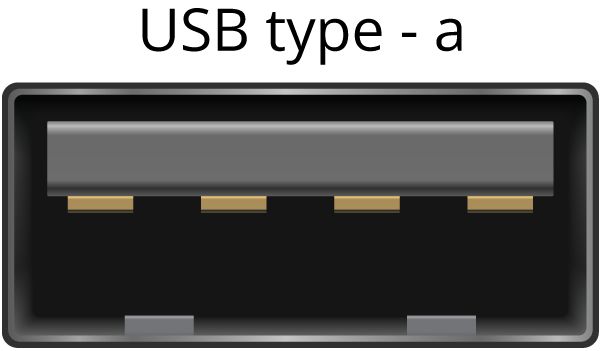 |
|||
| USB 3.2 Gen 1 | 5 Gb/s | ||||
| USB 3.2 Gen 2 | 10 Gb/s | ||||
| USB4 V.1 | 40 Gb/s | ||||
| USB4 V.2 | 80 Gb/s | ||||
| Thunderbolt | 10 Gb/s | 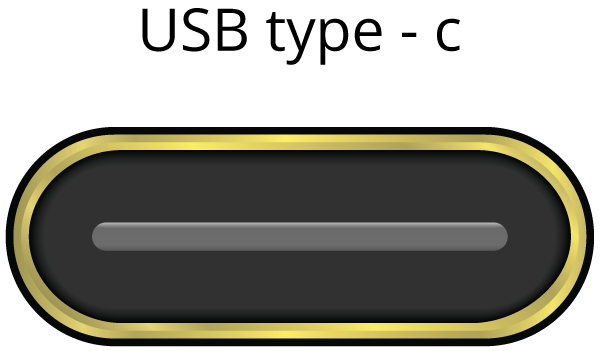 |
|||
| Thunderbolt 2 | 20 Gb/s | ||||
| Thunderbolt 3 | 40 Gb/s | ||||
| Thunderbolt 4 | 40 Gb/s | ||||
| Thunderbolt 5 | 80 Gb/s | ||||
Now, I know I am getting a little ahead of myself here, but it is important to lead off with that because the range of data transfer rates is pretty wide. There are three common speeds typically found on any computer, with higher speeds only seen in select systems (though they are becoming more common).
USB 2.0
USB 2.0 is a common speed for peripherals like your mouse and keyboard. The speed of USB 2.0 can reach up to 480 Mb/s, which is why it has been used mostly for connecting your peripherals. Not a lot of data is needed to transfer information from a mouse and keyboard, as every click and button press is so minute that even if we used faster cables, nothing would even change when it comes to performance.
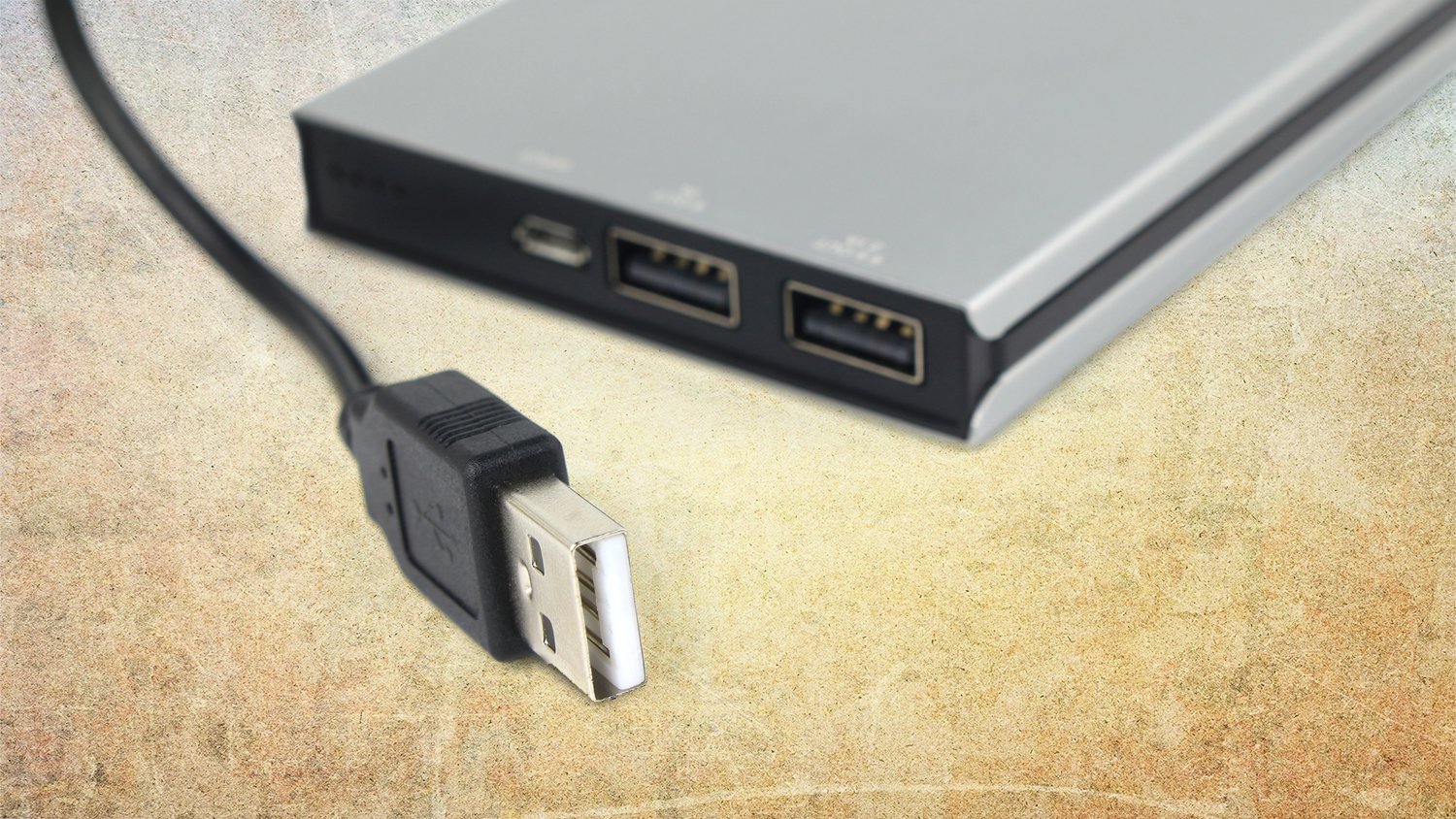
While USB 2.0 can handle a ton of devices, it still can’t handle anything that becomes more resource demanding. When you start working with audio devices, storage drives, and more, we need something a bit more robust.
USB 3.2 Gen 1 and Gen 2
This is where speed kicks it into a higher gear. USB 3.2 became so versatile and expansive that it had to be split into generations, which is how we got USB 3.2 Gen 1 and USB 3.2 Gen 2. While the prefix is the same, the suffix indicates the max speed of the interface.
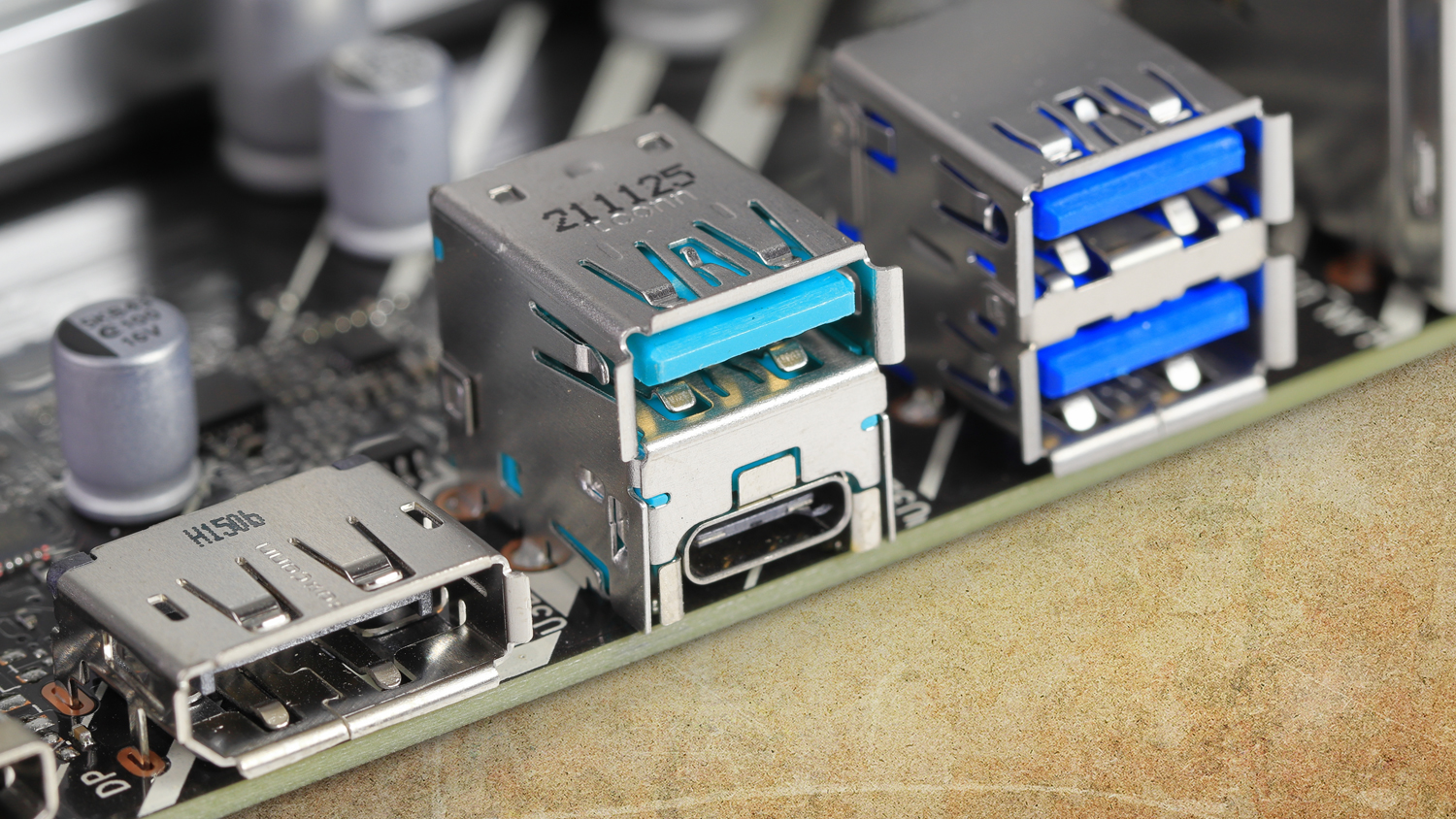
USB 3.2 Gen 1 can reach a potential max data transfer speed of 5 Gb/s, while the Gen 2 version can reach up to 10 Gb/s. Things get a bit confused with these naming conventions because a lot of manufacturers don’t follow the same naming structure. Some manufacturers will stick with calling the standard USB 3.0, while others opt for less common conventions like USB 3.2 Gen 1x1 and Gen 1x2 . So, it is important that you look at the overall max speed of a device to really make sure you’re optimizing your bandwidth.
USB 3.2 Gen 2x2
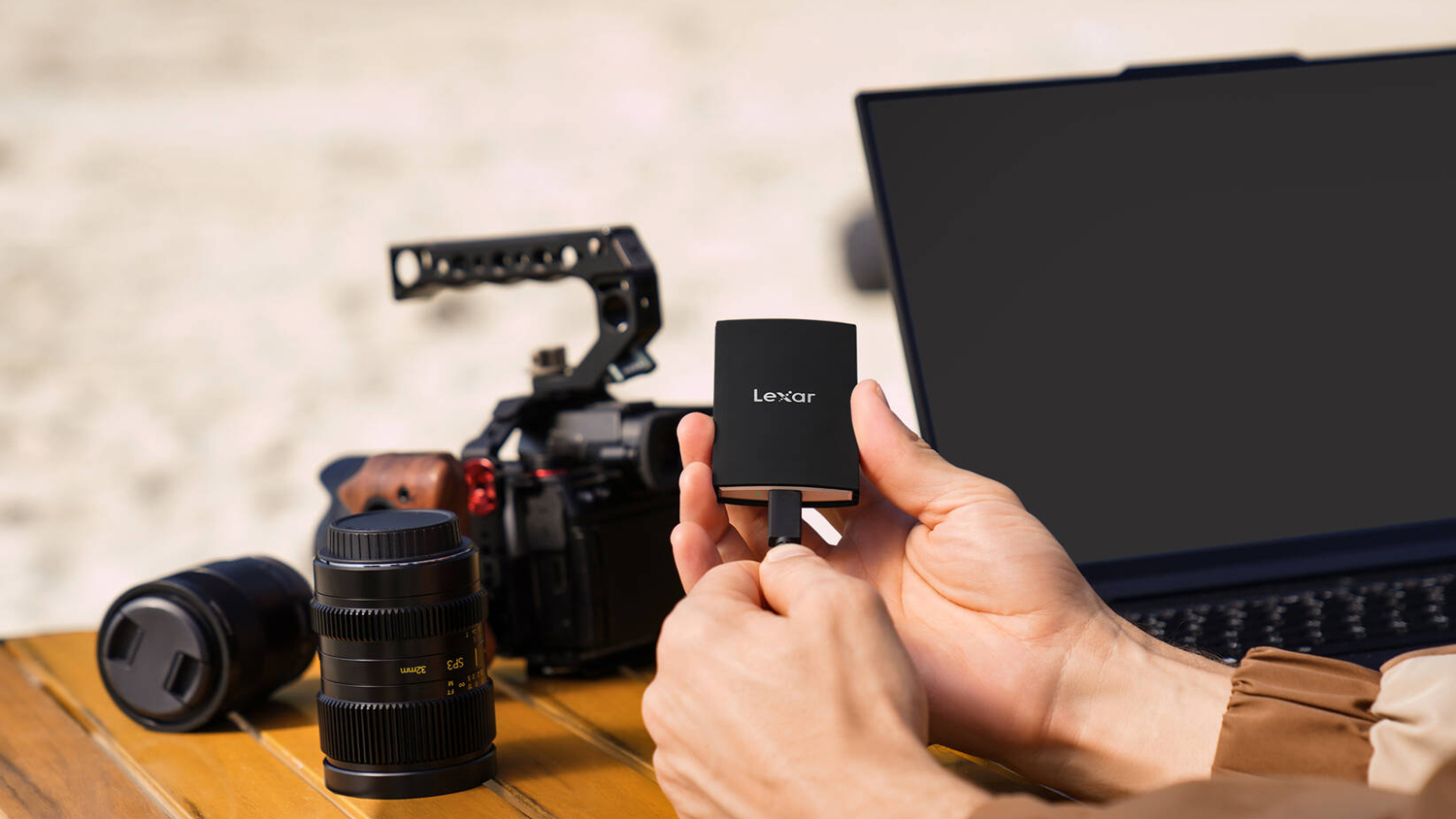
USB 3.2 Gen 2x2 is the only real exception when it comes to naming conventions. Despite it sounding like a mouthful, it is named this way for a good reason. This data transfer protocol can reach a blazing fast speed of up to 20 Gb/s because of the dual-lane design. Despite its blazing speed, this data transfer standard is rare and not used as often as one would assume. It can still be found in select motherboards, storage drives, and even cameras, but folks have been leaning more towards other technologies like Thunderbolt.
USB4
In 2019, the first version of what is now known as USB4 was announced. Currently, there are two versions of the protocol—USB4 Version 1 and Version 2. While there are a few improvements going from one to the other, it is important to note what makes USB4 so accessible is the open-source nature of the protocol. Anyone can implement USB4 technology into their system, as opposed to Thunderbolt technology which was exclusive to Intel-based devices.
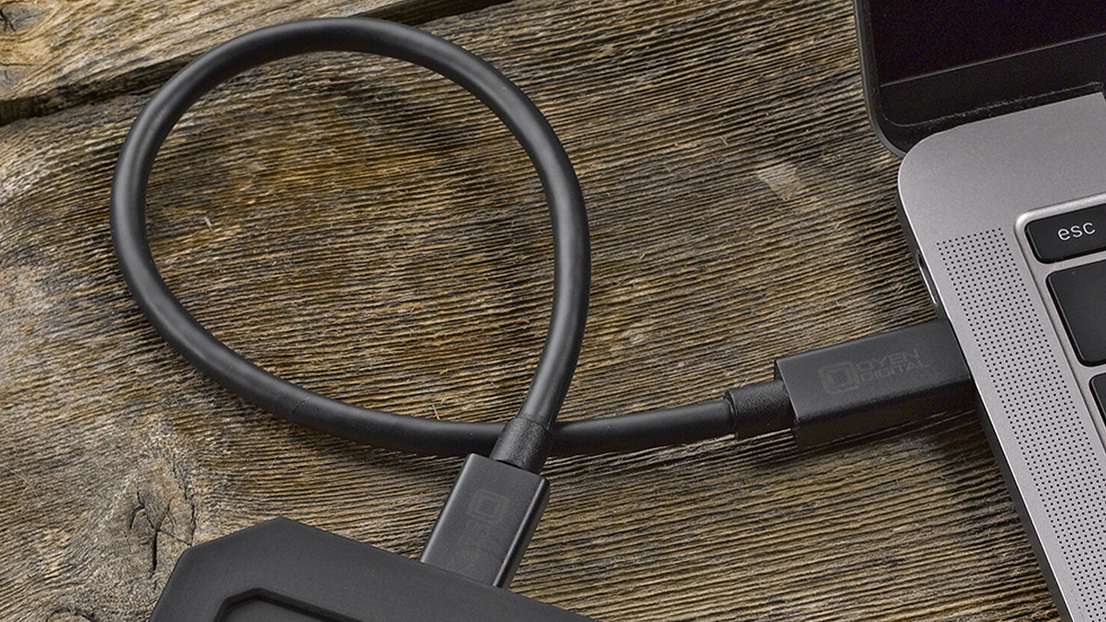
Version 1 of the technology provides compatibility with USB 2.0, USB 3.2, and even defined both 20 and 40 Gb/s data transfer speeds. This means that the protocol here must be able to handle multiple profiles including Thunderbolt 3.
Version 2 improves speeds up to 80 Gb/s but has something neat built into it: symmetric and asymmetric designation. USB4 connectivity supports “bi-directional bandwidth,” which allows information to travel to a system and from a system simultaneously. These are referred to as “lanes” and USB4 happens to leverage two of them for faster performance. In some instances, you can upload and download information at different rate—e.g., 40 Gb/s upload and 120 Gb/s download. Those working in spaces where speed is imperative would find this to be absolutely great for their use case.
Thunderbolt
Originally created as a new standard between Intel and Apple, Thunderbolt technology quickly became the de facto option for many creative users. Thunderbolt was given a generational nomenclature, but it was vastly different from the USB standards previously mentioned. Instead, Thunderbolt was broken down into very simple naming conventions like Thunderbolt 1, Thunderbolt 2, and so on. The first two generations of Thunderbolt technology are no longer used, but you can find Thunderbolt 3 in plenty of systems today.
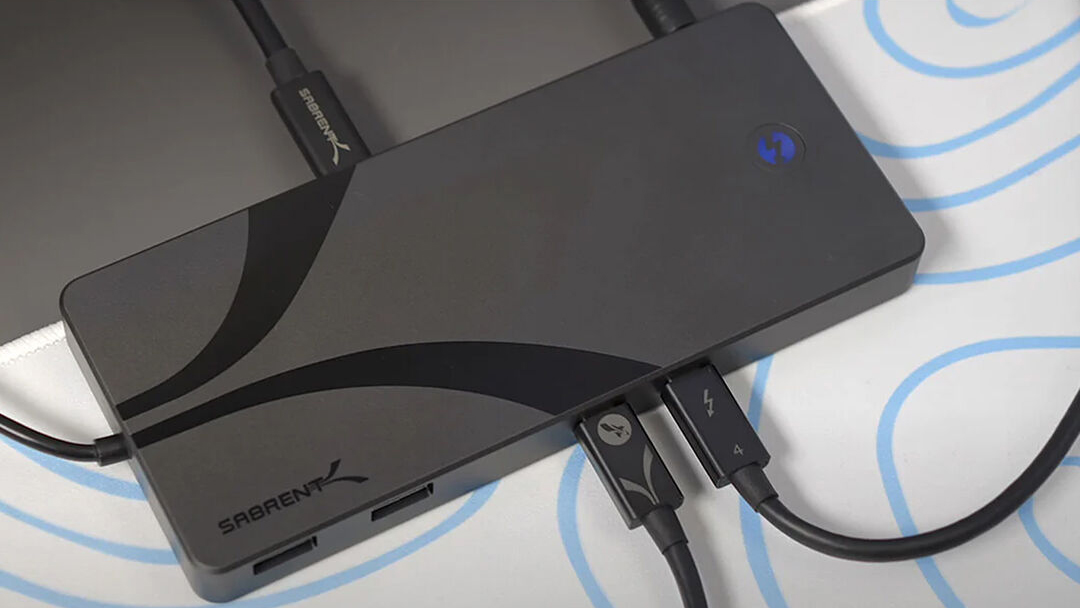
Thunderbolt caught on quickly because it was the one format that could do it all. Not only that, but each generation of Thunderbolts offer improved performance. For example, Thunderbolt 3 doubles the bandwidth of its predecessor by offering up to 40 Gb/s bandwidth. It also supports charging devices with up to 100 watts of power. A single Thunderbolt 3 port can support two 4K displays with 60 Hz refresh rate or a single 5K display.
Thunderbolt 3 technology is still used in a lot of modern systems because the increase of power in Thunderbolt 4 equipped systems only provides a marginal improvement. Thunderbolt 4 all includes the same specifications as Thunderbolt 3 but adds in support for PCIe link and Multi-port Accessory Architecture, which effects general throughput and connectivity for various peripherals.
Thunderbolt 5 provides even greater performance yields over the previous generation. It offers up to 80 Gb/s, which is great for video-intensive use. It also offers support for DisplayPort 2.1 video technology, PCIe 4.0 x4 speeds, and up to 240 watts of charging power.
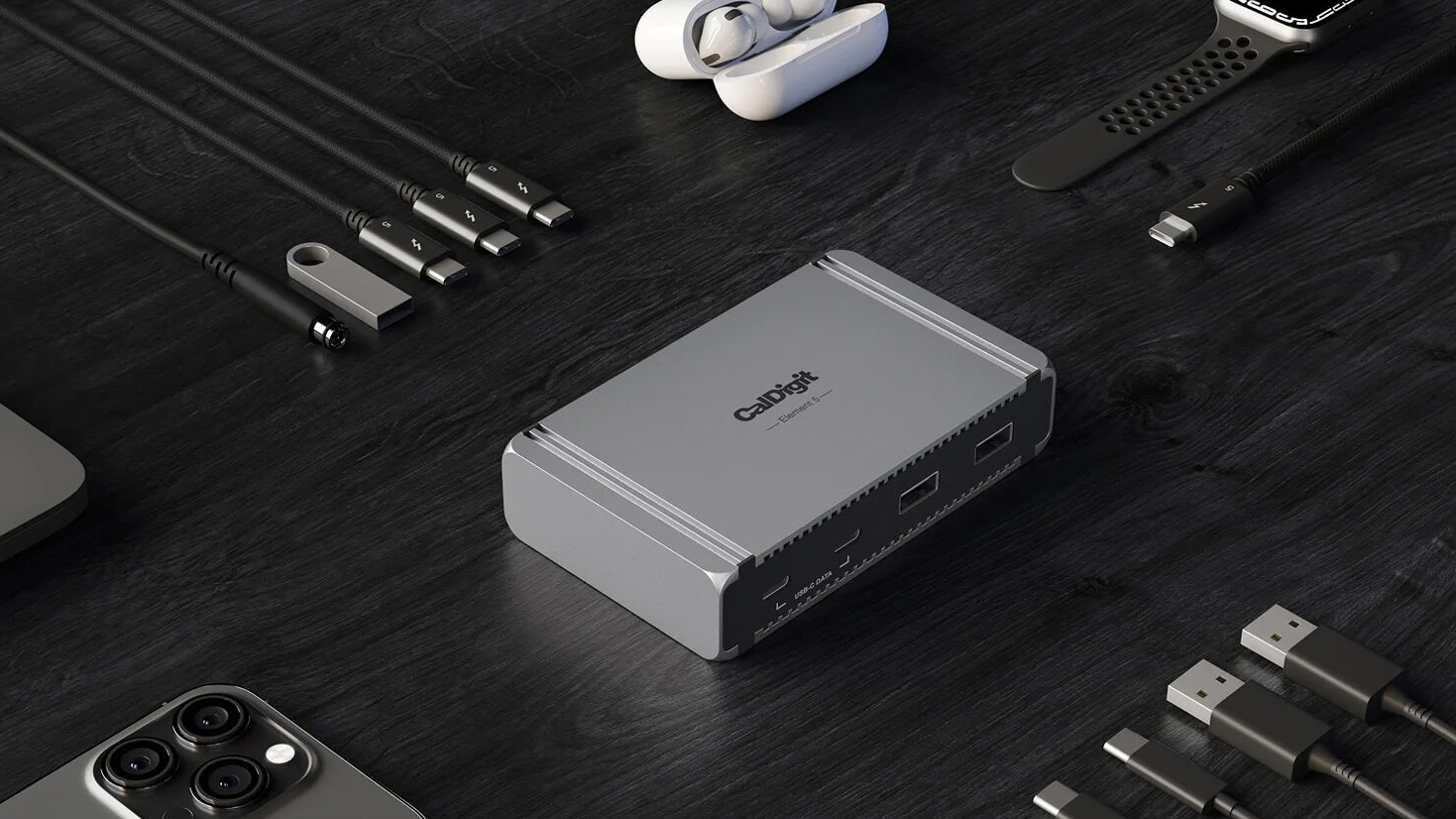
Each new version of Thunderbolt technology is compatible with previous versions, accounting for the change in speed bandwidth. I’ll also mention that since its first iteration, Thunderbolt technology allows users to daisy-chain up to 6 devices together, giving you a more streamlined process. That remains true today.
Conclusion
Now, I know what you are thinking: What about that rat’s nest of cables that you have had for the last two decades? Well, maybe you can start identifying which ones you have and toss what you don’t need. We already know you have enough USB-C cables in a desk drawer somewhere. Free up some space so you can start collecting something new. It’s going to be OK!
