
Whether you want a professional look for your livestreams or simply to look better on your next video chat, one of the best options is to use a dedicated camera with excellent video specs—such as your Nikon mirrorless or DSLR. Since you likely already have the camera and a compatible USB cable, it seems like an easy way to improve your video calls.
Why Use a Nikon Camera Instead of a Webcam?
In one word: quality. The webcam that comes with your tablet, laptop, or smartphone is nowhere near as good as a large-sensor mirrorless or DSLR camera. You also get more control over the image with a Nikon camera. You can set the aperture and ISO just as easily as you set a color profile to add a look to your footage. A webcam is usually always set to auto mode, and sometimes it provides unflattering color casts. If you want the best video, you should use a dedicated camera.
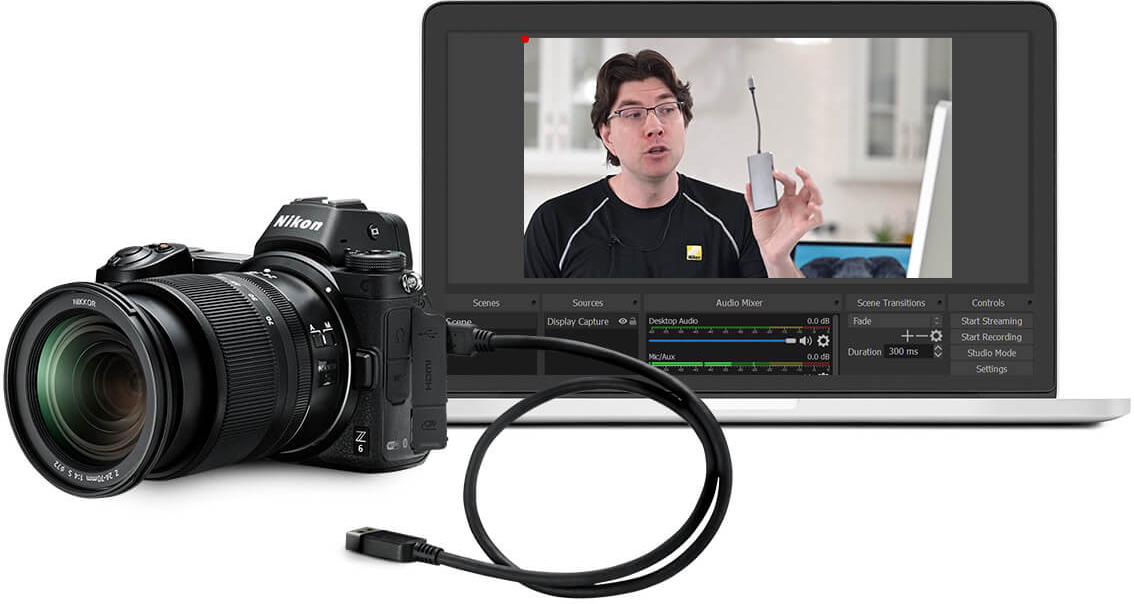
Recommended Cameras and Equipment
If you want to use the USB cable-only method, you’ll have to check and see if your camera is supported by third-party software, such as Ecamm Live. The company provided the following list of specific Nikon cameras that it or its community members have personally tested.
- Z 6
- Z 6II
- Z 7
- Z 7II
- Z 50
- D5
- D850
- D810
- D780
- D750
- D500
- D7200
- D7000
- D5600
- D5500
- D5300
- D5200
- D5100
- D3200
- D300s
If your camera isn’t on the list, that doesn’t mean it won’t work, just that it hasn’t been tested yet. I would suspect many other current Nikon releases are compatible. If you happen to test a different camera and want to add it to the list, please leave a note in the Comments section, below.
How to Set up Your Camera and Computer
The easiest way to set up your Nikon camera as a webcam is to use the new Nikon Webcam Utility. First, download and install the free Nikon Webcam Utility program for either PC or Mac. Next, you should connect your Nikon camera to your computer using a simple USB plug-and-play method. And that’s it. As long as you have downloaded and installed the Nikon Webcam Utility to your computer, it will automatically recognize your compatible Nikon camera any time it’s connected to the computer via USB. And once your camera is detected, you can then open any compatible video conferencing application or software (Zoom, MS Teams, Google Meet, etc.) and start streaming.

Clean HDMI Method and More Info on Streaming
If your camera isn’t compatible or you are looking for an even higher-quality way to connect, you should read Using a DSLR or Mirrorless Camera as a Webcam. It includes the Clean HDMI method, which uses many cameras’ HDMI output and a separately available video capture device to feed a high-quality video stream into your computer.

For more information on streaming or learning how to set up another brand or type of camera for use as a webcam, please stop by the B&H Livestream Center. Feel free to leave any questions or comments below.
