
Storage is not just getting expensive, it’s hard to come by. One minute the drives are available and the next they are all gone. It can be quite frustrating due to this demand. It makes perfect sense why folks are looking for ways to ensure their current storage lasts longer than ever before. This can be a challenge because, in many cases, storage is used constantly. But, luckily for you, I have a few tips that can help you make the most of what you have now and find new ways to prolong your current storage solutions.
Warranty and Notices
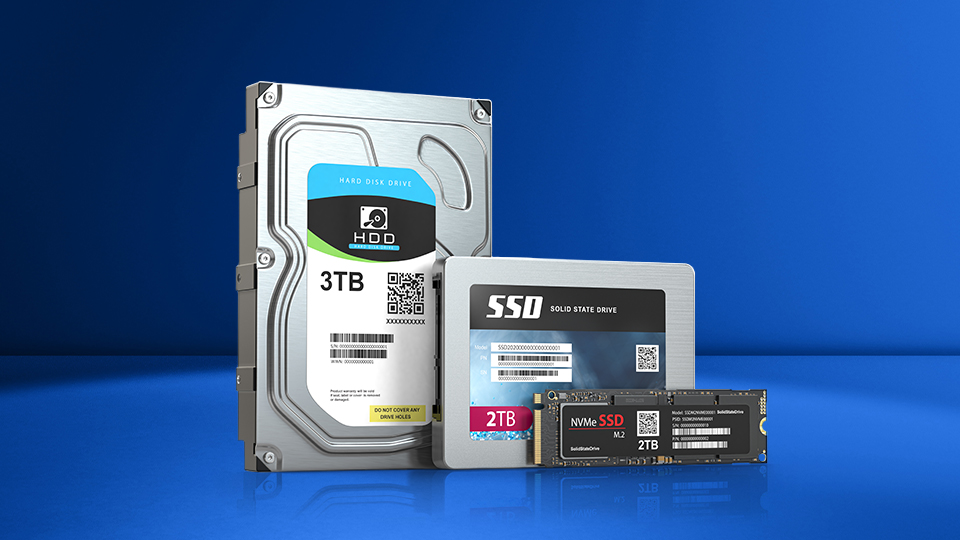
The first thing you should do when it comes to your storage is check your warranty. Some drives have a limited warranty that could range from 3 to 5 years (and beyond). There may be some stipulations around this, so make sure you read the notice clearly and carefully. You can get a good idea of how long a drive lasts based on the length of the warranty. You must keep the date of purchase in mind since that is the window of operation that the manufacturer predicts. If the warranty is five years, be prepared to replace it on day 1827, which is roughly five years and one day.
Although, there is another metric you should be aware of and that is “TBW” or Total Bytes Written. Every time you download a file or save a document, your computer is “writing” that information to the drive. This can, over a long time, wear the drive out. So, when you get close to that number, you can start getting yourself prepped to get a new drive and prevent complete data loss. Most importantly though, if your drive does exceed the TBW rating, it may not be covered by the warranty.

Now, that seems a bit scary, but there is a bit of nuance that we should cover. First, the TBW rating is typically high. On average, a 1TB will range anywhere between 500 and 600 TBW, although your mileage may vary depending on make, model, and even brand. Larger drives will also have a larger TBW limit. To put it into perspective, you might have a drive with a rating of 500 TWB. If you want to download every single Call of Duty game ever made, that is roughly 1.76TB. On average, you can max out a 2TB drive’s 1200TBW quickly by downloading the whole collection 681 times.
Another good thing: you don’t need to get too worried about hitting the TBW because when you get close to the TBW, your system will notify you upon startup. So, you’ll have ample heads up before anything goes awry.
While you check your warranty and TBW, you might want to see if the manufacturer offers any sort of recovery service. This means if the drive completely dies and you cannot recover the information yourself, the manufacturer might be able to provide you with the lost information. This is a pretty advanced process that requires you to send the drive to the manufacturer. Depending on your situation, the brand might cover the process. Otherwise, you will have to pay for it, which isn’t great. But hey, at least you’ll get some information back rather than none of it.
With those points covered, we can get into what you can actively do to prevent data loss and make the most of what you have.
Being S.M.A.R.T.
Stretching out your internal storage can be a bit tough because you may need some sort of baseline. After years of using the same drive to download files, you could easily lose track. That is why there are some built-in applications and processes that do the thinking for you. As I previously mentioned, your system will notify you if there is a problem with your drive before it occurs. This is part of a system called Self-Monitoring, Analysis, and Reporting Technology, also known as S.M.A.R.T.
The primary function of S.M.A.R.T. is to detect and report various indicators of drive reliability or how long a drive can run while anticipating hardware failures. If it does detect any sort of failure, the software will notify you so you can take action and prevent complete data loss. This is a great solution and gives piece of mind to those who do not keep a rolling tally of how much they have downloaded.
Cloud and NAS
One option is to upload your favorite files to a cloud storage server. You might have a limited amount of storage available to you for free with varying degrees of size and cost, so keep that in mind when you’re looking around for long-term archiving. Cloud storage is typically reliable, but some folks do not like the idea of files being kept off grounds. Instead, folks may invest in a NAS or Network Attached Storage.
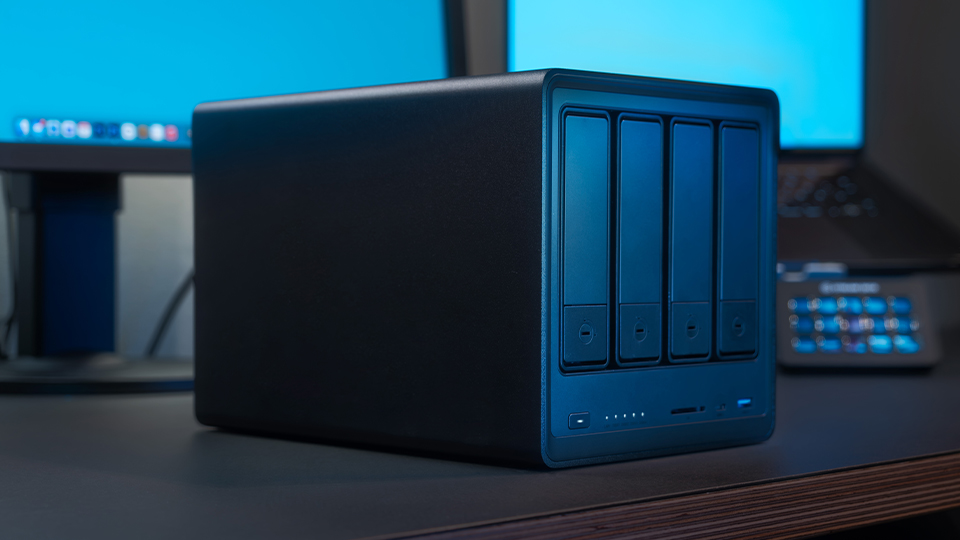
A NAS performs a lot like a cloud server, except it is tailored to you by you. A typical NAS features several drive bays which can hold a specific number of drives. NAS units run in something called a RAID configuration. There are different types with different parameters, but the whole purpose of a NAS and RAID configuration is to split your data into various disks to prevent data loss. If you want the full details on what a NAS is and RAID configurations, be sure to check out my handy guide on all things mass storage.
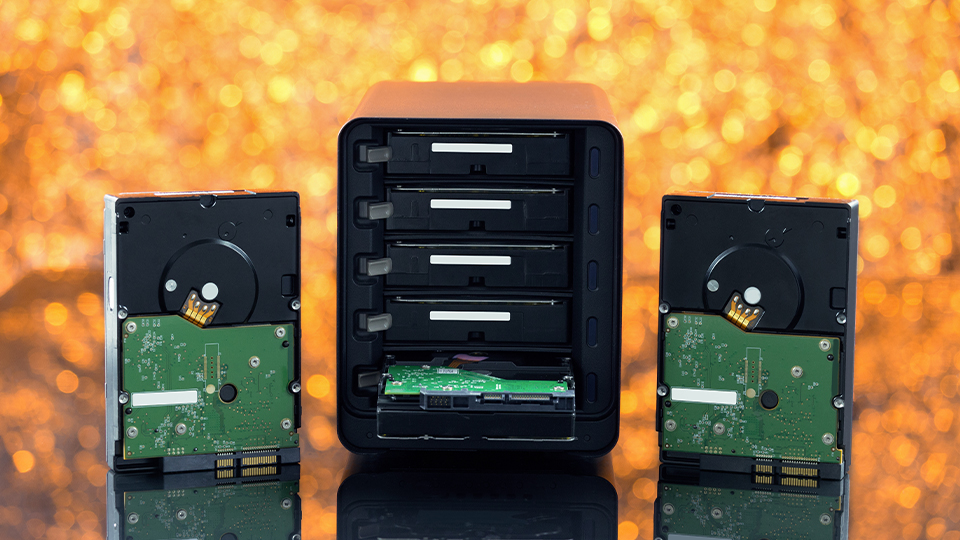
Now, a NAS is not impervious to failure since drives are also in these units. But, if you have the option to configure your NAS in RAID 5 or RAID 6, you are in luck! That is because both of these protocols have the ability to restore data. It might take a while to rebuild and recall your data, but that is way better than losing all of it. You can read all about the different types of RAID configurations in the guide above.
External Drives
Some users might be like me and keep a rolling library of storage drives. These can be incredibly useful in so many situations because you can offload content from your main drive onto it quickly and easily. There is one key though: don’t always keep it connected. Some folks might use a storage drive like it is just another drive, constantly plugged in and ready to go. This could wear a drive out, although minor, but the more you use any piece of technology, the higher the chance of failure becomes. Think of it like a metal spoon. You bend it too much and it eventually breaks. It might be a challenge to not rely entirely on external storage drives, but it could break the more you flex it.
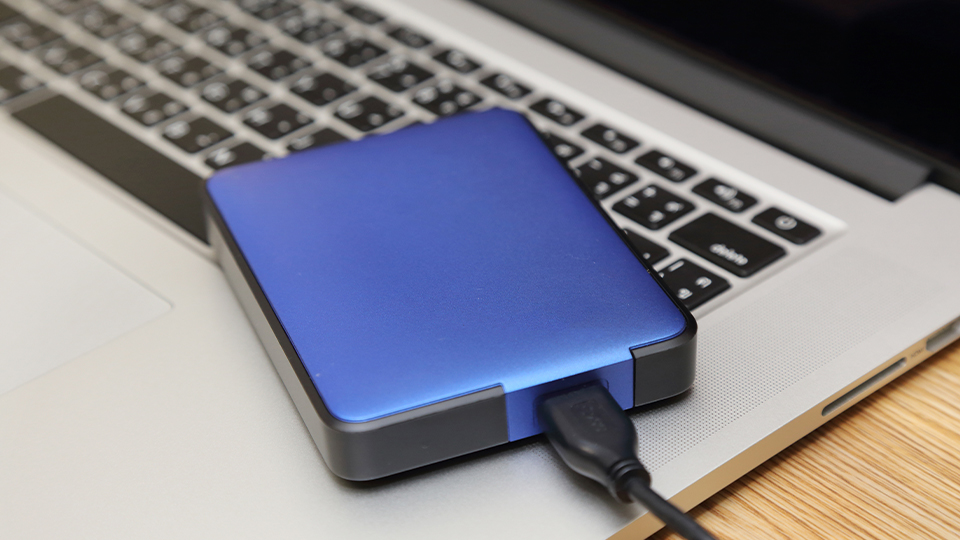
External hard disk drives (HDDs) tend to have spinning discs on the inside. By keeping an external HDD plugged in constantly you could break it due to the constant spinning of the internal platters. The chances of the drive breaking because of this are low, but it is never flat zero. Also, never use any drive that uses flash memory. Those are not typically designed to last a long time. It is nice to see a 512GB flash drive, but it might not last as long as you need it because flash memory tends to be rather volatile.
Additionally, never unplug a NAS unless you deliberately want to. Those are designed to stay on for very long periods of time and are typically outfitted with specific drives meant for that very task.
Software-Enabled Systems
Another way to manage your storage is by using various additional software platforms to perform the task. Now, this can have varying results so you may need to pay extra attention when using these applications. Dare I say use them at your own risk.
Windows has a few software solutions with applications such as Cleanup. You can review temporary files, unused files, and even those linked to your cloud profile and select the items you want to remove. Windows will also make a few suggestions. If you want to think less about it, Windows also has Storage Sense, which automatically frees up storage space by getting rid of items you don’t need. When enabled, Storage Sense will only run when the device is low on disk space, and you can control what gets cleaned out and when. Everything in the recycling folder will be deleted while cloud applications will not be touched unless you configure it.
There are a handful of other programs and applications out there that can easily monitor and deliver information in real time when it comes to your storage (or any other part of your system). But I don’t often suggest using those unless they are supported by companies like Microsoft and Apple. Third-party software could harm your system if you are not careful enough.
Heatsinks and Fans
One of the best ways to keep your storage and everything else alive for longer is to utilize some passive systems. One of the biggest threats to storage (and your computer) is heat buildup. Without proper cooling, your SSD can easily overheat, causing thermal throttling. This is when a storage drive lowers its performance profile to remain well within the appropriate thermal level. Prolonged exposure to heat can cause tons of damage to storage, processers, and more.
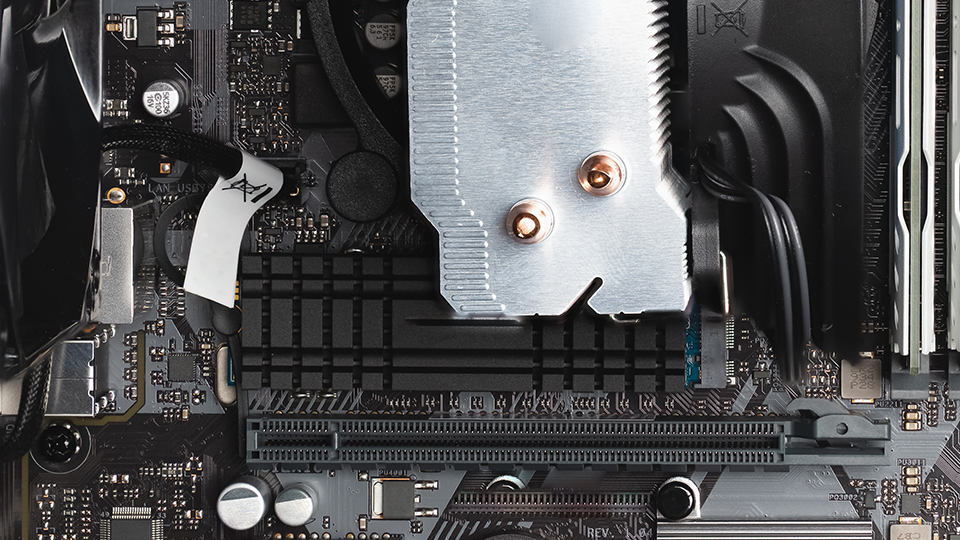
Most computer motherboards offer heatsinks for SSDs. Those are typically great for dispersing heat and keeping your SSD well within the maximum operating zone. If your motherboard doesn’t have one, the good news is that multiple manufacturers offer heatsink versions of their most popular drives. And, if you already have a drive, you can purchase a heatsink separately. They are easy to install and are always worth it.
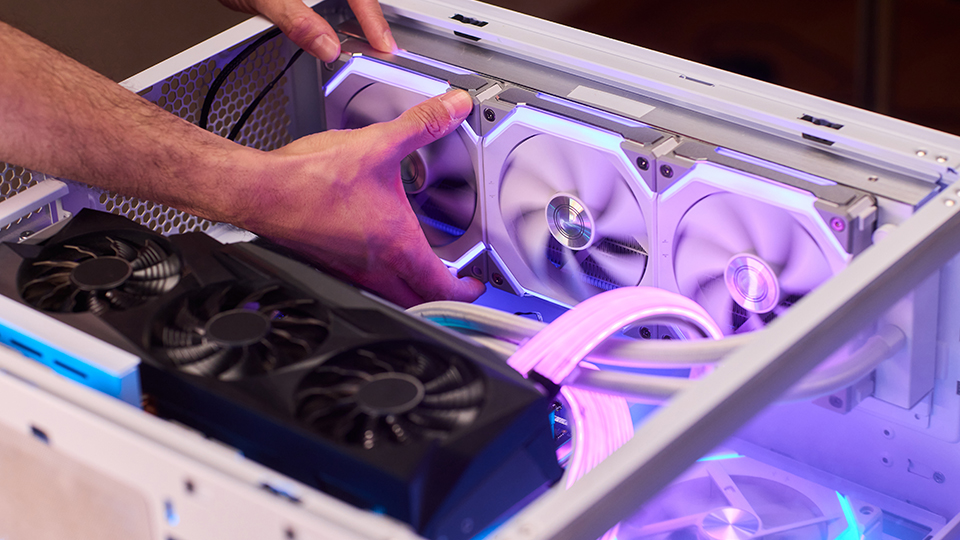
Playing into the thermal aspect, having the right amount of fans within your computer case can help a ton! Additionally, consider the ambient temperature around your computer. You want the room your system is located in to be fairly cool. This is because you want to use cold air to keep your equipment under thermal control. Hot air doesn’t help your system and could cause various thermal spikes.
External drives tend to have an aluminum case which helps keep the drive in check. Some larger drives also have built in fans alongside NAS systems.
It also helps to keep your area clean. Don’t obstruct the intake of you system and occasionally clean out dust filters. If you have got pets, their hair can clog up the vents alongside your system. So do your best to keep your desk area clean and stay on top of your thermal performance for the best outcome.
These are some of the best ways to keep your drive lasting longer! It doesn’t seem great to say that the solution to elongate your storage is to have more storage, but it is one of those computer truths that exist out there in the world.
