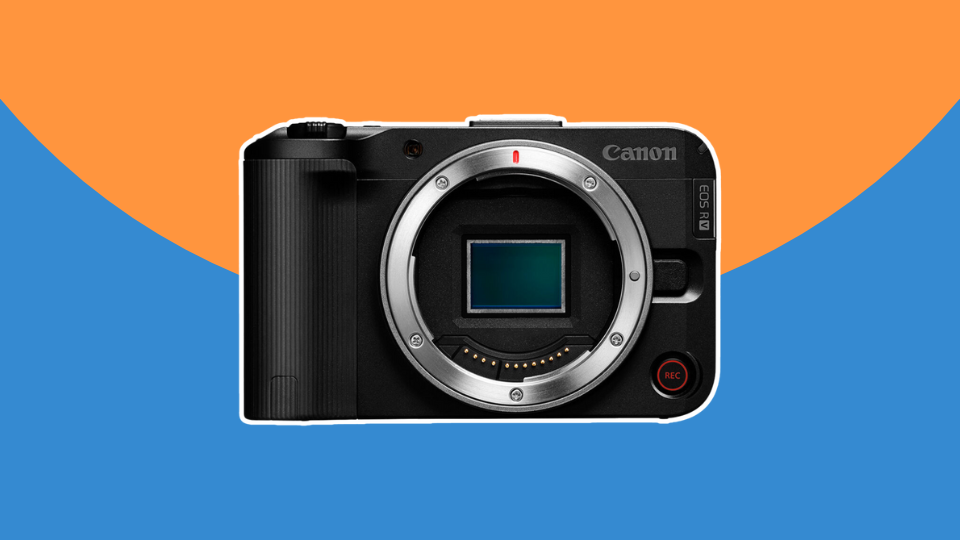
Congratulations on upgrading your recording space. In this guide, we’re going to cover the unboxing of your new Canon EOS R50 camera kit, essential camera functions, and setting up your mini studio for the best results.
Unboxing Your Kit
The Camera: Canon EOS R50V Mirrorless Camera
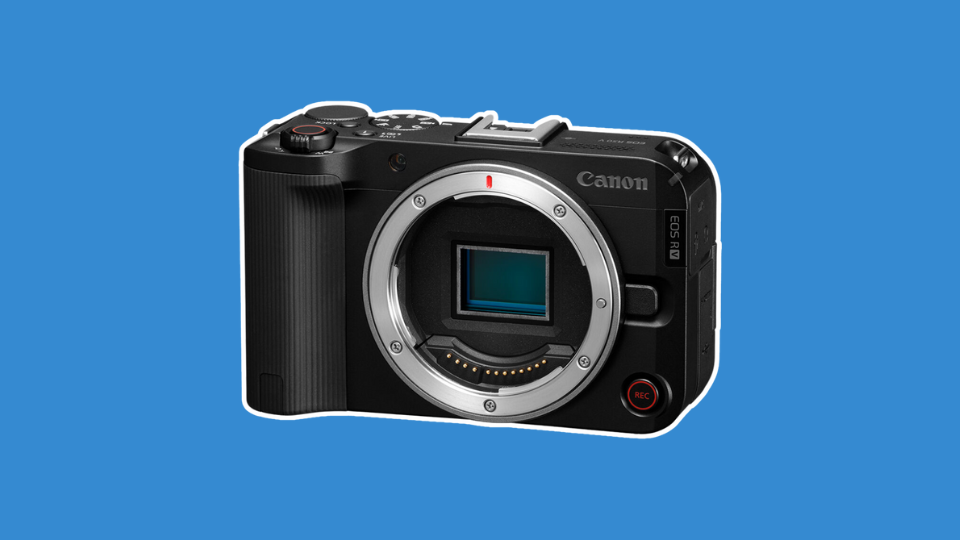
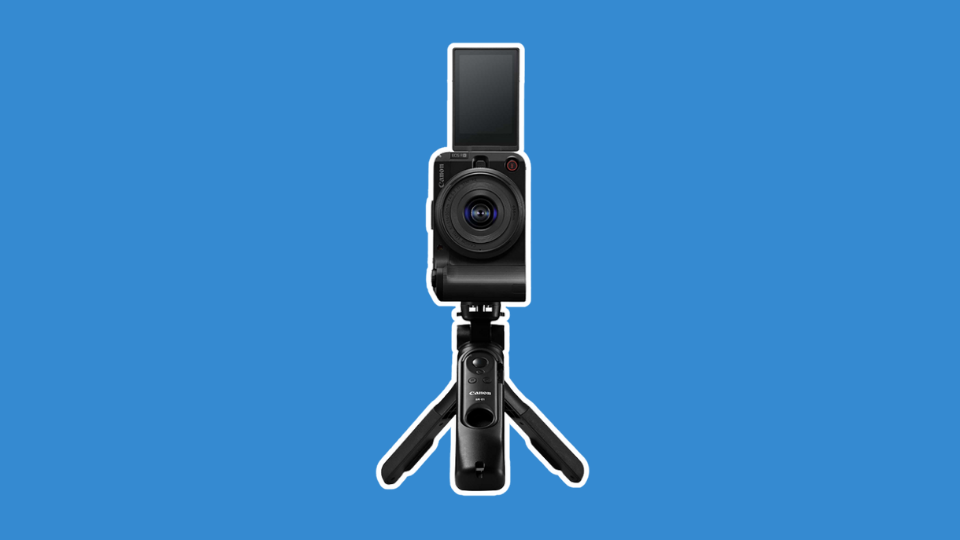
The Canon EOS R50 V Mirrorless Camera is a compact video centric camera designed for streaming with ease of use in mind. It features a responsive, flip-out touchscreen and 4K recording in a user-friendly package.
What’s included:
- Canon EOS R50V Mirrorless Camera
- Canon LP-E17 Lithium-Ion Battery Pack
- Canon R-F-5 Camera Cover
- Neck Strap
Essential Controls
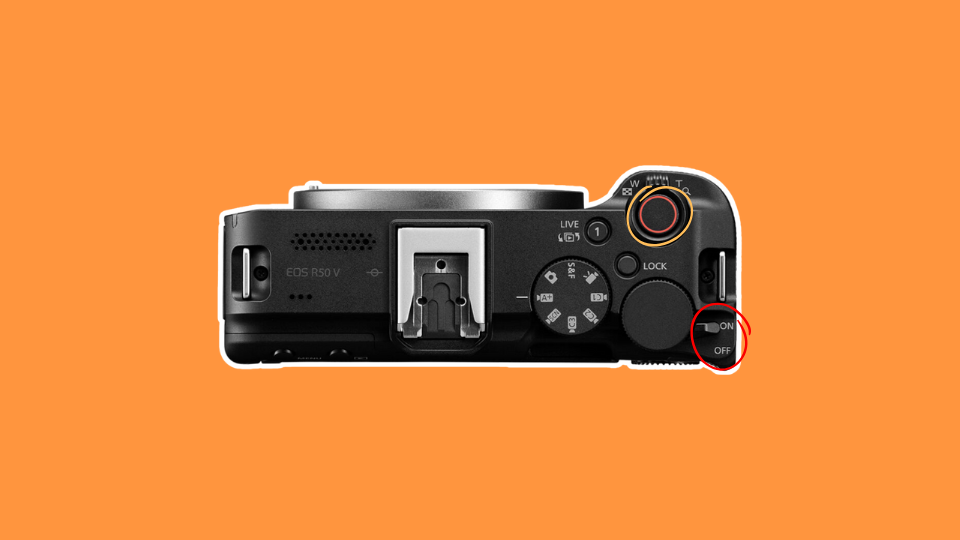
1. On/off switch. This is located on the top of the camera. If you look down at the top of the unit, you’ll find the switch on the rear right side of a round, black dial.
2. The record button (circled in orange) is larger than the rest and highlighted with a red ring on it. Press this to begin recording and again to cease recording.
3. On the top of the camera, you’ll find a dial with a number of icons displayed on it. This is our mode dial (circled in orange) that dictates how the camera functions. This can be overwhelming at first glance, though we won’t worry too much about it. Simply set this dial on Automatic mode, sometimes displayed as Auto or A+. In this mode, the camera makes most of the important decisions for you.

Once our mode has been set, we can shift to the other accessories for our new camera. These will aid us in storing the media we record, capturing quality sound, and keeping our image still and stable throughout our stream.
Other Features
Next, we’re going to turn our attention to the bottom of the camera. Here, you’ll see a small thread for a screw. This is a 1/4-20” thread, designed to thread in tripod mounting plates and other accessories.

Initial Setup
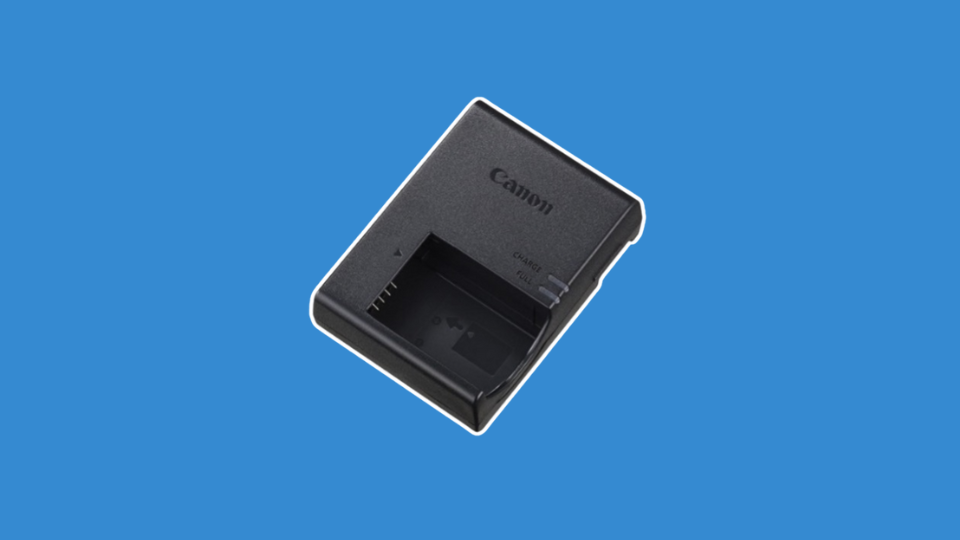
Before we set any controls, charge the battery. Remove the protective cover from the battery and fully insert the battery into the charger with the contacts lined up. The initial charge may take longer than subsequent ones. Plug the charger into the wall and wait for the “full” light to illuminate. The “charge” light will flash as the battery is charging.
Next, set up your camera. Once the battery is fully charged, insert it into the camera. When you first turn the camera on, you’ll be prompted to enter the time and date. Do so. In some cases, you may be prompted to use an app or to connect your smartphone or other smart device to the camera. Skip these settings for now.
With the battery charged, our mode set to auto (A+), and the time/date set, we can change focus to setting up our other accessories.
Memory Cards: SanDisk Extreme Pro UHS-II SDXC
Memory cards serve as short term storage for data recorded by the camera. Even when streaming directly to an online source, a camera may require a memory card to be inserted into the camera. For video, the card must be able to handle the heavy flow of high-resolution data like HD or 4K video, so a fast card like the SanDisk 128GB Extreme PRO UHS-II SDXC Memory Card is essential.
Be sure to insert the memory card in the proper direction, as a backwards card can get stuck and damage the camera. If there’s any resistance, do not force it. Once the card has been inserted, we’ll want to format our card(s).
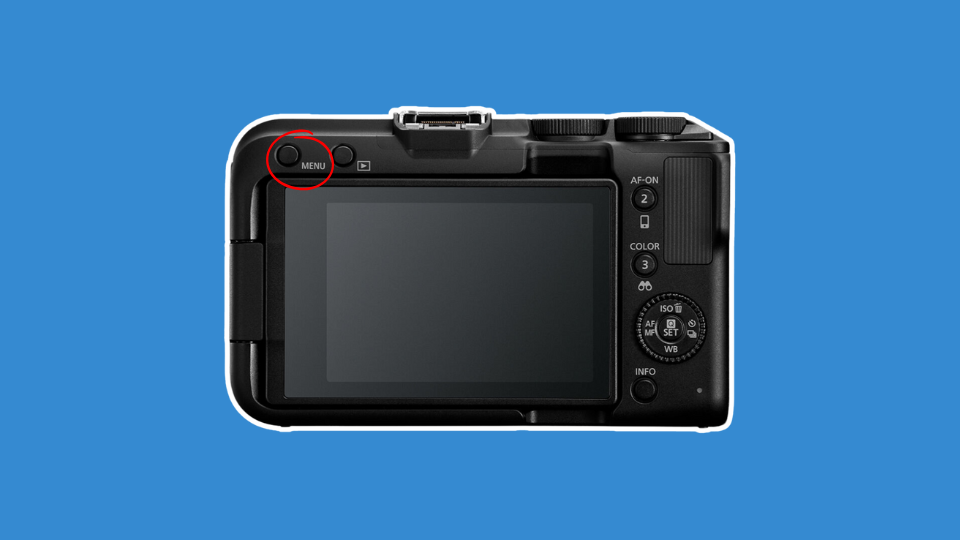
Step 1: Press the menu button (circled in red) on the back of the camera
Step 2: In the menu bank, scroll or use the touchscreen to reach the set-up menu, marked by a yellow color and a wrench icon.
Step 3: Once there, scroll down to Format Card, this should be the fifth line down.
Step 4: When you select format, a prompt will appear asking if you’re sure you want to format the card as it will wipe data, select yes.
Your memory card is now formatted and ready for use. Formatting lessens the risk of losing data, corrupting data, and other common maladies of digital storage.
Lens: Sigma 18-50mm f/2.8 DC DN C
The lens included in this kit is the Sigma 18-50mm f/2.8 DC DN Contemporary Lens. This is a small zoom lens that we’ll need to mount to the camera. Zoom refers to the varied focal lengths or magnification of the lens. 18mm refers to the wider field of view captured when the lens is zoomed “out” and 50mm refers to the longer end. For our purposes, adjust the zoom so you appear large enough in the frame without cutting off the top of your head. More on this later.
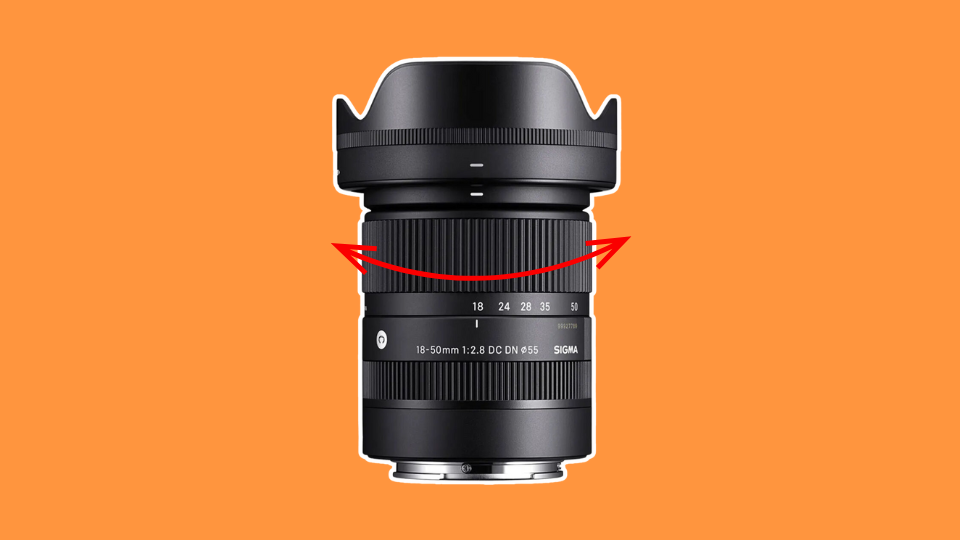
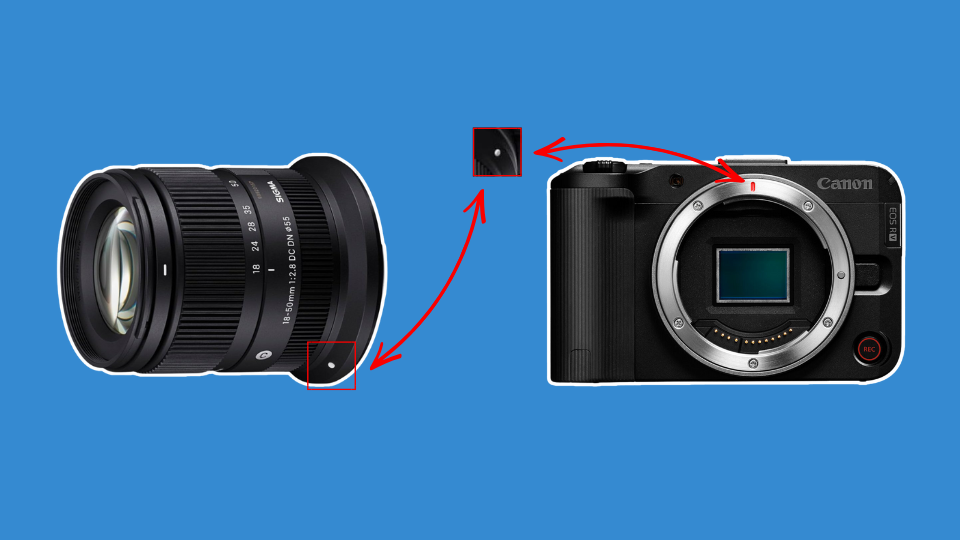
To mount the lens to the camera, first remove the rear lens cap. Next, match the white dot on the rear mount of the lens to the red dash found on the lens mount on the camera. Once aligned, the lens should smoothly insert into the mount. Next, rotate the lens clockwise, away from the “Canon” logo until you hear and feel a click.
What’s included:
- Sigma 18-50mm f/2.8 DC DN Contemporary Lens
- Sigma LCF-55 III 55mm Lens Cap
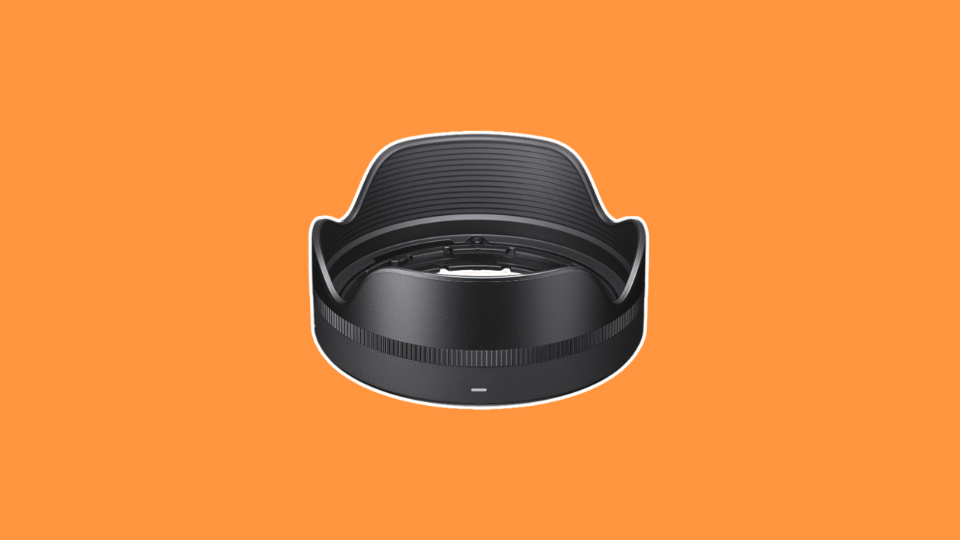
- Sigma Lens Hood for 18-50mm f/.28 DC DN Lens
- Sigma LCR II Rear Lens Cap
The included lens hood blocks stray light from hitting our lens and causing glare. It also has the added benefit of protecting the front of the lens from impacts, so it is recommended that you use this accessory.
Any unnecessary accessories for either the camera or lens, put these back in the box. Most cameras and lenses have a 1-year limited warranty, so keep boxes for at least this time frame just in case you have an issue and need to send your gear in.
Microphone: Sennheiser Profile 1-Person Clip-On Mic
The Sennheiser Profile 1-Person Clip-On Wireless Mic comes with two primary components, a microphone/transmitter and a receiver. The receiver connects to your camera via an included 3.5mm wire (blue) and receives the audio data wirelessly as long as the microphone is powered on.
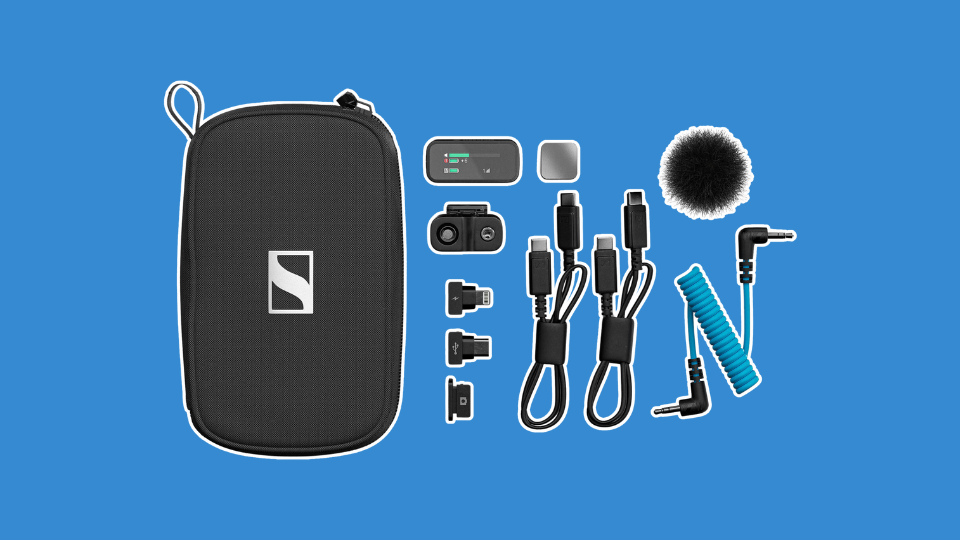
What’s included:
- Profile 1-Person Clip-On Wireless Microphone (TX)
- 2-Channel Receiver (RX)
- Wind Screen
- Magnet Clip
- USB-C Adapter
- Lightning Adapter
- Cold-Shoe Mount
- USB-C to USB-C Cable
- 3.5mm TRS Coiled Cable
- Carrying Pouch
Essential Controls
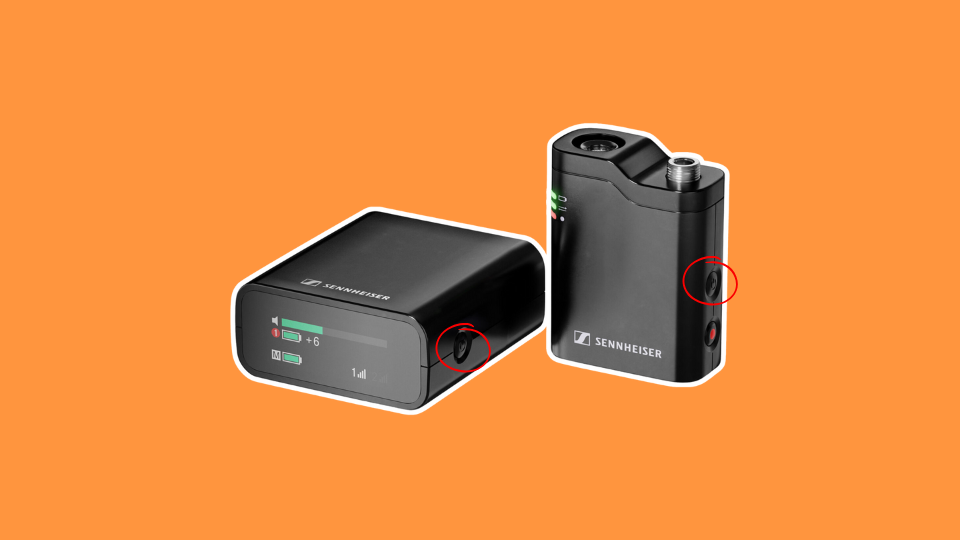
There are two controls on the transmitter and just one receiver. We are only concerned with the power buttons, as all other functions, such as recording, will be dictated by the camera itself.
1. The power buttons can be seen below (circled in red). Once the unit is charged, this is the only control on the microphone itself that we need to know. Simply press the button to power the units on and press them again to turn them off.
Initial Setup
Both the microphone and camera mounted receiver will need to be charged. This can be done with the included USB-C Charging cable and the Xcellon PDG-265 2-Port GaN USB-C charger included in this kit.
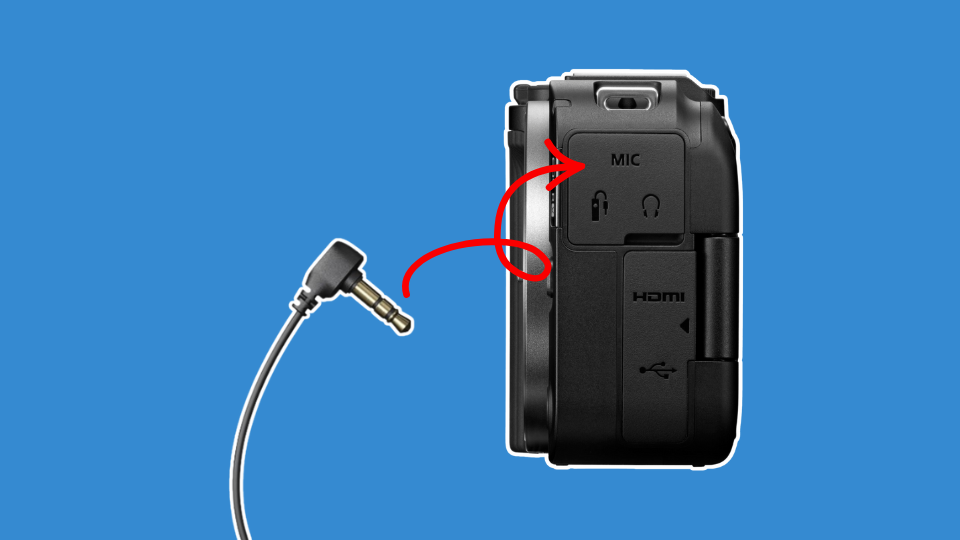
Once charged, we can get the units prepped for use. First, the receiver. Insert the included Cold-Shoe Mount into the receiver (RX) via the USB-C port. This allows us to mount the unit into the slot or “shoe” on the top of the camera. From there, electronically connect the receiver to the camera using the included 3.5mm jack cable (coiled blue cable).
While the Profile clip on wireless microphone can be attached directly to the speaker, it is bulky. To hide the microphone, pair it with the Sennheiser ME 2 Omnidirectional Lavalier Microphone. This plugs directly into the transmitter as a low-profile alternative. This can be attached via the threaded 3.5mm jack atop the Profile microphone. Press the plug into the port atop the transmitter, then tighten the thread to secure the connection.
Tripod: Magnus VT-350 Video Tripod with Fluid Head
In order to keep our camera upright and supported, we’ll need to use a tripod. Tripods can be adjusted via height and in the case of the Magnus VT-350 Video Tripod, they can have a video centric fluid head. “Fluid” refers to the smooth, fluid like movement range the head.
To attach your camera to the tripod unit, you’ll need to use the included quick release plate. Now we get to use that 1/4-20” thread we found on our camera earlier. Simply line up the plate with the thread and tighten the screw. Be sure to line up the plate so the fluid head handle is behind the camera.
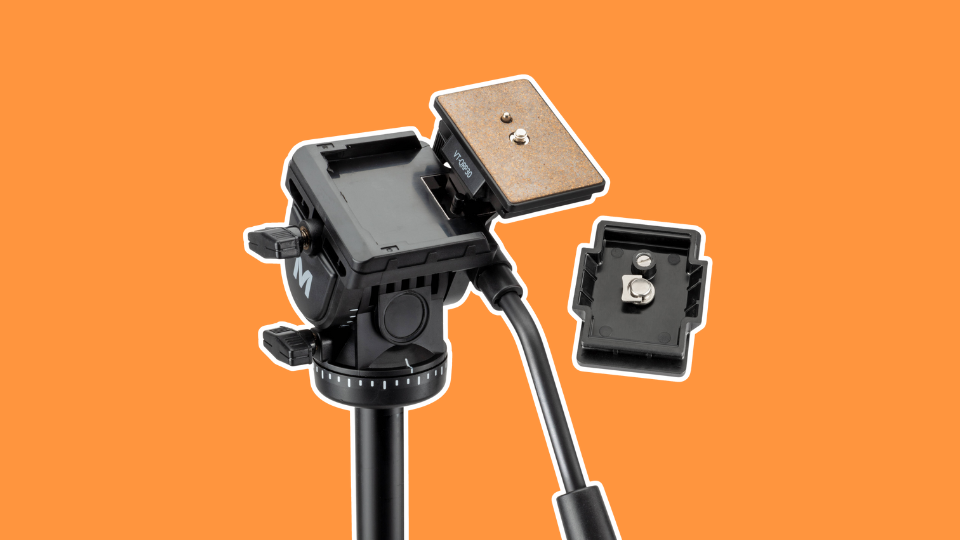
The Magnus VT-350 Video Tripod with Fluid Head is 72” tall with the legs extended, making it well suited for both seated and standing speakers. The tripod features a center column as well, which can be raised, providing a maximum height of 82”.
What’s included:
- Magnus VT-350 Video Tripod with Fluid Head
- Magnus VT-QRP30 Quick Release Place for VT-300,350, & 400
- Carry Case with Shoulder Strap
Step 1: Securely attached the quick release plate to our camera. Tighten the 1/4”-20 screw, keeping the plate straight as you do so.
Step 2: Now, mount the camera to the tripod by lining up the plate with the tripod head and pressing it firmly down until you hear and feel it click into place. While still holding the camera firmly, give it a quick shake to make sure it’s securely attached.
Lights: Godox Litemons LP400Bi Bi-Color LED Light Panel Kit
Lighting is an essential part of any streaming setup. It not only gives your content a professional look but makes for a more engaging image. For this kit, the Godox Litemons LP400Bi Bi-Color LED Light Panel 2-Light Kit delivers everything we need to capture pleasing lighting in a small space.
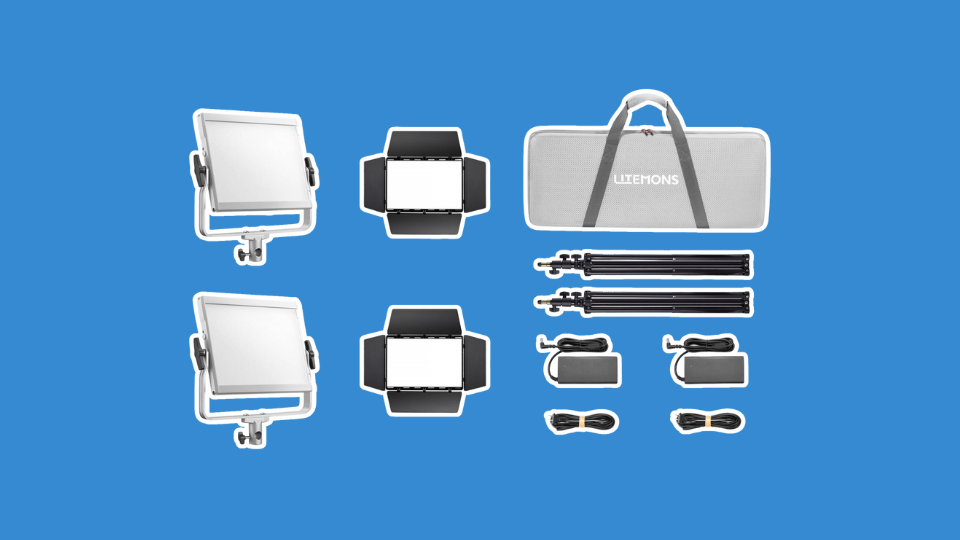
The Bi-Color adjustability means the color temperature can be adjusted to match ambient lighting, or the existing light in the space you’re shooting in. Color temperature varies from warmer to cooler, and all lights fall into this spectrum whether you notice it or not. To dial this in, we’ll use the simple control system on the side of our lights.
What’s included:
- Godox Litemons LP400Bi Bi-Color LED Light Panel (x2)
- Yoke (x2)
- Power Adapter (x2)
- Power Cord (x2)
- Four-Way Barndoors 9x2)
- Light Stand (x2)
- Carry Bag
Essential Controls
1. To power your lights on, plug them in with the included power cords and adapters. The power switch (circled in blue) can be located on the rear of the panel under the right battery slot. You’ll see a battery icon, the word “off,” and a wall plug icon. The switch itself in under these icons. If plugged into the wall as we’ll be doing here, switch it to that icon.
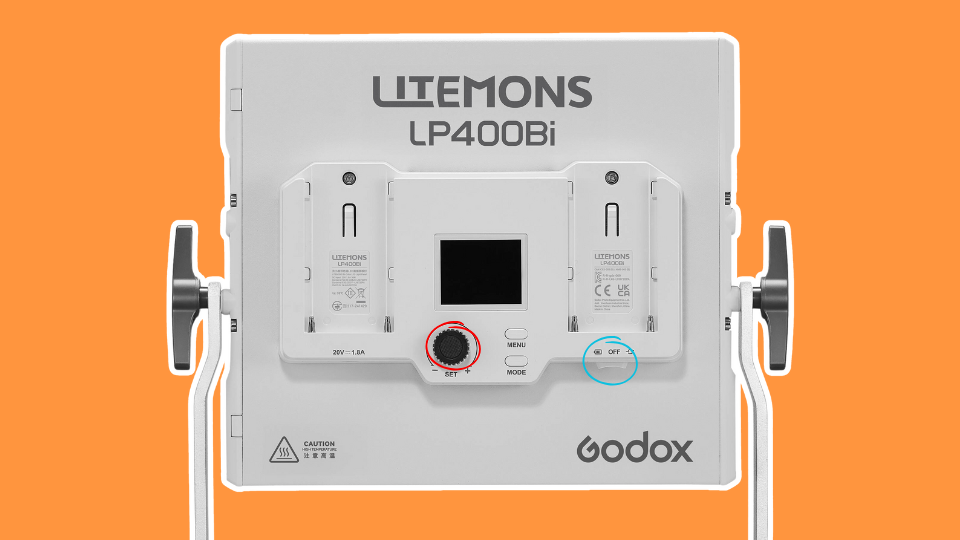
2. The black dial located on the back of the light (circled in red) will adjust brightness by default. To adjust color temperature, press the dial inward until it clicks. Then, rotate it to CCT (correlated color temperature) and press it inward again. Now, you can adjust temperature via the dial.
Connecting to Our Device: Elgato Cam Link 4K Standard
To connect our camera to our streaming device, we’ll need to use an HDMI cable. HDMI is a common video/audio cable capable of transmitting high resolution media. The Elgato Cam Link 4K HDMI to USB Capture Card for Live Streaming allows you to connect the camera via HDMI to a computer via USB-A without the need for additional software.
Once plugged in, your camera will appear as a webcam in all of your favorite apps.
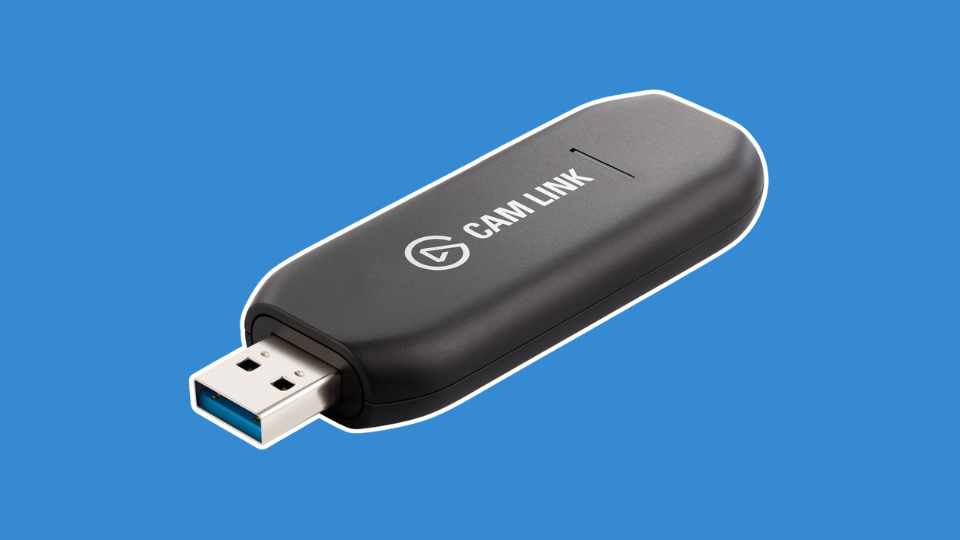
Note that the EOS R50V is equipped with an HDMI micro port, which is smaller than the standard HDMI port. As a result, we’ll be using a Micro-HDMI to HDMI cable included in the kit to complete the connection. With this cable, the smaller end will be plugged into the camera itself, while the larger end is plugged into the Elgato Capture Card seen above.
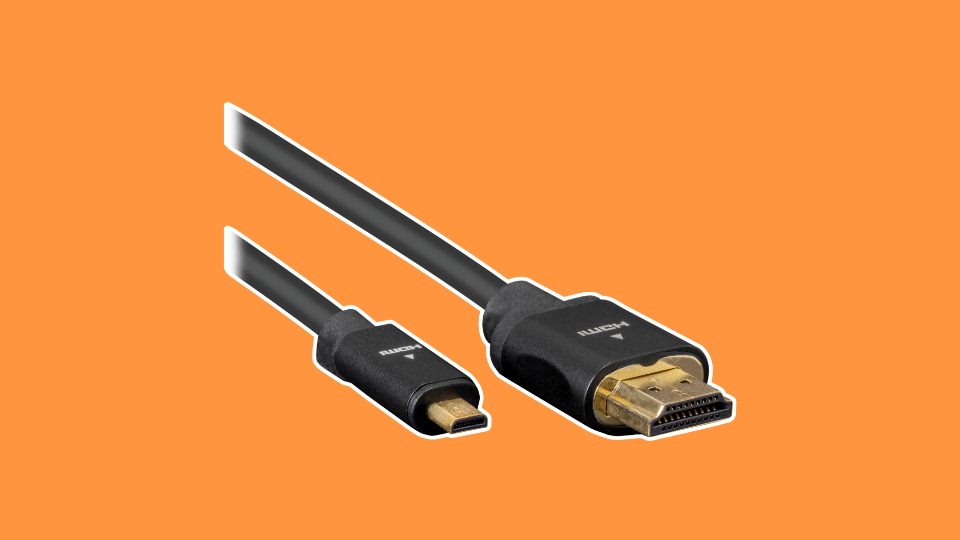
Before connecting the HDMI cable, flip out and rotate the rear LCD to face forward. If you don’t, the cable will prevent the screen from rotating freely. This is important, as you’ll want to be able to see the screen so as to situate yourself properly in the frame. More on this below.
Power: Xcellon PDG-265 2-Port GaN USB-C Charger
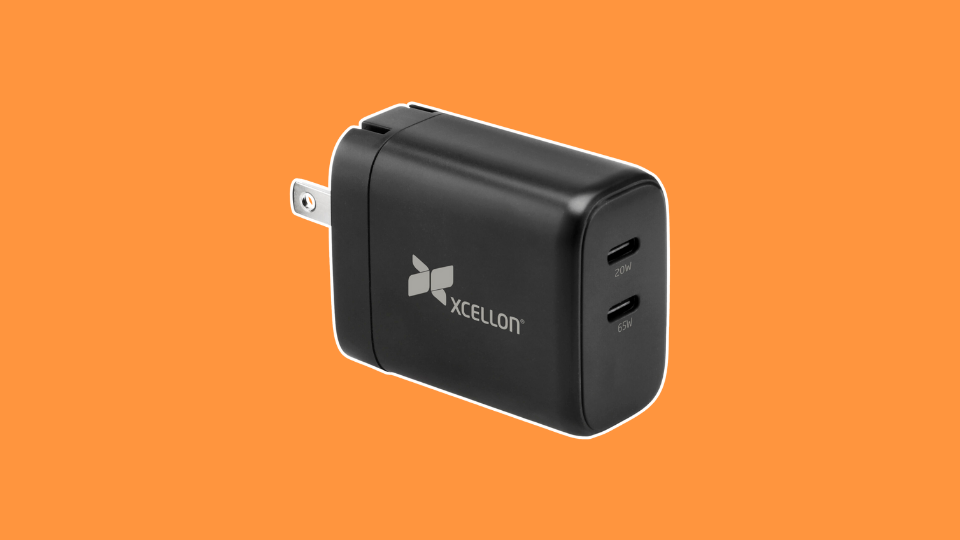
Batteries last quite a while, but to keep our gear going for extended periods, plugging it in to a wall charger is essential. The aforementioned Xcellon PDG-265 2-Port GaN USB-C Charger delivers the necessary power output to keep our setup running as long as possible.
To deliver constant power to the camera, we’ll use the included USB-C to USB-C cable. Like the HDMI cable, rotate the cameras rear LCD before connecting this cable as you will not be able to once plugged in.
Setting Up Our Studio
With our camera mounted to the tripod, the microphone receiver plugged in, and lights on their stands, we can begin situating our setup where we want it. Make sure you have the outlets required to plug everything in. There will be three items requiring power.
The Camera
Once set-up, remove your front lens cap and keep it somewhere safe. When not actively recording, keep the lens cap on the camera.
Once the lens cap is removed, consider shot composition. This simply refers to how we physically situate our camera in relation to where we’ll be sitting or standing. Good composition for streaming should prioritize proper height and head room, or the amount of space we have above our head in the frame.
If your head is cut off at the top of the frame, you have far too little headroom. If there’s more space above your head than below in the frame, you have too little. The general rule of thumb is to have half the length of your head above. Let’s look at an example.

Shot angle is important as a shot from above or below can be jarring to viewers and may convey a sense of inferiority or superiority over the viewer. This is done intentionally in the movies, but for speakers, this should remain head on as to imitate a natural conversation. With your new tripod, bring the camera to approximately eye level to achieve this look.
Lights
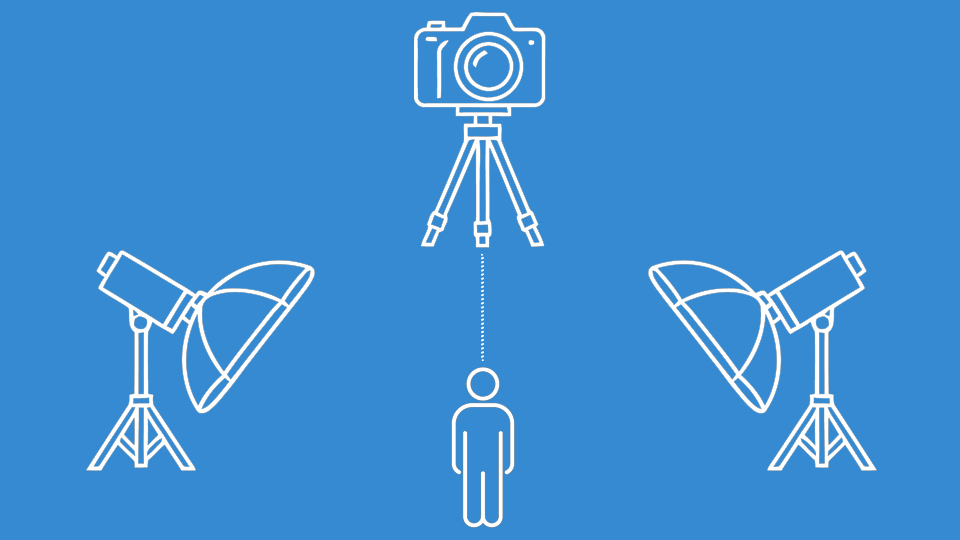
Your Lights should be set up on either side of the camera and be angled toward the speaker at approximately 45 degrees. For a professional look, keep one light at full power and the other at half power. The full power light will be the primary light source, also known as a “key” light.
Microphone
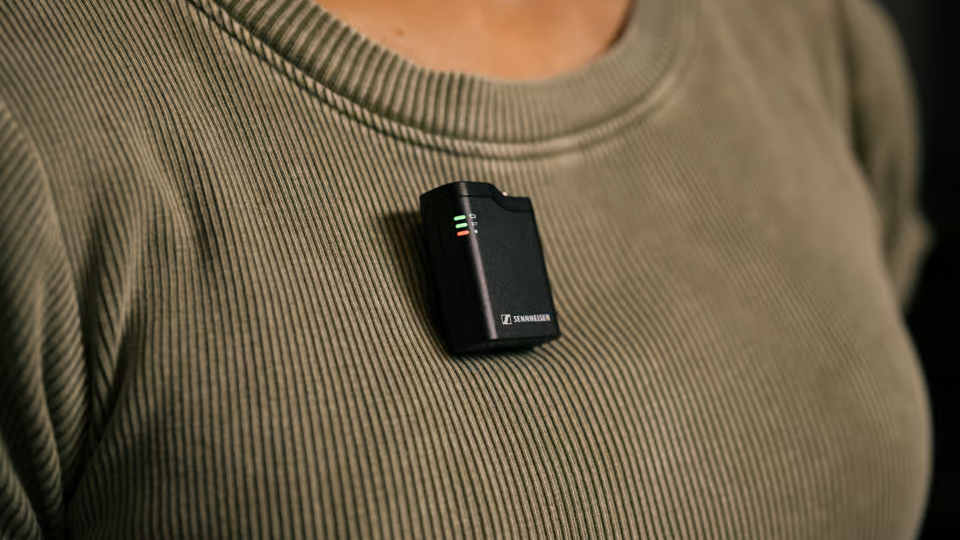
We mentioned earlier that a lavalier style microphone is to be mounted on the lapel or collar of a shirt, vest, or jacket. Be cautious of any obstruction or object that may hit or rub against the mic, as they can interfere in our audio and create scratchy, even muffled audio.
Now that we have the tools ready and a basic understanding of shot composition, we’re ready to begin using our newly set up studio. Simply turn everything on, sit back and hit record with your remote to get started.
Please refer to this guide as needed as you learn and enjoy your new camera kit!