
Congratulations on upgrading your recording space. In this guide, we’re going to cover the unboxing of your new SmallRig Vlog kit, essential lighting and microphone functions, and setting up your mini studio for the best results.
Unboxing Your Kit
The Monitor and Remote: SmallRig Vlog Kit
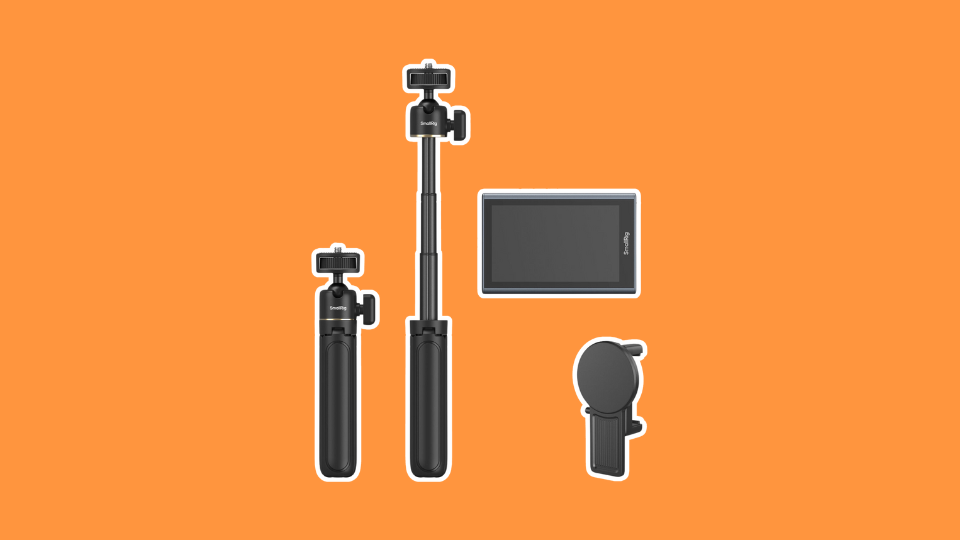
The SmallRig Vlog Kit is an easy way to use the high quality back-facing camera on your smartphone while still being able to see your image and adjust the framing. It includes a small monitor that can magnetically attach to your phone and pair over Wi-Fi.
What’s Included:
- Monitor
- Phone Clamp
- Wireless Remote Control
- Charging Cable
- Mini-Tripod / Seflie Stick
Essential Controls
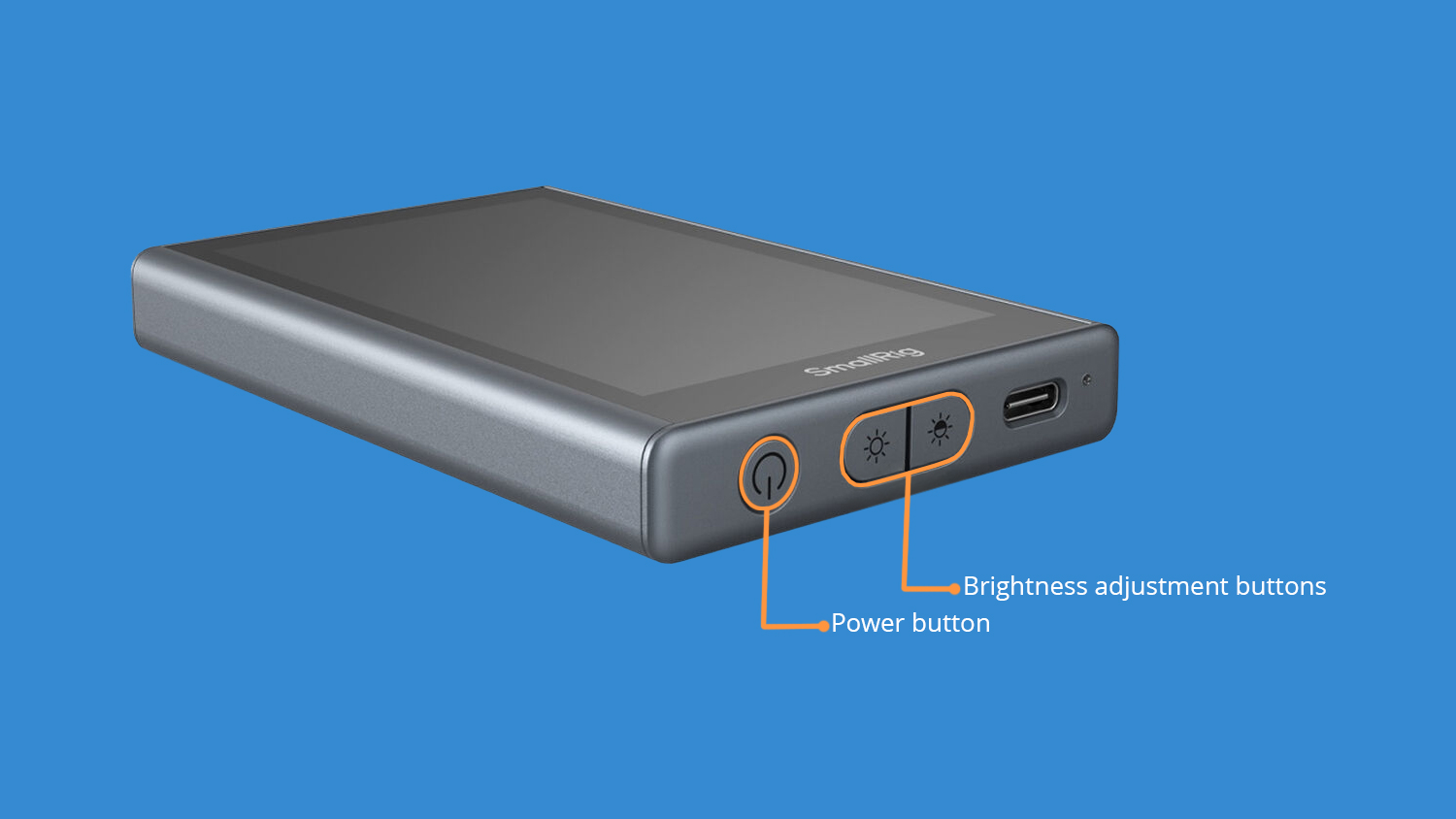
Power button. This is located on the bottom of the monitor. Double tap the power button and the image will flip around (a.k.a. “Mirror”).
The Brightness adjustment buttons are located between the power button and the USB-C charging port. There are three brightness levels.
Initial Setup
First off, charge the monitor’s battery via the included USB-C cable. Then hold the power button for three seconds to turn it on. If you’re using an iPhone, scan the QR code displayed on the monitor and select Connect (alternatively, enter the Wi-Fi menu, connect to “SmallRig Monitor” and use the password 12345678). If you’re using an Android, pull down your control center, enable Mirror Casting, and select SmallRig Monitor.
The monitor should now be displaying the image from your phone. The connection is wireless and will work up to 32 ft away. The battery should last up to three hours. The monitor can attach directly to an iPhone via MagSafe, or magnetically attach to the circular area on the included phone clamp. Always use the back/rear facing lenses on your phone, in tandem with the SmallRig monitor, to get the best quality video.
Other Included Accessories
Speaking of the phone clamp, there is a ¼-20” threaded hole on the bottom of it that is ideal for screwing in the included mini-tripod / selfie stick. There are three legs that extend outward if you want to place the phone on a flat surface, or you can extend the ball head outward to use it as a selfie stick.

Additionally, the included wireless remote controller can pair to your phone via Bluetooth and provide remote triggering for taking photos or starting and stopping recordings.
With the monitor charged and paired, we can shift focus to setting up our other accessories.
The Microphone: DJI Mic 3 Compact Wireless Microphone
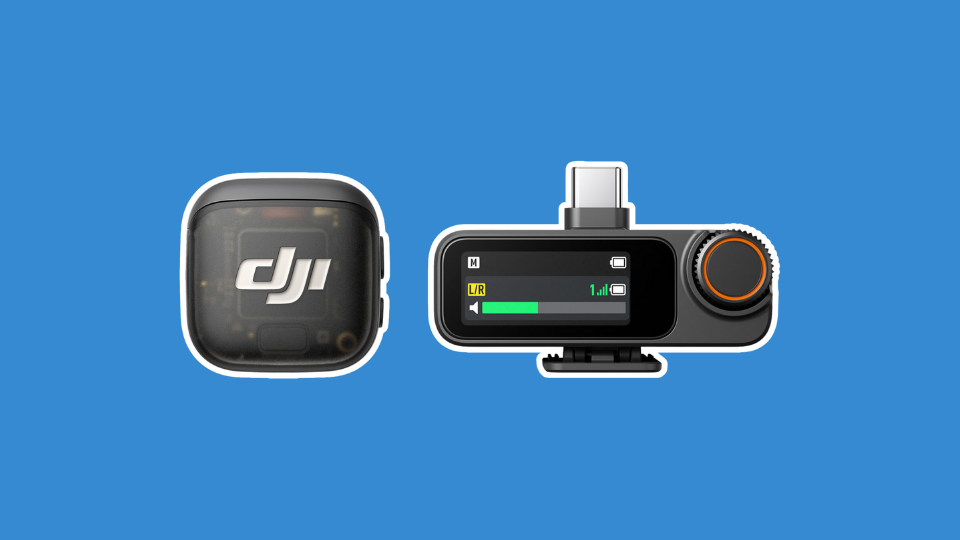
To better the quality of our audio, we’ll be using the DJI Mic 3 Compact Wireless Microphone system. This is a two-piece wireless system with a phone-mounted receiver and a lapel worn microphone, also known as a lavalier or lapel mic.
What’s Included:
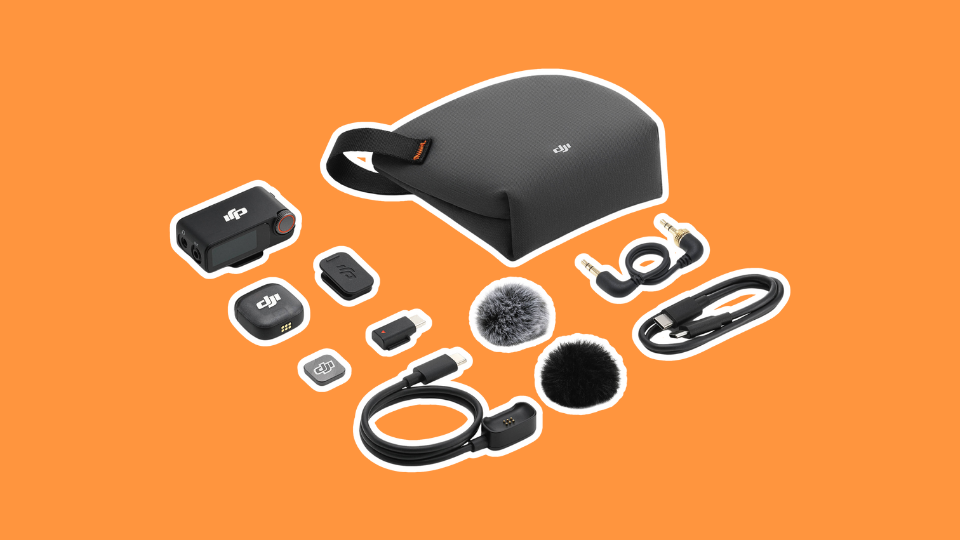
- DJI Mic 3 Camera-Mounted Receiver
- DJI Mic 3 Clip-On Transmitter/Recorder with Built-in Microphone
- DJI Mic 3 Mobile Phone Adapter (USB-C)
- DJI Mic 3 Locking 3.5mm TRS to TRS Audio Adapter Cable
- USB-C to USB-C Data Cable
- Windscreens (Black, Gray)
- Magnetic Clip
- USB-C Charging Cable
- Carrying Pouch
The microphone does need to be charged before use. To do so, use the included USB-C charging cable and any AC adapter (like the one used to charge a phone). Once charged, we can power both units on.
To connect the receiver to your phone, use the included USB-C mobile phone adapter, which plugs into the back of the receiver and the bottom of a phone. Then hold the power buttons on the sides of the microphone and the receiver for two seconds to turn them both on. The camera app on your phone should automatically connect to the DJI receiver.
Tripod: Magnus VT-300 Video Tripod with Fluid Head
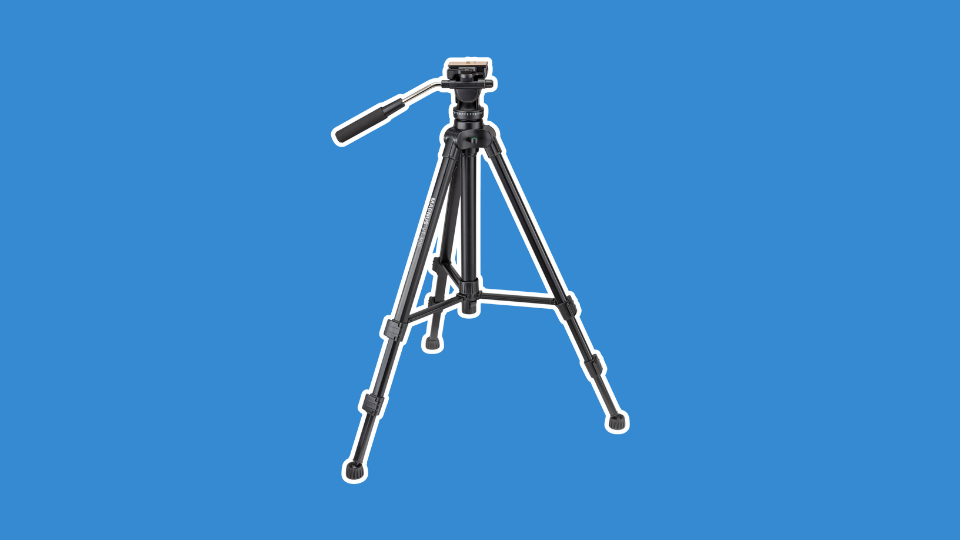
In order to keep our camera upright and supported, we’ll need to use a tripod. Tripods can be adjusted via height and in the case of the Magnus VT-300 Video Tripod, they can have a video centric fluid head. “Fluid” refers to the smooth, fluid like movement range the head.
To attach your camera to the tripod unit, you’ll need to use the included quick release plate. Now we get to use that 1/4-20” thread we found on our camera earlier. Simply line up the plate with the thread and tighten the screw. Be sure to line up the plate so the fluid head handle is behind the camera.
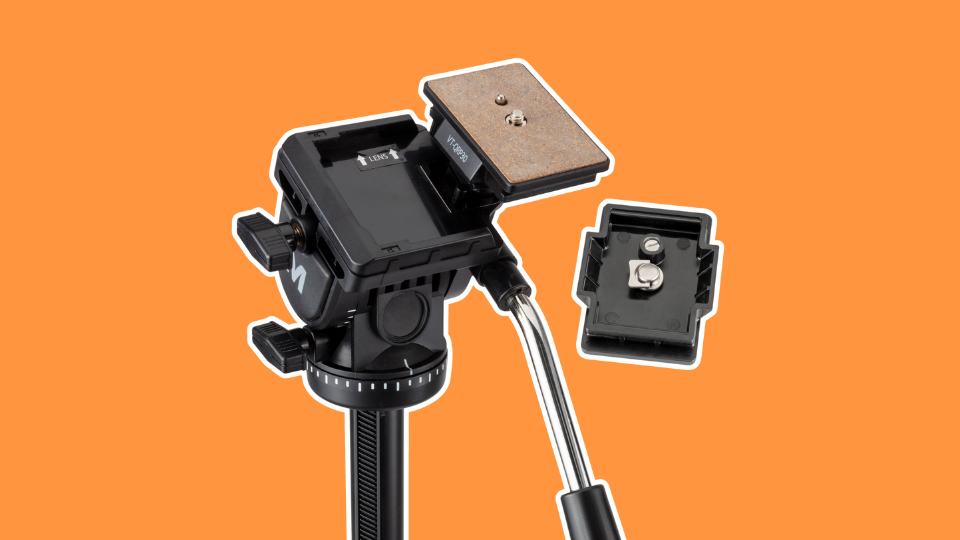
The Magnus VT-300 Video Tripod with Fluid Head is 52” tall with the legs extended, making it well suited for both seated and standing speakers. The tripod features a center column as well, which can be raised, providing a maximum height of 64.3”.
What’s Included:
- Magnus VT-300 Video Tripod with Fluid Head
- Magnus VT-QRP30 Quick Release Place for VT-300,350, & 400
- Pan Bar
- Carry Case with Shoulder Strap
Step 1: Securely attached the quick release plate to our camera. Tighten the 1/4”-20 screw, keeping the plate straight as you do so.
Step 2: Now, mount the camera to the tripod by lining up the plate with the tripod head and pressing it firmly down until you hear and feel it click into place. While still holding the camera firmly, give it a quick shake to make sure it’s securely attached.
The Lights: Lume Cube Panel GO Bi-Color LED Light Panel (Broadcasting Kit)
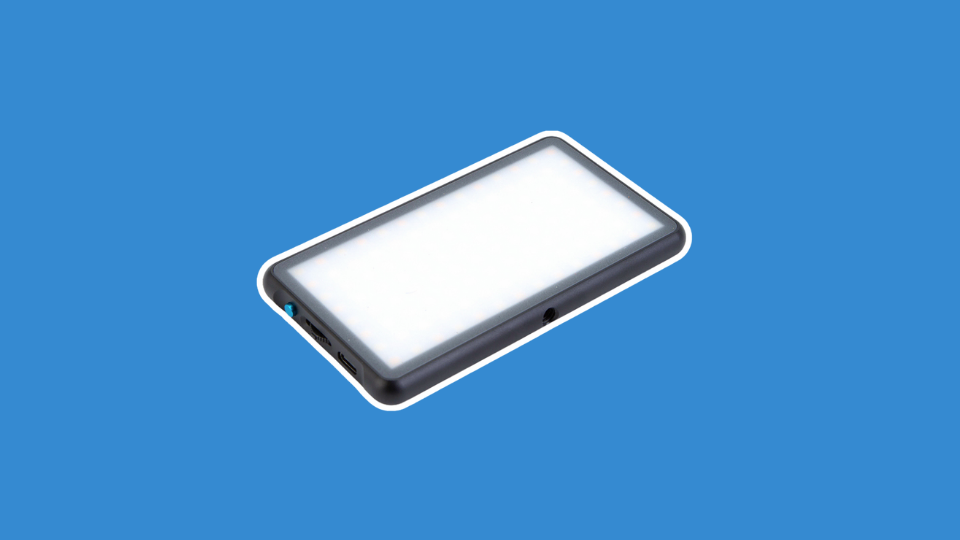
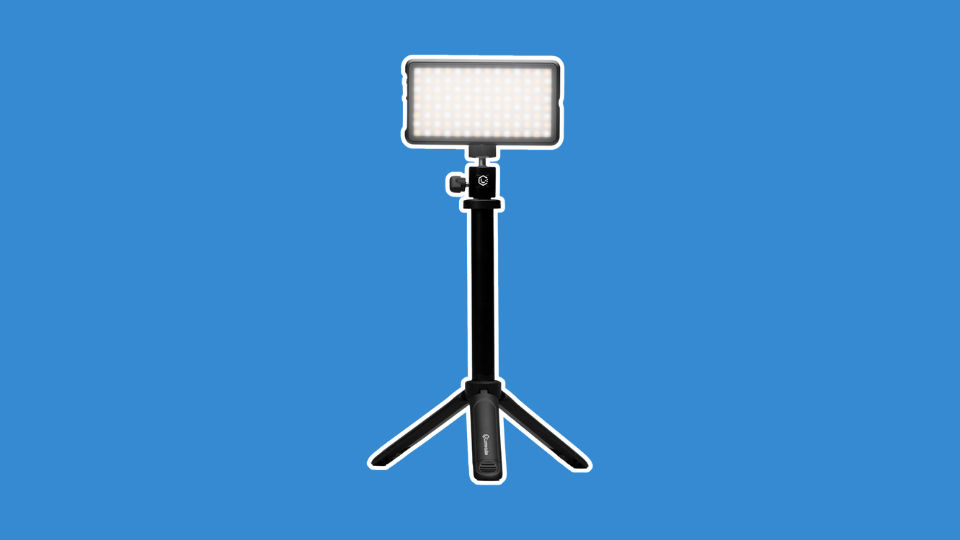
Lighting is an essential part of any streaming setup. It not only gives your content a more professional look but makes for a more engaging image. For this kit, the Lume Cube Panel GO Kit delivers everything we need to capture pleasing lighting for a small space shoot.
The bi-color adjustability means the color temperature can be adjusted to match ambient lighting, or the existing light in the space you’re shooting in. Color temperature varies from warmer to cooler. To dial this in, we’ll use the simple control system on the side of our lights. If the arrow on the LCD screen is on the sun icon, the dial will change the intensity of the light (0-100%), if the arrow's on the color wheels, the dial will change the color temperature (3200 to 5600K). Tapping the Mode button will switch the arrow between the two, holding it for a few seconds will turn the light on and off.
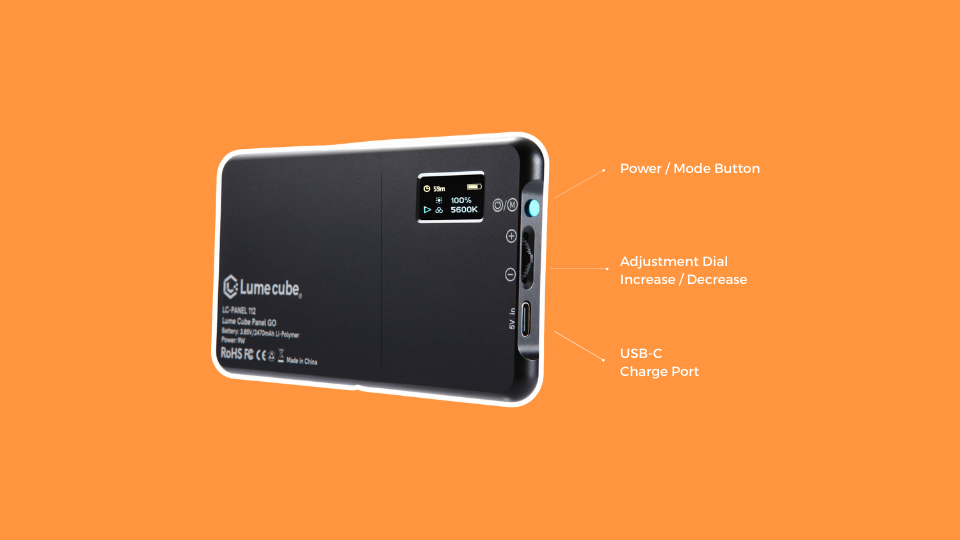
What’s Included:
- Lume Cube Panel GO Bi-Color LED Lights (x2)
- Desktop Telescoping Stand (30”) (x2)
- USB-C Charging Cable (6”) (x2)
With the compact tabletop telescoping stands, you can position these as needed freely, without the need for getting up and hauling large light stands around. The panel itself can be angled with the built-in adjustable ball head.
Setting Up Our Studio
With our monitor mounted to our phone, the microphone receiver plugged in, and lights on their stands, we can begin situating our setup where we want it. Make sure you have the outlets required to plug everything in.
Consider shot composition. This simply refers to how we physically situate our camera in relation to where we’ll be sitting or standing. Good composition for streaming should prioritize proper height and head room, or the amount of space we have above our head in the frame.
If your head is cut off at the top of the frame, you have far too little headroom. If there’s more space above your head than below in the frame, you have too little. The general rule of thumb is to have half the length of your head above. Let’s look at an example.

Shot angle is important as a shot from above or below can be jarring to viewers and may convey a sense of inferiority or superiority over the viewer. This is done intentionally in the movies, but for speakers, this should remain head on as to imitate a natural conversation. With your new tripod, bring the camera to approximately eye level to achieve this look.
The Lights
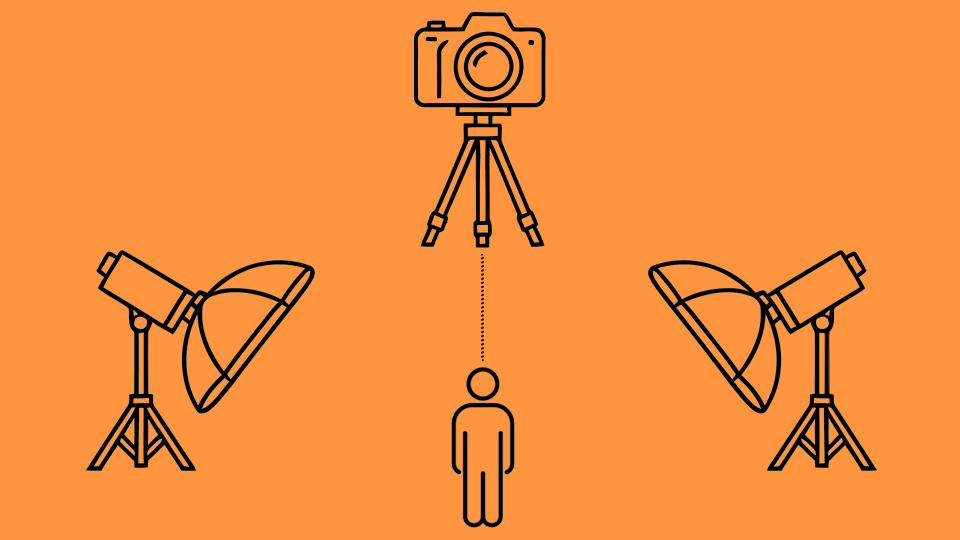
Lights should be set up on either side of the camera and be angled toward the speaker at approximately 45-degrees. For a professional look, keep one light at full power and the other at half power. The full power light will be the primary light source, also known as a “key” light.
The second light is simply there to fill in the shadow. Hence, why it’s known as the “fill” light. Why we underpower one light is simple. Fill light gives our footage a more natural look.
The Microphone
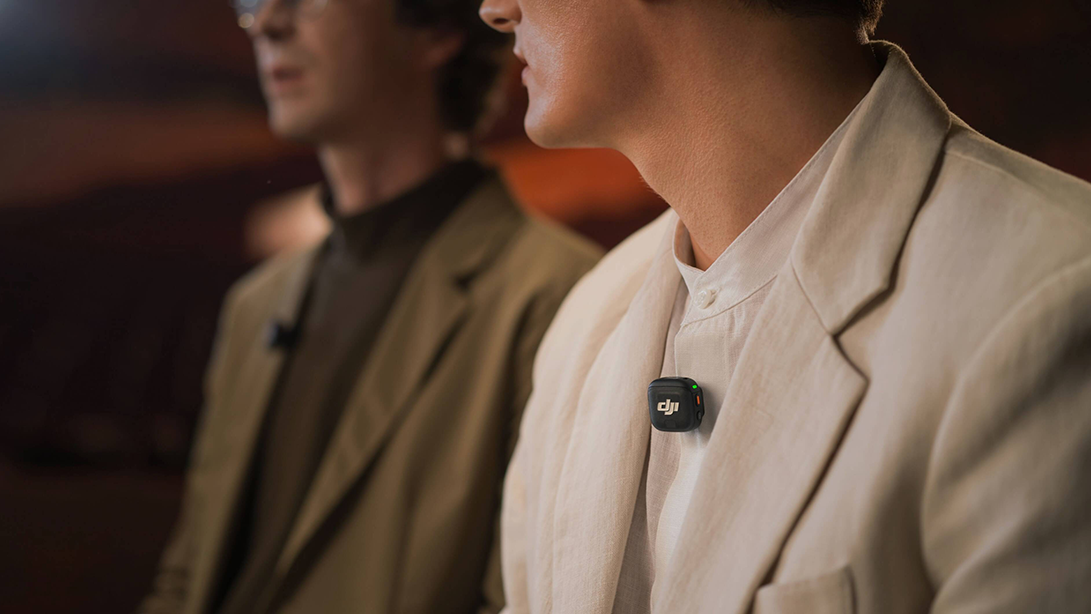
We mentioned earlier that a lavalier style microphone is to be mounted on the lapel or collar of a shirt, vest, or jacket. Be cautious of any obstruction or object that may hit or rub against the mic, as they can interfere in our audio and create scratchy, even muffled audio. The magnetic clip allows the DJI Mic 3 to be worn anywhere on your person.
Now that we have the tools and a basic understanding of shot composition, we’re ready to begin using our newly set up studio. Simply turn everything on, sit back and hit record with your remote to get started.
Please refer to this guide as needed as you learn and enjoy your new camera kit!