
When it comes to building a gaming PC, choosing the right monitor for your setup is paramount. After all, what good is that next-gen graphics card or state-of-the-art motherboard if your display doesn't support those powerful peripherals?
In this guide, we're going to talk about what to look for when shopping for a gaming monitor: from panel type to pixel count and everything in between.
Before we get started, if you'd rather skip the specs explainer and get right to the product recommendations, be sure to check out our guide on the best gaming monitors you can buy right now.

Panel Type
Before we get into screen size, aspect ratios, and more, it is important to touch on panel types. Gaming monitors have a variety of panels that assist with displaying your picture and can determine how fast the refresh rate is, overall image quality, and more. The most popular ones are In-Plane Switching (IPS) and Vertical Alignment (VA). On a rare occasion you will find a Twisted Nematic (TN) panel, often found in budget models. Some top-of-the-line models will use an OLED panel, which are thinner and more robust but tend to land on the pricier side. IPS, VA, and TN panels all fall under LCD displays while OLED stands in a totally separate category.
IPS panels are great for color reproduction and maintaining a clear view, making your games pop with highly detailed imagery. These are often used to fit a variety of roles outside of just gaming too. If you are looking to capture your best in-game moments and edit them for social media, you can’t go wrong with an IPS panel. You also get wide viewing angles, allowing you to view your games and content from multiple viewpoints, making it easy to share your gameplay with friends or even play split screen and multiplayer titles.

VA panels are often found in curved displays thanks to the layout of the crystals within the panel. These offer great contrast, making darker areas look darker and brighter areas more vivid. They also offer fast response times but can cause image smearing on rare occasions depending on your PC’s hardware.
TN panels used to be known for their quick response times and high refresh rates, but now since those aspects are available on IPS and VA panels alike, TN has been reduced to being an entry-level technology found in budget monitors for casual gamers or those just getting into the hobby.
Finally, there are OLED panels which incorporate a unique technology making them great in many areas. OLED panels can support high resolutions, wide color spaces, fast refresh rates, and have the fastest response times currently. The only drawback to OLED panels has been burn in, but after many years, companies have integrated various protections to keep your display clear. These panels are also often very expensive but deliver great performance across most metric and can last a long time with proper care. If you are a dedicated PC gaming enthusiast, you can’t beat an OLED panel.

Screen Size, Resolution, and Aspect Ratio
When looking for a monitor, some people tend to look at screen size and resolution as two major factors. Screen size and resolution used to play off each other but these days there are so many options to pick and choose from it ultimately b oils down to what is best for your desktop. That said , screen size and aspect ratio do play off each other. For instance, there is a difference between a 34” 16:9 display and a 34” 21:9 display, which we will get into later.
Size wise, there are so many options, but for gaming we can suggest either a 27” or 32” display. Most competitive gamers out there stick with a 27” display, picking a narrower window to view their action that keeps all essential information front and center. 32” (and larger) displays are designed for more cinematic experiences; typically, games that are designed for single-player usage with some multiplayer action dabbled in . Of course, there is no rule saying you can’t play fast-paced shooters on a larger display, but when your eyes start darting around the screen, you could miss what is happening on the screen.

Now we can get into resolution with three levels of detail, 1080p, 1440p, and 4K. Resolution determines how crisp and clean your image looks. In some cases, a 32” display with 4K resolution for general gaming can be a bit overkill. Although, no matter what size you pick, these resolutions tend to be available.
Competitive gamers looking for speed tend to stick with 1080p displays. This is due to their refresh speeds being typically faster than higher resolutions. These displays also often work with a majority of modern graphics cards, and still provide a clean crisp image without taking up your PC’s resources.
1440p resolution is currently the sweet spot for most gamers. While some 1440p panels can offer high refresh rates, these monitors balance the resolution with a solid refresh rate to give a truly great experience, giving you the best of both worlds.
Displays sporting a 4K resolution tend to deliver crisp visuals with sliding refresh rates. The only issue is that you must have the right graphics card to fully leverage the amount of detail while keeping high settings. Single-player gamers can find 4K resolution to be incredibly immersive when exploring their favorite titles.
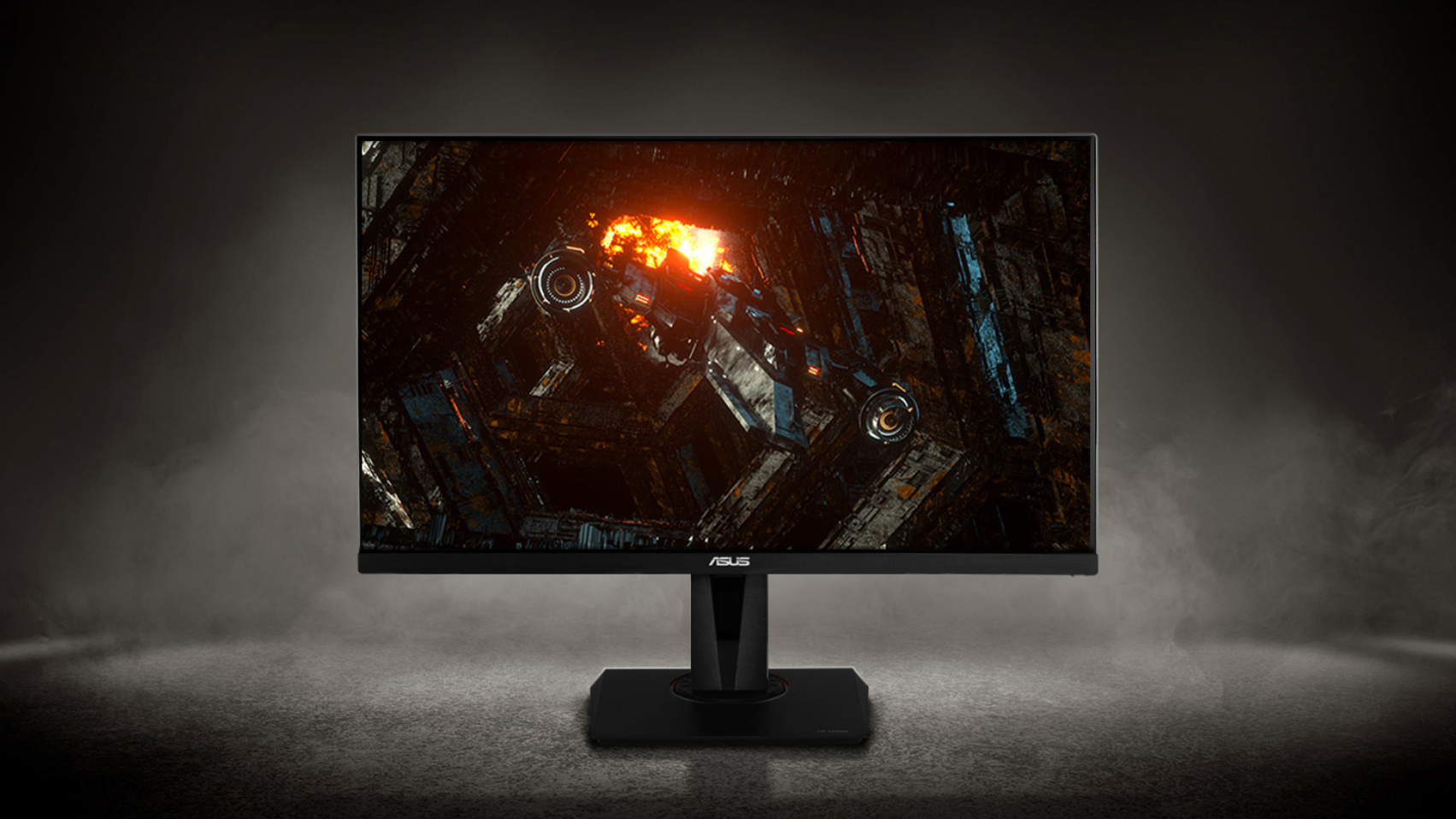
Now we can talk about aspect ratios. These weren’t such a big deal a few years ago, but with the rise of larger formats, gamers really want to explore vast digital landscapes for a fully immersive experience.
Currently, 16:9 is a standard aspect ratio that all games and consoles support. This is most akin to your TV, which makes the 16:9 ratio so popular. It also places important information on your screen within your field of view.
Gamers who are looking for a more cinematic experience will find the 21:9 ultrawide aspect ratio to be incredibly engrossing. Usually sporting some sense of curvature, these displays are for those looking for deep immersion. For some players, this aspect ratio frees up the center of the screen, placing HUDs and information away from the center for a clearer view of your games.
There is also the massive 32:9 aspect ratio which is seen in larger displays like the Samsung Odyssey OLED G9. This massive 49” 1440p curved ultrawide display is designed for experiences unlike any other. The drawback to this though is not many games support this wide of a view and can lead to black bars on the sides of your game. This also means that you should consider a higher end graphics card to properly meet the visual demands of a monitor such as this.
Refresh Rate and Response Time
When you look for a gaming monitor, you will absolutely want to check out the refresh rate. Typically measured in hertz (Hz) and synonymous with Frames per Second (FPS, this reflects how many times the monitor will refresh the screen each second. Higher numbers are better and offer a more fluid experience.
Response time, on the other hand, is how fast it takes the screen to switch from one mode to another or one shade of gray to another shade of gray. Measured in milliseconds (ms), response time ensures a clean image free from ghosting and other detrimental effects on your gameplay.
Competitive gamers tend to stick with higher refresh rates within the 144 Hz and above range while maintaining lower response times of 5 ms and lower. In most cases, games that feature lots of high details and immense performance profiles typically manage around 60 fps while multiplayer arena shooters can produce incredibly high frame rates over 120 Hz without breaking a sweat. Most gaming monitors can produce these high refresh rates without many issues, so it is important to gage exactly how fast you want your display to go.

Displays like the LG UltraGear 27” gaming monitor can reach high refresh rates up to 240 Hz, giving you an incredibly smooth experience. It also features a very low 0.03 ms Gray-to-Gray response time thanks to the integrated OLED panel, which as we covered before, excels in optimizing your overall performance.

Adaptive Sync Technologies
Sometimes when you play a game, the image can look quite skewed. Other times, frame rates could drop and a few imperfections can become quite apparent, leading to screen tearing. This could happen for all sorts of reasons, but most of the time it is due to the difference in what your graphics card is outputting and what your monitor is displaying. Adaptive Sync technology takes these two components and links them together to ensure a clean visual experience; and they come in different flavors.

Adaptive Sync technology is built into the DisplayPort 1.2a (and later) video interface. Most modern graphics cards tend to support this standard as do most monitors. Taking this a bit further is the implementation of NVIDIA’s G-Sync and AMD’s FreeSync technologies.
For a while, these technologies were once embedded into most displays, limiting a particular display to a specific adaptive sync technology. For instance, some monitors might only support G-Sync while others only support AMD FreeSync, so knowing what graphics card you have is important. Although, we have seen some crossover in the last few years with FreeSync technology expanding to NVIDIA graphics cards as well as select gaming consoles.
While NVIDIA’s G-Sync technology serves as a one-size-fits-all concept, AMD does offer different tiers of FreeSync. You have AMD FreeSync, AMD FreeSync Premium, and AMD FreeSync Premium Pro. Each level requires AMD to pass specific certifications for low latency and refresh variation. If you have an AMD graphics card, it is important to note that FreeSync Premium Pro is the only level that offers compatibility with HDR-capable displays.

HDR
When it comes to color quality of your images, High Dynamic Range (HDR) is one of the best “nice to haves” when it comes to your display. While it has been implemented in a wide range of creative developer monitors, we are seeing more and more gaming monitors embrace this unique technology.
HDR increases the dynamic range of images and videos, producing vivid colors in your favorite games. This ties directly with the brightness of your monitor, typically measured in nits or cd/m2, and because of this, there are different levels of HDR technology that must meet specific certifications.
The DisplayHDR 400 standard means that the maximum luminance tops out at 400 nits. If you want what some consider to be “true HDR” you must go beyond that 400 nits up to 1000 or even 1500 nits.
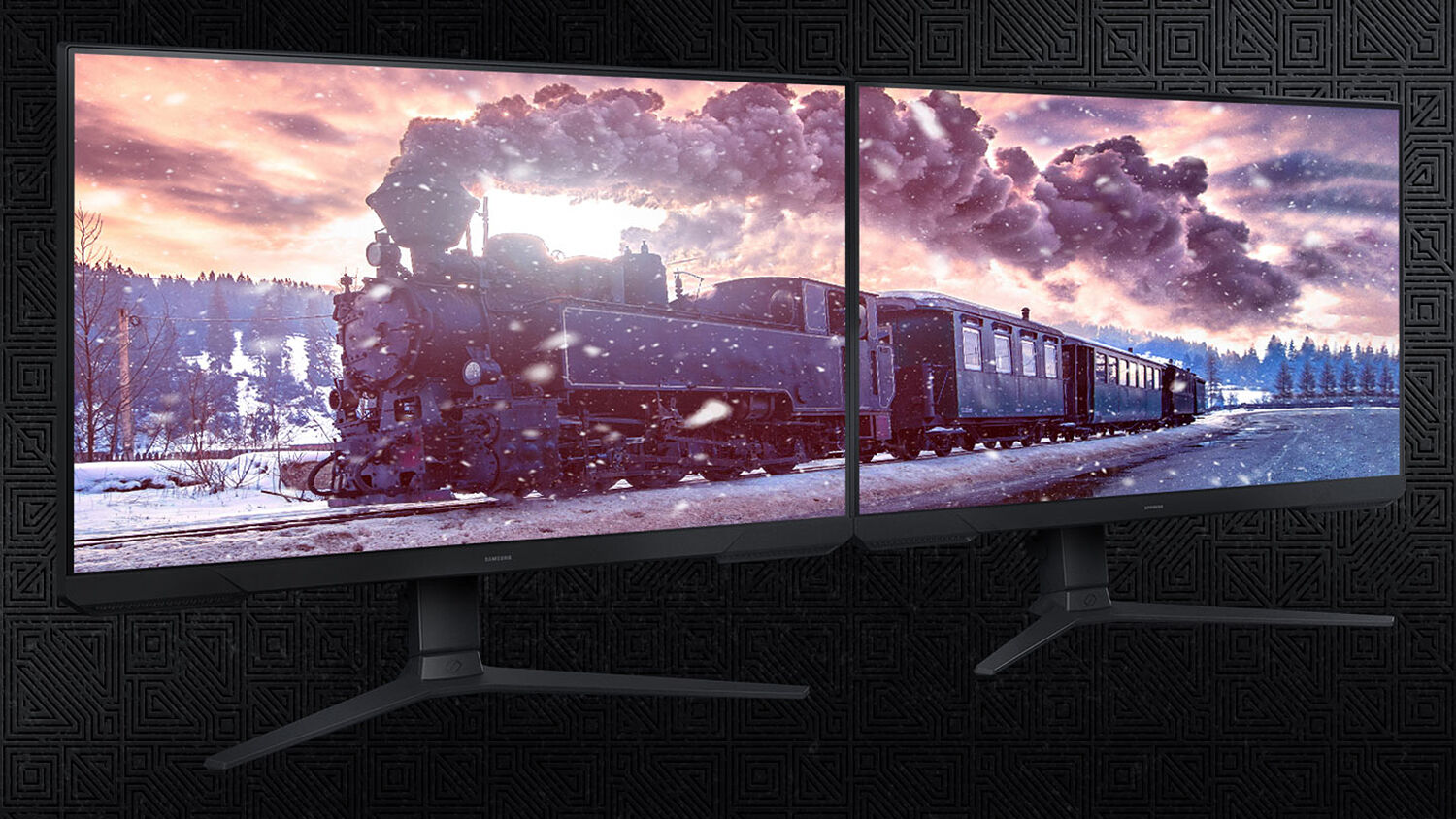
You will need to make sure your OS, graphics card, and monitor all support HDR to get it working. And then, each game will need to have its own support for the format. Be careful with this, but it is highly recommended because it is quickly becoming a more standard feature.
Inputs/Outputs
This one should seem relatively straightforward; luckily, computers have so many standards! This is good in this case, because we seem to be moving toward a few specific standards that are objectively better nowadays. Those are DisplayPort, HDMI, and USB Type C/Thunderbolt™ 4. The tricky thing is that each one has multiple versions, and the latest are what you want.

Starting with the most popular monitor inputs, we have HDMI and DisplayPort. Practically everyone has seen HDMI—it's everywhere these days—though DisplayPort is a very close neighbor. Historically, DisplayPort has been more efficient because it has granted better refresh rates and resolutions. The latest versions of HDMI have caught up, although DisplayPort does have an advantage with its locking connector to prevent accidental disconnects. Anyway, most monitors come with both.
It is important to know that there are various version of HDMI and DisplayPort technologies. HDMI version 2.1 is currently the most recent variation with two iterations built onto it with 2.1a and 2.1b. Overall, HDMI 2.1 expands signal throughput offering 4K resolution at 120 Hz refresh rate, 8K resolution at 60 Hz as well as support for Dolby Vision and HDR10+.
DisplayPort version
Some monitors now feature built-in USB ports which expand the utility of your monitor to other devices. In most cases, you might have multiple USB-A ports for your wired mouse and keyboard or other devices like storage drives. You’ll also get a USB-B upstream port as well as a cable that goes from the monitor to your desktop computer. This can be a basic hub setup with some monitors taking it a step further.
Some monitors feature full KVM functionality, which incorporates room for a second device to be connected such as a gaming laptop, portable gaming device, and more. Usually coming in the form of a USB-C port, you can use a single cable to connect a device while also distributing power to it. This also unlocks the KVM feature, allowing you to use a single keyboard and mouse setup across your desktop and laptop (or another connected device). This functionality isn’t always necessary but acts as another “nice to have” when looking out for your perfect monitor. Although, if you are looking for this type of compatibility, make sure your laptop supports DisplayPort Alt-Mode to ensure proper operation.
This should be a solid guide to help you go from knowing nothing about gaming monitors to finding one that is the best fit for you. If you would like to see a list of some of our choices for the best gaming monitors out right now, check out the page here or leave a comment below.
