
While it may be tempting to prop your phone against a book, shoot one long clip of your podcast, and send that clip straight to the interwebs, that strategy probably won’t rocket you to the top of the charts. By taking a more thoughtful approach to editing and posting your video podcast, you can unlock the full potential of the form and grow a dedicated, engaged audience. Today, we’re going over four of the most important considerations when it comes to editing your video podcast.
Multi-Camera vs. Single Camera
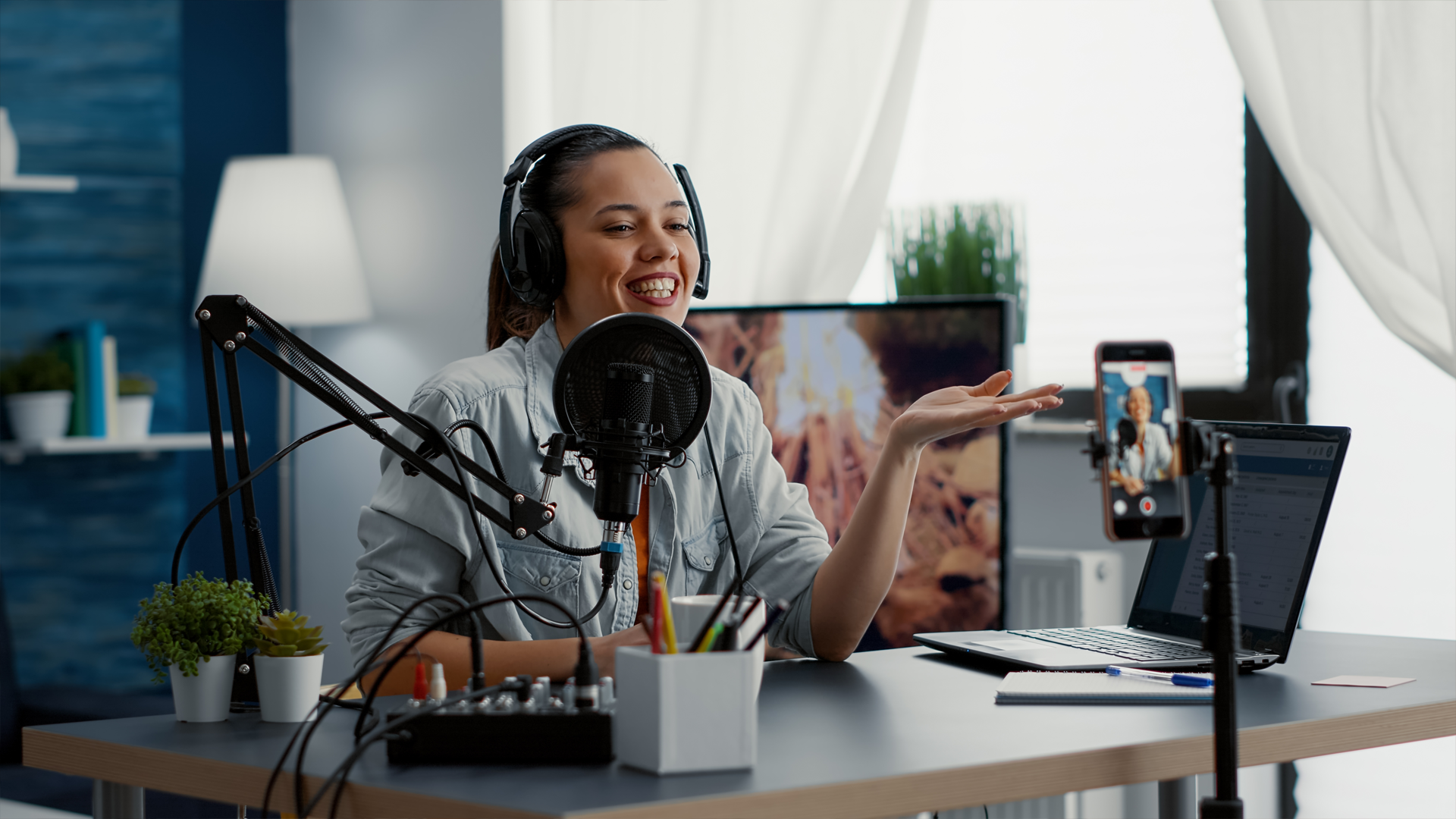
Shooting with one camera (or smartphone) is always going to be the cheapest and fastest approach, but adding at least one more camera, if not two or three, is where your video podcast will really get interesting. If you are only able to use one camera, it’s worth shooting in 4K resolution or higher so you can crop in on your image and not just have the same static shot on-screen for the entire podcast. You’ll also definitely want to add some graphics, text, or effects on-screen to keep it interesting, but we’ll get into that more later.
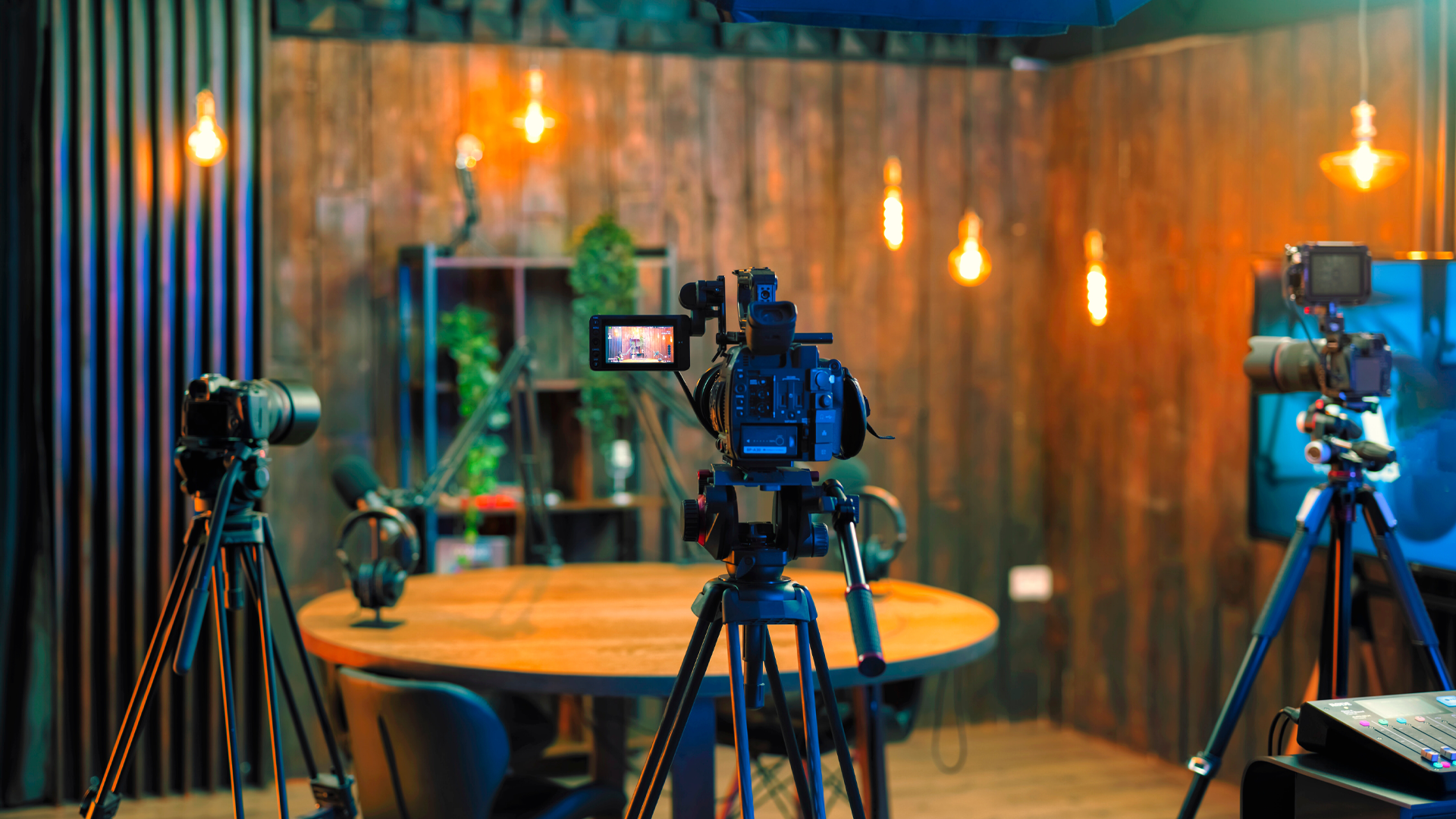
If you are able to shoot with multiple cameras, try to get at least one medium or close-up shot of each speaker on the podcast—that will keep viewers engaged and make them feel emotionally connected to whoever is speaking. A wide shot of all the speakers is useful up top to establish the space, but if you’re short on cameras, that wide angle can then be adjusted once the podcast gets going to capture a close-up. If you’re running multiple cameras, make sure each has enough battery and storage space for the entire podcast so you don’t have to start and stop, and that none have a thirty minute recording limit.
Editing During or Editing After
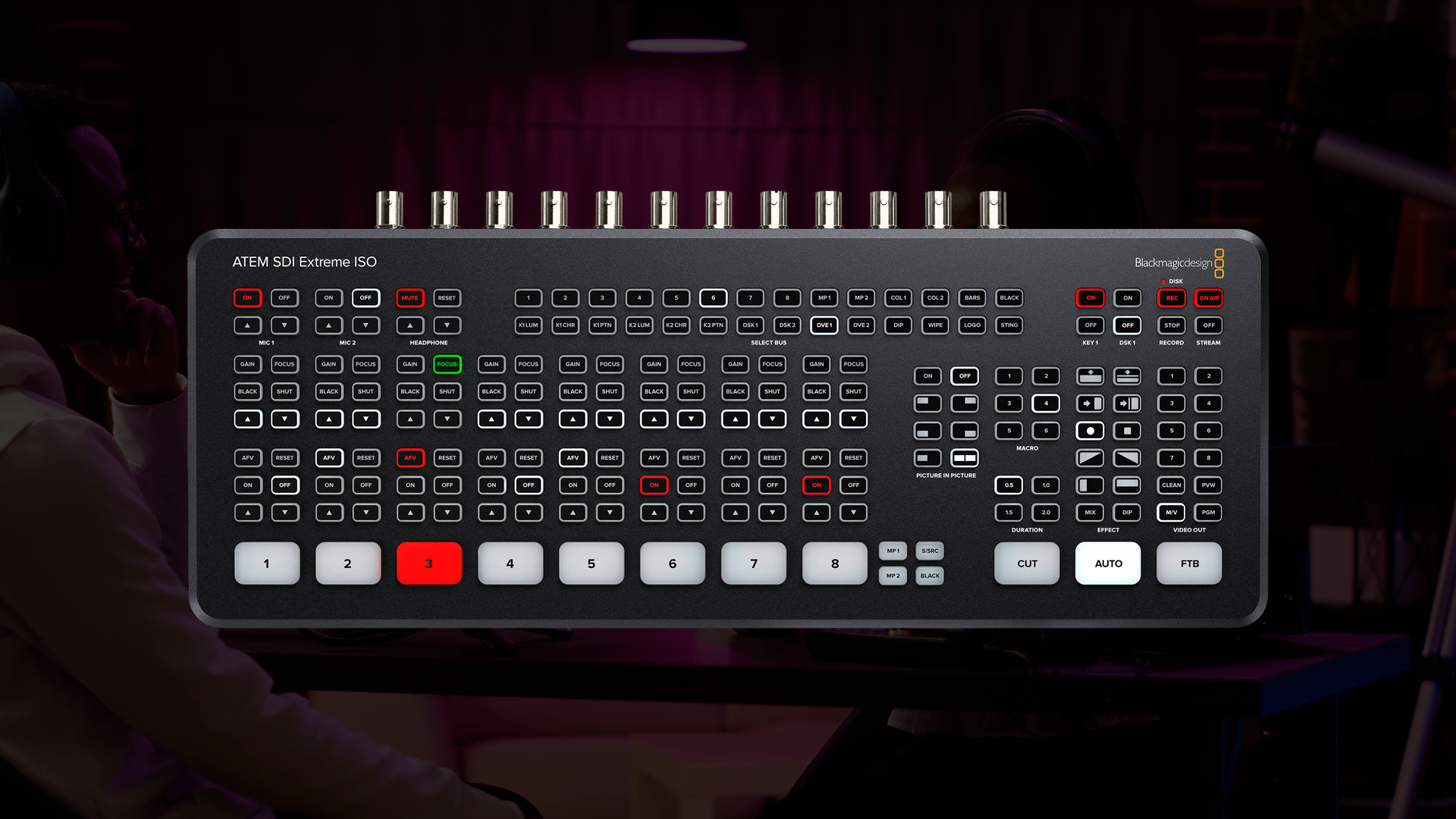
As soon as multiple cameras come into play, you’ll have to decide whether you want to edit during the recording with a video switcher, or record all your camera feeds individually and cut them together afterward. If you are using a switcher, it’s good to get a friend (or employee) to actually operate it, as you don’t want to be distracted while hosting. Switchers with ISO functionality will record all the inputs individually in addition to the program output, so you can go back and make changes to the edit after. It's an extremely useful feature to have, as it can help correct any mistakes.
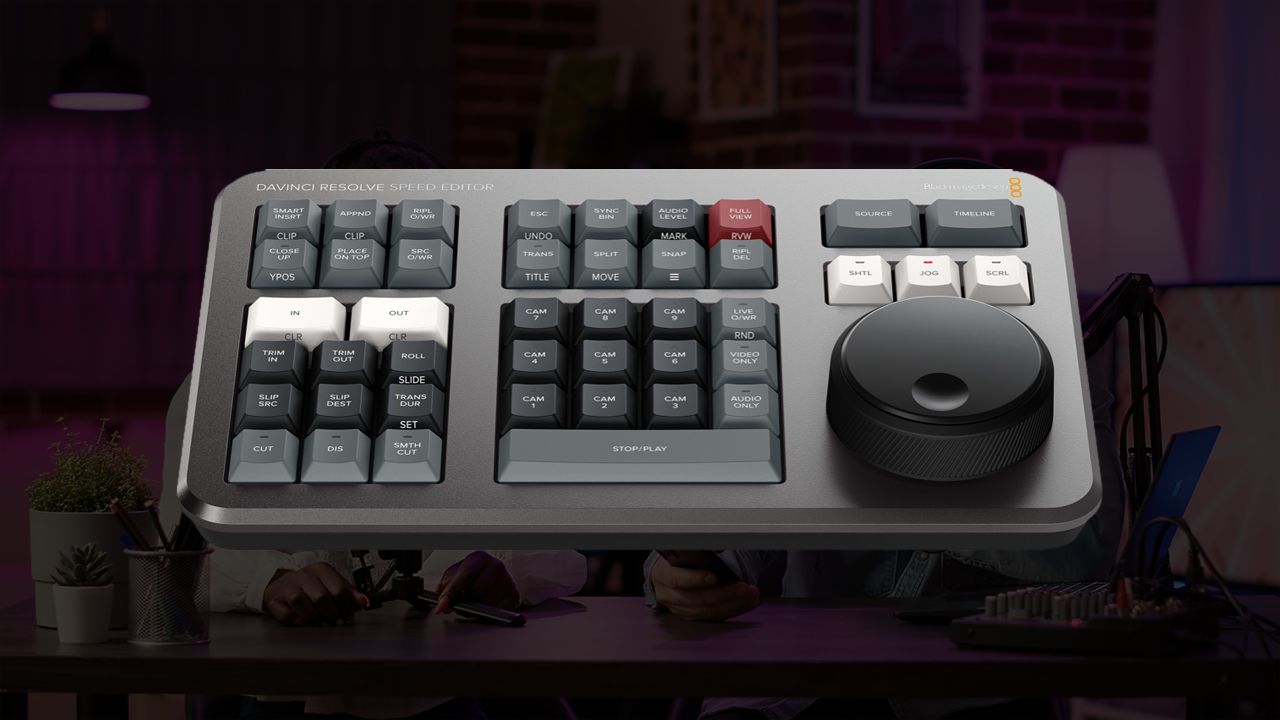
If you don’t have someone to operate a switcher and edit in real time, bring all your camera feeds and audio tracks into your editing program of choice, sync them up, and then try to learn some keyboard shortcuts so you can quickly make your cuts while watching it back in real time. An editing controller can also be useful here. Focus primarily on showing whoever is talking, but try to cut to reaction shots of the other people on the podcast to make things more dynamic. If you’re just starting out, try editing in CapCut or iMovie. If you’re ready for more advanced features, try Adobe Premiere, Final Cut Pro, or Blackmagic Design’s DaVinci Resolve Studio. These programs can display split-screen views so you see all your cameras at once.
Titles, Effects, and Transitions
All of these editing programs also include methods for inserting titles—for video podcasts, this typically includes the name of the show, lower thirds signifiers for each speaker, and any relevant URLs or social handles. You want to keep these titles fairly consistent from episode to episode, and they should match the overall aesthetic and design of your podcast. Digital effects like animating the titles or replacing a green screen backdrop can also be done in your editing program of choice.
Try to keep the effects on the minimal end unless you have a dedicated person creating them—you don’t want to be stuck at your computer trying to pump out a beautiful custom 3D animation for every single episode unless you have a lot of time on your hands. Transitions like fades can be useful for smoothing out trims in the conversation, but b-roll like photos or relevant videos can also be used to cover cuts or make the podcast visually dynamic. Many podcasts splice in short clips of what they’re discussing to keep viewers engaged and understanding.

Distribution and Deliverables
So you have your episode edited, what now? Try to make sure the format of your export matches the platform it will be distributed on. Longform YouTube and Spotify podcasts are typically in 16x9, while short clips destined for Instagram or TikTok are more often 9x16. A 4K export is ideal for YouTube, since people often watch it on large monitors or TVs, but a 1080p export is totally sufficient for short form platforms. The most popular codecs for all these platforms are H.264 or H.265, wrapped in an MP4 container.
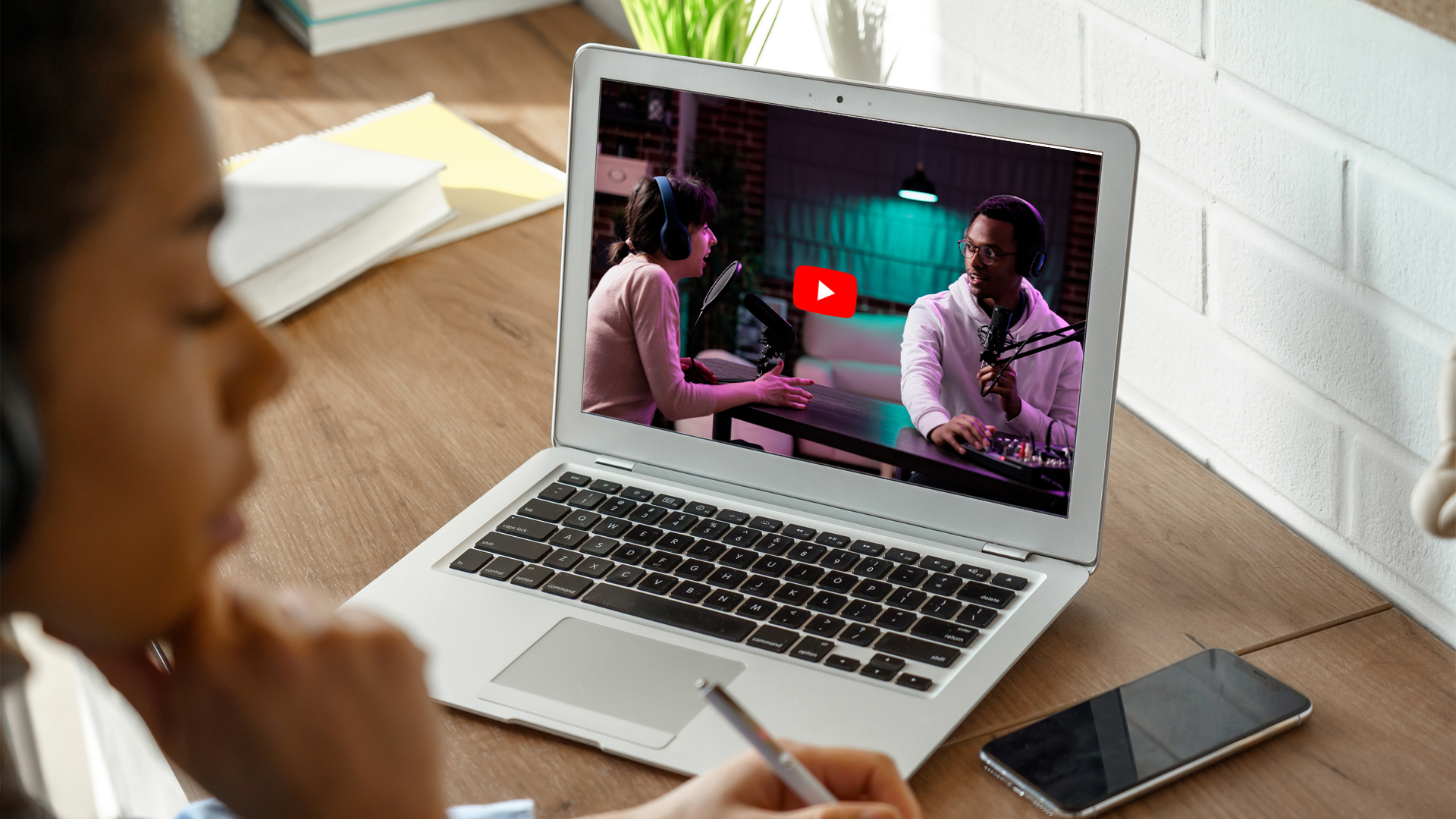
You should also try to design a dynamic thumbnail that captures the style and tone of the episode (or clip) but isn’t too crowded with text and information. There are many guides online for best practices, and again you may have to do a few versions for different platforms. One of the most important steps then become monitoring your engagement and feedback. Are there parts of the podcast or its presentation that people specifically seem to enjoy? Are some clips or episodes performing significantly better than others? Learn from this and continually refine your approach. You’re never going to nail it right out of the gate, but with enough time, practice, and patience, your video podcast might just become a hit.
