
If you’re starting a video podcast or looking to get into live streaming, you’ve come to the right place. I have experience with both, so I speak from personal experience when I say you’ll need a capable computer to do either. What kind of computer exactly? Thankfully, the answer is simple.
For the time being, I can’t suggest building your own PC just for this. The prices of memory (or RAM) have skyrocketed due to the demands of AI infrastructure. In many cases, the price of memory has even surpassed some pre-built systems I’ve seen. The good news is that despite the component’s cost going up, many OEMs like Dell, HP, ASUS, MSI, and others maintain a solid power-to-price ratio. This means that you can get a solid system for the right price.
I should also say that there is significant overlap between PCs made for streaming and PCs made for editing. As I will reiterate several times during this piece, the more powerful your system is, the more that you can do. Can you render a video on a lower-spec PC? Absolutely, but don’t expect to be fast.
Finally, I want to say that some people who stream games online could have an archaic setup. For example, they will have a main PC that the game is being played on looped to a secondary PC using a capture card to stream that content online. This relieves the main PC of any of the technical ties to the streaming software and assets needed. But, if you are someone who doesn’t want two computers and wants to do it all on one, this is the article for you. Now that we have our bases covered, let’s get into it!
Laptop vs. Desktop
First and foremost, don’t get a laptop just for this. Laptops have extremely limited capabilities when it comes to performing tasks of this caliber. On top of that, laptops are not exactly made for long-term streaming and for being on and working on projects for an extended period of time—you only have so much power, cooling capabilities, and a narrow selection of USB ports. Don’t’ get me wrong, you can perform streaming and editing tasks on a laptop, but your system willl experience greater wear and tear on the system because of it. Additionally, you won’t be able to perform major upgrades and would have to buy a whole new system entirely.
In a separate article where I discussed capture cards, many of them must be installed within a workstation desktop system and cannot be added to a laptop at all. External devices like Thunderbolt-equipped audio interfaces can be used on a laptop, but you are once again limited to the number of ports you have. Need to set up a camera and a mic plus anything else? Chances are that your laptop might not have the ports to accommodate that type of setup.
To add insult to injury, when you overload your ports with other peripherals like hubs, you can impact the speed of the processor of the laptop causing unstable performance when recording or streaming.
This is why I suggest a desktop system with a robust CPU. You’ll have ample ports (some of which are maintained by the processor), enhanced cooling capabilities, and you can easily install the capture cards you need for your production. You also have the added benefit of being able to use external devices as well. To top it all off, since live streaming itself requires a solid internet connection, you tend to have an ethernet port for a wired network connection which is more reliable than any sort of Wi-Fi. Desktop PCs are way more convenient when it comes to this topic in almost every single metric except for one: portability, but you don’t have to really worry about that.
Don’t get me wrong, a solid MacBook Pro has the power to run a single-camera setup (maybe two) with a single mic, but it won’t do the production any justice. If you are looking to edit down your media into something for, let’s say YouTube or TikTok, then a MacBook Pro would make an excellent tool!
Considerations
There are a ton of factors that you must consider when trying to find the right computer. Now, assuming you stick with desktop systems as I already mentioned, you do have plenty of options out there. What is important is that you have the right baseline components to ensure smooth editing and rendering.
While there is a lot of overlap between streaming and editing, there is one important distinction between the two: rendering. The last step in post-processing, rendering takes all the work you have done and compiles it into a single video file that you can upload to the internet. Your components determine how fast the rendering process goes. Your CPU, memory, and GPU all assist with the production process just like any other task. The better these components are, the faster and more efficient your system will be. You can technically render on an old computer with low specs, but it won’t be as effective or efficient as something newer. So, what specs should we look at?
CPU
Let’s talk baseline here. Do you need the best CPU to edit your video footage? No. Does it help? Absolutely. You can have a low- to mid-tier processor that can render a video, but it won’t be quick and could take a ton of time depending on the length of the video. But if we are looking at just a solid, respectable baseline, you have options. When it comes to the semantics of CPUs, then I would suggest catching up in our Guide to CPUs. Granted, this is made with the intention directed towards gamers, but as we move on, we learn that there is a very thin line between gaming and editing stations.
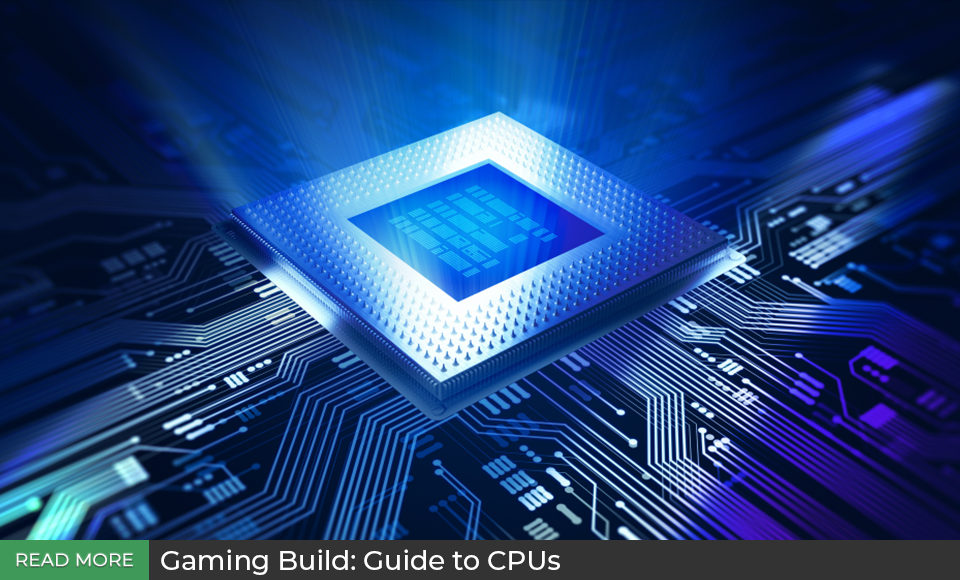
To be frank, you want at least an Intel Core i7 or Core Ultra 7 series processor. You could also go for an AMD Ryzen 7 or Ryzen 9 processor, which are just as good as Intel’s offerings. The architecture behind both processors gets a bit technical with a slew of cores and threads. If you wish to learn more about those, then I would recommend visiting that CPU guide.
Memory
As I mentioned before, memory is currently very expensive. If you are getting a pre-built, the cost is offset. I suggest starting out with at least 32GB of DDR5 memory as the bare minimum specifically set with dual 16GB modules to enable “dual-channel” capabilities. This will assist with the rendering process. Think about it this way, if you have a spout that is pouring water into one cup for soup, that cup will constantly need to pour out its contents into the pot at a rapid rate. If you have a second cup, you can have one cup pouring while another is filling the pot.
If you’re looking for greater rendering uplift, I would say 64GB of memory will be just fine. Anything higher could be slightly overkill, but nevertheless that depends on your needs. 128GB and 240GB are the top-tier extreme levels of memory capacity that solely depends on your needs as an editor. If you want to reduce time spent rendering, then more is better, albeit costly.
Storage
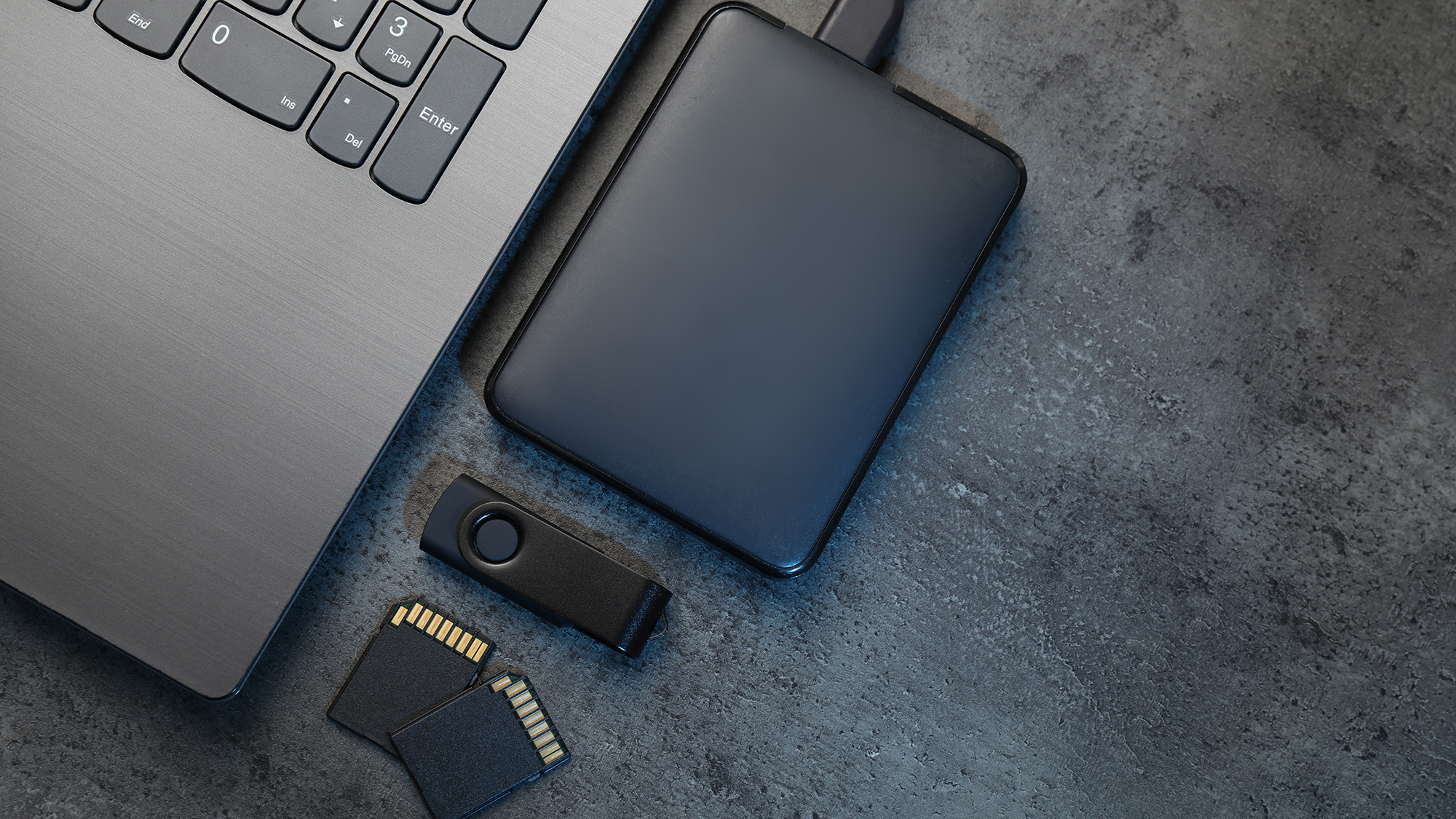
Believe it or not, storage matters. If you are rendering a project and everything is on a Hard-Disk Drive (HDD), then your editing process could be affected. Solid-State Drives (SSDs) are faster with internal M.2 SSDs offering the fastest speeds currently. This helps with rendering because your system is pulling the necessary files to compile at a much quicker rate. If your editing application is stored on an M.2 SSD, then you would also see a performance increase there. M.2 SSDs have become so normalized that if you purchase a new PC today or within the last couple of years, chances are that you will have an M.2 SSD already in there.
GPU
Graphics cards are also incredibly important to the rendering process especially if you are using any elements like special effects. There are multiple types of graphics cards out there from AMD, NVIDIA, and Intel. You can get easily lost and confused within the details, which is why I suggest diving into our Guide on GPUs to help sort out what is most important to you.

To summarize quickly, the biggest impact on video editing is the resolution you are editing in. For 4K videos, you might want something like an NVIDIA GeForce RTX 5080 or even an RTX 5090. If you are just going for standard 1080p HD visuals, then you could go with an RTX 5070 Ti or RTX 5070. They do offer different VRAM allocations, so the more robust the GPU, the faster it will perform. These cards also have the added benefit of giving you access to NVIDIA’s software suite which includes basic driver updates as well as additional capabilities like DLSS, FrameGen, Reflex, and more. There is also my personal favorite application, NVIDIA Broadcast, which is essential for a few users who want to leverage additional enhancements like background noise reduction, Studio Voice, and more.

On the other side of the river is AMD with their own type of graphics card. Now, I’m going to cut to the chase here: AMD cards are great for gaming with limited headroom for editors. Live streaming is fine, but they aren’t as vast in their capabilities. Now, the one saving grace here is how AMD leverages the AV1 codec which is very important when it comes to compressing your footage. This is because AV1 is an open-source codec which enables anyone to adjust and enhance the format to better work with creators who really want to fine-tune their experience.
Intel also has their own brand of graphics cards dubbed “Arc.” These are significantly more effective when it comes to live streaming using the AV1 codec, specifically when you’re operating at 3.5 Mb/s. Otherwise, they are also solid graphics cards when it comes to playing games or rendering video. But they haven’t been as widely adopted. Truth be told, Intel comes into the market with their B580 graphics card at an affordable price while delivering best-in-class price to performance when it comes to codec performance.
Display Support
I will also note that when it comes to display support, most modern graphics cards feature a number of HDMI and DisplayPort video outputs. Now, even though your mid-range graphics card can support multiple displays, doesn’t mean it should. If you are running multiple 4K displays off a low- to mid-range graphics card, then you’re going to experience some issues that may come in the form of lower resolution or frame rates dips.
For these low- to mid-range cards, you are safe with one to three displays if they aren’t all the same resolution. Personally, I run two monitors off an AMD RX 9070 XT, one is an ultrawide 3440 x 1440 display while the other is a 1920 x 1080 display. This enables me to play a game on my main monitor while my secondary monitor is designated to manage OBS and chat when I live stream. I happen to offload a few of the more power functionality to my Elgato Stream Deck+ which helps in managing scenes and other streaming assets.
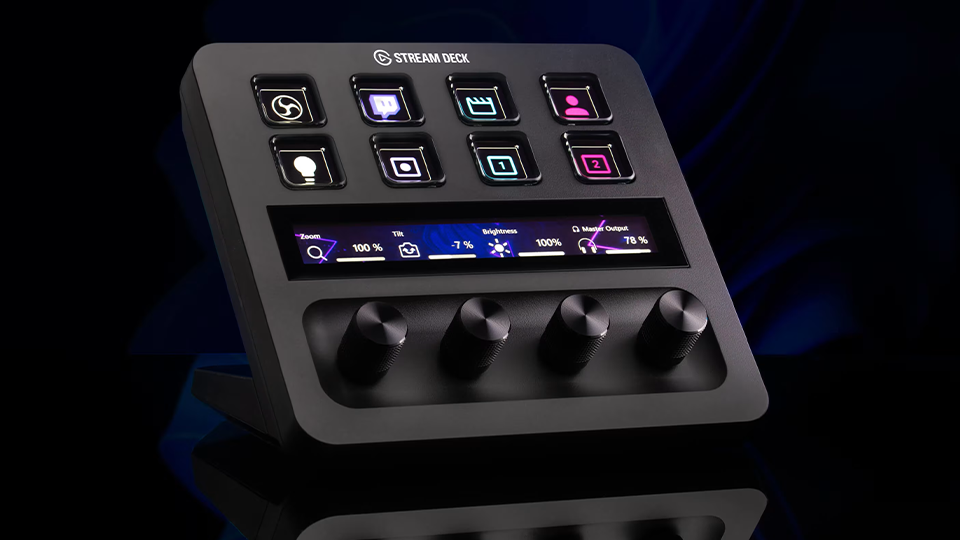
If you have a high-end graphics card, think an RTX 5080 and above, you can run a number of high-resolution displays with multiple 4K displays. Just keep in mind what you are using each display for and if it makes sense to have more than two or three.
Other Considerations
When looking for a live-streaming dedicated PC, there are a ton of other considerations to make. We have already covered the more important factors but what about stuff like ports? Maybe networking connectivity? These are good to point out because depending on your workload, these could make a huge difference in your experience.
People love having a ton of USB ports and as a live streamer, it is important to have a few for your standard peripherals (keyboard and mouse) as well as other devices like your webcam, microphone, or even devices like the Stream Deck+ I mentioned earlier. What you need to know is that devices like your mouse and keyboard don’t need a lot of power to use. A simple USB-A 2.0 port suffices for these basic peripherals. When it comes to something like a webcam or microphone, you should be using USB 3.2 Gen 1 or Gen 2 ports to prevent any sort of distortion in the video or audio. Those types of ports have a blue tab in the port and I would suggest having at least four of those available at any time on the back panel of the system.
I want to stress that it is important to keep what you are using in mind because you can overload your USB ports. Too many devices on the motherboard could cause issues, so if you plan to leverage a ton of other devices, think critically about what you need the most.
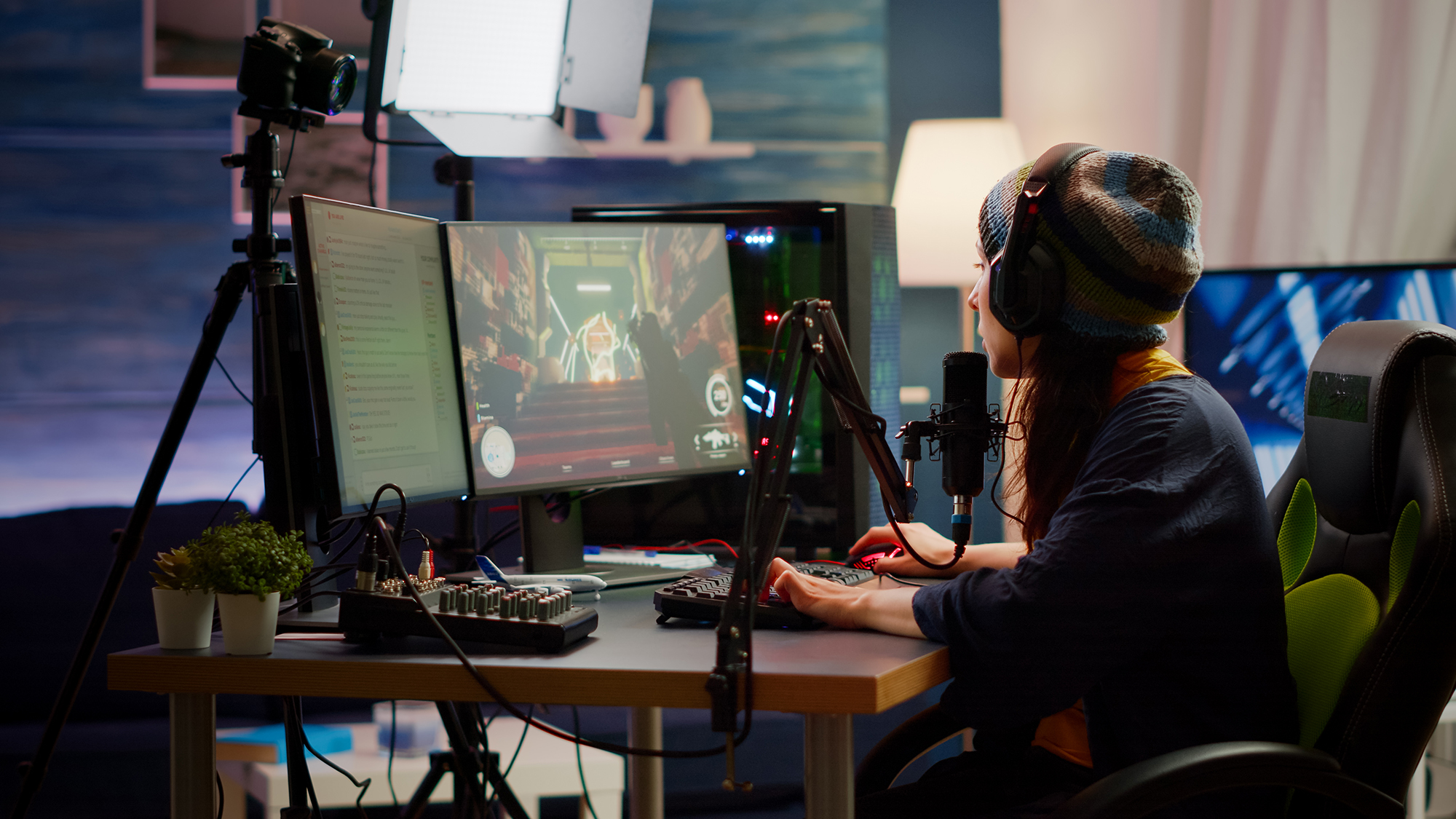
You should also consider ethernet ports which offer a way to hard wire your PC to your router or modem. This will provide you with fast speeds, typically up to 1 Gigabit for most motherboards. But the rise of 2.5 GbE and even 10 GbE is becoming more popular. While you might not need a single 10 GbE port, there are motherboards with them so you can access your internet or network attached storage quickly. If you are streaming, especially online games, you will need a bit of extra bandwidth to manage these use cases since they can be absolute network hogs.
Thunderbolt and USB4 are also port technologies that I want to briefly touch on because they can be found on a lot of systems but are still somewhat rare. When it comes to live streaming, these will not really help you when it comes to the quality of your content. But, if you are editing footage, these are great ports to have. This is because their data transfer speeds are usually quick, reaching an upwards of 80 Gb/s! This means that you can quickly backup footage onto an external storage drive quickly, scrub through that footage with ease, and even experience real time playback.
Finally, when it comes to the “nice to have” features of a good creator PC, having a breathable case is important. You want great airflow to keep your system cool under heavy loads, especially rendering large files. So having cool air blow throughout your case is important. Look at the front vents, intake fans, exhaust fans, and make sure you have a PC that is fully optimized when it comes to cooling capabilities. When you buy a pre-built PC, you won’t really have a choice in the matter. So, make sure you look at the specs of the system to make sure it has the case and the fans you want.
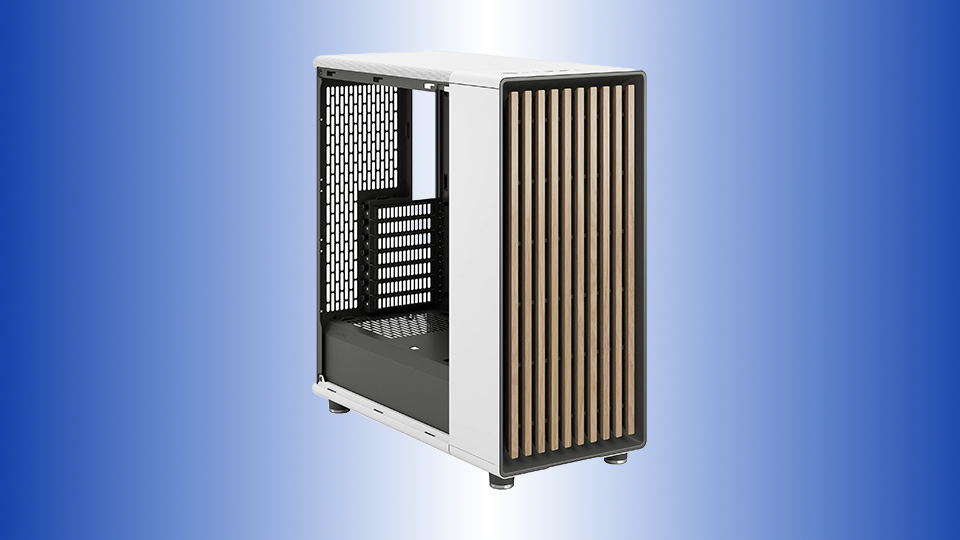
We went over every single aspect of a computer that would make it good for both streaming and editing. There is significant overlap between these two types of systems and a general gaming or workstation desktop. The more powerful it is, the faster it can do things, but that comes at a cost. Remember to think about balance and budget, at least for individual users who are doing this as part of their hobby or early stages of their career. When users get more experience and want something super powerful, there are tons of options out there with scalable costs. These types of power-hungry systems are typically purchased by companies rather than the individual, which in case all you need to do is show up with some imagination, motivation, and drive.
